
Understanding Roles and Permissions
Tutorial 1.3: Understanding Roles and Permissions
Introduction
Luminate has five different user roles: Owner, Admin, Manager, Staff, and Receptionist. This guide explains what each role can do, which features they can access, and how to choose the right role when adding team members. Essential reading before you start inviting your team.
Who this is for: Salon owners and administrators who need to understand access levels before adding team members.
What you'll learn:
- The five user roles and their purpose
- Detailed permissions for each role
- How to choose the right role for each team member
- Role hierarchy and approval workflows
Time to complete: 10-15 minutes
Prerequisites
Before you begin:
- You should have completed Tutorial 1.1 (Welcome to Luminate)
- Helpful to have a list of your team members and their responsibilities
The Five User Roles
Luminate uses a role-based permission system. Each role has specific abilities and restrictions designed to match common salon job functions.
| Role | Purpose | Typical User |
|---|---|---|
| Owner | Full control of everything | Salon owner, business owner |
| Admin | Day-to-day operations management | Senior manager, operations manager |
| Manager | Team supervision and scheduling | Floor manager, senior stylist |
| Staff | Individual service provider | Stylist, therapist, technician |
| Receptionist | Front desk operations | Receptionist, booking coordinator |
Role Details
Owner
The Owner role has complete access to all features. This is the highest permission level.
Key Abilities:
- All Admin, Manager, Staff, and Receptionist abilities
- Manage billing and subscription
- Create and manage multiple salons
- Export all data
- Process refunds
- Access all settings
Best For: Business owners who need full control. The Owner is the account that registered the business.
Special Notes:
- Owners bypass all permission checks
- Only Owners can manage subscription/billing
- Owners automatically have access to all salons they own
- Owner is not a role you can assign to a team member — it belongs to the account that signed up. Team members are added as Admin, Manager, Staff, or Receptionist.
Admin
Admins handle day-to-day operations without access to billing.
Key Abilities:
- All Manager, Staff, and Receptionist abilities
- Create and manage staff accounts (invite, remove)
- Process refunds
- Export reports to Excel/CSV
- Manage all salon settings (except billing)
- View and manage all staff data
- Approve leave for all staff
Cannot Do:
- Access billing or subscription settings
- Create new salons
- Add/remove Owners
Best For: Operations managers, senior managers who run the salon but shouldn't access finances.
Manager
Managers supervise teams and handle operational approvals.
Key Abilities:
- All Staff and Receptionist abilities
- Process refunds
- View (but not export) reports
- Manage the roster (create/edit/delete shifts)
- Approve leave requests from Staff and Receptionists (not other Managers)
- View all staff performance data
- Manage waitlist entries
- Access all customer data
Cannot Do:
- Export reports
- Create staff login accounts
- Change salon settings
- View billing information
Best For: Floor managers, senior stylists with supervisory duties.
Staff
Staff members manage their own work and customers.
Key Abilities:
- View their own schedule
- Book and manage appointments
- Add and manage customers
- Process transactions (sales)
- Request leave (requires Manager/Admin approval)
- View their own performance statistics on the My Performance page (own sales, services completed, commission)
Cannot Do:
- View other staff members' detailed performance
- Process refunds
- Access reports beyond their own stats
- Modify the roster
- Change any settings
Best For: Stylists, therapists, technicians - anyone providing services.
Receptionist
Receptionists are the front-desk authority — they run the diary, the roster, the catalogue, the till, and the inbox.
Key Abilities:
- View all staff schedules (not just their own)
- Book and manage appointments and time blocks for any staff member
- Add, edit, and merge customers
- Process transactions and refunds, including voiding gift vouchers
- Manage the roster — create, edit, delete, and duplicate shifts
- Manage services and products (incl. price/stock changes)
- View staff list and basic profiles (compensation and HR notes hidden)
- Manage the message inbox — view, send, close, and archive threads
- Manage the waitlist
- View the Gift Vouchers report (the one report receptionists can open)
- View their own figures on the My Performance page
- Request leave (requires Manager/Admin approval)
Cannot Do:
- See other staff members' compensation, salary, commission, or confidential HR notes
- Add, edit, or deactivate staff records (or invite logins)
- Approve leave for other team members
- View the main reporting suite (revenue, staff performance, customer analytics, payroll, etc.) — the Gift Vouchers report is the only exception
- Export salon data (including the Gift Vouchers report)
- Change salon settings, notification templates, or billing
Best For: Front desk staff and booking coordinators who run the day-to-day operation but don't provide services.
Permission Comparison Table
| Feature | Owner | Admin | Manager | Staff | Receptionist |
|---|---|---|---|---|---|
| Appointments | |||||
| View own schedule | ✓ | ✓ | ✓ | ✓ | ✓ |
| View all schedules | ✓ | ✓ | ✓ | - | ✓ |
| Book appointments | ✓ | ✓ | ✓ | ✓ | ✓ |
| Customers | |||||
| View customers | ✓ | ✓ | ✓ | ✓ | ✓ |
| Add/edit customers | ✓ | ✓ | ✓ | ✓ | ✓ |
| Delete customers | ✓ | ✓ | ✓ | ✓ | ✓ |
| Merge duplicate customers | ✓ | ✓ | ✓ | - | ✓ |
| Transactions | |||||
| Process sales | ✓ | ✓ | ✓ | ✓ | ✓ |
| Process refunds | ✓ | ✓ | ✓ | - | ✓ |
| Void gift vouchers | ✓ | ✓ | ✓ | - | ✓ |
| View all transactions | ✓ | ✓ | ✓ | ✓ | ✓ |
| Staff | |||||
| View staff list and basic profile | ✓ | ✓ | ✓ | - | ✓ |
| View staff compensation/HR notes | ✓ | ✓ | - | - | - |
| Add/edit staff | ✓ | ✓ | - | - | - |
| Send login invites | ✓ | ✓ | - | - | - |
| Services & Products | |||||
| View | ✓ | ✓ | ✓ | ✓ | ✓ |
| Manage (create/edit/archive) | ✓ | ✓ | ✓ | - | ✓ |
| Roster | |||||
| View roster | ✓ | ✓ | ✓ | Own | ✓ |
| Edit roster | ✓ | ✓ | ✓ | - | ✓ |
| Messages | |||||
| View and send | ✓ | ✓ | ✓ | ✓ | ✓ |
| Close / archive threads | ✓ | ✓ | ✓ | - | ✓ |
| Leave | |||||
| Request leave | ✓ | ✓ | ✓ | ✓ | ✓ |
| Approve leave | ✓ | ✓ | Limited* | - | - |
| Reports | |||||
| Full reporting suite (revenue, performance, etc.) | ✓ | ✓ | ✓ | - | - |
| Gift Vouchers report | ✓ | ✓ | ✓ | - | ✓ |
| Own performance (My Performance page) | -† | ✓ | ✓ | ✓ | ✓ |
| Export reports | ✓ | ✓ | - | - | - |
| Settings | |||||
| Salon settings | ✓ | ✓ | - | - | - |
| Billing/subscription | ✓ | - | - | - | - |
| Other | |||||
| Manage waitlist | ✓ | ✓ | ✓ | ✓ | ✓ |
*Managers can only approve leave for Staff and Receptionists, not for other Managers or Admins.
†My Performance is a self-service page showing a team member their own sales, services, and commission. Owners don't use it — they have the full Dashboard and Reports instead.
How to Choose the Right Role
Decision Guide
Ask these questions when assigning a role:
Do they need billing access?
- Yes → Owner
- No → Continue
Do they need to export reports or manage staff accounts?
- Yes → Admin
- No → Continue
Do they manage the roster, approve leave, or process refunds?
- Yes → Manager
- No → Continue
Do they provide services to customers?
- Yes → Staff
- No → Receptionist
Common Scenarios
| Team Member | Recommended Role | Reason |
|---|---|---|
| Salon owner/partner | Owner | Needs billing and full control |
| General manager | Admin | Runs operations, no billing needed |
| Senior stylist (supervises juniors) | Manager | Approves leave, manages roster |
| Stylist/therapist | Staff | Provides services, manages own schedule |
| Front desk | Receptionist | Books for everyone, no services |
| Apprentice | Staff | Learning, limited to own work |
Role Hierarchy
Roles follow a hierarchy for certain operations:
Owner
  └── Admin
        └── Manager
              └── Staff / Receptionist
Leave Approval Chain:
- Staff/Receptionist leave → Approved by Manager, Admin, or Owner
- Manager leave → Approved by Admin or Owner only
- Admin leave → Can self-approve, or approved by another Admin or Owner
- Owner leave → Self-approved (no approval required)
Data Visibility:
- Higher roles can see data for roles below them
- Staff cannot see other Staff's detailed performance
- Receptionists can see schedules but not performance data
Step-by-Step Instructions
Viewing a Staff Member's Current Role
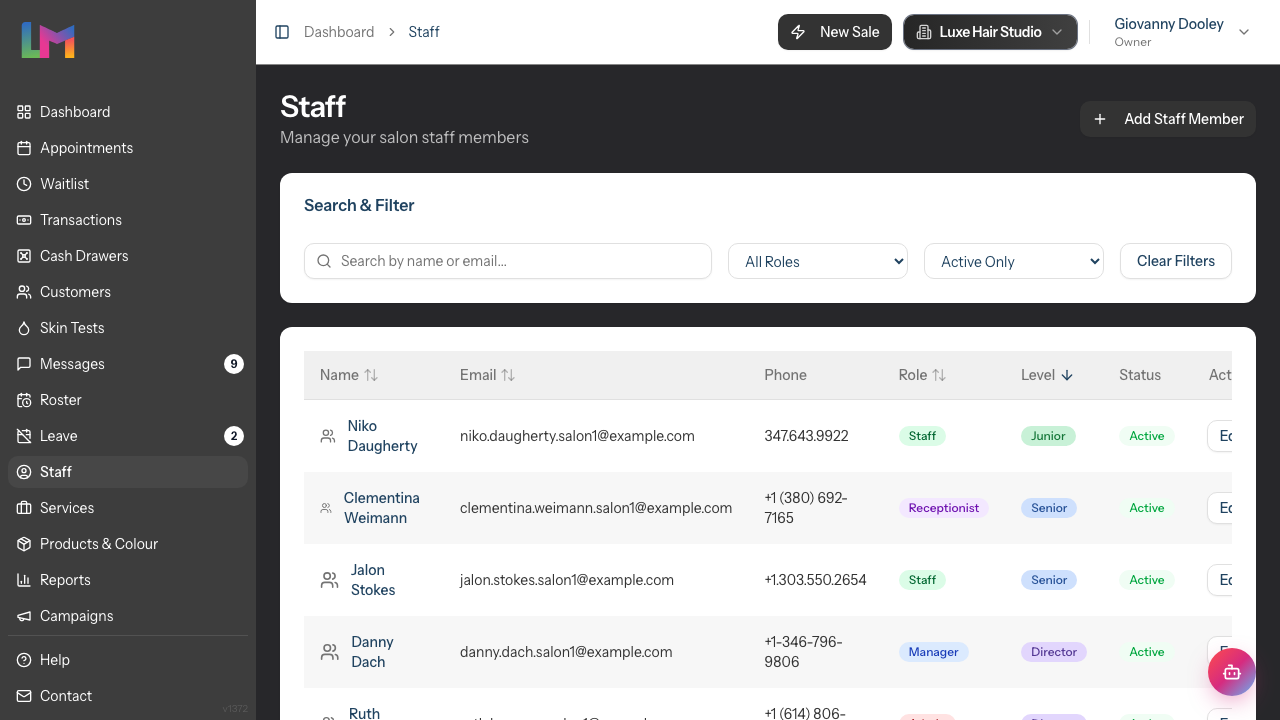
- Navigate to Staff in the sidebar
- Each team member's role is shown in the Role column of the staff list
- Click on the staff member's name to open their profile, where the role is also displayed
Changing a Staff Member's Role
- Navigate to Staff in the sidebar
- Click Edit on the staff member's profile
- Find the Role dropdown
- Select the new role
- Click Save Changes

Note: Only Owners and Admins can change roles. You cannot change your own role — ask another Owner or Admin to do it.
Understanding Permission Errors
If someone reports they "can't access" something:
- Check their current role
- Compare with the permission table above
- Decide if they need a higher role
- Or explain why that permission is restricted
Common Pitfalls
"My staff member can't process refunds"
Refunds require Manager, Admin, or Owner level. This is intentional - refunds affect finances and should be limited to supervisory roles.
"My receptionist can't see the reports"
The main reporting suite (revenue, staff performance, customer analytics, etc.) is reserved for Managers and above. Receptionists can still open the Gift Vouchers report and their own My Performance page, but nothing else. If they need wider commercial data, consider upgrading them to Manager, or have a Manager share the relevant figures.
"I made everyone an Admin for convenience"
This removes important safeguards. We recommend limiting Admin access to 1-2 trusted people. Too many Admins can lead to conflicting changes and reduces accountability.
"A staff member left and still has access"
Remove their login access immediately via Staff → [Name] → Remove Login Access. See Tutorial 4.2 for details.
"The role dropdown doesn't show Owner"
That's expected — Owner isn't a role you assign to a team member. The role dropdown only offers Admin, Manager, Staff, and Receptionist. The Owner is the account that registered the business; there's no in-app way to turn a team member into an Owner.
Tips and Best Practices
Start with lower permissions - You can always upgrade. It's harder to take permissions away.
Document who has what role - Keep a record outside Luminate of who has Owner/Admin access for security purposes.
Regular role audits - Quarterly, review who has elevated access and whether it's still needed.
One Owner minimum - Always ensure at least one active Owner exists. If the only Owner leaves, you lose billing access.
Separate personal and work accounts - If an Owner is also a practicing stylist, they can use their Owner account for everything. No need for a separate Staff account.
Use Manager for shift supervisors - If someone manages the floor but isn't senior management, Manager is the right level.
Related Tutorials
- Tutorial 1.1: Welcome to Luminate - Basic navigation
- Tutorial 1.4: The Onboarding Checklist - Complete setup
- Tutorial 4.1: Adding New Staff Members - Create staff profiles
- Tutorial 4.2: Managing Staff Login Accounts - Send invitations
- Tutorial 16.1-16.5: Role-Specific Guides - Detailed guides for each role
Frequently Asked Questions
Can someone have multiple roles?
No, each person has one role. Roles are cumulative in terms of abilities (Admin can do everything Manager can do, etc.), so assign the highest role they need.
Can I create custom roles?
Not currently. The five roles cover most salon scenarios. If you have a specific need, consider which existing role is closest to what you need.
What happens if I change someone's role?
The change is immediate. They'll have the new permissions next time they load a page or log in. They won't lose access to any data, but they might not be able to perform certain actions.
Can a Staff member see another Staff member's appointments?
They can see other appointments on the calendar (to understand salon availability) but cannot access detailed performance data or personal information about other staff.
Can I restrict a role further?
Not beyond what's built in. Each role has fixed permissions. If you need more restriction, use a lower role and manually share information as needed.
What if someone needs just one extra permission?
You'll need to upgrade their role to one that includes that permission. For example, if a Manager needs to export reports, they'll need to be upgraded to Admin.
Last Updated: June 2026