
Creating and Managing Your Service Menu
Tutorial 7.1: Creating and Managing Your Service Menu
Introduction
Your service menu is the foundation of your salon's booking system. Every appointment requires selecting a service, so having an accurate menu with correct pricing and durations is essential for smooth operations. This tutorial covers creating services, setting prices with staff level overrides, and managing your service list.
Who this is for: Owner, Admin What you'll learn:
- Create services with pricing and duration
- Set up staff level pricing overrides
- Configure processing time for colour services
- Mark a service as a colour service and set the included colour grams
- Configure deposit requirements for services
- Assign categories to organise services
- Control which services are available for online booking
- Activate and deactivate services
Time to complete: 15 minutes
Prerequisites
- Logged in as Owner or Admin with
manage-servicespermission - Complete Tutorial 1.2 (Setting Up Your Salon Profile)
- Optionally: Staff levels configured (Tutorial 4.3)
- Optionally: Colour formula mode set to Formulas or Full (Tutorial 20.2) — required before the Colour Service card appears
Step-by-Step Instructions
Step 1: Access Service Management
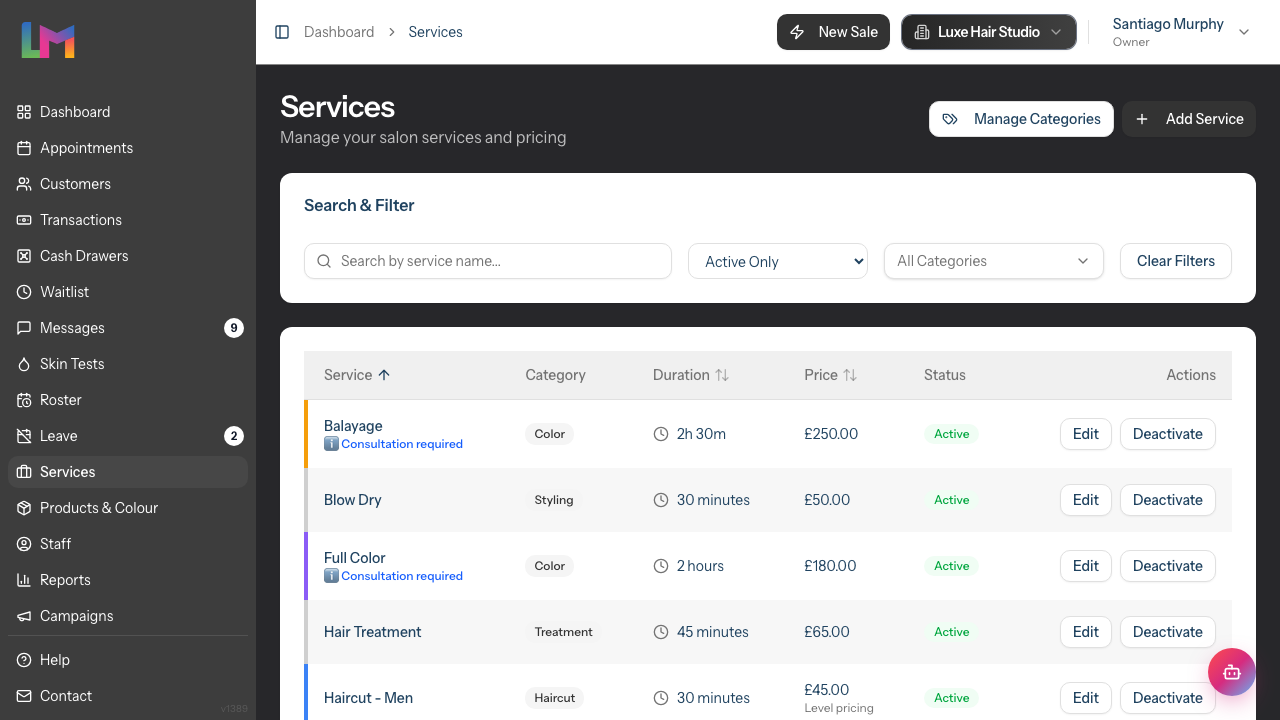
- Click Services in the sidebar
- The Services page displays your current services
- To manage your service categories, click Manage Categories in the top-right corner (see Tutorial 7.3)
- Click Add Service in the top-right corner to create a new service
Step 2: Enter Basic Information
The Basic Information section captures core service details:
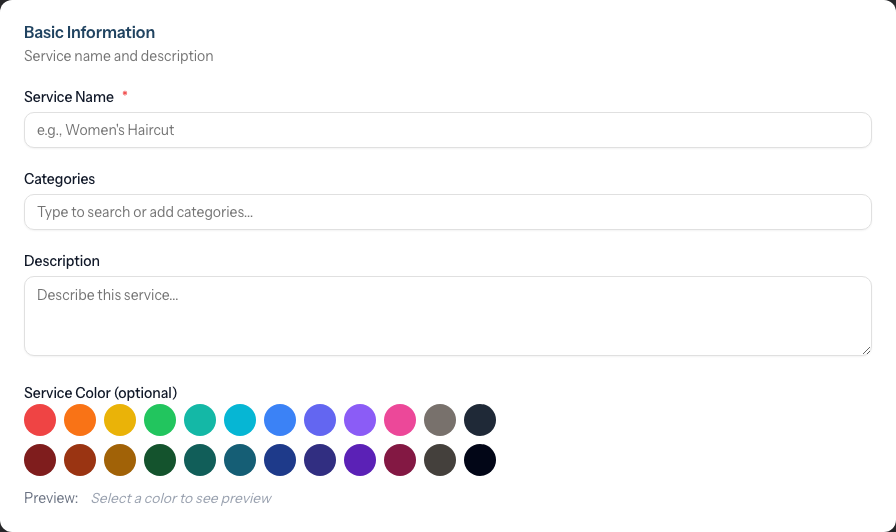
Service Name (required): Enter a clear, descriptive name customers will recognise.
- Example: "Cut & Blow Dry" rather than "CBD"
- Be specific: "Ladies Cut" vs "Gents Cut"
Categories: Type to search existing categories or create new ones. Categories help organise your service menu. See Tutorial 7.3 for category management.
Description (optional): Add details about what's included in the service.
Example: "Includes consultation, wash, precision cut, and blow dry finish"
Service Color (optional): Click to select a colour from the palette. This colour appears on the calendar to help identify services at a glance.
Step 3: Set Pricing and Duration
The Pricing & Duration section uses an integrated table to configure the base price and optional staff level overrides:
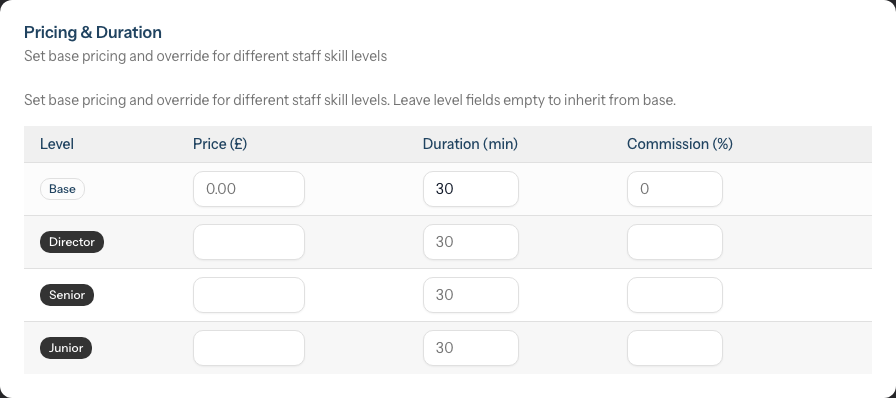
The table displays a Base row at the top with editable fields:
- Price: Enter the standard price for this service (required)
- Duration (min): Enter how long the service takes in minutes (required, default is 30 minutes)
- Commission (%): Enter the percentage staff earn when performing this service (optional - leave blank to use the staff member's default commission rate)
Staff Level Overrides: If your salon has staff levels configured (e.g., Junior, Senior, Director), additional rows appear below the Base row. For each level, you can set different prices, durations, and commission rates:
| Level | Price Override | Duration Override | Commission Override |
|---|---|---|---|
| Junior | Lower than base | May be longer | May be lower |
| Senior | Base price | Base duration | Base commission |
| Director | Higher than base | May be shorter | May be higher |
Leave level fields empty to inherit the base value. A clear button (×) appears next to levels with overrides, allowing you to reset them to inherit from base.
Step 4: Set Processing Time (Optional)
For services that require development time (e.g., colour services):
- In the Processing Time section, enter the processing time in minutes
- Or click a preset button: None, 15m, 30m, 45m, 60m
What is processing time? Processing time is the gap before the next service can begin. For example, colour development time where the stylist can attend to another client.
Step 5: Configure Settings
The Settings section contains service options:
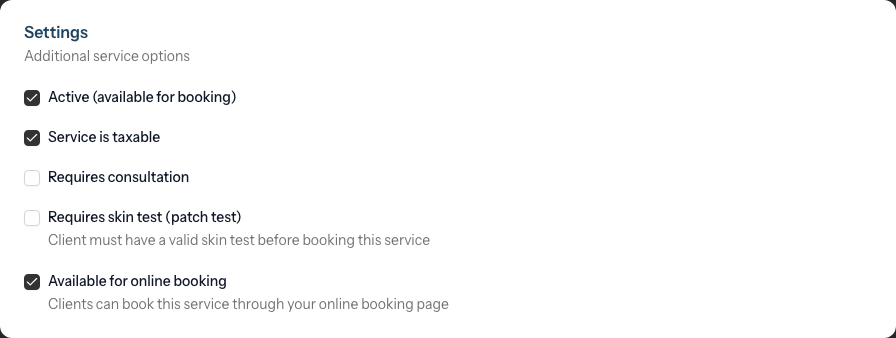
Active (available for booking):
- Checked (default): Service appears in booking options
- Unchecked: Service hidden from new bookings
Service is taxable:
- Checked (default): Tax is applied to this service
- Unchecked: No tax applied (e.g., gift voucher redemptions)
Requires consultation:
- Check if clients must have a consultation before booking
- A "Consultation Required" badge appears on the service
Requires skin test (patch test):
- Check if clients need a valid skin test before booking
- A "Skin Test Required" badge appears on the service
- System can track skin test validity dates
Available for online booking:
- Check if this service should appear on your public online booking page
- Checked (default): Customers can book this service online
- Unchecked: Service is only bookable by staff through the calendar
- See Tutorial 18.1 for setting up online booking
Step 6: Configure Colour Service (Optional)
The Colour Service card only appears when your salon's colour formula mode is set to Formulas or Full (see Tutorial 20.2). If your salon is in Notes mode, skip this step.
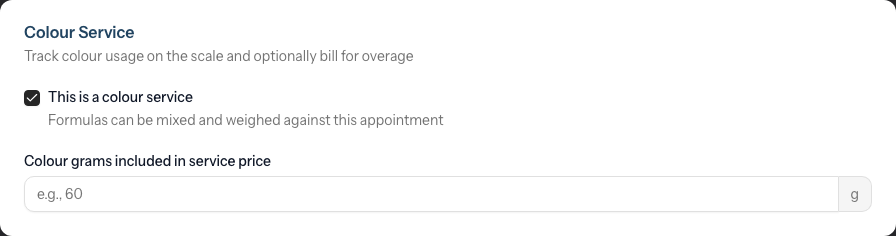
This is a colour service: Check this to flag the service as colour work. Once ticked, stylists can attach structured colour formulas to appointments booked against this service, and (in Full mode) the Colour Bar tablet flow will pick the appointment up for weighing.
When the checkbox is ticked, an additional field appears:
Colour grams included in service price (optional):
Enter how many grams of colour product the service price already covers (for example, 60 for a full head colour).
The three possible states for a service are:
| State | Behaviour |
|---|---|
| Unticked | Non-colour service. Stylists cannot attach formulas, the Colour Bar ignores it, and no overage is ever calculated. |
| Ticked with grams blank | Colour work is tracked (formulas can be recorded and weighed) but no overage is ever billed — useful for consultations, training, or during your initial rollout. |
| Ticked with grams set | Colour work is tracked AND your salon's colour charge rules calculate an overage above the threshold, which appears as an additional line item on the client's transaction. |
See Tutorial 20.2 for charge rules and Tutorial 20.8 for how the overage reaches the till.
Step 7: Configure Deposit Settings (Optional)
The Deposit Settings section allows you to require deposits for specific services:
Requires deposit: Check this option to require clients to pay a deposit when booking this service.
When enabled, additional fields appear:
Deposit Type:
- Fixed amount: Clients pay a specific amount (e.g., £25)
- Percentage of price: Clients pay a percentage of the service price (e.g., 25%)
Deposit Amount / Percentage: Enter the deposit value. For percentage deposits, the system shows a preview of the actual amount based on the service price.
Example: For a £100 service with a 25% deposit, the preview shows "deposit would be £25.00".
Step 8: Save the Service
- Review all entered information
- Click Create Service
- You're redirected to the Services list
- A success message confirms the service was created
Managing Existing Services
View Service Details
Each service row on the index page displays a coloured bar on its left edge, matching the service's assigned colour. This makes it easy to visually identify services at a glance.
- Click any row in the Services table
- The service detail page shows:
- Pricing & Duration card with price, duration, processing time (if set), commission rate (if set), and deposit configuration (if set)
- Details card with colour, description, and timestamps
- Staff Level Pricing table (if staff levels are configured)
- Status badges showing Active/Inactive status and any requirements (Consultation Required, Skin Test Required, Available Online)
- Category tags assigned to the service
Edit a Service
- From the Services list, click Edit next to the service
- Or from the service detail page, click Edit in the top-right corner
- Make your changes
- Click Update Service
Note: Changes affect future bookings only. Historical appointments retain their original service details.
Deactivate a Service
To hide a service from new bookings without deleting it:
- From the Services list, click Deactivate next to the service
- Or from the service detail page, click Deactivate
- A confirmation dialog asks you to confirm — click Deactivate in the dialog to proceed, or Cancel to back out
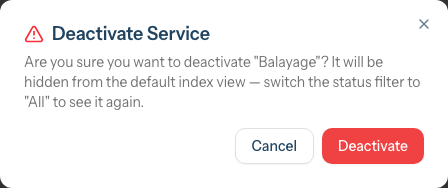
Deactivated services:
- Don't appear when creating new appointments
- Still show in historical records
- Can be reactivated at any time
After deactivation a toast confirms the action and reminds you that the service is now hidden from the default view — switch the status filter to All to find it again.
Activate a Service
To restore a deactivated service:
- Switch the status filter at the top of the Services list from Active Only to All Services or Inactive Only
- Click Activate next to the service
Filtering and Searching Services
Use the filters at the top of the Services page:

Search: Type to search by service name
Status Filter: By default the list shows active services only. Use the dropdown next to the search field to switch the view:
- Active Only (default) — hides deactivated services
- Inactive Only — shows only deactivated services
- All Services — shows both active and inactive together
Categories: Select one or more categories to filter by (uses the "All Categories" dropdown)
The table can be sorted by clicking column headers:
- Service (name)
- Duration
- Price
Common Pitfalls
"Service doesn't appear when booking appointments"
Check two things:
- The service is marked as Active
- The staff member you're booking for has this service enabled (if using service restrictions)
"Price shows differently in appointments"
If staff levels are configured, the price shown may be the level-specific price rather than the base price. Check the Staff Level Pricing section on the service detail page.
"I need different prices for different clients"
Prices can be adjusted when creating individual appointments. The service price is a default, not a fixed amount.
"I accidentally deactivated a service"
Filter to Inactive Only, find the service, and click Activate to restore it.
"Deposit amount seems wrong for percentage deposits"
For percentage deposits, the amount is calculated based on the service price. If you have staff level pricing, the deposit will be calculated from the level-specific price when booking.
Tips and Best Practices
- Start with core services - Add your 5-10 most popular services first, then expand
- Set accurate durations - Include buffer time for consultation and cleanup
- Use categories - Organise services by type (Cutting, Colour, Styling, Treatments)
- Be specific with names - "Ladies Cut & Blow Dry" is clearer than "Haircut"
- Set processing time for colour - Allows the stylist to multitask during development
- Review quarterly - Update prices and durations based on actual experience
- Use deposits strategically - Consider requiring deposits for high-value services or services with high no-show rates
- Keep tax settings consistent - Most services should be taxable; only disable for specific exceptions
- Control online visibility - Use the "Available for online booking" checkbox to choose exactly which services customers can book online. You can also bulk-manage this from the Online Booking tab in Salon Settings (see Tutorial 18.2).
Related Tutorials
- Tutorial 4.3: Staff Levels and Experience Tiers - Setting up level-based pricing
- Tutorial 7.2: Product Catalog and Inventory Management - Managing retail products
- Tutorial 7.3: Using Tags to Organize Services and Products - Creating categories
- Tutorial 18.2: Managing Your Online Booking Settings - Control which services appear online
- Tutorial 20.1: Getting Started with Colour Management - How colour services, formulas and billing fit together
- Tutorial 20.2: Configuring Colour Settings & Charge Rules - How included grams and overage rules interact
Frequently Asked Questions
Can I delete a service instead of deactivating it?
Deleting is not recommended because it affects historical records. Deactivate services instead to preserve appointment history. The system returns "Method Not Allowed" if you attempt to delete a service.
How do I set different prices for different staff members?
Use staff levels. Create levels (Junior, Senior, Director) and set price overrides per level on each service using the Pricing & Duration table.
What if a service takes longer for some clients?
Set the duration to accommodate the longer scenario. It's better to finish early than to run late. You can also adjust duration when creating individual appointments.
Can I duplicate a service to create variations?
Currently, services must be created individually. You'll need to re-enter all details including category selections for each new service.
How do I handle services with variable pricing (e.g., "from £50")?
Create separate services for each price tier (e.g., "Balayage - Short", "Balayage - Long") or use the base price and adjust at booking time.
Do changes affect existing appointments?
No. Editing a service only affects future bookings. Existing appointments retain their original price and duration.
Should I require deposits for all services?
Generally, deposits work best for higher-value services (colour treatments, extensions) or appointments where no-shows are costly. For quick services like trims, deposits may deter bookings.
The Colour Service card isn't showing — why?
It's gated on your salon's colour formula mode. Go to Settings > Colour and switch the mode from Notes to Formulas or Full (Tutorial 20.2). Save, then reload the service form — the card appears.
What happens if I leave "Colour grams included" blank?
The service is still flagged as colour work, so stylists can record formulas and (in Full mode) the Colour Bar picks up the appointment for weighing. But because no included-grams threshold is set, no overage is ever calculated — you'll never see a colour overage line on the transaction for this service.
What's the difference between "Service is taxable" and other settings?
The taxable setting determines whether VAT/tax is calculated on this service. Most services should be taxable. Only disable this for specific cases like gift voucher redemptions or services that are VAT-exempt.
How do I control which services appear on my online booking page?
Each service has an "Available for online booking" checkbox in its Settings section. When checked, the service appears on your public booking page. When unchecked, it's hidden from online booking but still available for staff to book through the calendar. You can also bulk-manage this from Salon Settings > Online Booking tab (see Tutorial 18.2).
Last Updated: May 2026