
Colour Bar Overview and Setup
Introduction
The Colour Bar is Luminate's tablet-based companion for the colour mixing station. It's a full-screen, dark-themed, glove-friendly interface that sits on an iPad next to your scale and walks stylists through planning a formula, weighing bowls live, and reconciling leftover product after application.
This tutorial is the introduction. It covers what the Colour Bar is, what hardware you need, and how to get the iPad into Colour Bar mode. Day-to-day use and the individual screens have their own tutorials (20.10–20.15).
Who this is for: Owner, Manager, or whoever is setting up the mixing station What you'll learn:
- What the Colour Bar is and when to use it
- Hardware you'll need (iPad, scale, mount)
- How to install the native app and switch it into Colour Bar mode
- How the Colour Bar relates to the main web app
Time to complete: 10 minutes
Prerequisites
- Salon colour formula mode set to Formulas or Full (Tutorial 20.2) — the Colour Bar is hidden on Notes mode
- Services flagged as colour services (Tutorial 7.1) so they appear on the Today list
- Colour products in your catalogue (Tutorial 20.4)
- For Full mode only: Colour grams included set on the service (Tutorial 7.1) and stock counts reconciled (Tutorial 20.5) — required for auto-charge, not for the Colour Bar itself
What is the Colour Bar?
The Colour Bar is a tablet-optimised alternative to the formula dialog covered in Tutorial 20.6. It's the same data — formulas, bowls, grams, actuals — but the UI is tuned for the mixing station itself: big touch targets, live scale readout, barcode scanning per bowl, and a linear Today → Appointment → Edit → Weigh leftovers path. (There's a separate Mix screen for when you reuse a customer's previous formula — see Tutorial 20.12.)
You don't have to use the Colour Bar. The main web app's formula dialog works just as well — especially if your stylists are comfortable at a laptop or regular workstation. Use the Colour Bar when you want:
- A dedicated device at the mixing station that doesn't double as a laptop
- Live weighing against a Bluetooth scale, paired from the Colour Bar header (Tutorial 20.14)
- A glove-friendly UI that doesn't fight you during a busy colour day
Hardware you'll need
iPad
Any iPad capable of running a recent iPadOS — the app's minimum is iPadOS 15, but we recommend iPadOS 16 or later for ongoing security updates. We've validated the layout against:
- Display: 10" or larger. The interface is laid out for the 820×1180 viewport of an iPad Air in portrait — smaller iPads (mini, 9.7" Air) work but the bowl cards become tight under gloved fingers.
- Storage: any — the app is light, since the salon data lives on the server.
- Case: a protective, wipe-clean case (it's going to live next to a colour station).
- Mount: a swing-arm or weighted stand so it's at eye level.
Scale
A compatible Bluetooth scale. The validated hardware is the Acaia Pearl 2021 (flat, water-resistant — the right choice for a wet station). Pairing happens inside the Colour Bar itself, from the Pair scale button in the header; step-by-step instructions are in Tutorial 20.14.
Note: Live Bluetooth weighing needs the native app. In a desktop browser the Colour Bar runs against a simulated scale — the header pill reads Simulated scale, and the planning and weighing flows are fully usable for training, but no real scale is involved.
Optional: barcode scanner
A Bluetooth barcode scanner paired to the iPad as a keyboard (HID mode) — used for auto-adding products to bowls in the Edit screen. The Colour Bar works fine without one (the catalogue picker and search by name are always available), but a scanner is noticeably faster during busy colour days.
Step-by-Step: Get the iPad on the Colour Bar
Step 1: Install the Luminate native app
- On the iPad, open the App Store
- Search for Luminate
- Install and open the app
Testing pre-release? Luminate is distributed via TestFlight during the rollout period. Your Owner will forward the TestFlight invitation — follow the email's link, install TestFlight if prompted, then install Luminate from within TestFlight.
Step 2: Log in
- Log in with your usual Luminate credentials
- Complete any 2FA challenge as usual
The first time you log in on a native device, the app shows a Welcome back screen with two large cards — this is the mode chooser.
Step 3: Pick Colour Bar mode
The chooser is headed Welcome back, with the line "Choose how you'd like to use Luminate on this device. You can switch any time from the top-bar menu." underneath, and shows two options:
- Colour Bar — "Mounted iPad at the mixing station — appointments, formula history, live weighing. Optimised for gloved fingers." Pick this if the iPad is going to live at the mixing station.
- App — "The full Luminate experience — diary, customers, transactions, reports, settings." Pick this if the iPad is a general staff tablet (reception, back-office, etc.).
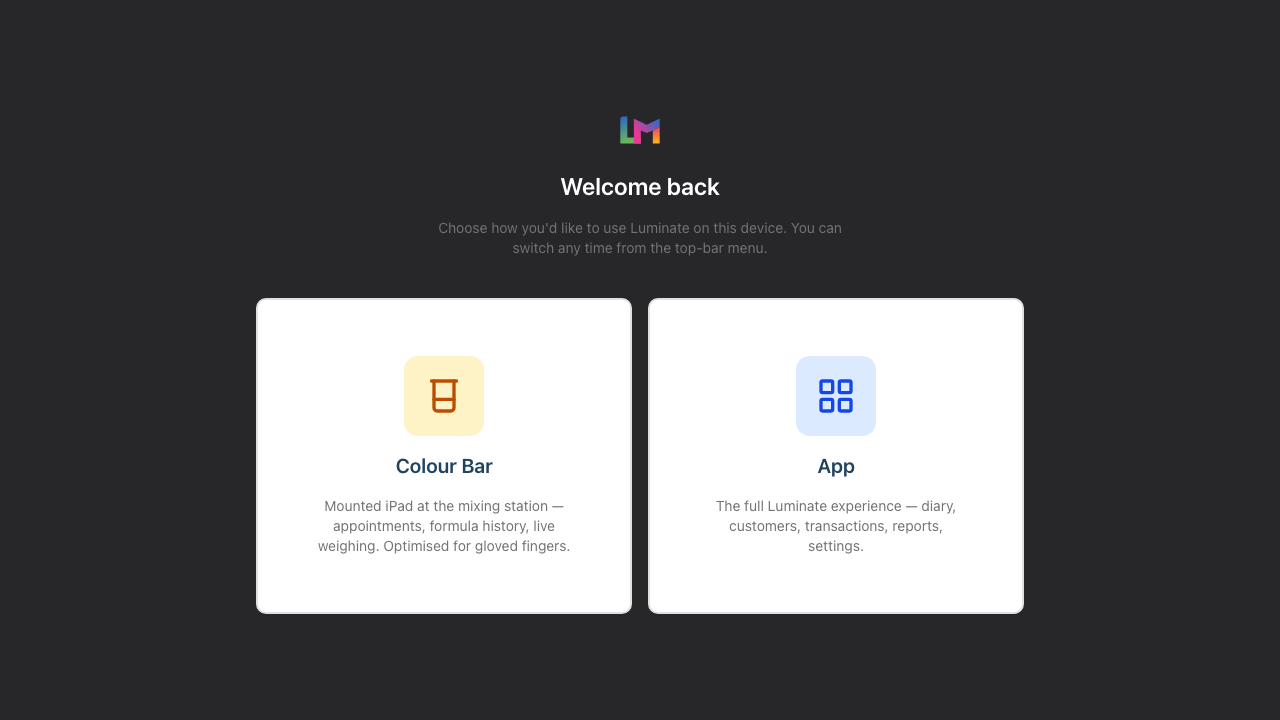
Tap Colour Bar to enter the tablet flow. The choice is saved to the iPad's local storage, so the chooser is skipped from then on: an iPad set to Colour Bar opens straight into the Colour Bar every time the app is launched, and an iPad set to App lands on the dashboard with the Colour Bar one tap away from the sidebar shortcut (only visible inside the native app).
The jump to the Colour Bar happens once per app launch. If you leave the Colour Bar to use the rest of Luminate, you stay in the main app until the next time the app is opened, so you are never bounced back mid-session.
Only seeing the App card? The Colour Bar card and the sidebar shortcut only appear once the salon's colour formula mode is Formulas or Full. On a Notes only salon the chooser shows the App card on its own, with a note reading "Colour Bar is not available — The Colour Bar needs this salon set to Formulas or Full colour mode. An owner or admin can change that in Salon settings, under Services then Colour." Change the mode (Tutorial 20.2) and the card comes back on the next visit.
Step 4: Switch modes later
Switch mode takes you back to the chooser, and it sits in two places inside the native app:
- In the Colour Bar — the footer, bottom-right
- In App mode — the top bar, to the left of the salon badge (on a narrow screen it collapses to the grid icon)
Your choice is per-device — different iPads in the salon can be on different modes, and clearing the iPad's site data (or reinstalling the app) will reset the chooser. Switch mode only appears inside the native app; opening the Colour Bar in a desktop browser shows a Back to Luminate link in the footer instead.
Step 5: Sign out when you leave
The Colour Bar inherits your normal login session. If you're leaving the salon and the iPad stays, sign out from the usual profile menu (in App mode) or leave it on Colour Bar if that's the station's permanent role — the session renews as long as someone uses the system.
How it relates to the main web app
The Colour Bar and the main web app read and write the same data. A formula finalised on the Colour Bar appears on the customer profile in the web app. A formula finalised in the web app appears on the Colour Bar if the appointment is on today's list. There's no sync step to think about.
The main difference is workflow:
| Main web app dialog | Colour Bar |
|---|---|
| One modal dialog | Full-screen pages per step |
| Desktop / laptop browser | iPad native app (or iPad browser) |
| Manual weighing (type the grams) | Live weighing against a paired Bluetooth scale |
| Cart / POS integration on the same screen | POS happens back on the main app |
Use whichever suits the task. Most salons end up with a hybrid — stylists at the station use the Colour Bar, receptionists and managers use the web app.
Common Pitfalls
"The Colour Bar app just shows a dashboard"
Usually the mode is set to App, not Colour Bar - tap Switch mode in the top bar to return to the chooser, or open the Colour Bar directly from the sidebar shortcut. If the iPad is set to Colour Bar and still lands on the dashboard, check whether your salon is on Notes mode (Salon settings → Colour, Tutorial 20.2). A Notes-mode salon has no Colour Bar to open, so the app deliberately stays on the dashboard rather than throwing you into an error page.
"I can't find the Colour Bar link in the desktop browser sidebar"
The Colour Bar lives on the mounted tablet, so the sidebar entry only appears in the native app (iPad or Android). On a desktop or laptop browser there is no sidebar link — navigate directly to /salons/{salon-id}/colour-bar if you need to open it from the web.
"There's no Colour Bar card or sidebar shortcut in the iPad app"
Your salon is on Notes mode, so there are no structured formulas for the Colour Bar to work with and both entry points are hidden. Switch to Formulas or Full in Salon settings → Services → Colour (Tutorial 20.2). If someone reaches the Colour Bar by an old bookmark while the salon is on Notes mode, they get an Access denied page that says the same thing, with a Go home button back to the app.
"Nothing appears on Today — we booked colour appointments"
Check that your services are flagged as colour services (Tutorial 7.1). The Colour Bar's Today list only shows appointments whose service has is_colour_service = true.
"I'm using a browser instead of the native app"
Web access is by direct URL only — navigate to https://app.luminate.salon/salons/{salon-id}/colour-bar. The sidebar entry only appears inside the native app, so a browser won't show it. You also won't get the Switch mode button (the footer shows a Back to Luminate link instead), and there's no real Bluetooth: the header pill you see in a browser reads Simulated scale, which is a training simulation, not your Acaia.
"The sidebar is missing"
The Colour Bar uses its own layout (ColourBarLayout) — no main-app sidebar. The "Back to Luminate" link in the footer returns to the main app.
Tips and Best Practices
- Dedicate an iPad to the Colour Bar — switching modes constantly is annoying.
- Put the iPad on a mount, not flat on the bench — it's easier to glance at between pours.
- Keep the iPad plugged in during service hours — live weighing and barcode scanning drain battery faster than idle use.
- Train stylists on the main web app too — if the iPad ever has an issue, they can still finalise formulas via the web app's dialog.
- Run a quick audit weekly — open the Colour Bar in App mode as an Owner and check the appointments list, stock, and any formulas in
pendingstatus.
Related Tutorials
- Tutorial 20.2: Configuring Colour Settings & Charge Rules — set the salon to Formulas or Full mode
- Tutorial 20.4: Setting Up Colour Products
- Tutorial 20.5: Colour Stock Take
- Tutorial 20.10: Colour Bar: Day-to-Day Use
- Tutorial 20.11: Colour Bar: Planning a Formula
- Tutorial 20.12: Colour Bar: Mixing with the Scale
- Tutorial 20.13: Colour Bar: Weighing Leftovers
- Tutorial 20.14: Pairing Your Acaia Pearl Scale
- Tutorial 20.15: Troubleshooting the Colour Bar & Scale
- Tutorial 7.1: Creating and Managing Your Service Menu — flag a service as a colour service so it reaches the Today list
Frequently Asked Questions
Can I use the Colour Bar on an Android tablet?
Yes — the app is available on Android too, and scale pairing works the same way. The first scan asks for the Nearby devices permission instead of iPadOS's Bluetooth prompt (older Android versions also ask for Location, which is only used for the Bluetooth scan).
Do I need the Colour Bar if I already use the web app dialog?
No. The Colour Bar is a convenience, not a requirement. Many salons use only the web app dialog with great results.
Does the Colour Bar work offline?
No. It's a live web app wrapped in a native shell — the iPad needs network. If the salon's wi-fi drops, use the web app on a backup device via mobile data.
Where's the POS on the Colour Bar?
The Colour Bar is mixing-focused; POS remains in the main web app. Receptionists take payment from their desk as usual.
Why is the theme dark?
Dark theme reduces glare from the iPad screen at a colour station where you're mixing under strong salon lighting. It's not configurable.
Last Updated: August 2026