
Troubleshooting the Colour Bar & Scale
Introduction
When the Colour Bar or scale misbehaves mid-appointment, you need a quick fix — not a long debugging session. This tutorial collects the common issues and their solutions in one place.
Who this is for: Anyone using the Colour Bar What you'll learn:
- What to check when a scale won't pair, or keeps dropping out
- Battery warnings and what they mean
- The LiveWeightCard's state messages, word for word
- Why Capture is greyed out
- Recovering from a wrongly finalised formula
- When to fall back to the main web app
Time to complete: Reference only — skim on demand
Scale won't pair
Pairing lives entirely in the Colour Bar header — tap Pair scale and the dialog scans for you. Tutorial 20.14 walks through the full flow; this section covers what to do when it doesn't work.
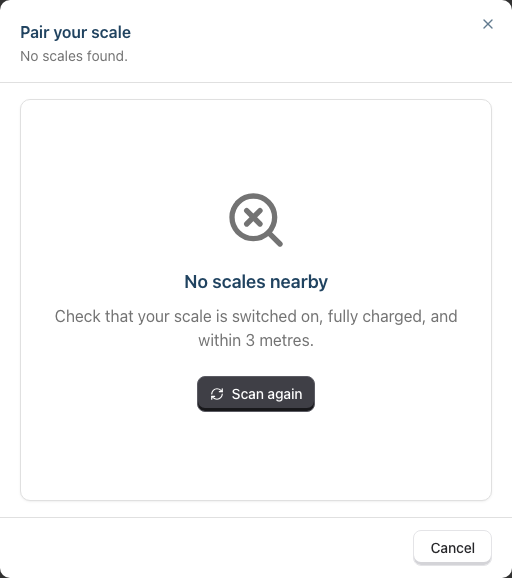
If nothing is found after about ten seconds, the dialog shows No scales nearby with the prompt "Check that your scale is switched on, fully charged, and within 3 metres." and a Scan again button:
Work through these in order, tapping Scan again after each:
- Is the scale switched on and awake? Tap the platter if the display has dimmed off.
- Is it within about 3 metres of the iPad? Line of sight, ideally.
- Is it already connected to another iPad? A scale that's busy talking to one device won't appear on a second. Tap Forget scale on the iPad that currently owns it (Tutorial 20.14, Step 6), then scan again here.
- Is it charged? A flat or nearly flat scale can fail to connect in ways that look like a software fault.
- Has the iPad granted Bluetooth permission to Luminate? Check Settings → Luminate → Bluetooth. (On Android the equivalent permission is Nearby devices.)
- Is the iPad's own Bluetooth switched on? Toggle it off and on from the iPad's Settings.
- Is it an Acaia Pearl? Luminate's driver speaks the Acaia protocol, so other makes of scale are never discovered — they simply won't appear in the list.
If your scale is found but the connection fails, the dialog shows a Couldn't connect message and that scale's row changes from Tap to pair to Retry. Tap Retry a couple of times before assuming it's broken — a scale that was mid-sleep often connects on the second attempt.
Still failing? Report it to support at hello@luminate.salon with the iPad's iPadOS version and the scale's serial number.
Scale keeps disconnecting
Usually you don't have to do anything. Luminate remembers the last scale you paired and quietly retries it every few seconds in the background, so when the scale wakes up or comes back into range the connection restores itself and the green pill reappears in the header. There's no timed window and no manual re-pair for an ordinary drop-out.
While the scale is down:
- The LiveWeightCard shows Scale disconnected and both Tare and Capture are disabled
- Everything you already captured is safe — each capture is saved to Luminate as you go, not held on the tablet
Common causes of repeat drop-outs:
- Range — keep the iPad within about 3 metres of the scale, line-of-sight
- Interference — microwaves, busy wi-fi access points and other Bluetooth devices all sit in the same 2.4GHz band
- Battery — below about 20% a scale gets unreliable well before it dies
- Sleep — the scale powers down after a spell of inactivity; placing a bowl on it wakes it, after which Luminate reconnects on its own
To force a fresh connection rather than waiting: tap the green pill, tap Disconnect, then tap Pair scale and pick the scale again. Disconnect keeps the scale remembered; only Forget scale clears it, which is what you want when handing the scale to a different iPad.
The battery indicator is amber
The scale's battery percentage shows in the header pill next to the scale's name, and the reading turns amber at 20% or less in the two places that flag it:
- On the LiveWeightCard's status strip, where the battery icon turns amber
- In the Scale connected dialog's Battery tile, which goes amber at 20% or less and red at 10% or less
At 20% or less:
- Pairing typically still works
- Live weighing is usually fine
- Plan to recharge the scale before your next appointment
Below about 10%, the scale's own low-battery behaviour kicks in — it may refuse to connect, shut off mid-weigh, or read unreliably. Don't start a new colour on a critically low scale.
LiveWeightCard says "Scale disconnected"
The status strip across the top of the LiveWeightCard tells you the scale's state at a glance — Scale disconnected, Reading (paired, weight still settling) or Stable (safe to capture) — and the battery reading turns amber when charge is low.
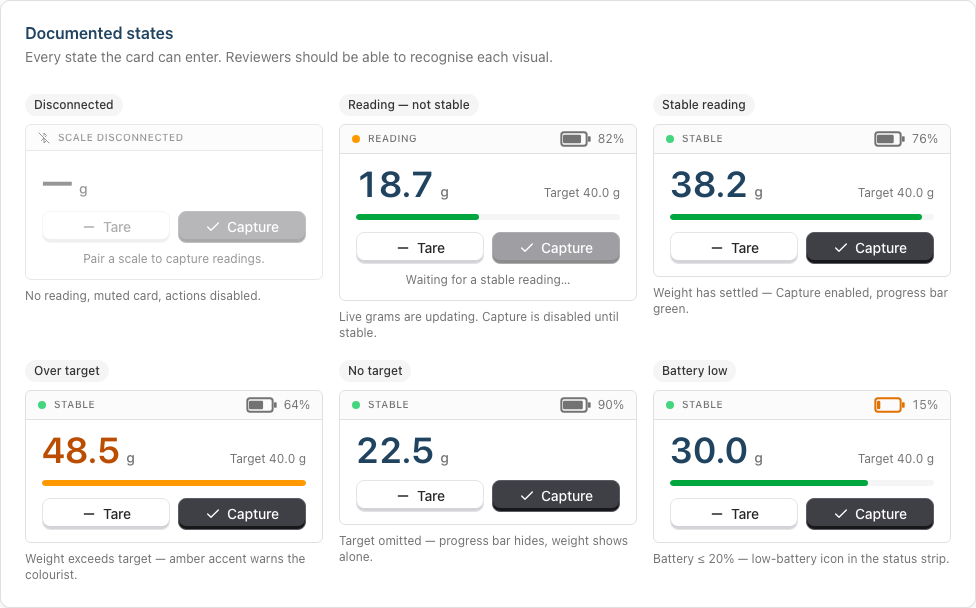
The hint text under the buttons tells you what to try:
"Pair a scale to capture readings."
No scale is connected. Pair one from the header's Pair scale button (Tutorial 20.14).
"Place the bowl on the scale to read the weight."
The scale is connected but hasn't sent a reading yet — the weight shows —. Place the bowl on it.
"Waiting for a stable reading…"
The scale is connected and weighing, but the reading is still fluctuating. Give it a moment.
If Scale disconnected persists despite a paired, battery-healthy scale, remember that Tare is disabled too while it's down — so there's nothing to re-tare until the link returns. Instead:
- Wake the scale (tap the platter) and wait a few seconds for the silent reconnect
- Move the iPad closer to the scale
- Tap Pair scale in the header and select the scale to reconnect immediately
- If it still won't come back, restart the Colour Bar app (close, reopen)
Capture is disabled — why?
Capture is disabled whenever any of the following are true:
- The scale is disconnected (Tare is disabled as well)
- There's no reading yet — the weight display shows —, nothing on the scale
- The reading isn't stable yet — the strip shows Reading, not Stable
The hint text underneath the Tare and Capture buttons tells you which one applies.
Note that a stable 0.0 g is a valid reading, so Capture is enabled the moment you tare an empty bowl. Pour first, then Capture — see Tutorial 20.12.
"Leftover heavier than dispensed" warning on Reweigh
"A bowl's leftover is heavier than what was dispensed into it — re-tare and weigh just the product, not the bowl."
You entered a leftover weight larger than the amount originally dispensed into that bowl — which is impossible, so the bowl was almost certainly weighed without taring. Causes:
- Didn't tare before weighing the leftover
- Weighed bowl + leftover without taring the empty bowl first
- Pulled the leftover from the wrong bowl
Re-tare, weigh just the product (not the bowl), and re-enter the affected bowl's leftover. The warning clears when the numbers make sense.
The Colour Bar is slow or unresponsive
First-line checks:
- Is the iPad's wi-fi connected? The Colour Bar loads appointments and saves every capture to Luminate, so it needs a live connection (the Bluetooth link to the scale is local and unaffected)
- Is it low on storage? Clear unused apps
- Has the app been open for days? Close and reopen
If the Colour Bar stays unresponsive during a busy colour session, fall back to the main web app's formula dialog (Tutorial 20.6) on any other device — the data is identical.
I accidentally put the iPad into App mode
In the Luminate iPad app, tap Switch mode at the bottom-right of the Colour Bar footer, then pick the Colour Bar card again. The choice is remembered on that iPad, so it opens straight into the Colour Bar next time.
Switch mode only exists in the native iPad/Android app. In a desktop browser the same footer slot reads Back to Luminate and simply returns you to the dashboard — there's no mode to switch.
I've finalised the wrong formula
What you can do depends on where the formula's overage charge has got to (Tutorial 20.8 explains the four statuses in full).
While the charge is still unbilled or on a draft transaction — the formula is still editable:
- Open the appointment's colour formula on the main web app
- Click Revert in the formula dialog, then confirm Revert Formula
- Stock returns, any overage line disappears from the draft, and the formula reopens for mixing
- Correct the actuals and re-finalise
Once the transaction has been completed (the formula shows as committed), the formula is read-only and Revert disappears. Modifying the transaction doesn't reopen it — the overage line is system-managed and is preserved exactly as committed. To change what was charged, refund the transaction and re-bill (Tutorials 20.8 and 8.2); if the formula itself needs different actuals, refund, create a fresh draft for the appointment, then Revert and re-finalise so the corrected charge stages onto the new draft. Refunds are Owner / Admin only.
Nothing I try fixes it — what next?
- Note the time, the appointment, and what you saw
- Fall back to the main web app's formula dialog (Tutorial 20.6) so the client isn't kept waiting
- Report to support at hello@luminate.salon with the details
We'd rather you finish the client's colour and tell us afterwards than spend the appointment troubleshooting.
Related Tutorials
- Tutorial 20.6: Creating a Colour Formula — the web-app fallback
- Tutorial 20.8: Overage Billing Explained — formula statuses, Revert, and refund / re-bill
- Tutorial 20.9: Colour Bar Overview and Setup
- Tutorial 20.10: Colour Bar: Day-to-Day Use — the scale pill in context
- Tutorial 20.12: Colour Bar: Mixing with the Scale — the LiveWeightCard in use
- Tutorial 20.13: Colour Bar: Weighing Leftovers — where the "leftover heavier than dispensed" warning appears
- Tutorial 20.14: Pairing Your Acaia Pearl Scale — the full pairing flow
- Tutorial 8.2: Handling Refunds and Cancellations — changing a committed charge
Last Updated: August 2026 — covers the shipped Acaia pairing flow. For support, contact hello@luminate.salon.