
Colour Bar: Weighing Leftovers
Introduction
After the colour is on the client, there's often product left over in each bowl. Weighing leftovers gives you a true "grams used" number — which means more honest overage calculations and better margin reports. The leftover you weigh out is recorded as waste (it goes in the bin, not back in the tube), so your stock figures stay honest too: the full amount you dispensed stays out of stock, and the binned portion is logged as waste rather than credited back.
In Full colour mode, you must record a leftovers decision before the customer pays. You can weigh what remains, or choose No leftovers — used it all when there is nothing to weigh. The till stops the payment while neither choice has been recorded, so a charge based on dispensed colour cannot be committed before Luminate knows how much the client actually used.
Who this is for: Stylists / colourists at the Colour Bar station What you'll learn:
- When the Weigh leftovers screen appears
- Weighing leftovers bowl-by-bowl
- What to do when you've thrown the leftover away ("No leftovers — used it all")
- Why the till waits for a leftovers decision in Full mode
- The "leftover heavier than dispensed" warning
- Re-weighing a bowl you got wrong
- How to finalise
Time to complete: 10 minutes
Prerequisites
- A finalised formula on the appointment — either weighed line-by-line on the Mix screen (Tutorial 20.12) or captured on the Edit screen and applied with Done — apply colour (Tutorial 20.11)
- The appointment shows Applied or Leftovers due status on Today (Tutorial 20.10)
When does the Weigh leftovers screen appear?
Once a formula is finalised, the appointment's status on Today moves through these phases:
- 0–5 minutes: Applied — colour on. Short buffer while the colour starts processing. The "Weigh leftovers" button is already available on the appointment, but the status label hasn't flipped yet.
- After 5 minutes: Leftovers due. Today surfaces the appointment in the Leftovers due filter and the appointment card shows "Applied — leftovers due". The appointment stays here until you weigh the leftovers or tap "No leftovers — used it all".
You reach the screen from Today → tap the appointment → Weigh leftovers.
The five-minute Applied label is only a visual buffer on Today. It does not make the formula "weighed". If the customer reaches the till during that window, the cashier must still ask the stylist to choose Weigh leftovers or No leftovers — used it all before payment can be taken.
The Weigh leftovers screen layout
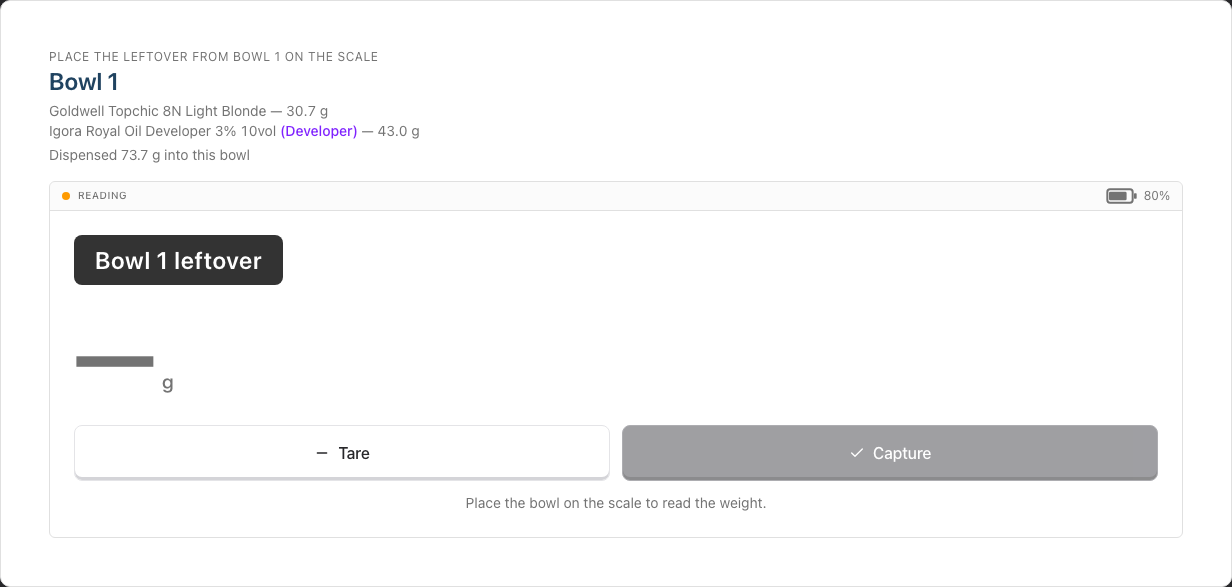
Leftovers are captured one weight per bowl, not per product. Once products are mixed together in a bowl, the leftover is a single blend you can only weigh whole — so you weigh the bowl's leftover once and Luminate splits the waste across that bowl's products by how much of each was dispensed.
- Active bowl card — "Place the leftover from bowl N on the scale", the products mixed into that bowl with their dispensed grams, and the total dispensed into the bowl
- LiveWeightCard — the same Tare / Capture controls as the Mix screen (see Tutorial 20.12), with a big solid Bowl N leftover chip so there's no doubt which bowl you're weighing
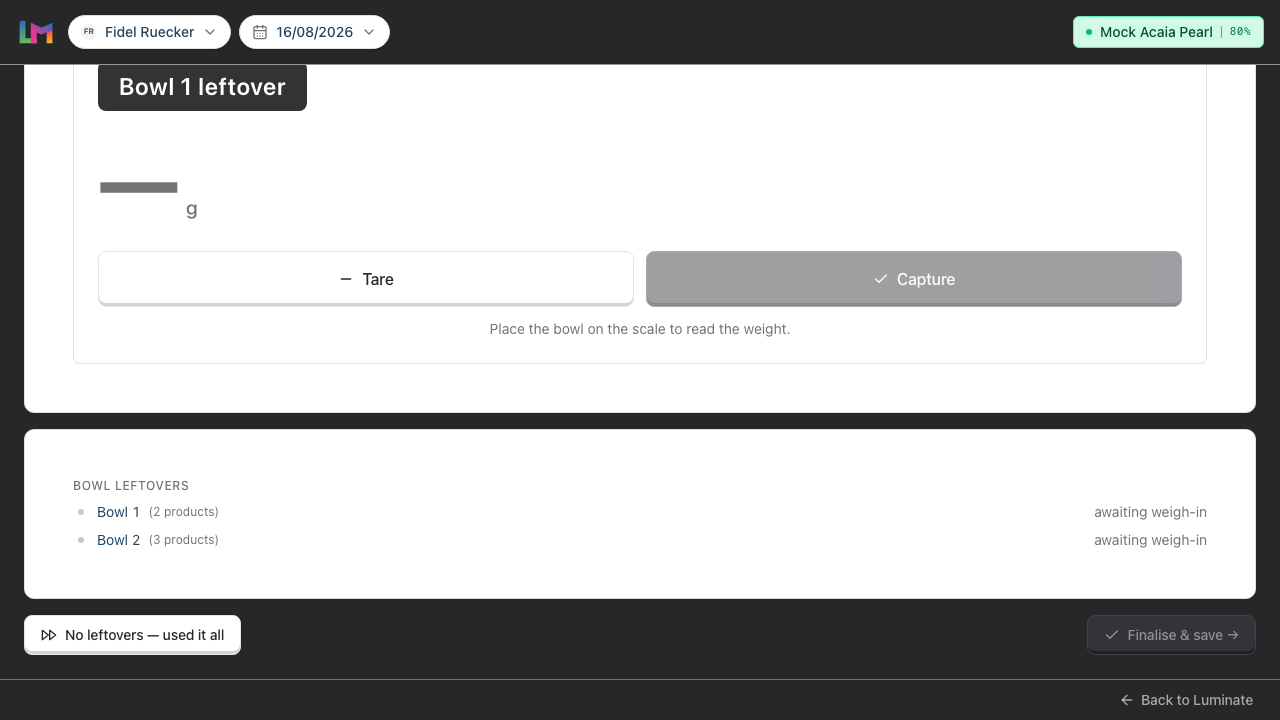
- Bowl leftovers summary — every bowl listed with checked / unchecked state, the used / leftover figures captured so far, and a Re-weigh button on each bowl you've already captured
- No leftovers — used it all and Finalise & save → buttons at the bottom. Finalise is disabled until every bowl has a leftover captured
Once the last bowl is captured, the active bowl card and its scale controls disappear — there's nothing left to weigh, so all that's left is the summary and the two buttons. Tapping Re-weigh on any bowl brings the scale controls straight back for that bowl.
Step-by-Step Instructions
Step 1: Weigh each bowl's leftover
- Place the bowl's leftover on the scale (empty bowl on the scale, then pour the leftover in, or weigh the full bowl and tare out the empty bowl weight)
- Tap Tare if needed
- Wait for Stable
- Tap Capture
- The active bowl advances to the next bowl
- Repeat until every bowl has a leftover captured
Step 2: Use the summary to track progress
The Bowl leftovers summary updates live:
- Checked bowls — a green tick, then "used Y.Y g (−Z.Z leftover)" and a Re-weigh button
- Unchecked bowls — "awaiting weigh-in"
- Total used / dispensed line appears at the bottom once all are captured — for example, "Total used 207.7 g of 251.2 g"
Step 3: Re-weigh a bowl you got wrong
Every bowl you've already captured keeps a Re-weigh button next to its figures in the Bowl leftovers summary. Tap it and:
- That bowl's captured figure is cleared and it becomes the active bowl again
- The scale card comes back, headed "Weigh bowl N again — its earlier capture has been cleared"
- Weigh the leftover properly and tap Capture
- The corrected figure replaces the old one
Every other bowl keeps its captured weight, so correcting one bowl never costs you the rest. If you clear a bowl that sits earlier in the list, the screen jumps back to it — bowls are always weighed lowest-unmeasured first.
Finalise & save → is disabled again while any bowl is waiting to be re-weighed, so you can't save a half-corrected set of figures by accident.
Step 4: Handle "leftover heavier than dispensed"
If a bowl's leftover weighs more than what was dispensed into it, a warning banner appears naming the bowl:
Bowl 2 has a leftover heavier than what was dispensed, which usually means the bowl was weighed un-tared. Tare the scale, weigh just the product, and capture it again.
The banner carries a Re-weigh bowl 2 button that takes you straight back to that bowl. The usual cause is weighing the bowl un-tared (so you're weighing bowl + product, not just product).
The warning doesn't block Finalise & save → — it's there to stop you saving a figure you already know is wrong. Once you recapture a sensible weight, the banner disappears.
Step 5: Finalise
Once every bowl has a leftover captured:
- Tap Finalise & save →
- The leftovers are recorded and you're returned to Today
- A toast confirms: "Leftovers recorded."
- The appointment is now marked Done.
Step 6: When to use "No leftovers — used it all"
If the leftover is gone — rinsed down the basin, thrown into the colour bin, used as a neutraliser — tap No leftovers — used it all. It fires immediately (no confirmation prompt), so only tap it when you're sure:
- The client stays billed on the full amount you dispensed
- The appointment is marked Done
- A toast confirms: "No leftovers — billed on the full amount dispensed."
Use this whenever weighing the leftover isn't possible. It's not a failure mode — it's a valid outcome.
Once either route is saved, the overage line reflects the recorded used grams and the cashier can take payment. In Full mode, do this before sending the client to the till.
Common Pitfalls
"The appointment is already marked Done"
Once you finalise the leftovers (or tap "No leftovers — used it all"), the appointment moves to Done. To change the numbers after that, refund / modify the transaction (Tutorial 8.2) to reopen the formula.
"I weighed the leftovers but it's not adjusting the overage charge"
Weighing leftovers adjusts the formula's actuals and the stock movement log, and the draft amount reconciles to what was actually used. The till now refuses a new payment until that adjustment is recorded. If an older transaction was already committed before this safeguard existed, ask an Owner to refund and re-bill it (Tutorial 8.2).
"The cashier says the colour has not been weighed"
Open the appointment in Colour Bar. Choose Weigh leftovers and save each bowl, or choose No leftovers — used it all if there is nothing left to weigh. The cashier can retry the payment as soon as one of those outcomes is recorded.
"I got a 'leftover heavier than dispensed' warning"
Common cause: you forgot to tare, so you're weighing bowl + leftover but the system thinks you're weighing just the leftover. The warning is advisory — Finalise & save → still works — but the numbers will be wrong if you save with it showing. Tap Re-weigh bowl N on the banner (or Re-weigh on that bowl's row in the summary), tare the scale, and capture just the product. Your other bowls keep their figures.
"I tapped 'No leftovers' by mistake and wanted to weigh them"
It fires immediately with no confirmation. Once it's stamped, the formula's actuals are frozen. If the actuals matter, refund / modify the transaction (Tutorial 8.2) to reopen the formula and correct manually.
Tips and Best Practices
- Weigh leftovers on every colour if you're on Full mode — you'll thank yourself at month-end when the margins read true.
- Be honest about "used it all" — if the leftover is gone, tap it. Don't guess a leftover weight just to have a number.
- Tare between bowls — same habit as Mixing.
- Resolve leftovers before the client reaches the till — Full mode will hold the payment until you weigh the bowls or confirm there were no leftovers.
- One weight per bowl — you weigh each bowl's leftover once; Luminate splits it across the products in that bowl automatically. If the same product is in two separate bowls, weigh each bowl.
Related Tutorials
- Tutorial 20.12: Colour Bar: Mixing with the Scale — captures the "dispensed" amounts
- Tutorial 20.5: Colour Stock Take — weighing leftovers keeps gram balances honest
- Tutorial 20.8: Overage Billing Explained — where the overage charge actually lives
- Tutorial 20.15: Troubleshooting the Colour Bar & Scale
- Tutorial 8.2: Handling Refunds and Cancellations — if you need to re-stage after weighing leftovers reveals a pricing issue
Frequently Asked Questions
Is weighing leftovers required?
Recording a decision is required before payment in Full mode; putting a bowl on the scale is not. No leftovers — used it all is a first-class option when there is nothing left to weigh. You'll still get Done status on the appointment, and the client stays billed on the full amount dispensed.
What happens to my stock when I weigh the leftover?
The full amount you dispensed stays out of stock — the leftover went in the bin, not back in the tube. The leftover is logged as a waste movement, and the client is billed on what was actually used (dispensed minus leftover). Stock movements only apply on salons in Full colour mode; on Formulas mode the leftover still corrects the recorded amounts, but there's no stock to re-split.
Does "No leftovers — used it all" affect the charge?
It keeps the client billed on the full dispensed amount. Weigh the leftover instead if you want the charge to reflect the smaller amount actually used.
Can I weigh leftovers twice?
Once you finalise (or tap "No leftovers — used it all"), it's stamped and the appointment moves to Done. If numbers are wrong, refund / modify the transaction (Tutorial 8.2) to reopen.
Does "No leftovers — used it all" ask me to confirm?
No. It fires immediately — only tap it when you're sure the leftover is gone.
Last Updated: August 2026