
Colour Bar: Day-to-Day Use
Introduction
This is the stylist's daily companion to the Colour Bar — how to use the Today list, pick between appointments, and move through the filter chips. It assumes the iPad is already set up and on Colour Bar mode (Tutorial 20.9).
Who this is for: Stylists / colourists working at a Colour Bar station What you'll learn:
- Navigate the header: stylist picker, date picker, scale status
- Use the status filter chips (Mine / All / Pending / In mix / Applied / Leftovers due)
- Read appointment rows
- Move between Today and individual appointments
Time to complete: 10 minutes
Prerequisites
- Colour Bar mode selected on the iPad (Tutorial 20.9)
- Logged in as a staff member
The Colour Bar layout
Every Colour Bar screen shares the same layout:
- Top header — logo (returns to main app), Stylist picker, Date picker, and the scale status (a Pair scale button when nothing is paired, or a green connected pill once a scale is on)
- Main content — screen-specific (Today, Appointment, Edit, Mix, Reweigh)
- Bottom footer — Switch mode (native only) or Back to Luminate (browser)
The header stays across every page so you always know which stylist and which date you're working on.
Step-by-Step Instructions
Step 1: Pick your stylist
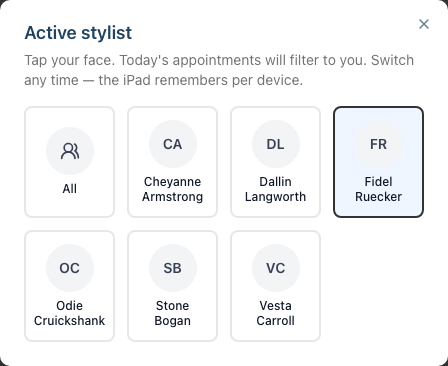
- Tap the Stylist picker in the header — the Active stylist dialog opens on a grid of faces, one tile per rostered stylist
- Tap your own tile to make yourself the active stylist
- Your choice is remembered on this iPad — it survives refreshes and reopening the app, per device
If you're working with an assistant or covering for someone, pick the colourist whose appointments you want to see. The All tile drops the filter altogether; the picker in the header then reads All stylists and you see the whole salon's colour schedule.
Step 2: Pick the date
- Tap the Date picker next to the stylist
- Select today (default) or any other date
- The Today list refreshes for that date
Date defaults to today when you open the Colour Bar. The picker itself reads Today or Tomorrow for those two days, and the full date for anything else — so you always know which day is on screen.
Step 3: Read the Today list
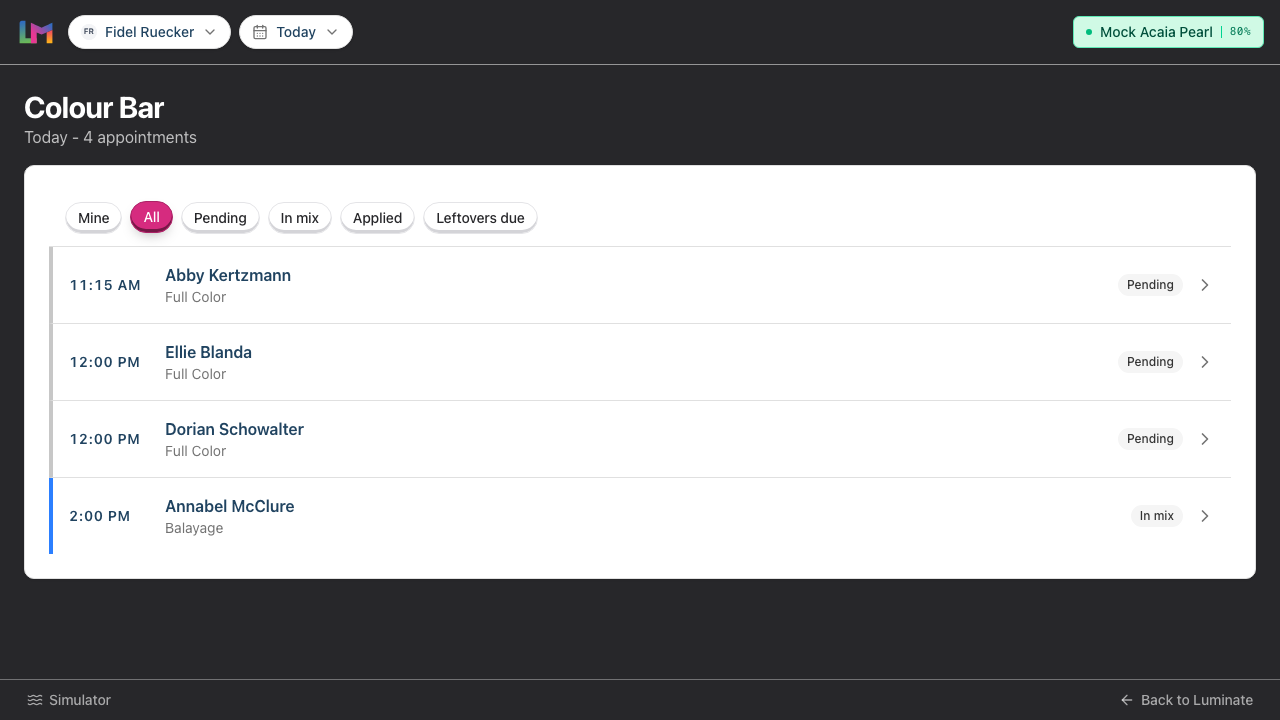
Each row on the Today list shows:
- Customer name + service name
- Start time on the left, with a short meta line underneath: "in 12 min" for a pending appointment starting within the next hour, or "applied 18 minutes ago" for a formula waiting to be reweighed (this rolls up as time passes, so an older one reads "applied about 2 hours ago" or "applied 6 days ago")
- A status badge that tells you where the formula is in its lifecycle:
- Pending — no formula planned yet; tap to plan one
- In mix — formula planned or in progress; tap to continue
- Applied — formula just finalised (the first 5 minutes); tap to check in
- Leftovers due — finalised more than 5 minutes ago and not yet reweighed; a standing prompt to weigh your leftovers. It stays here until you reweigh or skip — there's no time limit
- Done — leftovers reweighed (or skipped); no further action needed
Tap a row to open that appointment.
Step 4: Use the filter chips
Above the list, filter chips narrow what you see:
| Chip | What it shows |
|---|---|
| Mine | Only appointments assigned to the selected stylist |
| All | Every colour appointment on this date |
| Pending | No formula planned yet |
| In mix | Actively mixing (plan saved, not finalised) |
| Applied | Just finalised (first 5 minutes) |
| Leftovers due | Finalised, not yet reweighed (waiting on leftovers) |
Only one chip can be active at a time — picking a new chip replaces the current one. Your chip is remembered on this iPad too, so opening an appointment and coming back leaves the list as you left it. Mine uses the Stylist picker to narrow the list; the status chips (Pending, In mix, Applied, Leftovers due) ignore the stylist picker and show every matching appointment for the selected date.
Step 5: Open an appointment
Tap any row to open that appointment's hub. From there you'll Plan, Edit, Mix, or Reweigh depending on state (Tutorials 20.11–20.13).
Step 6: Check the scale status
The top-right of the header tells you whether a scale is paired:
- Green connected pill — shows the scale's name and, when the scale reports it, its battery % (with a small green dot). The scale is on and ready to weigh. Tap the pill to open the Scale connected dialog, which shows Battery and Signal and offers Disconnect and Forget scale.
- Pair scale button (outline, Bluetooth icon) — no scale is paired. Tap it to open the pairing dialog (Tutorial 20.14). Until a scale is connected, Capture on the mixing and leftovers screens stays disabled and reads "Pair a scale to capture readings."
Glance at the battery percentage before you start mixing — a low scale is best recharged between appointments, not mid-pour.
Step 7: Return to the main app
When you need to switch contexts (check a customer profile, run POS, look at reports), tap Back to Luminate in the footer (browser) or Switch mode (native iPad). Next time you come back you'll land on the Today list for today's date, with the stylist and filter chip still as you left them.
Common Pitfalls
"I can't see today's appointments"
Check three things: (1) the date picker is on today, (2) the Mine chip is active and the correct stylist is picked (or switch to All), (3) the service is flagged as a colour service (Tutorial 7.1).
"My assistant's appointments aren't showing"
The stylist picker filters one stylist at a time (and only when the Mine chip is active). Either switch the picker to the assistant's stylist record, choose All stylists, or tap All to see everyone.
"The green pill has gone and I'm back to a Pair scale button"
Pairing can drop if the iPad was asleep or the scale went to sleep. Luminate keeps trying to reconnect in the background, so it often comes back on its own. See Tutorial 20.14 for the pairing flow and Tutorial 20.15 for troubleshooting.
"I accidentally tapped an appointment — how do I go back?"
Tap Back to today in the top-left of the appointment screen. The browser/iPad back gesture also works.
Tips and Best Practices
- Set the stylist picker once at the start of your shift — it persists through the day.
- Use the Mine chip by default — less clutter, fewer mis-taps.
- Glance at the scale status before you start mixing — catching a disconnect before you pour saves a minute of frustration.
- Resolve leftovers before the client reaches the till — formulas sit there until you reweigh or skip, and Full mode stops payment while the decision is outstanding. Weighing leftovers while the bowl is still in front of you keeps the overage bill honest and the list tidy.
Related Tutorials
- Tutorial 20.9: Colour Bar Overview and Setup
- Tutorial 20.11: Colour Bar: Planning a Formula
- Tutorial 20.12: Colour Bar: Mixing with the Scale
- Tutorial 20.13: Colour Bar: Weighing Leftovers
- Tutorial 20.14: Pairing Your Acaia Pearl Scale
- Tutorial 20.15: Troubleshooting the Colour Bar & Scale
Frequently Asked Questions
Does changing the stylist picker affect anything other than the list filter?
No. It's purely a client-side filter. Your login identity doesn't change.
Can I see tomorrow's colour appointments?
Yes — use the date picker. Useful for pre-planning formulas the evening before (Tutorial 20.11).
Why is my appointment not showing on the Today list at all?
Either the service isn't a colour service (Tutorial 7.1), the appointment was booked after you opened the Colour Bar (refresh the page), or it's for a different date.
Last Updated: August 2026