
Colour Bar: Mixing with the Scale
Introduction
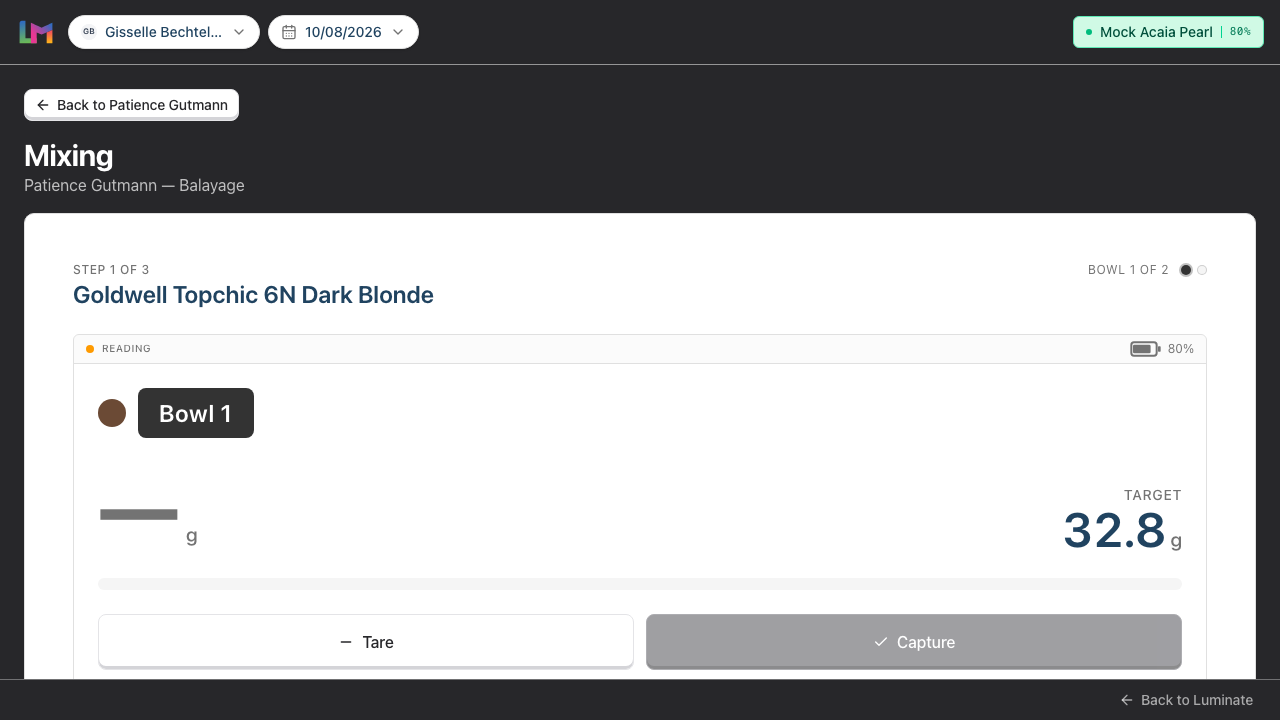
The Mix screen is where the stylist weighs each product live against the plan's targets. It's the beating heart of the Colour Bar — a big weight readout, Tare and Capture buttons, and a running recipe that ticks off as you go.
Who this is for: Stylists / colourists at the Colour Bar station What you'll learn:
- Read the LiveWeightCard (weight, stable indicator, battery, target)
- Tare the scale
- Capture weights and advance through bowls
- Finalise the mix and hand off to the till
Time to complete: 10-15 minutes
Prerequisites
- A formula in mix on this appointment. You reach the Mix screen either by tapping Use this formula on the appointment hub (which duplicates the customer's last formula and drops you straight here) or Resume mixing on a formula you'd already started — see Tutorial 20.11. The Colour Bar Edit screen does not lead here; it weighs and applies in one tap
- An Acaia Pearl scale paired to the iPad (Tutorial 20.14)
Live weighing needs the app. Bluetooth weighing runs in the Luminate iPad/Android app. Open the Colour Bar in a desktop browser and it runs against a simulated scale instead — fine for training and walkthroughs, but it isn't reading a real pan. To record real amounts on a desktop, use the web app's formula dialog instead (Tutorial 20.6).
The Mix screen layout
From top to bottom:
- Active item card — a small "Step X of Y" label with the product name underneath; on the right, a "Bowl N of M" label and the step indicator (one dot per bowl)
- LiveWeightCard — a big solid Bowl N chip (with the product's colour swatch dot) naming the bowl on the scale, the large live weight readout with the target shown just as big beside it, a progress bar with an "X.X g to go" / "X.X g over target" / "On target" line underneath, status strip (Stable / Reading / Scale disconnected + optional battery), and Tare and Capture buttons. A small hint line appears under the buttons when Capture is disabled
- Recipe so far — bowl N — every item in the current bowl, each with a colour swatch dot; a green tick next to captured rows (showing
X.X g) and the remaining rows showingtarget Xg. The item currently being weighed is highlighted in blue with a Now weighing badge, and developer items carry a violet Developer badge. Tap any un-captured row to weigh that item next — handy if you want to pour out of order - "All bowls mixed" card — emerald card that appears once every item has a captured weight, with a Done — apply colour button. When it appears, the Active item card and the LiveWeightCard drop off the screen entirely — there's nothing left to weigh, so the recipe list and this card are all that remain
Step-by-Step Instructions
Step 1: Place the empty bowl on the scale and Tare
- Put the empty bowl on the scale
- Tap Tare on the LiveWeightCard
- The weight readout resets to
0 g
Capture goes live the moment you Tare. A tared scale reads
0.0 gand Stable, which counts as a valid reading — so Capture is enabled and a stray tap records0.0 gas that item's actual. Pour first, then Capture.
Tare before every product, not just every bowl. Capture records the absolute weight currently on the scale as that item's actual, so if you pour a second product on top of the first without taring, its captured weight would include the first product too. Tare → pour one product → Capture → tare → pour the next. Taring also zeroes out the empty bowl's own weight, so it doesn't matter that bowls weigh slightly different amounts.
Step 2: Pour product until you hit the target
- The active item's target shows large next to the readout —
TARGEToverX.X g— with a progress bar underneath and a runningX g to goline below it - Pour slowly — the weight increases in real time
- A green dot + Stable appears in the status strip when the reading settles. Luminate watches the last few readings off the scale and calls it stable once they all sit within about 0.2 g of each other — roughly half a second of a steady pan
- An amber dot + Reading means the scale is still fluctuating — wait a moment before capturing
- If you pour past the target, the weight turns amber and the progress bar turns amber — over-target is allowed, just visual feedback
Step 3: Capture the weight
- With a stable reading close to the target, tap Capture
- The weight is recorded as the item's
actual_grams - The item ticks off in the Recipe so far panel
- The Active item card advances to the next uncaptured item
If there's another product for the current bowl, tare again and keep pouring. When you move to a new bowl, re-tare too.
Weighing out of order? The Colour Bar normally cues up the next uncaptured item for you, but you can tap any un-captured row in Recipe so far to make it the active item instead. The row you tap highlights blue and shows a Now weighing badge, and the LiveWeightCard re-points to that item's target.
Step 4: Work through all bowls
The step indicator at the top shows your progress across bowls. Keep pouring, taring between bowls, and capturing — the Colour Bar advances automatically.
Step 5: Finalise
When every item has been captured, the emerald "All bowls mixed" card appears:
- Tap Done — apply colour
- The formula finalises immediately — there's no confirmation dialog, so only tap when you're ready
- Stock decrements, overage billing (if any) stages onto the draft transaction, and the Colour Bar returns to Today with the toast "Formula saved. Apply colour now — weigh leftovers when you return."
Step 6: What happens if the scale disconnects mid-mix?
- The LiveWeightCard turns to Scale disconnected state, the readout drops to
—and the battery figure disappears from the status strip - Both Tare and Capture are disabled
- The header swaps its green scale pill for a Pair scale button
- You can continue using the Colour Bar — you just can't weigh or capture until the scale is back
You don't normally have to do anything. Luminate keeps retrying the last paired scale silently in the background every few seconds, so switching the scale back on (or bringing it back into range) reconnects it on its own and re-enables Tare and Capture. Your captures so far are safe — each one is saved to the server as you go, not held on the tablet.
Reading the LiveWeightCard
The status strip has one of three connection states. Over-target and low-battery are visual modifiers layered on top.
| Indicator | What you see | What to do |
|---|---|---|
| Stable | Green pulsing dot + "STABLE" | Safe to Capture |
| Reading | Amber dot + "READING" | Wait a moment, let the scale settle |
| Scale disconnected | BluetoothOff icon + "SCALE DISCONNECTED" | Check the scale (awake, paired, in range). Tare and Capture are disabled |
| Over target (modifier) | Weight number, the "over target" delta line, and the progress bar all turn amber | You've overpoured — either adjust the bowl or Capture the higher weight; overage billing handles it |
| Battery low (modifier) | The battery icon turns amber at ≤ 20% (the percentage figure beside it stays in its normal colour) | Charge the scale between appointments |
When Capture is disabled, a hint appears directly under the buttons explaining why. The exact strings are:
- "Pair a scale to capture readings."
- "Place the bowl on the scale to read the weight."
- "Waiting for a stable reading…"
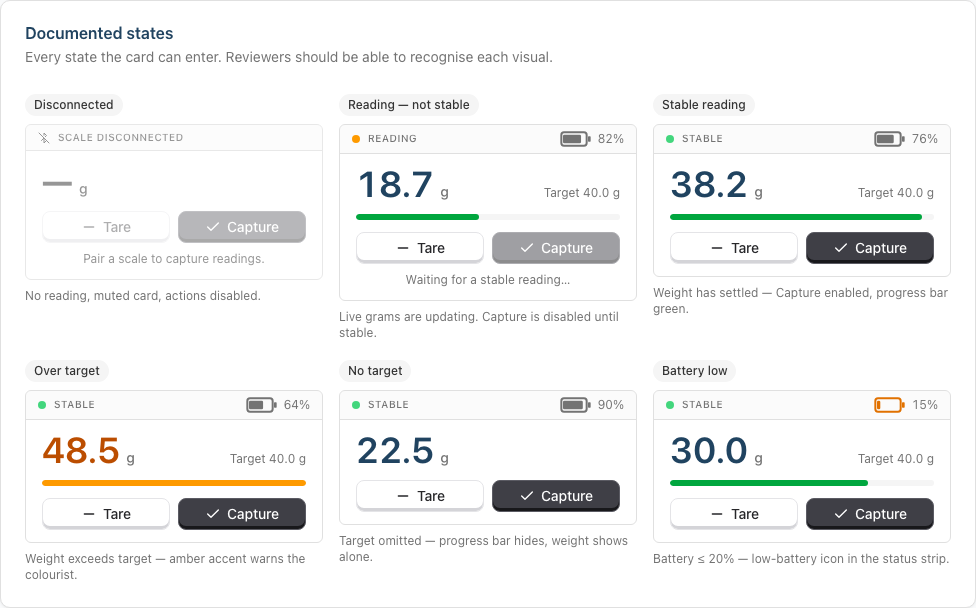
Shown here at the compact size so every state fits side by side. On the Colour Bar the card is the large tablet version with the bowl chip and the "X.X g to go" line, but the status strip, colours and hints are identical.
Common Pitfalls
"Capture is greyed out"
Capture is disabled when the scale is disconnected, there's no reading yet (nothing on the pan), or the reading isn't stable. Check the hint under the buttons — it tells you which one. A weight of 0.0 g with a stable reading is allowed (sometimes you deliberately capture nothing for an item).
"I overpoured — now what?"
Either tip a bit back out (not always possible with colour), or accept the higher actual. The formula's overage will simply be larger. The charge rule handles it.
"The scale shows a weight but the Colour Bar says disconnected"
Connection recently dropped. Give it a few seconds — Luminate retries on its own — or force a re-pair via Tutorial 20.14. Meanwhile you can still hand-enter actuals via the web app's formula dialog (Tutorial 20.6).
"I completed a bowl but the Recipe so far doesn't reflect it"
Refresh the page. Your captures are server-side so nothing's lost — the UI just hasn't caught up.
"The Mix screen bounced me back to the appointment"
You'll see "No formula in progress — pick one from the appointment screen." at the top of the appointment hub. It means the formula on this appointment has no products in it yet — a Start fresh plan nobody has built out. There is nothing to weigh, so the Mix screen sends you back. Tap Start fresh on the hub to reopen that same plan on the Edit screen and add your bowls (Tutorial 20.11).
"I tapped Done but nothing happened"
Network blip — Done — apply colour posts straight to the server without a local confirmation step. Wait a second, then tap again. If it persists, switch to the web app dialog (Tutorial 20.6) to finalise — the data is the same.
Tips and Best Practices
- Re-tare before every product, always — not just between bowls. Capture stores the scale's absolute reading, so a product poured on top of an un-tared one captures both their weights combined.
- Wait for Stable — Capturing on Reading leaves small-but-systematic errors across a full mix.
- Glance at the battery before each appointment — a 20-minute charge is cheaper than a missed capture.
- Capture isn't a countdown — no-one's penalising you for hesitating. Pour past target, pour back, settle, Capture.
- Keep an eye on the progress bar — over-target is a normal part of the workflow, not an error.
Related Tutorials
- Tutorial 20.11: Colour Bar: Planning a Formula — the screen before this one
- Tutorial 20.13: Colour Bar: Weighing Leftovers — the screen after this one
- Tutorial 20.14: Pairing Your Acaia Pearl Scale — pairing flow
- Tutorial 20.15: Troubleshooting the Colour Bar & Scale
- Tutorial 20.8: Overage Billing Explained — what happens after Finalise
Frequently Asked Questions
Can I edit the plan mid-mix?
Yes. The hub offers Edit formula next to Resume mixing, and anything you've already weighed is kept. The Edit screen shows an Already weighed note listing those products and their weights; the grams shown against each product are the plan, so change them freely — your captured weights are what get recorded against stock and the overage charge when you apply.
Bear in mind that Edit's only save action is Done — apply colour, which applies and finalises straight away. Products in the formula that you never got round to weighing are recorded at their planned grams.
The one thing that does lose a weight is taking a weighed product back out — deleting its row, deleting its bowl, or swapping it for a different product. That product was physically poured, so its weight can no longer be counted. Luminate asks you to confirm before that happens, listing exactly which weights would be dropped: choose Keep editing to go back, or Discard the weights to go ahead.
Why doesn't it weigh for me automatically?
The Colour Bar reads the scale continuously but waits for a stable reading before allowing Capture. This stops you capturing a fluctuating weight and producing bad actuals.
Does Capture commit the formula immediately?
No — Capture records the actual for one item. The formula finalises when you tap Done — apply colour at the end.
What if the scale connects to the wrong device (e.g. another stylist's iPad)?
The Acaia Pearl holds one Bluetooth link at a time, so free it up on the other iPad first: tap the green scale pill in its Colour Bar header and choose Disconnect (or Forget scale, if it shouldn't grab that scale back automatically). Each iPad remembers its own last-paired scale and reconnects to it on its own — see Tutorial 20.14.
Is there a way to weigh without capturing?
Yes — just read the weight on the display. Capture is the "commit this weight as this item's actual" button. If you're just checking, don't tap it.
Last Updated: August 2026