
Revenue by Payment Type Report
Introduction
The Revenue by Payment Type report splits your takings across the five payment methods Luminate supports — Cash, Card, Gift Voucher, Account Credit, and Other — for any date range you choose. It shows what you collected, what you refunded, the net amount, and each method's share of total revenue. This is the report to reach for when you're reconciling banking, comparing card vs cash mix month-on-month, or spotting an unexpected drop in voucher redemptions.
Who this is for: Owner, Admin, Manager What you'll learn:
- Open the Revenue by Payment Type report
- Read the four summary cards at the top
- Interpret the Net Revenue by Payment Method bar chart
- Read the breakdown table (Collected, Refunded, Net Amount, % of Total)
- Sort the table and adjust the date range
- Export the data as a CSV or PDF
Time to complete: 5–10 minutes
Prerequisites
- Logged in as Owner, Admin, or Manager
- At least one completed transaction in the date range you want to view (otherwise the report shows zeros)
- For exporting: Owner or Admin role. Managers cannot export
Step-by-Step Instructions
Step 1: Open the Report
- Click Reports in the sidebar
- Under Financial Reports, click Revenue by Payment Type
- The report opens with the last 30 days applied
The page header reads "Revenue by Payment Type" with the subtitle "Revenue and refunds split by payment method".
Step 2: Adjust the Date Range
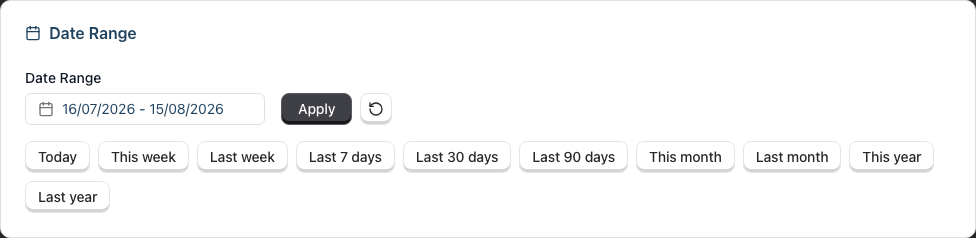
Use the Date Range card below the header to change the period:
- Click the Date Range field to open the calendar
- Click your start day, then click your end day
- Click Apply to update the report
- Click the reset button (circular arrow icon) to return to the last 30 days
The same preset buttons available on other reports work here — Today, This week, Last week, Last 7 / 30 / 90 days, This month, Last month, This year, Last year. Click any preset to apply it instantly.
Tip: Use Last month at the start of each month to reconcile the previous month's takings against your bank statements and card terminal reports.
Step 3: Read the Summary Cards
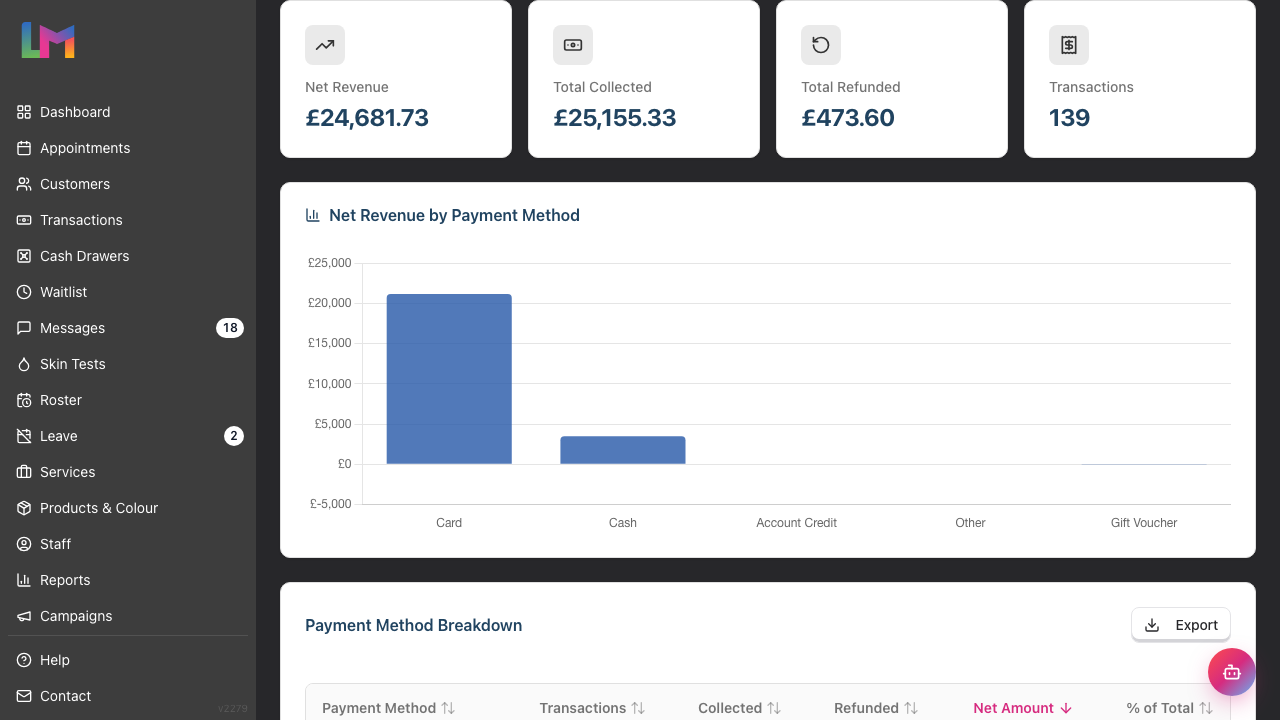
Four summary cards appear above the chart, each showing a single headline figure for the selected date range:
| Card | What It Shows |
|---|---|
| Net Revenue | Total Collected minus Total Refunded across all payment methods |
| Total Collected | Sum of every payment received on completed transactions |
| Total Refunded | Sum of every payment on refunded transactions |
| Transactions | Number of completed transactions in the range that took at least one payment |
These cards are independent of the breakdown table — they always cover the entire date range, even if you've sorted the table.
Step 4: Read the Bar Chart
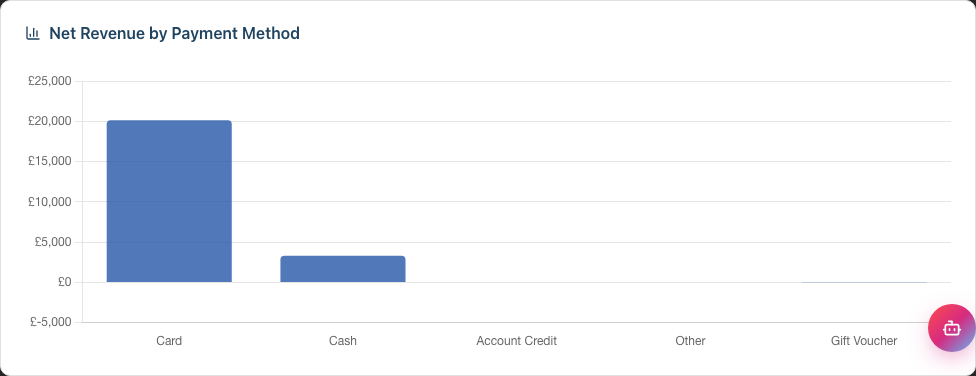
Below the summary cards, the Net Revenue by Payment Method bar chart visualises the net revenue for each method side-by-side. This is the fastest way to see your revenue mix at a glance — for example, a salon that takes 80% by card and 20% by cash will see two bars of very different heights.
- Hover any bar to see the exact net revenue for that method
- The chart hides itself when no method has positive net revenue (e.g. a date range with only refunds)
Step 5: Read the Breakdown Table
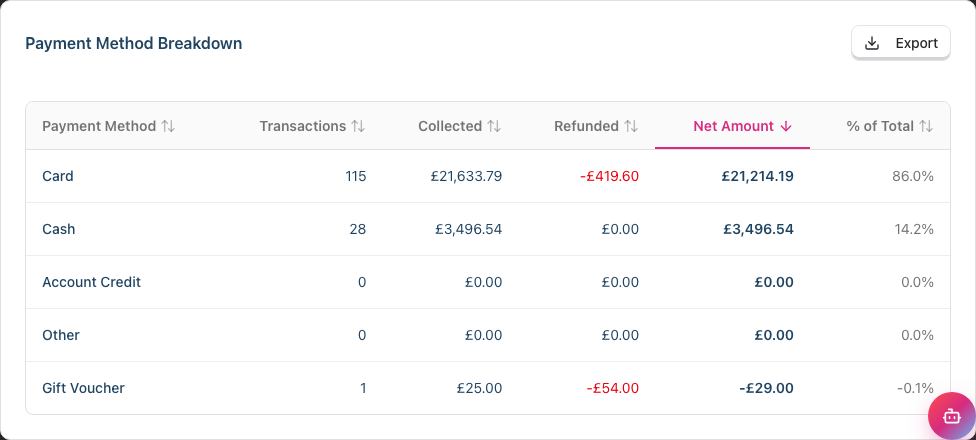
The Payment Method Breakdown table lists all five payment methods on separate rows, even when one of them has no activity in the range (a zero row helps make it obvious that no card payments were taken, rather than the row being missing).
| Column | Description |
|---|---|
| Payment Method | Cash, Card, Gift Voucher, Account Credit, or Other |
| Transactions | Number of completed transactions paid (in part or full) by this method |
| Collected | Total amount received via this method during the range |
| Refunded | Amount refunded against this method (shown in red with a minus sign when greater than zero) |
| Net Amount | Collected minus Refunded — your actual takings for this method (bold) |
| % of Total | This method's share of overall net revenue, to one decimal place |
Account Credit is the row for sales settled from a customer's stored credit balance. See Understanding How the Numbers Are Calculated below for why that money is not new income.
Sorting: Click any column header to sort the table by that column. Click again to reverse the sort order. An arrow on the header shows which column is sorted and in which direction. The default sort is Net Amount descending, so your largest revenue source appears at the top.
A note on % of Total: the percentages are shares of your net revenue, so a method whose refunds outweigh its takings shows a small negative percentage. Rounding also means the column can total slightly more or less than 100%. If total net revenue for the range is zero or negative, every row shows 0.0%.
Step 6: Export the Report
To export the breakdown for accounting or further analysis:
- Set the date range you want to export
- In the Payment Method Breakdown card, click the Export button (top right of the table card)
- Click Export as CSV for a spreadsheet, or Export as PDF for a printable copy
- The file downloads to your computer with a filename like
payment-type-report-2026-04-01-to-2026-04-30.csv
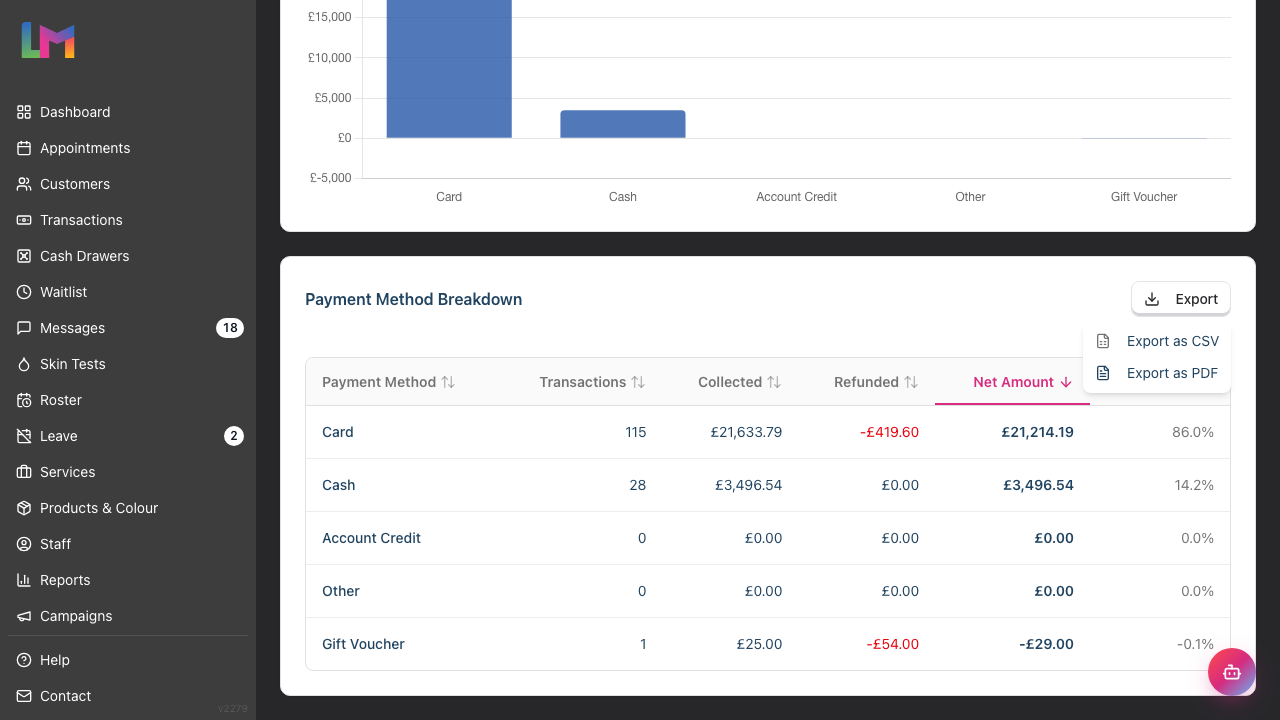
Both files contain the same six columns as the on-screen table, for the date range you have applied.
Note: Exporting is available to Owners and Admins only. Managers cannot export — they can read the report on screen, but the Export button does not appear for them. Ask an Owner or Admin if you need the file for accounting.
Understanding How the Numbers Are Calculated
A single transaction can include payments by more than one method (a split payment of £30 cash + £20 card, for example). The report treats each payment independently:
- The £30 cash appears in the Cash row's Collected
- The £20 card appears in the Card row's Collected
- The transaction itself is counted once in the Transactions column for both methods (because both methods were involved in completing it)
That's why the sum of the Transactions column can be higher than the Transactions summary card — split payments are counted in each method's row, but only once at the salon level.
Refunds: When a transaction is refunded, its payment counts only under Refunded for the original method — never under Collected. The Collected column only ever totals payments on completed transactions. So a £45 card sale that's later refunded adds nothing to Card's Collected and £45 to Card's Refunded, lowering Card's Net Amount by £45. A refunded transaction is also left out of the Transactions count, which only counts completed sales.
Date filter: The date range applies to the date the transaction was completed, in the salon's local timezone.
Refunds stay on the sale date. A refund does not move a transaction into the period you processed the refund in — it stays on the day the sale was completed. Refund a £302.40 card sale from 18 July on 15 August, and the July report changes: that £302.40 leaves Card's Collected and reappears as Card's Refunded, still dated 18 July. The August report does not show it at all. So a period you have already reconciled can change later. If a figure no longer matches a statement you filed, check whether an older sale in that period has since been refunded.
Account credit is not new money. A customer tops up their account by paying cash or card, and that payment lands in the Cash or Card row on the day of the top-up. When they later spend that credit, the sale is settled under Account Credit. The same money therefore appears twice across two different periods — once as banked cash or card, once as spent credit. When you reconcile against your bank or card terminal, work from the Cash and Card rows and leave Account Credit out.
Common Pitfalls
"The figures don't match my Daily Revenue report"
Daily Revenue reports your service and product revenue (after discounts, before payment splits). This report reports the payments themselves — gross amounts received. If a £100 transaction had a £20 discount and was paid £40 cash + £40 card, Daily Revenue shows £80; this report shows £40 Cash + £40 Card. They're different lenses on the same transactions.
"Why does Other have a value when I don't take Other payments?"
Other is the catch-all tender at the till, for anything that isn't cash, card, a voucher or account credit — a bank transfer, a staff discount settled off-system, or transactions brought in from a previous system. Online deposits are not Other: they are recorded as Card. Filter on the Transactions list to investigate.
"A method I'd expect to see is missing"
All five methods are always shown, even with zero values. If you don't see Cash listed at all, refresh the page — the report may have failed to load. If the count is zero, no transactions in that range used that method.
"My Cash and Card totals don't add up to what I banked"
Two things commonly explain the gap. First, Account Credit sales are not new money — see Understanding How the Numbers Are Calculated above. Second, a refund processed since you last looked has been backdated to the sale date, changing a period you had already reconciled.
"Refunds are showing in red but Net Amount is still positive"
That's correct — a method's Net Amount is its Collected (from completed sales) minus its Refunded (from refunded sales). As long as Collected exceeds Refunded for that method, Net Amount stays positive. The red colour highlights the refund figure, not the row as a whole. If refunds for a method outweigh its completed takings, that method's Net Amount can go negative.
Tips and Best Practices
- Reconcile card takings monthly — Pick Last month and compare the Card row's Collected figure to your card terminal's monthly statement. Any discrepancy flags missing or duplicate captures. Re-run the report before you close the month off — a refund taken since your last check is backdated to the original sale date
- Watch the cash mix over time — Run This year vs Last year to see how the cash share of your revenue is trending. A falling cash percentage often correlates with a more digital-first customer base
- Spot voucher redemption peaks — Run a wide range and look at Gift Voucher's % of Total. Big spikes around Christmas and February often follow voucher gifting season
- Investigate refund spikes — A high Refunded figure for one method (especially Card) is worth investigating — it could be a chargeback pattern or a staff member processing erroneous refunds
- Export for accounting — Use the CSV export at month end to feed payment-method totals into your accounting software's reconciliation flow, or the PDF export when your accountant just wants a readable copy
Related Tutorials
- Tutorial 9.1: Understanding Your Dashboard — Quick performance overview
- Tutorial 9.2: Running Revenue Reports — Daily revenue across services and products
- Tutorial 2.4: Processing Transactions — How payment methods are recorded at the POS
- Tutorial 2.5: Using the Cash Drawer — Cash payment reconciliation at the till
- Tutorial 3.8: Client Account Credit — How customers top up and spend stored credit
- Tutorial 8.2: Handling Refunds and Cancellations — How a refund is processed
Frequently Asked Questions
Are deposits included in this report?
Yes. Deposits paid online or in salon are recorded as payments against the transaction, so they appear under whichever method was used (typically Card for online deposits).
Are tips included?
Yes. The Collected column reflects every payment received against the transaction, including the tip portion. To see tips broken out separately, use the Daily Revenue report (Tutorial 9.2) or the Staff Performance report (Tutorial 9.3).
What about taxes and discounts?
Both are captured at the transaction level, not the payment level — so they affect the headline transaction total but not how that total is split across methods. This report shows you the gross collected amounts.
Why is the Transactions summary card different from the sum of the table's Transactions column?
A split-payment transaction (e.g., part cash, part card) is counted once in each row's Transactions column but only once in the salon-level summary card. The summary card shows the number of unique transactions in the range.
Why does Account Credit show revenue I never banked?
Because that money was banked earlier, under a different method. The customer paid cash or card to top their account up, and that payment is already counted in the Cash or Card row for the day of the top-up. The Account Credit row records them spending it. Treat it as a record of where stored value went, not as takings.
Can I filter by staff member?
No. This report is salon-wide. To see payment-method splits per staff member, run the Staff Performance report (Tutorial 9.3).
Why doesn't a transaction I just paid for appear?
The report only includes transactions in Completed or Refunded status. Drafts, pending transactions, and unpaid invoices are excluded. Make sure the transaction has been completed (fully paid and saved) before expecting to see it here.
Last Updated: August 2026