
Accounts Receivable and Outstanding Balance Reports
Introduction
Track money owed to your salon. Learn how to view the accounts receivable report, see which customers have unpaid balances, understand aging of debts, send payment reminders, and monitor collection rates. Essential for maintaining healthy cash flow.
Who this is for: Salon owners, admins, and managers responsible for collecting payments and managing cash flow.
What you'll learn:
- Running the accounts receivable report
- Understanding outstanding balances
- Identifying overdue accounts
- Following up on unpaid invoices
- Exporting data for bookkeeping
Time to complete: 10-15 minutes
Prerequisites
Before you begin, make sure you have:
- A Luminate account with Owner, Admin, or Manager role
- Transactions in your system (some may have outstanding balances)
- For exporting: Owner or Admin role
Step-by-Step Instructions
Step 1: Navigate to the Accounts Receivable Report
- Log in to Luminate
- Click Reports in the sidebar menu
- In the Financial Reports category, click Accounts Receivable
- The report loads showing all customers with outstanding balances
Step 2: Understanding the Summary Cards
At the top of the report, you'll see key metrics:
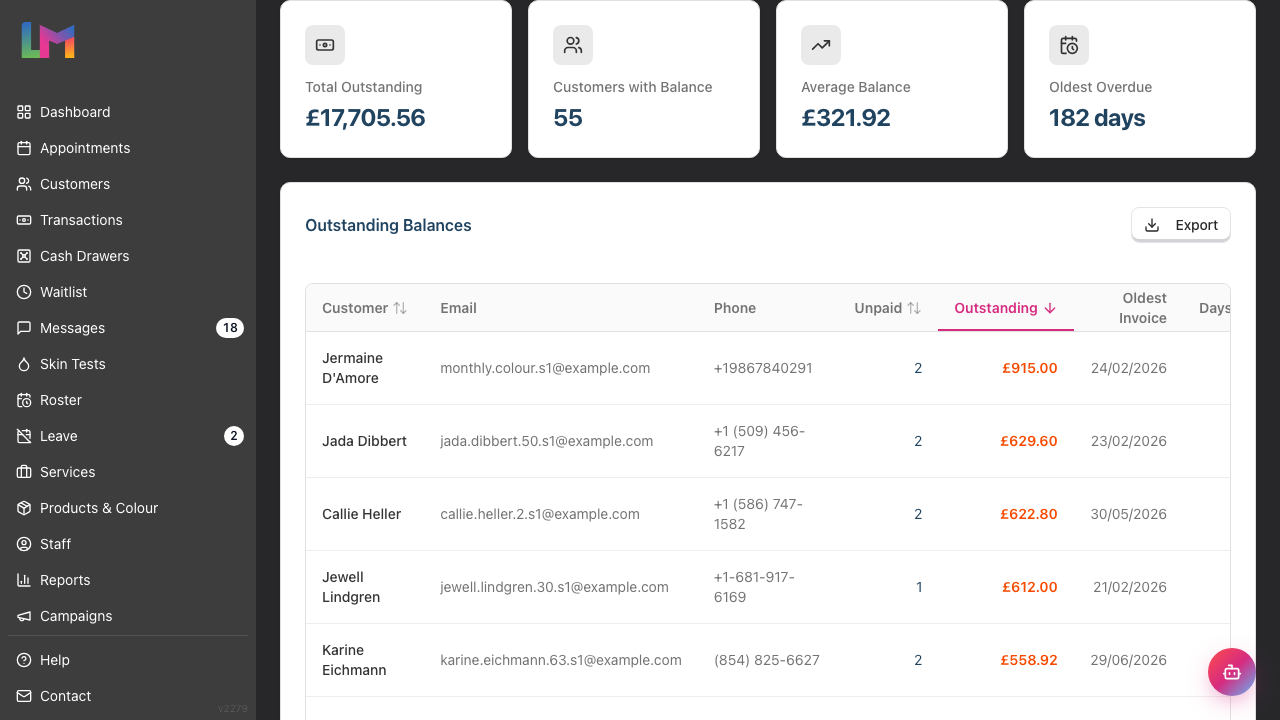
| Card | What It Shows |
|---|---|
| Total Outstanding | Total amount owed across all customers |
| Customers with Balance | Number of customers with unpaid amounts |
| Average Balance | Average amount owed per customer |
| Oldest Overdue | Days since the oldest unpaid transaction |
What to look for:
- High total outstanding may indicate collection issues
- Large number of accounts might suggest payment policy review needed
- Old debts are harder to collect - prioritise recent ones first
Step 3: Reading the Accounts Receivable Table
The main table lists all customers with outstanding balances:
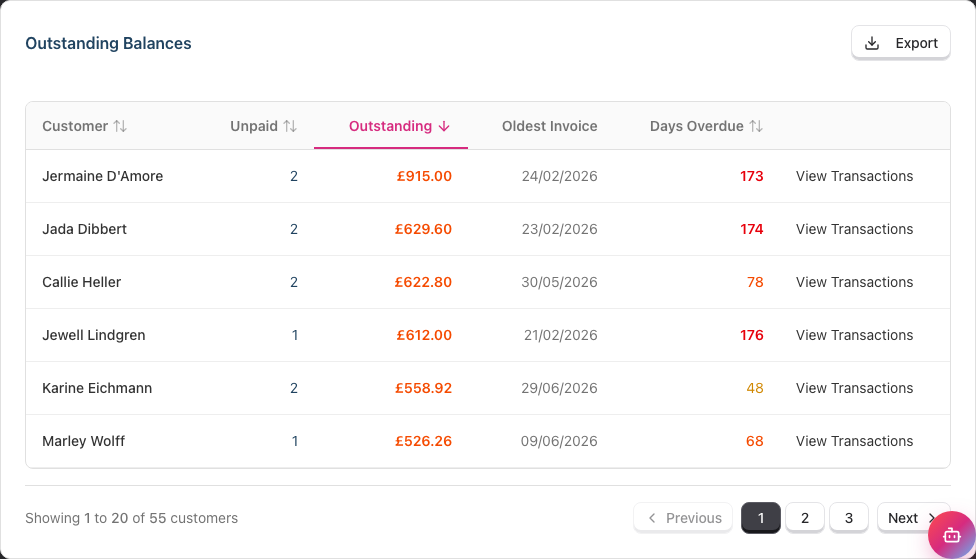
| Column | Description |
|---|---|
| Customer | Customer name (click to view outstanding transactions) |
| Customer's email address (wide screens only) | |
| Phone | Customer's phone number (wide screens only) |
| Unpaid | Number of unpaid transactions |
| Outstanding | Total amount owed |
| Oldest Invoice | Date of the oldest unpaid transaction |
| Days Overdue | How long since the oldest invoice |
| View Transactions | Opens that customer's unpaid transactions |
Not sent badge. A red Not sent badge beside a customer's name means a cancellation or no-show fee was saved while Luminate could not reach them, so the client has not been asked for the money yet. Click the badge to open the customer's Billing tab, where you can fix their contact details and send the link. See Tutorial 8.7.
On a narrower screen the Email and Phone columns are hidden so the aging figures and the View Transactions link stay in view. Both reappear on a wide monitor, and the customer's full contact details are always on their own record.
Default sorting: Sorted by Outstanding (highest first) to prioritise larger debts.
Sortable columns: You can sort by Customer, Unpaid (transaction count), Outstanding (balance amount), or Days Overdue by clicking the column headers. Click a header again to reverse the direction. Email, Phone, and Oldest Invoice are not sortable.
Days Overdue colours: The number is colour-coded so the worst accounts stand out — grey up to 30 days, yellow over 30 days, orange over 60 days, and red over 90 days.
Pagination: The table shows 20 customers per page. Below the table you'll see a count such as Showing 1 to 20 of 55 customers, with Previous, page number, and Next buttons.
When nobody owes you anything: If no customer has an outstanding balance, the table is replaced by a No Outstanding Balances message reading "All customers have paid their invoices in full."
Step 4: Using Filters to Focus Your View
The Filters section at the top of the report lets you narrow down the list:

| Filter | Options | Use Case |
|---|---|---|
| Min Balance | Enter an amount | Focus on larger debts (e.g., filter to debts over £50) |
| Days Overdue | Any, 7+, 14+, 30+, 60+, 90+ days | Focus on older, more overdue accounts |
| Unpaid Invoices | Any, 2+, 3+, 5+ invoices | Identify repeat offenders with multiple unpaid transactions |
To apply filters:
- Enter values or select from the dropdowns
- Click Apply to update the table
- Use the reset button (circular arrow icon) to clear all filters and return to the default sort
Filters also change the summary cards. The four cards above the table are calculated from the filtered list, not the whole salon. Filter to debts over £300 and Total Outstanding shows the total of those debts only. Reset the filters to see the salon-wide position again.
Step 5: Understanding Aging of Debts
The "Days Overdue" column helps you prioritise collection:
| Age | Urgency | Recommended Action |
|---|---|---|
| 0-7 days | Low | Normal payment terms, no action needed |
| 8-14 days | Medium | Send friendly payment reminder |
| 15-30 days | High | Phone call or direct message |
| 31+ days | Critical | Personal follow-up, consider payment plan |
Why aging matters: The longer a debt is outstanding, the less likely it is to be collected. Act quickly on overdue accounts.
Note: Luminate counts Days Overdue from the date of the oldest unpaid invoice. There is no separate due date, so day 1 is the day after the sale.
Step 6: Viewing Customer Transactions
To see a customer's outstanding transactions:
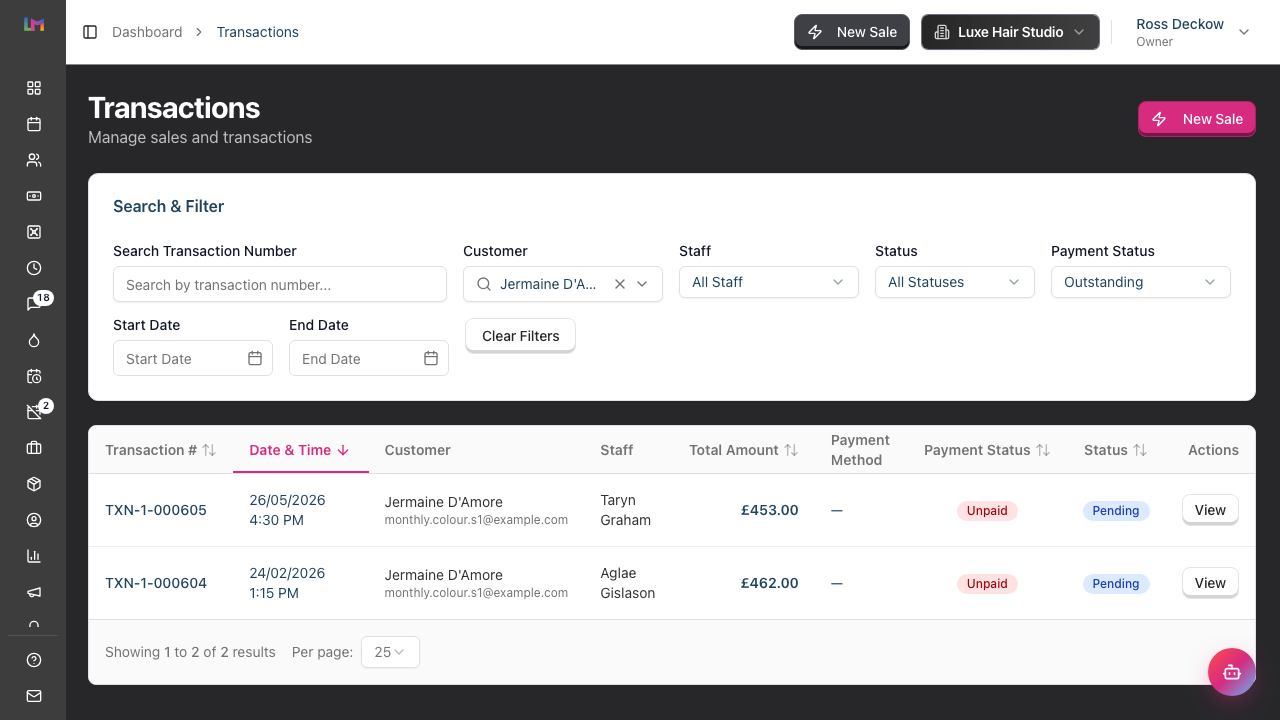
- Click the customer's name or the View Transactions link in the table
- You'll be taken to the Transactions page, pre-filtered to that customer. In Search & Filter, the customer box holds their name and the payment-status box shows Outstanding
- The list shows only their unpaid and partially paid transactions, so the amounts add up to the balance on the report
- Click into an individual transaction to record a payment or view details
- To widen the view, click Clear Filters or change the payment-status box to see their paid transactions too
Step 7: Taking Action on Outstanding Balances
For each customer with an outstanding balance, you can:
Record a Payment:
- Click the customer's name or View Transactions to see their outstanding transactions
- Click the unpaid transaction to open it
- Click Take Payment at the top of the transaction
- Record the payment method and amount against the Balance due
- The balance updates automatically, and the customer drops off this report once the invoice is paid in full
Send a Reminder:
- Note the customer's contact details from the report
- Use the Messages feature or contact them directly
- Keep reminders professional and friendly
- Document all contact attempts
Apply a Discount or Write-Off:
- For uncollectable debts, speak with your accountant
- Transactions can be adjusted if needed
- Document reasons for any write-offs
Step 8: Monitoring Collection Performance
Track your accounts receivable over time:
Weekly check:
- Review the total outstanding amount
- Follow up on accounts over 14 days
- Celebrate reductions in the total
Monthly review:
- Compare total outstanding to previous month
- Calculate collection rate (payments received vs. amounts owed)
- Identify patterns (repeat offenders, specific service issues)
Step 9: Exporting Accounts Receivable Data
To export the report:
- Review the current list (no date filter needed - shows all current balances)
- Click the Export button at the top right of the Outstanding Balances card
- Choose your format:
- Export as CSV - Spreadsheet format for Excel or Google Sheets
- Export as PDF - Formatted document for printing or sharing
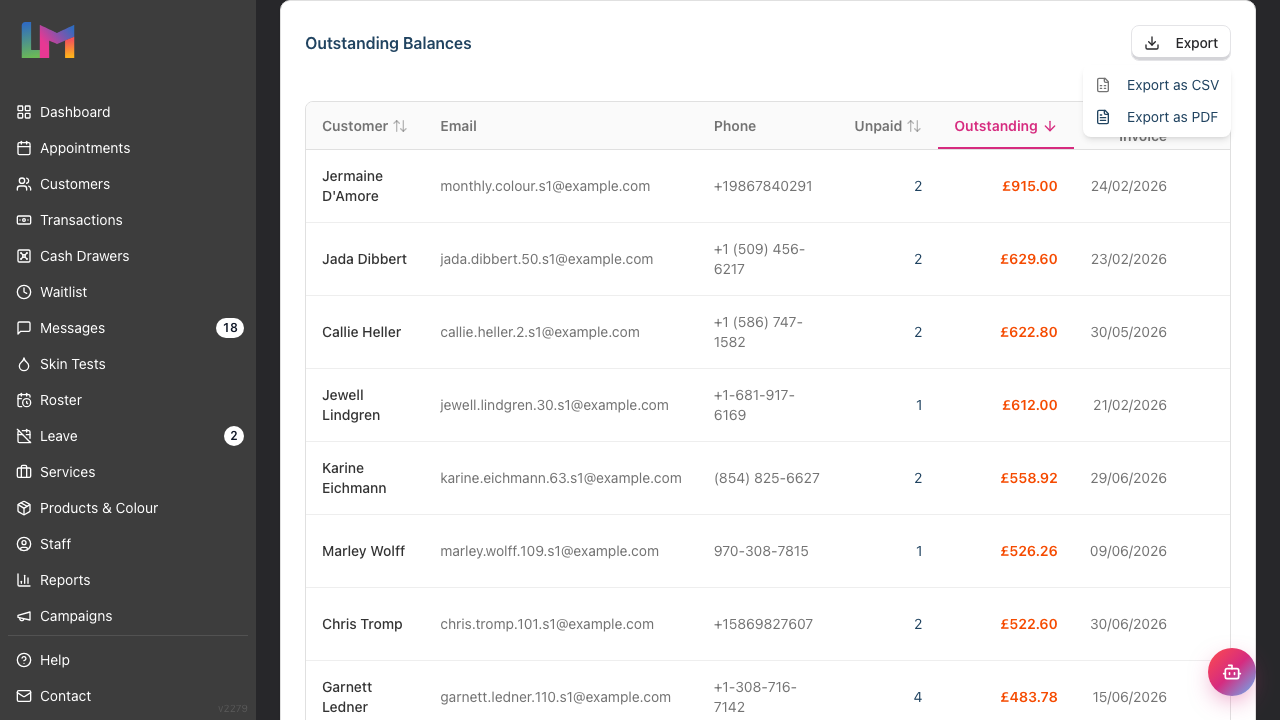 4. The file downloads with a column for each of:
- Customer, Email, and Phone
- Unpaid Transactions
- Outstanding Balance
- Oldest Invoice
- Days Overdue
The export matches what you filtered. It uses your current filters and sort order, and it includes every matching customer - not just the 20 on the page you're looking at. Apply your filters first, then export.
Note: If you don't see an Export button, your role can't export reports. Managers can read this report but only Owners and Admins can export it.
Uses for exported data:
- Bookkeeping and accounting records
- Integration with debt collection processes
- Analysis in spreadsheets for patterns
- Formal statements to send to customers
Common Pitfalls
"A customer paid but still appears on the report"
The payment may not have been recorded in Luminate. Find the relevant transaction and record the payment. The report updates in real-time once the payment is entered.
"I see very old unpaid balances from years ago"
These may be uncollectable debts or data entry issues from early in your Luminate usage. Review each one and decide whether to pursue collection or write off with your accountant.
"The total outstanding doesn't match my expectations"
Remember this report shows all open balances, including today's transactions and sales that were started but never paid for. Also check that partial payments have been correctly recorded, and that you haven't left a filter applied - the summary cards follow your filters.
"A customer disputes the balance"
Click through to view their full transaction history. You can see exactly what services/products were provided and what payments were made. This helps resolve disputes with clear documentation.
"The same customers keep appearing on this report"
Some customers may have a habit of delayed payment. Consider requiring deposits upfront (see Tutorial 8.4) or payment at time of service for these customers.
Tips and Best Practices
- Review weekly - Don't let outstanding balances accumulate; small regular reviews are easier than monthly clean-ups
- Act quickly on new debts - Fresh debts are much easier to collect than old ones
- Be consistent - Apply the same payment policies to all customers fairly
- Document everything - Keep notes on payment discussions and promises
- Consider deposits - For high-value services or new customers, request deposits upfront
- Set clear expectations - Communicate payment terms before services are provided
- Use reminders wisely - Automated reminders can help, but personal follow-up is more effective for larger amounts
Cancellation and No-Show Fees
A cancellation or no-show fee appears here the moment a member of staff raises it, under the client's name, with its age counting from that day. It is a debt like any other.
- Resend the pay link from the client's profile to chase it.
- Waive it on the same card, and it leaves this report.
- Take the money in the salon on the bill, and it leaves this report too.
See Tutorial 8.7 for raising, resending, waiving and refunding a fee.
Related Tutorials
- Tutorial 8.5: Managing Outstanding Balances - Day-to-day handling of unpaid invoices
- Tutorial 8.4: Deposits and Pre-Payments - Reducing accounts receivable with upfront payments
- Tutorial 8.1: Understanding Transactions and Payment Status - How payment status works
- Tutorial 9.2: Running Revenue Reports - Overall financial tracking
Frequently Asked Questions
What creates an outstanding balance?
An outstanding balance is created when a transaction is completed but not fully paid. This can happen when:
- A customer pays partially (e.g., forgets their wallet)
- Payment is deferred by arrangement
- An invoice is raised for payment later
Can I set up automatic payment reminders?
Luminate can send appointment reminders, but payment reminders are manual. The Accounts Receivable report helps you identify who needs a reminder, then you contact them directly.
How do I write off an uncollectable debt?
Consult your accountant first. Then you can adjust the transaction amount or mark it appropriately. Keep records of the original amount and the write-off decision for accounting purposes.
Is there an age-banding breakdown?
The report shows days outstanding per customer. For a summary by age band (0-30, 31-60, 61-90 days), export the data and create a pivot table in Excel.
Can customers pay online?
This depends on your payment setup. If you have online payment links, you can send these to customers. Luminate will record any payments once they're processed.
Does this include deposits and pre-payments?
Deposits create negative balances (credits) on customer accounts. These won't appear on the Accounts Receivable report, which only shows amounts owed to you. Customer credits are managed separately.
How often should I follow up on overdue accounts?
- 7-14 days: First friendly reminder
- 14-21 days: Second reminder
- 21-30 days: Phone call
- 30+ days: Formal letter or payment plan discussion
Last Updated: August 2026