
Staff Hours Worked Report
Introduction
Track how many hours your team is scheduled to work. This report shows rostered hours, working hours (after breaks), and break time for each staff member. Learn how to run the hours worked report, filter by date range, understand the hours breakdown, sort by different columns, and export data for payroll or compliance purposes.
Who this is for: Salon owners, admins, and managers who need to track staff time for payroll or compliance.
What you'll learn:
- Running the hours worked report
- Understanding scheduled hours vs working hours
- Tracking break time and shift counts
- Sorting and filtering the data
- Exporting for payroll processing
Time to complete: 10-15 minutes
Prerequisites
Before you begin, make sure you have:
- A Luminate account with Owner, Admin, or Manager role
- Staff members set up with their roster (see Tutorial 5.1)
- At least a week of roster history to view
Step-by-Step Instructions
Step 1: Navigate to the Hours Worked Report
- Log in to Luminate
- Click Reports in the sidebar menu
- In the Staff Reports category, click Hours Worked
- The report loads showing hours for the last 30 days by default
Step 2: Understanding the Summary Cards
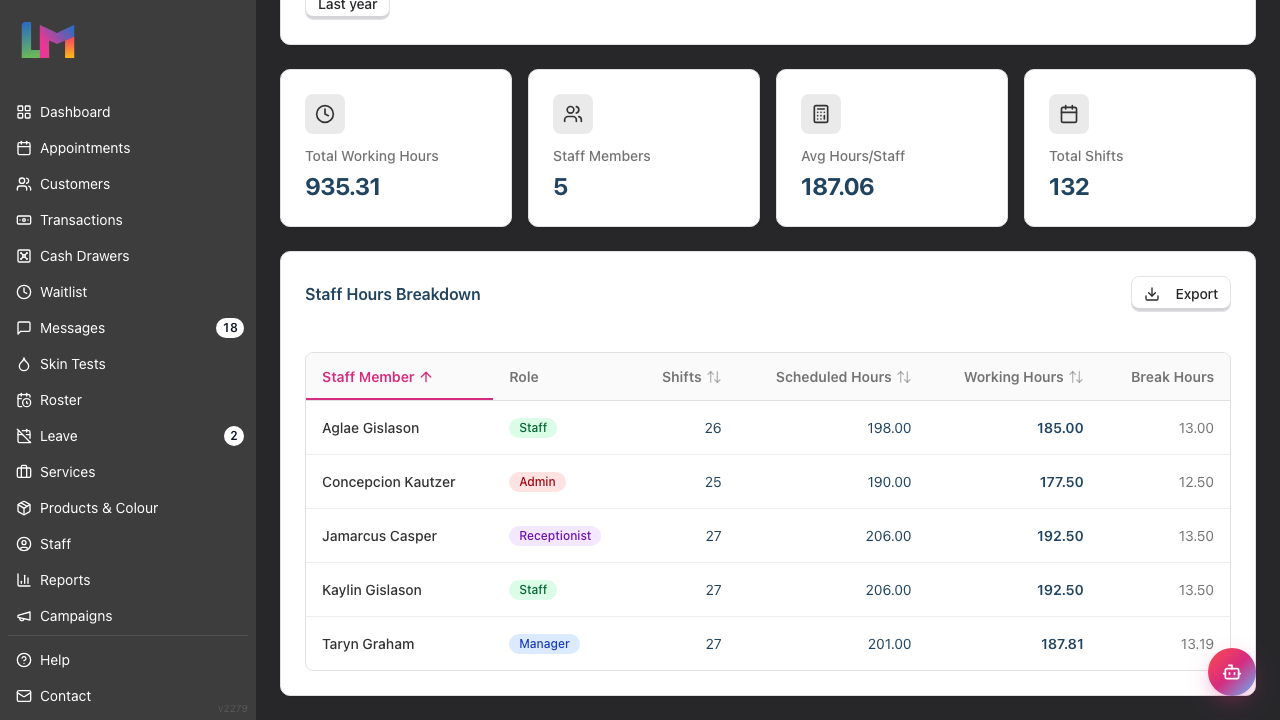
At the top of the report, you'll see four summary cards:
| Card | What It Shows |
|---|---|
| Total Working Hours | Sum of all working hours (scheduled minus breaks) |
| Staff Members | Number of staff with hours in the selected period |
| Avg Hours/Staff | Average working hours per staff member |
| Total Shifts | Total number of shifts worked across all staff |
These help you quickly see overall time across your team.
Step 3: Using the Date Range Filter
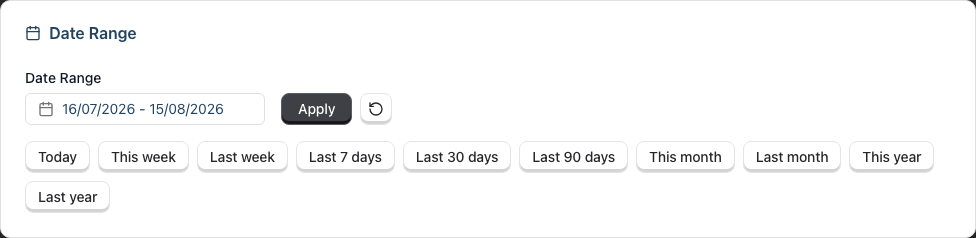
Control which period you're viewing:
Quick Preset Buttons:
- Today - Current day only
- This week - Current week (Monday to Sunday)
- Last week - Previous full week
- Last 7 days - Rolling 7-day period
- Last 30 days - Rolling 30-day period (default)
- Last 90 days - Rolling 90-day period
- This month - Current calendar month
- Last month - Previous calendar month
- This year - Current calendar year
- Last year - Previous calendar year
Custom Date Range:
- Use the date picker to select your start and end dates
- Click Apply to update the report
- Use the reset button (the circular arrow next to Apply) to return the date range to the default last 30 days
Tip: For payroll, select "Last month" to see the complete month's hours.
Step 4: Reading the Hours Table
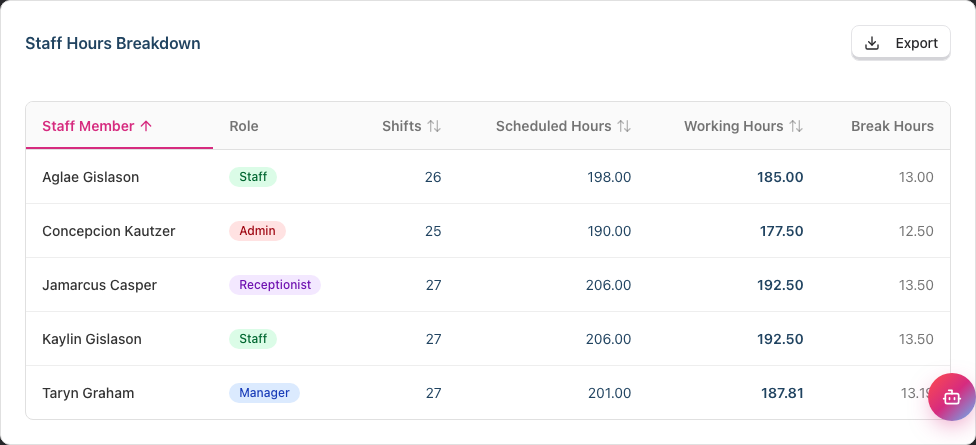
The main table shows each staff member's time breakdown:
| Column | Description |
|---|---|
| Staff Member | The team member's name (clickable link to their profile) |
| Role | Their role (Owner, Admin, Manager, Staff, Receptionist) |
| Shifts | Number of shifts in the selected period |
| Scheduled Hours | Total hours rostered (from their shifts) |
| Working Hours | Scheduled hours minus break time (highlighted in bold) |
| Break Hours | Total break time during shifts |
Understanding the calculation:
- Scheduled Hours = Total time between shift start and end
- Break Hours = Scheduled break time during those shifts
- Working Hours = Scheduled Hours − Break Hours (the actual paid working time)
Who appears in the table:
The table is built from the shifts themselves. A staff member appears only if they have at least one counted shift in the period, so anyone with no shifts is left out rather than listed with zeros. Someone who has since been deactivated still appears for the weeks they were rostered.
Click a staff member's name to open their profile. A Back to Hours Worked link on that page returns you to the report with the same date range and sort order.
If more than 15 staff have hours, the table splits into pages. Use Previous, Next or the page numbers below the table. The line on the left tells you where you are, for example "Showing 1 to 15 of 24 staff members".
Step 5: Sorting the Data
Click any sortable column header to sort (indicated by sort arrows):
- Staff Member - Alphabetical listing (default sort, A-Z)
- Shifts - Sort by number of shifts worked
- Scheduled Hours - Find who is rostered the most/least
- Working Hours - Sort by actual paid time
The first click on a new column sorts it highest first. Click the same column header again to reverse the order. The Role and Break Hours columns are not sortable.
Step 6: Understanding Break Time Calculations
Break time is configured per shift in the roster:
How breaks work:
- Each shift can have a break duration set (e.g., 30 minutes, 60 minutes)
- Break time is automatically deducted from scheduled hours
- Working hours = Scheduled hours minus break hours
Example:
| Shift | Scheduled | Break | Working |
|---|---|---|---|
| 9am - 5pm | 8 hours | 30 min | 7.5 hours |
| 8am - 4pm | 8 hours | 60 min | 7 hours |
Tip: If break times aren't showing correctly, check the shift settings in the Roster.
Step 7: Identifying Schedule Patterns
Use the report to spot patterns:
Questions to ask:
- Are hours evenly distributed across the team?
- Is anyone working significantly more than others?
- Are breaks being scheduled consistently?
- Do any staff have unusually low hours?
What patterns might mean:
| Pattern | Possible Implication |
|---|---|
| Uneven distribution | Some staff may be overworked |
| Very few hours | Part-timer or underutilised staff |
| No break time | Breaks may not be scheduled |
| Consistent hours | Good roster management |
Step 8: Exporting Hours Data
To export for payroll or records:
- Select your desired date range
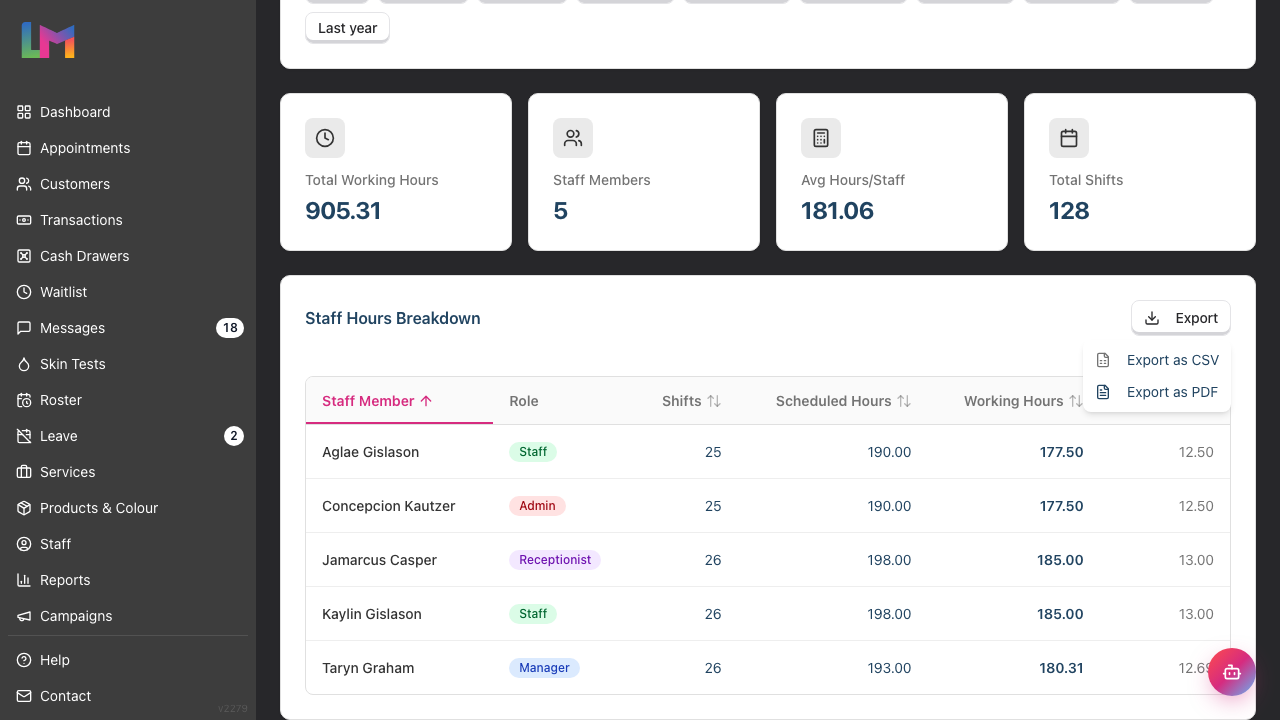
- Click the Export dropdown button in the table header
- Choose your format:
- Export as CSV - Spreadsheet-compatible format
- Export as PDF - Formatted document for printing or archiving
The export uses the date range and sort order on screen. The Export button is hidden when the selected range has no hours to show.
The export includes:
- Staff Name
- Role
- Number of Shifts
- Scheduled Hours
- Working Hours
- Break Hours
Uses for exported data:
- Calculate hourly pay for payroll
- Verify hours against timesheets
- Check working time regulations compliance
- Keep records for employment purposes
Note: Exporting is restricted to Owners and Admins — it requires the export reports permission. Managers can open and read the report but cannot export it.
Step 9: Using with Payroll
Before processing payroll (Tutorial 9.6), verify hours:
- Run the Hours Worked report for the payroll period
- Compare scheduled hours with expected hours
- Check for any anomalies (missing shifts, unexpected hours)
- Export if needed for records
- Proceed to Payroll report with confidence
Why this matters for hourly staff: Hourly pay = Working Hours × Hourly Rate
Incorrect hours means incorrect pay, so always verify before finalising payroll.
Common Pitfalls
"A staff member is missing from the table"
The table lists only staff with at least one counted shift in the range, so someone with nothing to count drops out rather than showing zeros. Check:
- The date range you've selected
- Their roster for the period
- Whether they were on approved leave. A shift covered by approved leave for its whole length is removed from the totals and from the Shifts count
"Hours look short for someone who took a half day"
Approved leave is deducted in proportion, not by whole shifts. Luminate splits the day at midday: a PM half-day on a 9am to 5pm shift removes the five afternoon hours and keeps the three morning ones, and the day still counts as one shift. Break time is scaled by the same fraction, which is why break hours can end in an odd figure such as 13.19. Two leave requests covering the same hours are merged, so those hours are only deducted once.
"A shift near the edge of the range lands in the wrong period"
A shift is counted by its start time. A shift that starts at 8pm on the last day of the range is counted in full, even though it finishes after midnight; a shift that started the day before the range begins is not counted at all. Line the range up with your pay period before you export.
"Hours don't match what I expected"
The report shows scheduled roster hours, not clock-in/clock-out times. If your actual operations differ from the schedule, the report reflects what was rostered, not what actually happened. Luminate uses the roster as the source of truth for this report.
"Break hours seem too high/low"
Verify the break duration settings on each shift in the Roster. Breaks are set per shift, not per staff member.
"I need to track actual vs scheduled hours"
This report shows scheduled hours from the roster. For time-clock tracking (actual check-in/out times), you would need to integrate with an external time-tracking system.
"Part-time staff are hard to compare"
When comparing staff, consider their contracted hours. A part-timer working 16 hours has different expectations than a full-timer on 40 hours.
Tips and Best Practices
- Run weekly for schedule verification - Catch roster issues early
- Export monthly before payroll - Keep records of hours for each pay period
- Compare month-on-month - Spot trends in team utilisation
- Check after roster changes - Verify updates are reflected correctly
- Consider working time limits - UK law limits working hours; use this report for compliance checks
- Factor in leave - Approved leave is already deducted from the totals, in proportion to the part of each shift it covers, so the report reflects time off
Related Tutorials
- Tutorial 9.6: Payroll Processing and Reports - Use hours data for payroll
- Tutorial 5.1: Setting Up Your Weekly Roster - Where hours come from
- Tutorial 6.2: Requesting and Managing Leave - Leave affects scheduled hours
- Tutorial 9.3: Staff Performance and Commission Reports - Revenue alongside hours
Frequently Asked Questions
Does this track actual clock-in/clock-out times?
No, this report shows scheduled roster hours, not actual clock-in/clock-out times. The hours displayed are based on the shifts configured in your roster. If you need actual time tracking, you would need to integrate with a separate time-clock system.
What if someone works two shifts in one day?
Each shift is counted separately and its hours add together. The Shifts column counts both.
How are hours calculated for flexible shifts?
Hours are based on shift start and end times in the roster. If you use flexible timing, ensure the roster reflects actual expected hours.
What about overtime?
This report shows scheduled hours only and does not calculate overtime. To identify potential overtime, you could export the data and compare working hours against contracted hours in a spreadsheet. Any overtime calculations would need to be done externally based on your employment contracts and policies.
Can staff see their own hours?
Staff can see their own schedule in the Roster, which shows their shifts. The consolidated Hours Worked report is only available to Owners, Admins, and Managers.
How far back can I view hours data?
All historical roster data is retained. You can select any date range from when you started using Luminate.
What if someone works a shift that wasn't scheduled?
The report only shows scheduled shifts. For unscheduled work, you'd need to either add the shift to the roster or track it separately.
Are public holidays included?
Public holidays are shown in the roster (Tutorial 5.2) but staff aren't automatically scheduled to work. If staff are rostered on a public holiday, their hours are included; if not scheduled, they won't show hours.
Last Updated: August 2026