
VAT/Tax Report
Introduction
The VAT/Tax Report helps you track all tax collected on completed transactions, broken down by day, month, or quarter. The report automatically uses your salon's tax label (VAT, GST, Sales Tax, etc.) based on your regional settings, making it essential for accurate tax returns regardless of your location.
Who this is for: Salon owners and administrators responsible for tax compliance and reporting.
What you'll learn:
- Navigating to the VAT/Tax Report
- Understanding the summary cards
- Filtering by date range
- Choosing grouping options (daily, monthly, quarterly)
- Reading the tax breakdown table
- How refunds and account transactions are handled
- Exporting data for your accountant or tax return
Time to complete: 10-15 minutes
Prerequisites
Before you begin, make sure you have:
- A Luminate account with Owner, Admin, or Manager role
- At least some completed transactions in your salon
- For exporting: Owner or Admin role (Managers can view but not export)
- Tax settings configured in Salon Settings (tax rate and tax label)
Step-by-Step Instructions
Step 1: Navigate to the Reports Section
- Log in to Luminate
- Click Reports in the sidebar menu
- You'll see the Reports index page with categories: Financial Reports, Customer Reports, Staff Reports, and Messaging Reports
Step 2: Open the VAT/Tax Report
- In the Financial Reports category, find VAT Report
- Click on it to open the report
- The report opens on the last 30 days, grouped by day
Note: The report page uses your salon's tax label throughout. If you've set your tax label to "GST", the page title, the summary card, the table title and the tax column all read "GST" instead of "VAT". The same applies to any other label, such as "TVA" or "Sales Tax". The tile in the Financial Reports list always reads VAT Report, whatever your tax label is — open it and the report itself uses your label.
Step 3: Understanding the Summary Cards
At the top of the report, you'll see four summary cards:
| Card | What It Shows |
|---|---|
| Total [Tax Label] Collected | Sum of all tax collected on completed transactions |
| Net Sales (Taxable) | Your taxable sales, before tax |
| Gross Sales (Inc. Tax) | Those same taxable sales, with the tax added |
| Transactions | Total number of completed transactions |
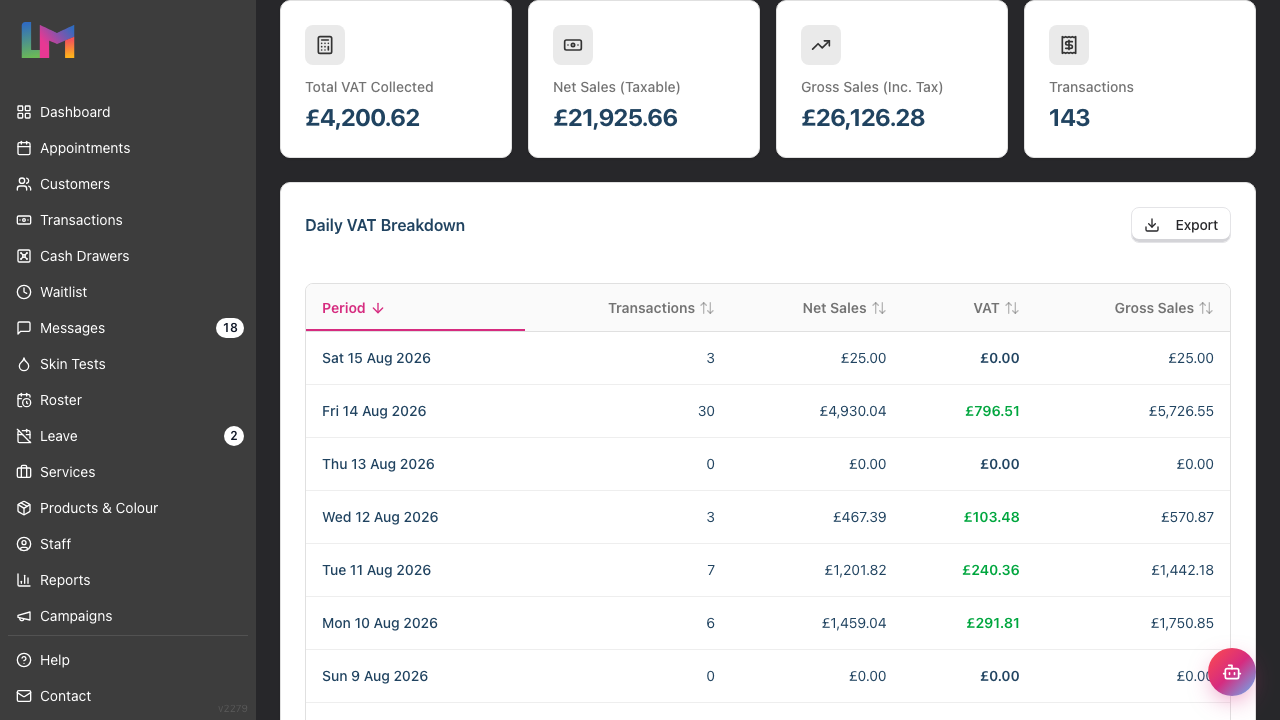
These cards give you a quick overview of your tax position for the selected date range.
Understanding the Relationship:
- Net Sales (Taxable) is what you sold that carries tax, before the tax is added
- Tax Collected is the tax you need to remit to the tax authority
- Gross Sales = Net Sales + Tax Collected
This report counts taxable sales only. Deposits, gift voucher sales and account credit top-ups are not taxable at the point of sale, so they do not appear in Net Sales or Gross Sales here. The tax on those falls due later — on the deposit when it is applied to a bill, and on the voucher or credit when the customer spends it. Use the Sales Summary report if you want total takings.
Quick check: multiply Net Sales by your tax rate. The answer should match Tax Collected. If it doesn't, contact support.
About the "(Taxable)" label: Net Sales is the total of every completed sale, including lines that carry no tax — deposits and gift voucher sales are both tax-free. Net Sales multiplied by your tax rate will therefore not always equal Tax Collected. Use the Tax Collected figure for your return, not a rate calculation.
Step 4: Using the Date Range Filter
The date filter appears below the header with preset buttons and a custom date picker. The Group by dropdown (covered in Step 5) sits alongside it in the same card.
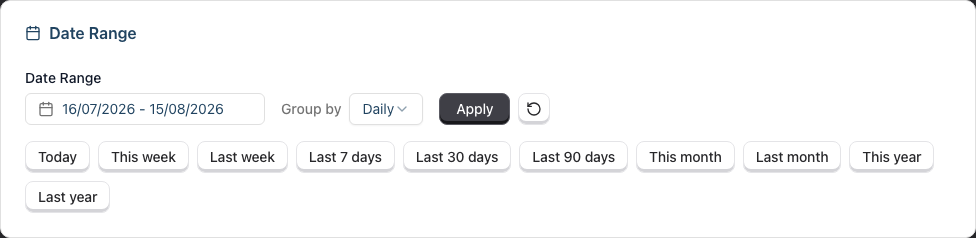
Using the Date Picker:
- Click the date range picker field
- Select your start date
- Select your end date
- Click the Apply button to update the report
- Click the reset button (circular arrow icon) to clear filters and return to defaults
Quick Preset Buttons: Below the date picker, you'll find preset buttons for common date ranges:
- Today - Current day only
- This week - Monday to Sunday of current week
- Last week - Previous full week (Monday to Sunday)
- Last 7 days - Rolling 7-day period
- Last 30 days - Rolling 30-day period
- Last 90 days - Rolling 90-day period (useful for quarterly tax returns)
- This month - Current calendar month
- Last month - Previous calendar month
- This year - Year to date
- Last year - Previous calendar year
Clicking any preset button automatically applies that date range and updates the report.
Tip: For quarterly tax returns, use "Last 90 days" or set custom dates matching your tax quarter (e.g., 1 April to 30 June for UK Q1).
Step 5: Choosing Your Grouping Option
To the right of the date filter, you'll see a Group by dropdown with three options:
| Grouping | What It Shows | Best For |
|---|---|---|
| Daily | Each day's tax totals | Detailed daily analysis, reconciliation |
| Monthly | Each month's tax totals | Monthly VAT schemes, GST returns |
| Quarterly | Each quarter's tax totals (Q1, Q2, Q3, Q4) | Standard quarterly VAT returns |
To change grouping:
- Click the Group by dropdown
- Select Daily, Monthly, or Quarterly
- The report updates automatically
The table title will change to reflect your selection (e.g., "Daily VAT Breakdown", "Monthly VAT Breakdown", or "Quarterly VAT Breakdown").
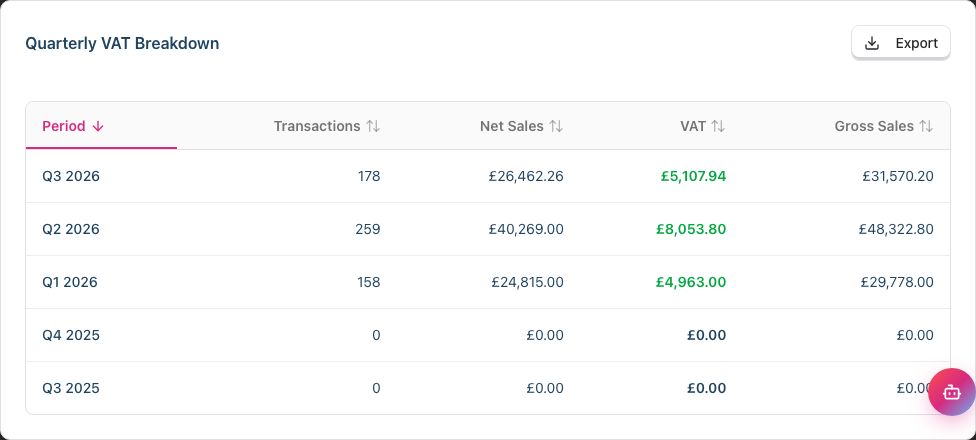
Period Labels:
- Daily: Weekday, date, month and year (e.g. "Sat 15 Aug 2026")
- Monthly: Month and year (e.g. "August 2026")
- Quarterly: Quarter and year (e.g. "Q3 2026")
The report lists every period in your date range, including periods with no sales. Those rows show zero across all columns.
Step 6: Reading the Tax Breakdown Table
The main table shows your tax data grouped by the selected period:
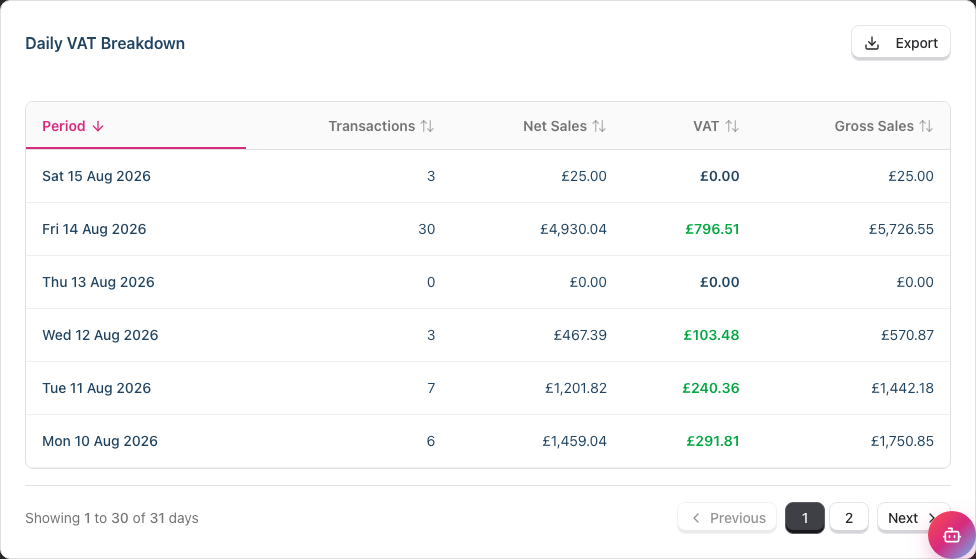
| Column | Description |
|---|---|
| Period | The time period (date, month, or quarter) |
| Transactions | Number of completed transactions in that period |
| Net Sales (Taxable) | Taxable revenue, before tax |
| [Tax Label] | Tax amount collected (dynamic based on your salon settings) |
| Gross Sales (Inc. Tax) | That taxable revenue with the tax added |
Sorting: Click any column header to sort the table by that column. Click again to reverse the sort order. An arrow indicator shows the current sort direction.
Pagination: The table shows 30 periods per page. If your range holds more, use the pagination controls at the bottom. The label names the unit that matches your grouping:
- Daily grouping: "Showing 1 to 30 of 31 days"
- Monthly grouping: "Showing 1 to 12 of 24 months"
- Quarterly grouping: "Showing 1 to 4 of 8 quarters"
When everything fits on one page, the pagination controls do not appear.
Colour Coding:
- Tax amounts appear in green when positive (tax collected)
- Tax amounts appear in red when negative (refunds where tax was returned)
Step 7: Understanding Which Transactions Are Included
The VAT report follows invoice accounting (the standard method for UK VAT and most tax systems). This means:
| Transaction Status | Payment Status | Included in Report? |
|---|---|---|
| Completed | Paid | Yes |
| Completed | Unpaid (on account) | Yes |
| Completed | Partial payment | Yes |
| Pending | Any | No |
| Cancelled | Any | No |
| Refunded | N/A | Yes - the sale on its own date, plus a credit note on the refund date |
Key point: Tax is reported when the transaction is completed, not when payment is received. This is standard invoice accounting.
Deposits are taxed once, when you take them. A deposit is a completed transaction in its own right, so its tax is reported on the day the deposit was paid. When that deposit is later put towards the final bill, the bill only reports the tax on the balance still to pay — otherwise the same money would be taxed twice. A £30 deposit against a £120 service reports £5 VAT on the deposit date and £15 on the day the bill was settled, £20 in total.
What this means:
- If a customer pays later (account sale), the tax is still reported on the completion date
- Transactions saved as "pending" or "draft" don't appear until completed
- A refund appears as a negative amount on the date you issued it, and reduces the tax you owe for that period
Step 8: Handling Refunds
Luminate treats a refund the way a paper VAT return treats a credit note. The original sale keeps its full value on the date it was completed. The refund is a separate negative entry on the date you issued it.
- The sale stays on its own date, at its full positive value
- The refund appears as a negative entry on the date the refund was issued
- Negative values reduce your total tax liability for the period they fall in
Example: A sale of £120 (£100 + £20 VAT) made on 5 August and refunded on 15 August shows as:
| Date | Net Sales | VAT | Gross Sales |
|---|---|---|---|
| 5 August | £100 | £20 | £120 |
| 15 August | -£100 | -£20 | -£120 |
Why it works this way: once you have filed a VAT return for a period, that period must not change. If a refund reached back and rewrote the month of the original sale, a period you had already filed would no longer match your return. Putting the refund on its own date keeps every filed period exactly as you filed it, and puts the reclaim in the period you actually made it.
Step 9: Exporting Tax Data
To export your tax report for your accountant or tax return:
- Set your desired date range using the filter
- Choose your preferred grouping (Monthly or Quarterly is common for tax returns)
- In the breakdown table card, click the Export button (top right)
- A dropdown menu appears with options:
- Export as CSV - For spreadsheet applications (Excel, Numbers, Google Sheets)
- Export as PDF - For printing, archiving, or sending to your accountant
- Click your preferred format
- The file downloads to your computer
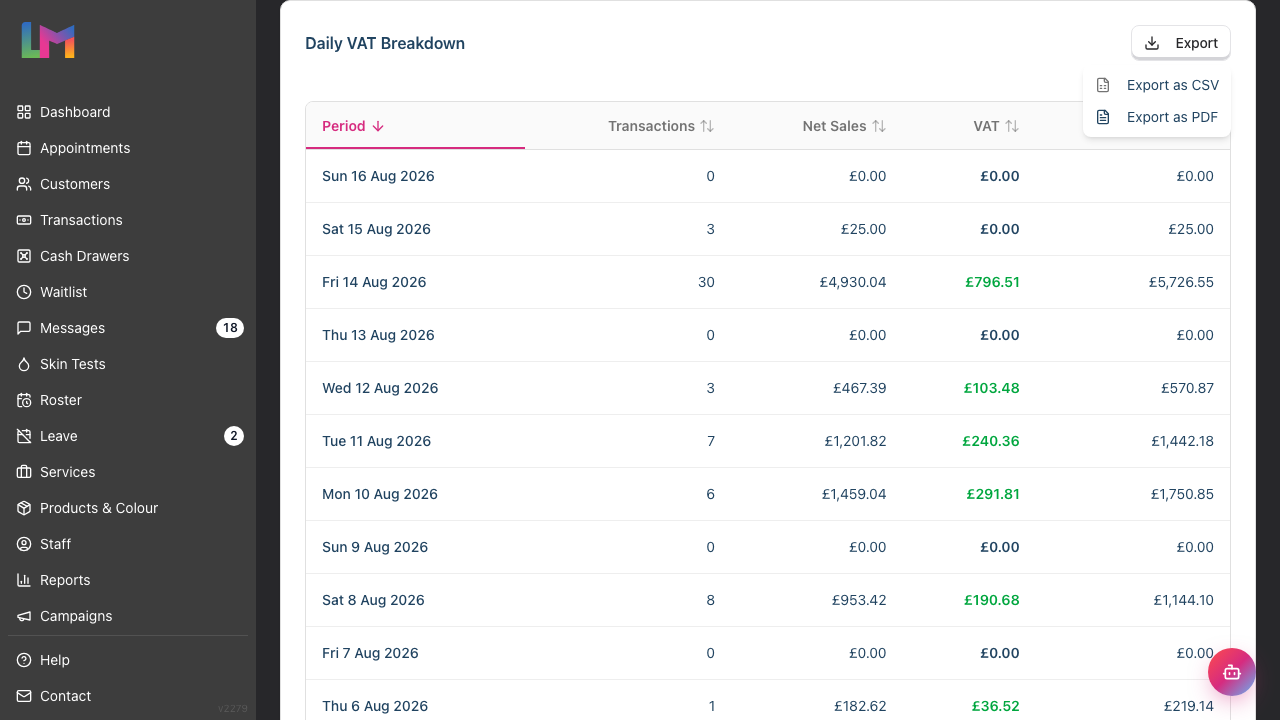
Export filename format: [tax-label]-report-[grouping]-[start-date]-to-[end-date].[csv/pdf]
For example: vat-report-monthly-2025-01-01-to-2025-12-31.csv
The export includes:
- Every period in your date range and grouping, not only the page on screen
- Five columns: Period, Transactions, Net Sales, [Tax Label] Amount, Gross Sales
The tax column is named after your tax label with "Amount" added, so a UK salon gets a VAT Amount column. The figures carry thousands separators (for example 1,427.75), so check how they land when you open the CSV in your spreadsheet — some applications read them as text rather than numbers.
Note: Only Owners and Admins can export reports. If you're logged in as a Manager, the Export button doesn't appear at all — ask your salon owner or an admin to export the data for you.
Step 10: Verifying Your Tax Figures
Before submitting your tax return, verify the report:
- Cross-check with your accounting software - The total tax should match your sales ledger
- Check for missing periods - Ensure no days/months show unexpected zeros
- Review refunds - Confirm negative amounts are legitimate refunds. Where a period contains refunds, check it against your transaction list before you file
- Compare to previous periods - Significant variances may need investigation
- Verify the math - Net Sales times your tax rate should equal Tax Collected
Common Pitfalls
"My tax total seems too low"
Check that all transactions are marked as "completed". Pending transactions don't appear in the tax report. Also verify your salon's tax rate is correctly set in Salon Settings.
"I see a customer paid but it's not in the report"
The tax report is based on completion date, not payment date. If the transaction was completed in a previous period but paid in this period, the tax appears in the earlier period.
"There are negative amounts I don't recognise"
These are refunds. Switch to daily grouping and check the specific date to see which refunds were issued that day. The matching sales sit on their own, earlier dates.
"The report shows zero for some periods"
Days or periods with no completed transactions will show zero across all columns. This is expected if your salon was closed or had no sales during that time.
"My tax figures don't match my accounting software"
- Ensure the date ranges match exactly
- Check if your accounting software includes pending transactions (Luminate only includes completed ones)
- Verify timezone settings - transactions are grouped by your salon's timezone
"The report shows 'VAT' but I use 'GST' (or vice versa)"
Your tax label is configurable in Salon Settings:
- Go to Salon Settings
- Open the General tab, then the Details sub-tab
- Scroll to the Tax Settings card
- Update the Tax Label field to match your region (VAT, GST, Sales Tax, TVA, etc.)
- Save. The report uses your new label straight away
"I can't export the report"
Only Owners and Admins have permission to export reports. If you're logged in as a Manager, you can view reports but exporting is restricted. Contact your salon owner if you need exported data.
"A sale was made on account but I haven't been paid yet"
Under invoice accounting, tax is due when the sale is completed, regardless of payment. The sale correctly appears in the tax report on its completion date.
Tips and Best Practices
Run this report before tax deadlines - Export your data at least a week before your VAT/GST return is due to allow time for review
Use consistent periods for tax returns - Match your report dates exactly to your tax return periods (e.g., quarterly for VAT, monthly for GST)
Quarterly grouping for tax returns - When preparing VAT or GST returns, quarterly grouping provides clear period totals matching most tax return formats
Export and archive - Keep PDF copies of each tax period for your records, especially before making changes to tax rates
Reconcile monthly - Don't wait until the tax deadline; check monthly to catch discrepancies early
Check your tax rate - Verify your tax rate is correctly set in Salon Settings. An incorrect rate will affect all new transactions.
Note payment method differences - Cash accounting users should consult their accountant as this report uses invoice accounting
Cancellation and No-Show Fees
A cancellation or no-show fee is taxed by default. HM Revenue and Customs generally treats such a charge as part of the supply, so the tax follows the service.
- A taxable fee appears in your net sales, tax and gross figures like any other sale.
- A fee raised while the salon setting Fee is subject to VAT was off contributes nothing to any of the three. It still counts as revenue on the Daily Revenue report.
The setting is read when the fee is raised, so changing it later moves future fees only. Talk to your accountant before you change it. See Tutorial 8.7.
Related Tutorials
- Tutorial 9.2: Running Revenue Reports - Overall financial tracking with subtotals, discounts, and tips
- Tutorial 9.5: Accounts Receivable Reports - Outstanding balances and unpaid invoices
- Tutorial 8.1: Understanding Transactions and Payment Status - Transaction lifecycle and statuses
- Tutorial 8.2: Handling Refunds and Cancellations - How refunds affect your tax figures
- Tutorial 13.2: Timezone, Currency, and Regional Settings - Configure your tax label and rate
Frequently Asked Questions
Can I change the tax label from VAT to GST (or other labels)?
Yes. Go to Salon Settings > General > Details and update the Tax Label field in the Tax Settings card. This changes the label throughout Luminate, including on this report, receipts, and invoices. Common labels include VAT, GST, Sales Tax, TVA, and HST.
What's the difference between invoice accounting and cash accounting?
Invoice accounting (used by this report) records tax when the sale is made. Cash accounting records tax when payment is received. Most UK businesses use invoice accounting. Consult your accountant if you use cash accounting.
Can I use this report for my tax return?
Yes. Export the data for your tax period (usually quarterly for VAT). The totals can be transferred to your tax return. Always verify figures with your accountant.
Does the report include refunded transactions?
Yes. The sale is counted on its own date, and the refund is counted as a negative amount on the date you issued it. Over a range covering both, they cancel out.
Why doesn't the report show tips?
Tips are not subject to VAT/GST (they're discretionary payments to staff), so they're excluded from this report. See the Daily Revenue Report (Tutorial 9.2) for tip totals.
What's the difference between this and the Daily Revenue report?
The Daily Revenue report shows overall financial performance (subtotals, discounts, tips, net revenue). The VAT/Tax Report specifically focuses on tax collected for compliance purposes, with grouping options suited to tax return periods.
Are deposits included in the tax figures?
A deposit carries no tax of its own — deposit lines are not taxable, so a deposit collection records zero in the tax column. The full tax for the appointment is recorded once, on the final bill, when you complete that sale.
How do I change my salon's tax rate?
Go to Salon Settings > General > Details and update the Tax Rate (%) field in the Tax Settings card. This only affects future transactions; historical transactions keep their original tax amounts.
Do discounts affect the tax calculation?
Yes. Tax is calculated on the discounted amount, not the original price. This is reflected correctly in the Net Sales and Tax figures.
How far back can I run this report?
Luminate stores your complete transaction history. You can select any date range from when you started using the system. There's no limit on historical data access.
Which transactions are included?
Only completed transactions are included. This means:
- Pending transactions are excluded
- Cancelled transactions are excluded
- Refunded transactions are included: the sale on its date, a negative credit note on the refund date
Can I see a breakdown by service or product category?
The VAT/Tax Report shows aggregate totals by period only. For category breakdowns, export the data and cross-reference with your transaction records, or use the Revenue Report which shows more detail.
What if my tax rate changed mid-year?
The report shows tax as it was recorded on each transaction. If your rate changed, transactions before the change show the old rate, and transactions after show the new rate. The totals will be correct for what you actually collected.
Is this report suitable for my accountant?
Yes. The PDF export includes your salon name, date range, and all the figures your accountant needs. The CSV export is ideal if they want to import the data into accounting software.
Last Updated: August 2026