
Using Customer Badges
Introduction
Customer badges are visual indicators that help staff identify important customer traits at a glance. Badges appear on customer profiles and help personalise the service experience by highlighting things like VIP status, preferences, and behavioural patterns.
Who this is for: Owner, Admin, Manager, Staff, Receptionist What you'll learn:
- Understand the available built-in badges
- Toggle badges on and off for customers
- View badges on customer profiles
- Configure badge settings (Owners/Admins)
- Create custom badges for your salon
- Let customers set some badges for themselves
Time to complete: 8 minutes
Prerequisites
- Logged in with at least Staff permissions
- Complete Tutorial 3.1 (Adding and Managing Customer Profiles)
- Owners/Admins should complete this to configure salon badge settings
Step-by-Step Instructions
Step 1: Understanding Built-in Badges
Luminate includes these built-in customer badges:
| Badge | Colour | When to Use |
|---|---|---|
| VIP | Amber | High-value customers deserving special treatment |
| Prefers Silence | Blue | Customer prefers quiet during appointments |
| Often Late | Red | Customer has a pattern of arriving late |
| Often Early | Green | Customer tends to arrive early |
| Frequent Visitor | Indigo | Regular customer who visits often |
| New Customer | Teal | Recently added to your salon |
Each badge can be enabled or disabled by salon Owners/Admins, who can also add up to 10 custom badges of their own (see Step 5).
Customer badges vs appointment badges: these are two separate sets. Customer badges describe the person and follow them to every appointment. Appointment badges (First Visit, Running Late, Special Occasion, Requires Follow-up) apply to a single appointment only. Both are configured on the same settings tab, under separate sub-tabs.
Step 2: View Badges on a Customer Profile
- Navigate to Customers in the sidebar
- Click on a customer to open their profile
- Click the Details tab
- Find the Badges section
The Badges section displays all available badges for your salon - the built-in ones your Owner/Admin has enabled, plus any custom badges they've created. Selected badges appear coloured with a tick; unselected badges appear grey.

Badges the customer set. A customer can set some badges for themselves when they book online or update their profile (see Step 6). When they hold one of these, a line under the badges names it, for example: Set by the customer: Prefers Silence, Sensitive scalp. No line shows when the customer set none. If you remove a badge the customer set, it leaves the line. If you add it again later, it counts as set by staff.
Step 3: Toggle Badges On and Off
To add or remove a badge:
- Open the customer profile
- Go to the Details tab
- In the Badges section, click any badge to toggle it
How it works:
- Click an unselected (grey) badge to apply it
- Click a selected (coloured) badge to remove it
- A selected badge is filled in its own colour, slightly enlarged, and carries a tick
- Changes save automatically - no save button needed

Note: A customer can have up to 10 badges at a time. Once a customer is carrying 10, the badges they do not have go grey and stop responding, and the line "A customer can hold up to 10 badges." appears under them. The badges they already have stay active, so remove one you no longer need to make room.
If someone else changed the badges first. Each click saves the customer's whole badge list. If the badges changed after you opened the page (the customer set one online, or a colleague changed one), Luminate does not save your click. It shows the current badges, and a message appears under them: "These badges changed since you opened this page. The page now shows the latest. Make your change again." Check the badges, then click the badge again if you still need the change. The same message appears on the appointment page and in the calendar's appointment sidebar.
Step 4: Strategic Badge Usage
VIP Badge:
- Apply to your top customers (top 10-20% by spending)
- Staff should provide premium service: drinks, extra time, personalised attention
- Define clear criteria: "VIP = £500+ annual spend OR 20+ visits"
Prefers Silence Badge:
- Apply when a customer explicitly requests quiet service
- Staff should minimise chat and focus on the service
- Still provide excellent service, just with less conversation
Often Late / Often Early:
- Apply when you notice a pattern (3+ occurrences)
- Helps receptionists prepare appropriately
- For late customers: call 15 minutes before appointment
- For early customers: prepare station sooner
Frequent Visitor:
- Apply to loyal, regular customers
- Staff can acknowledge: "Great to see you again!"
- Consider loyalty rewards
New Customer:
- Apply to recently added customers
- Staff should be extra welcoming and explain processes
- Remove after 2-3 visits when they're established
Step 5: Configure Badge Settings (Owners/Admins)
Owners and Admins can control which badges are available:
- Click the salon name in the top navigation bar
- Select Salon Settings from the dropdown menu
- On the General tab, click the Badges sub-tab
- Click the Customer Badges sub-tab (the Badges sub-tab opens on Appointment Badges first)
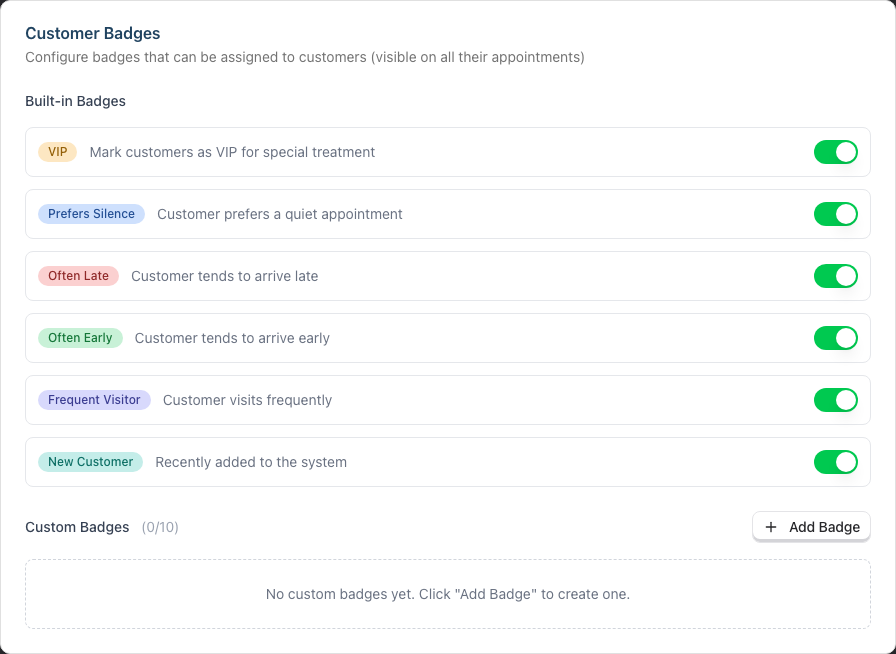
Nothing here saves until you click Update Salon. Every change on this tab - built-in toggles, added badges, edits and deletions - is held on the form until you click Update Salon at the bottom of the page. Leaving the page first discards the lot.
Enable/Disable Built-in Badges:
- Toggle the switch next to each built-in badge
- Disabled badges won't appear for staff to use
- Click Update Salon when you're done
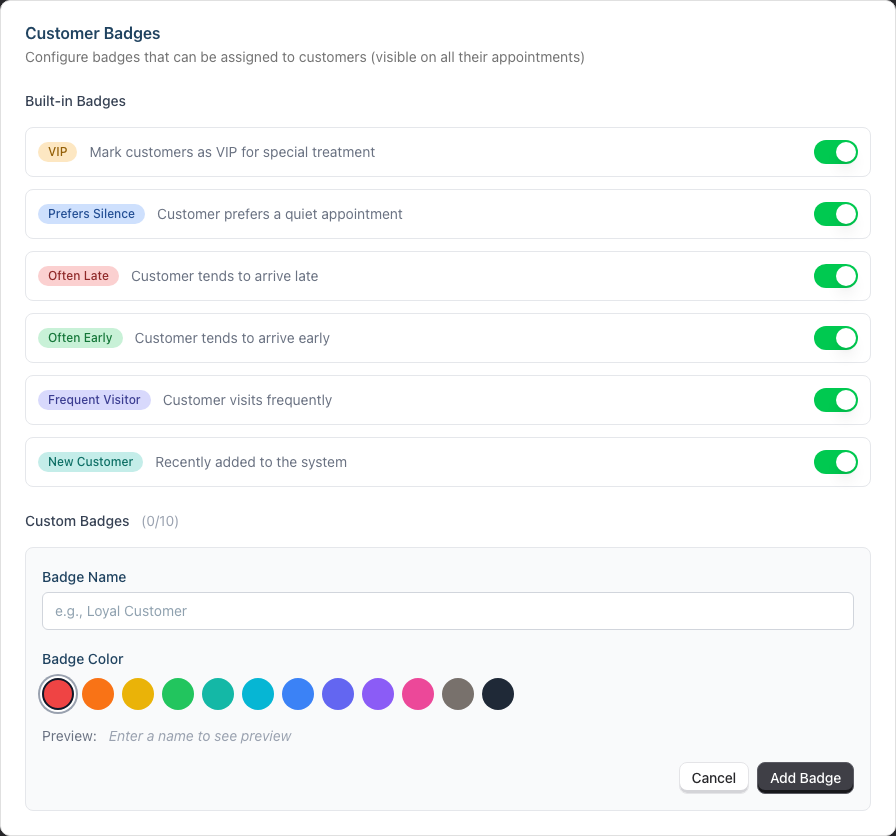
Add Custom Badges:
- Click Add Badge
- Enter a Badge Name (e.g., "Ambassador") - up to 50 characters
- Choose a Badge Color from the 12-colour palette. The Preview shows the finished badge as you type
- Click Add Badge
- Click Update Salon to save
You can create up to 10 custom customer badges. The heading shows how many you've used (for example, Custom Badges (3/10)), and the Add Badge button disappears once you reach 10.
Edit Custom Badges:
- Click the Edit button next to a custom badge
- Update the name or colour inline
- Click Save, then Update Salon
Delete Custom Badges:
- Click the trash icon next to a custom badge
- Confirm in the Remove Badge dialog by clicking Remove Badge
- Click Update Salon to save
- Warning: This removes the badge from all customers who have it
Step 6: Let Customers Set a Badge (Owners/Admins)
Customers can set some badges for themselves. They do this in two places:
- on the Review & Confirm step when they book online (see Tutorial 18.3)
- on the profile page they open from a Request Update link, after they verify their identity with a code (see Tutorial 3.3)
Customers can set only these badges:
| Badge | What the customer sees |
|---|---|
| Prefers Silence (when it is switched on) | "I'd prefer a quiet appointment", with the hint "Your stylist will keep conversation to a minimum." |
| A custom badge marked Customers can set this | The badge name, for example "Sensitive scalp" |
Customers never see any other badge. VIP, Often Late, Often Early, Frequent Visitor, New Customer and every custom badge without the mark stay for staff only. The Customer Badges card says so at the top: "A badge is for staff only unless it says customers can set it. Customers never see staff-only badges." A customer can remove a badge they are allowed to set, even when a member of staff added it.
To let customers set a custom badge:
- Go to Salon Settings > General tab > Badges sub-tab > Customer Badges sub-tab
- Click Add Badge, or click Edit next to an existing custom badge
- Tick Customers can set this. Customers see the badge name, so choose a name that reads well to them
- Click Add Badge (or Save)
- Click Update Salon to save
The badge row then shows a Customers can set pill. The Prefers Silence row says "Customers can also set this when they book online or update their profile." The checkbox is on customer badges only. Appointment badges do not have it.
"Customers cannot set this: its id is shared with another badge." This line can appear on a ticked custom badge that came from an import or older data. Two badges share one internal id, so Luminate cannot tell them apart, and it does not offer either badge to customers. Do not delete the badge to fix this: a delete removes that id from every customer who holds it. Contact hello@luminate.salon and we will fix it.
If you change your mind:
- Clear Customers can set this, or switch Prefers Silence off, and click Update Salon. Customers stop seeing the badge at once.
- Customers who already hold the badge keep it. Staff can still remove it. The "Set by the customer" line still shows on their profile.
- Tick the box again later, and customers see the badge again with its current value.
- Deleting a custom badge removes it from every customer, as before.
Step 7: Creating Custom Badges
Common custom badge ideas:
| Badge Name | Colour | Use Case |
|---|---|---|
| Ambassador | Orange | Customers who actively refer others |
| Staff Family | Violet | Family members of staff |
| Influencer | Pink | Social media influencers |
| Accessibility | Blue | Customers with accessibility needs |
| Colour Sensitive | Red | Known sensitivities to colour products |
| Price Conscious | Green | Customers who appreciate value |
The available colours are: Red, Orange, Yellow, Green, Teal, Cyan, Blue, Indigo, Violet, Pink, Stone, and Gray.
To create:
- Go to Salon Settings > General tab > Badges sub-tab > Customer Badges sub-tab
- Click Add Badge
- Enter name and select colour
- Click Add Badge
- Click Update Salon to save your changes
Where Badges Appear
Badges are visible in several places:
| Location | What Shows |
|---|---|
| Customer profile header | "Has Allergies" indicator (auto-applied if allergies are recorded - this is separate from customer badges) |
| Customer profile Details tab | All available customer badges in the Badges section, where you toggle them on and off |
| Appointment sidebar | When you open an appointment from the calendar, the customer's badges appear in the Badges section under the Customer heading, where you can also toggle them |
| Appointment detail page | The customer's badges appear in the Customer card and can be toggled there (appointment badges have their own Appointment Badges card) |
| Dashboard | Customer badges show alongside today's and the next upcoming appointment |
Note: The main customer list doesn't show badges - you need to open the customer profile to see them. Badges are also not shown on the calendar grid itself, only in the appointment sidebar that opens when you click an appointment, and they don't appear on the new appointment form while you're booking.
Common Pitfalls
"Badge changes aren't saving"
Badges save automatically via the network. Ensure you have a stable internet connection. If a badge shows animation for too long, refresh the page and try again.
"My badge settings didn't stick"
Badge configuration behaves like the rest of the salon settings form - toggles, new badges, edits and deletions only save when you click Update Salon at the bottom of the page. If you switched tabs or navigated away first, the changes were discarded. This is different from toggling badges on a customer, which saves as you click.
"I can't see the badges section"
Your salon may have disabled all built-in badges. Ask the salon owner to enable at least one badge in settings.
"Staff are using VIP badge inconsistently"
Define clear criteria and document them. Share with all staff: "VIP = £500+ annual spend OR 20+ visits"
"Too many badges cluttering the view"
Owners can disable unused built-in badges. Delete custom badges that aren't being used. Aim for 6-10 total badges maximum.
"My badge click did not save, and a message says the badges changed"
The badges changed after you opened the page. The customer may have set one online, or a colleague changed one. Luminate already shows the current badges. Check them, then click again. Your click was not saved, so the newer change is safe.
"A customer cannot see a badge I want them to set"
Check that the badge is a customer badge with Customers can set this ticked, or that Prefers Silence is switched on, and that you clicked Update Salon. If the row says "Customers cannot set this", see Step 6.
"Customer was marked 'Often Late' unfairly"
Be careful with negative badges. One late arrival doesn't make a pattern. Apply after 3+ occurrences.
"I can't add more badges to a customer"
Customers can have a maximum of 10 badges. At the limit, the badges the customer does not have go grey and a line says so. Remove a less relevant badge first, then add the new one.
Tips and Best Practices
- Review badges during check-in - Glance at badges before greeting to personalise the interaction
- Update badges promptly - If a customer mentions they prefer quiet, add the badge immediately
- Don't over-badge - Not every customer needs badges; use them for notable traits only
- Remove outdated badges - A "New Customer" who has visited 10 times is no longer new
- Colour code strategically - Red for caution, green for positive, blue for preferences, amber for VIP
- Train staff on meanings - Everyone should know what each badge means
- Combine with notes - Badge: "Accessibility" + Note: "Uses wheelchair, prefers station #3"
- Review VIP criteria quarterly - Customer spending patterns change; update accordingly
Related Tutorials
- Tutorial 3.1: Adding and Managing Customer Profiles - Where customer information lives
- Tutorial 3.4: Organising Customers - Other ways to categorise customers
- Tutorial 3.3: Customer Preferences and Communication Consent - Recording preferences
Frequently Asked Questions
Can customers see their badges?
Only the badges your salon lets them set: Prefers Silence (when it is switched on) and custom badges marked Customers can set this. Customers see these, and can turn them on or off, when they book online or update their profile after they verify their identity. They never see any other badge, and badges never appear in emails or text messages. See Step 6.
How many badges can one customer have?
Up to 10 badges. However, we recommend using 3-5 for clarity.
How many custom badges can we create?
Up to 10 custom customer badges per salon, on top of the six built-in ones. Appointment badges have their own separate allowance of 10.
Who can toggle badges?
All staff members with access to view customers can toggle badges. Badge configuration (adding/removing custom badges) is restricted to Owners and Admins.
Do badges appear on the calendar?
Not on the calendar grid itself. However, when you click an appointment to open its sidebar, the customer's badges appear under the Customer section. Customer badges also show on the dashboard's today's and upcoming appointment cards.
What happens if I delete a custom badge?
The badge is removed from all customers who have it. This cannot be undone.
Can I create badges for products or services?
Products and services use Categories (not badges). See the Categories section under Products or Services.
Will badges sync across multiple salons?
No. Each salon has its own badge configuration. Customers visiting multiple salons would have separate badges per salon.
Is there a badge for allergies?
Allergies are handled separately in the Preferences section with the Allergies & Sensitivities toggle. When enabled, a "Has Allergies" indicator appears automatically on the profile.
Last Updated: October 2026