
Managing Outstanding Balances
Introduction
Not every customer pays in full at checkout. Some salons allow partial payments, customer accounts, or encounter situations where full payment isn't collected. Managing outstanding balances properly ensures you track money owed and follow up systematically. This tutorial covers tracking unpaid amounts, using the Accounts Receivable report, and recording late payments.
Who this is for: Owners, Admins, and Managers who handle payments and follow-up on outstanding balances.
What you'll learn:
- Understanding partial payments and unpaid transactions
- Viewing outstanding balances by customer
- Using the Accounts Receivable report
- Recording payments on existing transactions
- Following up on unpaid amounts
Time to complete: 10 minutes
Prerequisites
Before you begin:
- Complete Tutorial 8.1 (Understanding Transactions and Payment Status)
- Understand your salon's payment terms
Step-by-Step Instructions
Step 1: Understanding Outstanding Balances
An outstanding balance exists when transaction total exceeds payments received.
Payment status recap:
| Status | Total Paid | Outstanding Balance |
|---|---|---|
| Unpaid | £0.00 of £100.00 | £100.00 |
| Partial | £30.00 of £100.00 | £70.00 |
| Paid | £100.00 of £100.00 | £0.00 |
Common scenarios creating outstanding balances:
| Scenario | Example |
|---|---|
| Customer tab/account | Regular customer, pays monthly |
| Partial payment at checkout | Customer pays £50 of £100, promises rest later |
| Deposit only paid | Deposit recorded but full balance not yet collected |
| Payment plan | Agreement to pay in instalments |
How a balance is created at the till: in Quick POS, build the sale as usual, then click Save (Unpaid) instead of taking payment. The sale is saved as a Pending transaction with the full amount outstanding, and the customer appears on the Accounts Receivable report.
Taking part of the money now: you do not have to choose between the full amount and nothing. Take whatever the customer hands over — for example £20 of a £50 bill — and the same button changes to read Complete — £30.00 owing, with a note below it confirming what will be recorded. Click it and the sale completes with the £20 banked and £30 still owing. The till records only the £20, so your cash drawer stays correct at close, and the £30 appears on the Accounts Receivable report ready to collect later.
Note: while money is staged in the cart but the sale is not yet saved, the draft chip warns you that the tendered amount is not saved yet. Leaving the page at that point asks you to confirm, because the staged payment would be lost.
Step 2: Accessing the Accounts Receivable Report
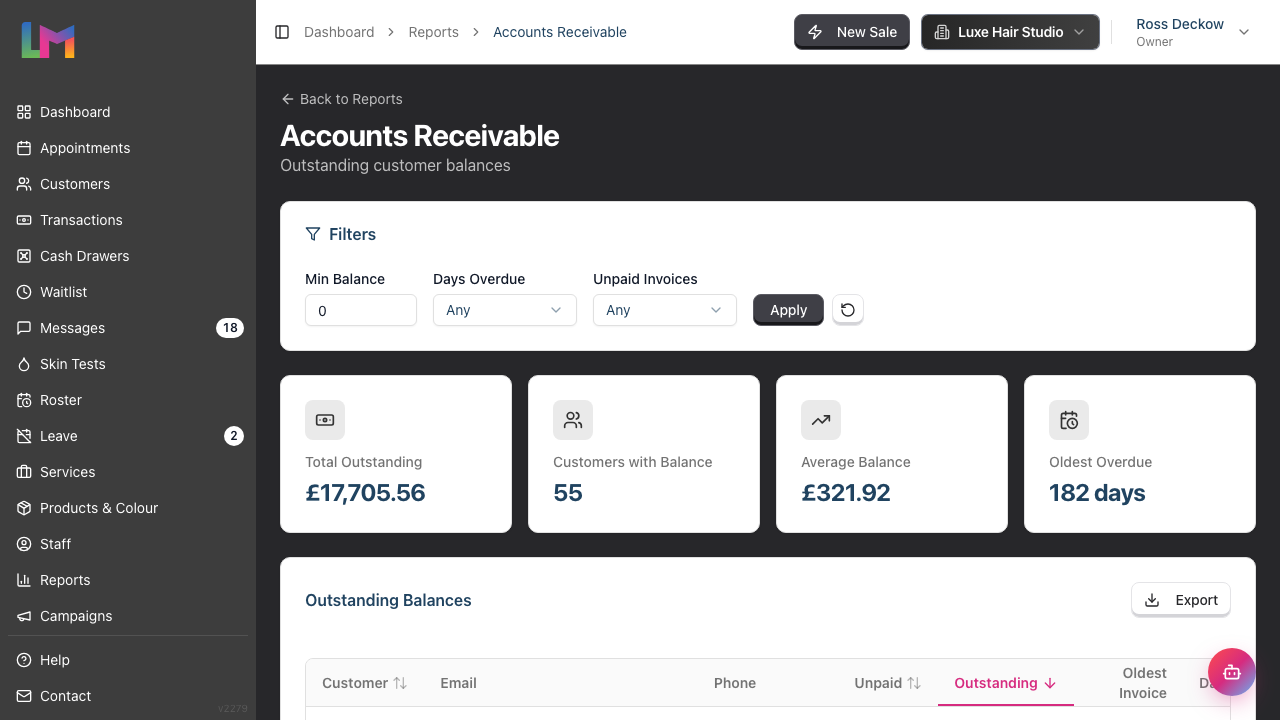
The Accounts Receivable report shows all customers with outstanding balances.
To access:
- Navigate to Reports in the sidebar
- Under Financial Reports, click Accounts Receivable
Report summary shows:
- Total Outstanding - Sum of all unpaid amounts
- Customers with Balance - Number of customers owing money
- Average Balance - Average amount per customer
- Oldest Overdue - Days since oldest unpaid invoice
Filtering the report:
Use the filters at the top of the report to narrow results:
- Min Balance - Show only customers owing at least this amount
- Days Overdue - Filter by how long balances have been outstanding (7+, 14+, 30+, 60+, or 90+ days)
- Unpaid Invoices - Filter by number of unpaid transactions (2+, 3+, or 5+ invoices)
Click Apply to update the report with your filters, or use the reset button to clear all filters.

Step 3: Reading the Accounts Receivable Table
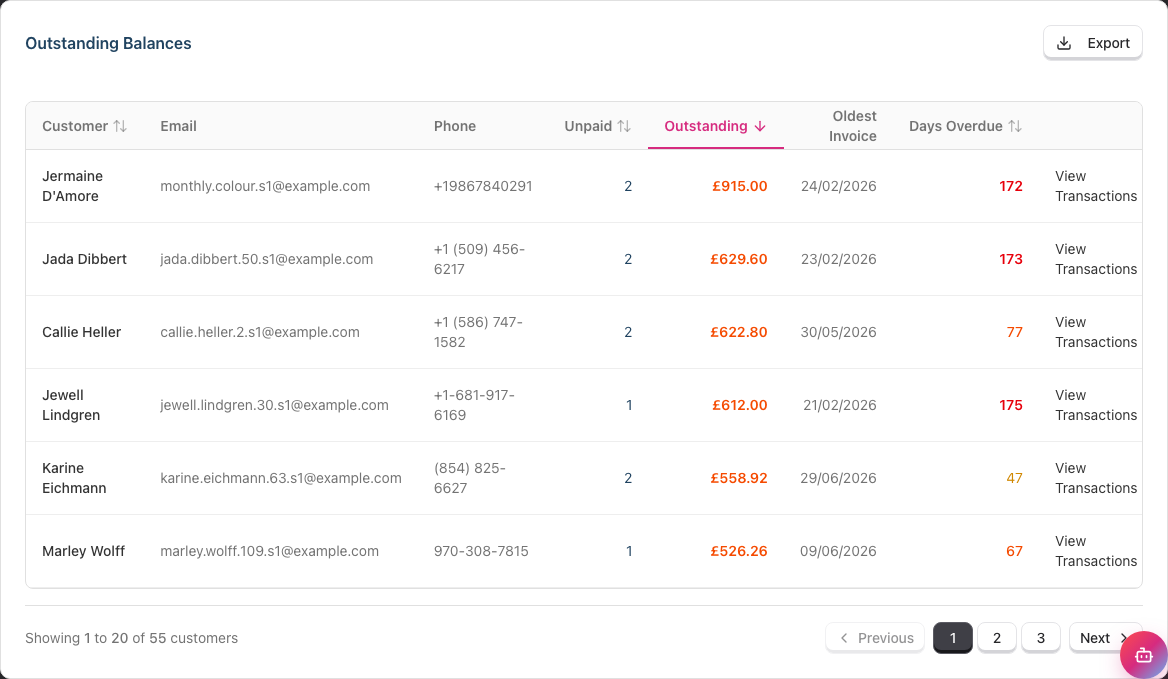
The report table displays:
| Column | Description |
|---|---|
| Customer | Customer name (click to see that customer's outstanding transactions) |
| Contact email address | |
| Phone | Contact phone number |
| Unpaid | Number of unpaid transactions |
| Outstanding | Total amount owed |
| Oldest Invoice | Date of oldest unpaid transaction |
| Days Overdue | How long since oldest invoice |
| View Transactions | Quick link to the Transactions page filtered by that customer's outstanding transactions |
Not sent badge. A red Not sent badge beside a customer's name means a cancellation or no-show fee was saved while Luminate could not reach them, so the client has not been asked for the money yet. Click the badge to open the customer's Billing tab, where you can fix their contact details and send the link. See Tutorial 8.7.
Sorting options:
- Click the Customer, Unpaid, Outstanding or Days Overdue heading to sort by that column
- Click the same heading again to reverse the direction
- The Email, Phone and Oldest Invoice columns do not sort
- Sort by Outstanding to find the highest balances, or by Days Overdue to find the oldest debts
Days overdue colour coding:
- Grey text: 0-30 days (current)
- Yellow: 31-60 days (attention needed)
- Orange: 61-90 days (follow up required)
- Red: more than 90 days (urgent attention needed)
Pagination: the report shows 20 customers per page. A line below the table tells you which customers you are looking at, for example "Showing 1 to 20 of 55 customers". Use Previous, Next or a page number to move through the list. Sorting and filters apply to the whole list, not just the page on screen.
Step 4: Viewing Customer Outstanding Balance
From customer profile:
- Navigate to Customers in the sidebar
- Search for and open the customer
- Click the Billing tab, then the Transactions sub-tab
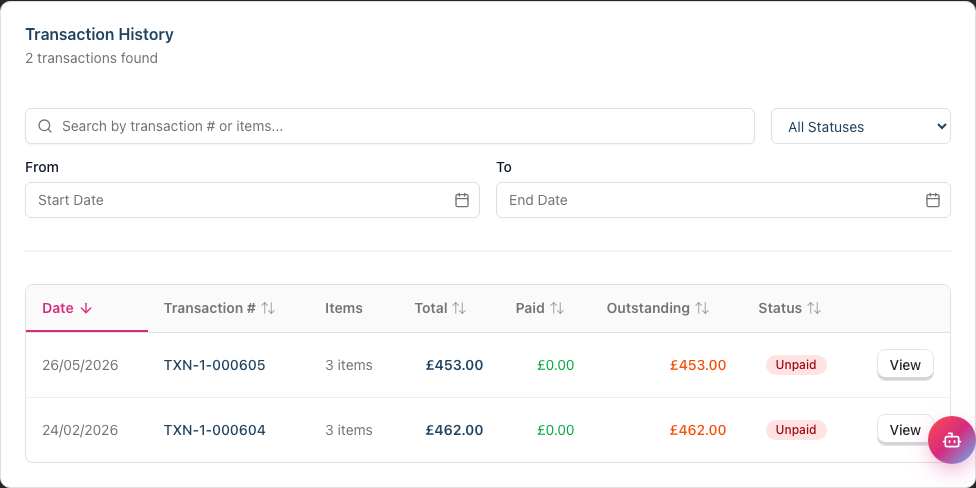
- Use the payment status dropdown to filter by Unpaid or Partial (the options are All Statuses, Paid, Partial and Unpaid)
- See all transactions with amounts owed
The Transaction History table shows Date, Transaction #, Items, Total, Paid, Outstanding and Status for each sale, with a View button to open it.
The customer profile also shows the balance in two other places:
- An Outstanding Balance summary card at the top of the profile
- A warning above the tabs, which names the amount and the number of transactions it covers
Both use the same figure: the total of all that customer's unpaid and partial transactions.
Quick route from report:
- In the Accounts Receivable report, click the customer name or the View Transactions link
- Goes directly to the Transactions page, pre-filtered to show only that customer's outstanding transactions
- View and manage their unpaid invoices directly
Step 5: Recording a Late Payment
When a customer pays their outstanding balance:
From the Transactions page:
- Navigate to Transactions in the sidebar
- Use the payment status filter and select Outstanding to see all transactions with balances due (this combines Unpaid and Partial statuses into one convenient filter)
- Search for the customer by name if needed
- Click the transaction number to open the transaction
- For a Pending transaction, click Take Payment
- Enter the payment in the till, then click Complete Sale
- For a Completed transaction, click Record Payment
- Choose Cash, Card, Other, Gift Voucher or Account Credit
- For a gift voucher, enter the voucher code and click Check. The voucher balance appears, and the amount fills in for you
- Enter the amount and an optional reference, then click Record Payment
From the customer profile:
- Navigate to the customer's profile
- Click the Billing tab, then the Transactions sub-tab
- Find the unpaid or partial transaction
- Click View to open the transaction
- Use Take Payment for a Pending transaction
- Use Record Payment for a Completed transaction
From the Accounts Receivable report:
- Click the customer name or View Transactions link
- The Transactions page opens pre-filtered for that customer's outstanding transactions
- Open the transaction and record the payment as above
Note: Take Payment appears on Pending transactions. Record Payment appears on Completed transactions that still have a balance. It adds a payment without changing the sale.
A gift voucher or account credit settles a late balance the same way it would at the till. The voucher balance falls by the amount you take, and the customer's account credit falls by the amount you take. Both are capped at the balance still outstanding, because neither can be given back as change.
Account credit is unavailable in four cases. The card is greyed out and gives the reason:
| Reason | What to do |
|---|---|
| The sale has no customer | Account credit belongs to a customer. Take another tender. |
| The sale was part of a combined checkout | Each customer's credit pays their own bill. Take another tender. |
| The sale sold account credit | Credit cannot buy more credit. Take another tender. |
| The customer has no credit | Take another tender. |
After recording:
- Transaction payment status updates (Unpaid → Partial or Paid)
- Customer outstanding balance reduces
- Accounts Receivable report updates automatically
Step 6: Exporting the Report
To export accounts receivable data:
- Open the Accounts Receivable report
- Apply any filters you want included in the export
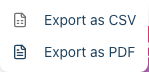
- Click the Export button in the Outstanding Balances table header
- Choose your format:
- Export as CSV - Spreadsheet format for Excel, Google Sheets, or accounting software
- Export as PDF - Formatted document for printing or sharing
Export includes these columns:
- Customer
- Email and Phone
- Unpaid Transactions (the count)
- Outstanding Balance
- Oldest Invoice
- Days Overdue
The export respects your current filters and your current sort order, so you can export specific segments (e.g., only balances over £100 or only 90+ days overdue). It exports every matching customer, not just the page on screen. The file is named accounts-receivable-<date>.
The Export button only appears if you have permission to export reports. See Step 8.
Step 7: Following Up on Outstanding Balances
Follow-up timeline suggestion:
| Days Overdue | Action | Method |
|---|---|---|
| 0-7 days | Friendly reminder | Email or SMS |
| 8-14 days | First reminder call | Phone |
| 15-30 days | Second reminder | Phone + email |
| 30+ days | Escalate to manager | Direct contact |
First reminder template:
Hi [Customer Name],

I hope you're well. I noticed there's an outstanding balance
of [Amount] on your account from your visit on [Date].

You can settle this:
- At your next visit
- By card payment over the phone

If you've already paid, please let us know so we can update
our records.

Thanks,
[Your Name]
[Salon Name]
Step 8: Outstanding Balance Permissions
| Action | Owner | Admin | Manager | Staff | Receptionist |
|---|---|---|---|---|---|
| View Accounts Receivable report | ✓ | ✓ | ✓ | ✗ | ✗ |
| View customer balances | ✓ | ✓ | ✓ | ✓ | ✓ |
| Record late payments | ✓ | ✓ | ✓ | ✓ | ✓ |
| Export report | ✓ | ✓ | ✗ | ✗ | ✗ |
Note: Receptionists can view customer transactions directly from customer profiles but cannot access the Accounts Receivable report.
Note: Managers can open the report but cannot export it. The Export button is hidden for them, so there is no dead button to click.
Common Pitfalls
"Customer says they paid but it's not showing"
Check:
- Was payment recorded on the correct transaction?
- Was the transaction completed after payment added?
- Could it be on a different transaction?
Review all customer transactions to reconcile.
"Can't find customer's outstanding balance"
The Accounts Receivable report lists any transaction whose payment status is unpaid or partial — this covers both pending transactions (booked, payment not yet taken) and completed ones (service done, balance still owed). If a balance isn't appearing, check that:
- The transaction's payment status really is unpaid or partial — a fully paid transaction won't show.
- The transaction hasn't been refunded, cancelled, or voided — only pending and completed transactions are counted.
- Your filters (Min Balance, Days Overdue, Unpaid Invoices) aren't hiding the customer — use the reset button to clear them and check again.
"Too many small outstanding balances"
Consider your policy:
- Set minimum threshold for follow-up (e.g., don't chase under £5)
- Ensure payment is collected before customers leave
- Train staff to confirm full payment
"Customer disputes the amount"
Review transaction together:
- Show itemised receipt
- Verify items and prices
- If error found, process correction
- Document the resolution
Tips and Best Practices
Review weekly - Check the Accounts Receivable report weekly to catch outstanding balances early.
Follow up promptly - Contact customers within 7 days of an unpaid balance. Older debts are harder to collect.
Make it easy to pay - Offer multiple payment options (phone, in-person, bank transfer).
Be consistent - Apply your payment policy consistently to all customers.
Document contact - Keep notes on when you contacted customers about balances.
Train staff - Ensure all staff confirm payment before customers leave.
Set expectations - Display payment policy clearly at reception.
Flag repeat offenders - Note on customer profile if they frequently leave balances unpaid.
Related Tutorials
- Tutorial 8.1: Understanding Transactions and Payment Status
- Tutorial 8.4: Deposits and Pre-Payments - Using deposits to reduce outstanding balances
- Tutorial 2.4: Processing Transactions - The till screen you use to take a late payment
- Tutorial 3.1: Adding and Managing Customer Profiles - Customer contact information
Frequently Asked Questions
How long should I chase outstanding balances?
Industry standard: Active collection up to 90 days. After 90 days, balance becomes unlikely to collect. However, most collection happens in the first 30 days - act quickly.
Can I refuse service to customers with outstanding balances?
Yes. Your policy might state "Services require full payment of outstanding balances first". Apply consistently.
What if customer disputes a non-payment?
Show transaction details and payment history. Review together. If legitimate dispute, investigate and resolve. If customer is mistaken, explain clearly.
How do I handle employees with outstanding balances?
Apply the same policy as regular customers. Consider whether payroll deduction is appropriate (with employee agreement).
Do outstanding balances affect reports?
Yes. Revenue reports show the sale, but cash flow reports reflect when payment is received. Outstanding balances represent money owed, not received.
Can I write off bad debt?
Contact your Owner/Admin. Uncollectable balances should be documented and may be written off for accounting purposes after appropriate follow-up attempts.
Last Updated: August 2026