
Gift Vouchers - Selling and Redeeming
Introduction
Gift vouchers are a brilliant way to attract new customers and increase revenue. Luminate's voucher system handles selling vouchers through the Quick POS, generating unique codes, redeeming vouchers as payment, and tracking balances. This tutorial covers everything from configuring voucher settings to selling, redemption, and reporting.
Who this is for: All staff who process sales and payments.
What you'll learn:
- Configuring gift voucher settings
- Selling vouchers through Quick POS
- Entering recipient details
- Viewing voucher details and redemption history
- Redeeming vouchers as payment method
- Handling partial redemptions
- Checking voucher balances
- Voiding vouchers
- Using the Gift Voucher report
Time to complete: 15 minutes
Prerequisites
Before you begin:
- Complete Tutorial 8.1 (Understanding Transactions and Payment Status)
- Familiarity with creating transactions via Quick POS
- Admin or Owner access for configuring gift voucher settings
Step-by-Step Instructions
Step 1: Understanding Gift Vouchers in Luminate
A gift voucher represents prepaid credit that can be redeemed against future purchases.
Voucher properties:
| Property | Description | Example |
|---|---|---|
| Code | Unique identifier | GVAB12CD34 |
| Card | Optional physical card you scan to find the voucher | Ending 1234 |
| Initial Value | Original voucher amount | £50.00 |
| Current Balance | Remaining credit | £50.00 (or less after use) |
| Status | Active, Redeemed, Expired, Voided | Active |
| Recipient | Who can use it | Emma Wilson |
| Issued Date | When sold | 10 Dec 2024 |
| Expiry Date | When it expires (if set) | 10 Dec 2025 |
Voucher lifecycle:
Created (sold)
    ↓
Active (can be used)
    ↓
Redeemed (fully used) OR Expired (past expiry date) OR Voided (cancelled)
Step 2: Configuring Gift Voucher Settings
Before selling vouchers, an Admin or Owner should configure gift voucher settings for the salon.
- Navigate to Salon Settings
- Open the Services tab, then select the Gift Vouchers sub-tab
- Configure the following settings:
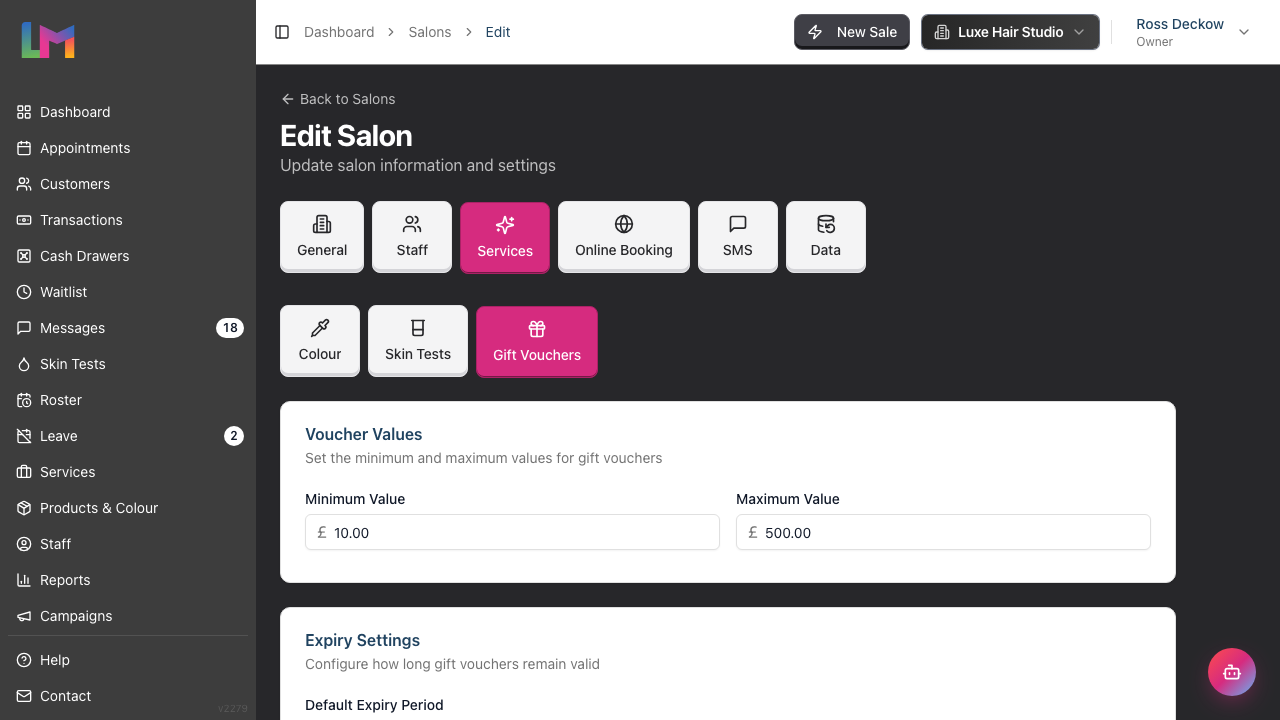
Voucher Values:
- Minimum Value — the lowest amount a voucher can be sold for (default: £10.00)
- Maximum Value — the highest amount a voucher can be sold for (default: £500.00)
Expiry Settings:
- Default Expiry Period — how many months from purchase until vouchers expire (1–60 months, default: 12)
Luminate does not warn anybody before a voucher expires. Watch the Gift Vouchers report if you want to catch them beforehand.
Code Format:
- Code Prefix — letters only, up to 10 characters (default: GV). This appears at the start of every voucher code
- Random Code Length — between 4 and 20 characters (default: 8). A preview of the code format is shown below the fields
A scanned card does not replace the voucher code. Luminate keeps the generated code for accounting and treats the card as another way to find it. One card can link to one voucher for life.
Redemption Options:
- Allow Partial Redemption — when enabled, customers can use part of their voucher balance and save the rest for later. When disabled, remaining balance is forfeited after use
- Require Recipient Details — when enabled, the recipient's name and email become mandatory before a voucher can be sold. You cannot add the voucher to the cart until both are filled in. The sale itself can still be a walk-in; no customer has to be attached to it
- Click Update Salon at the bottom of the settings form to apply your changes
Step 3: Selling a Gift Voucher
Scenario: Customer wants to buy a £50 voucher as a gift.
Click New Sale to open the Quick Sale page
Select the customer making the purchase (or leave as Walk-in)
Click the Vouchers tab in the item selection area. A Value range line above the amounts shows your salon's minimum and maximum
Choose a preset amount or custom:
- Preset amounts: £25, £50, £100, £150, £200, £250 (only amounts within your salon's min/max range are shown)
- Custom Amount: Click to enter any value within the allowed range
The Sell Gift Voucher dialog appears:
- Amount: The voucher value. A preset fills it in for you
- Recipient: Search customer finds the salon customer who will receive it. Switch to Enter by hand for someone who is not a customer, and the search box gives way to Name, Email and Phone
- Card: An optional physical voucher card. Scan it — there is no box to type in, because a card is always read by the scanner. Remove card takes one off again. If a scanner will not read a card, Type the number by hand opens a box for it
The dialog puts the cursor where the work is. A custom amount puts it in Amount, because that is the one thing you have to type. A preset amount leaves it out of every box, so you can scan straight away.
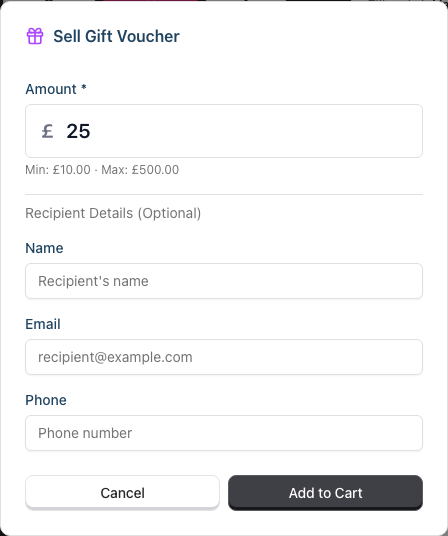
Click Add to Cart
The voucher appears in the cart as Gift Voucher - £25.00, with a VAT Exempt badge
Process payment as normal (Cash, Card, etc.)
Once paid, transaction auto-completes and Luminate returns you to your home page
A Gift Voucher Purchased dialog appears automatically
Post-Purchase Dialog: After completing a transaction containing gift vouchers, a dialog appears showing:
- Each voucher code displayed in large monospace font for easy reading
- A Copy button next to each code (it briefly changes to Copied once pressed) — use this to copy the code for sharing with the customer
- The voucher value, plus the recipient name shown as a badge if one was provided
- The last four characters of the card when one was linked
- An info note directing you to the Gift Vouchers report to find codes later
- Click Continue to dismiss the dialog
You cannot add a voucher to a sale you are editing. The Vouchers tab is greyed out on an edit, and on a sale that already carries a discount. Editing a completed sale cannot issue a new voucher, so the till would take the money and give nothing back. Ring the voucher up on a new sale instead. A voucher the sale already sold stays on the bill as a locked line — use Refund to change it.
What happens automatically:
- Unique voucher code generated using your salon's configured prefix and code length
- Voucher created with "Active" status
- Expiry date set based on the configured expiry period
- Voucher code shown on receipt and in the post-purchase dialog
Step 4: Recipient Details
When selling a voucher, you can capture recipient information:
| Field | Required | Description |
|---|---|---|
| Recipient customer | No | Links an existing salon customer as the intended holder |
| Name | Depends on settings | Who the voucher is for |
| Depends on settings | A record for your own reference. Luminate does not email the voucher | |
| Phone | Optional | Contact number |
| Card | Optional | A physical card you scan to find this voucher. It cannot be moved to another voucher |
You can link an existing salon customer instead of typing the recipient. Luminate copies the customer's current name, email and phone into the voucher. The customer link helps with search and reporting, but the voucher remains a bearer instrument. Whoever presents the code or card can redeem it.
Note: If your salon has Require Recipient Details enabled in gift voucher settings, Name and Email are marked required and Add to Cart stays disabled until both are filled in.
Why collect recipient details:
- Track who each voucher was intended for
- Help the customer if the code is lost
- Give reports and searches something to match on
How the code reaches the customer:
Luminate never emails a voucher to its recipient. You hand the code over, and there are three ways to do it:
- The post-purchase dialog. It appears as soon as the sale completes. Use Copy next to each code
- The printed receipt. Every voucher is listed as
Gift Voucher - CODE, with the recipient's name beneath it - The receipt email, when your salon sends one. This goes to the person who paid, never to the recipient. It only sends when the sale has a customer attached (not a walk-in) and your salon has payment receipts turned on in notification settings
So a customer buying a voucher as a gift has to pass the code on themselves. Tell them that at the till, and make sure they leave with the receipt or the code.
Step 5: Viewing the Voucher Detail Page
Each voucher has a detail page showing its full history and status.
To access a voucher's detail page:
- Open the Gift Vouchers report, then click the voucher code or the View link on its row
The report is the way in. A transaction that sold or redeemed a voucher shows the code as plain text, not as a link.
The detail page shows:
Header:
- Voucher followed by the code as the page title
- Status badge: Active, Redeemed, Expired, or Voided
- A Void Voucher button on active vouchers (see Step 9)
Value Breakdown Card:
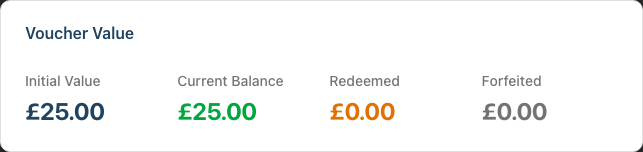
- Initial Value — the original voucher amount
- Current Balance — remaining credit (shown in green if greater than zero)
- Redeemed — total amount used across all redemptions
- Forfeited — total amount lost due to partial redemption being disabled (if applicable)
Redemption History Table:
- Each redemption shows the date, a link to the transaction, amount redeemed, balance after redemption, and which staff member processed it
- If any forfeiture occurred, a forfeited column also appears
- If a redemption was put back on the voucher, both rows carry a Reversed badge. The credit-back row shows the amount in green with a
+sign, and the reason underneath (for example, "Transaction refunded"). See Step 6 for when this happens
Sidebar Details:
- Voucher code, with a Copy code button next to it
- Full linked card value, when present
- Holder, linked to the salon customer when one was selected
- Issue date and expiry date
- Who purchased the voucher (with link to customer profile, or "Walk-in Customer")
- Link to the purchase transaction (View Transaction)
- Recipient details (name and email, if provided)
- Void details (if voided): date, reason, and who voided it
Linking a card after the sale:
An authorised user can link a card from the detail page while the voucher is active and still has value. Select Link card, then scan the card. An existing card cannot be replaced or reused.
Step 6: Redeeming a Voucher as Payment
Scenario: Customer presents voucher code at checkout.
Create transaction as normal (services/products in cart)
When ready to pay, click Voucher payment button
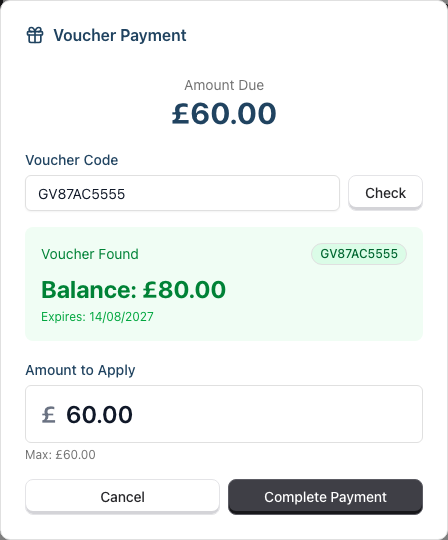
The Voucher Payment dialog appears, ready to scan
Scan the card. That is the whole step: the card fills the field, the till looks the voucher up, and the balance appears. Nothing to click. If there is no card, select Type the code by hand and enter the code, then press Enter or select Check
System checks voucher:
- Does code exist?
- Is voucher active (not redeemed/expired/voided)?
- Does voucher have balance?
A green Voucher Found panel displays:
- The voucher code
- Current balance
- Status, and the last four digits of its card
- Expiry date (if set)
The panel turns amber when the voucher cannot pay — expired, voided or already spent — and the status line says which.
Confirm the Amount to Apply (pre-filled with the maximum usable amount, shown as a Max hint below the field)
Click Complete Payment
Payment recorded against the transaction
If voucher balance covers the full amount:
- Transaction is fully paid
- Voucher balance reduced accordingly
- Voucher becomes "Redeemed" if fully used
If voucher balance is less than transaction total:
- Voucher balance applied as payment
- Remaining balance shown
- Add another payment method for the rest (Cash, Card, etc.)
If the transaction is later refunded, cancelled or edited: Luminate puts the redeemed amount back on the voucher automatically — you do not credit it by hand.
- The voucher balance goes back up by the amount that was redeemed (plus anything forfeited), and a fully-used voucher becomes Active again
- The redemption history keeps both rows, each badged Reversed, with the reason recorded
- The refund dialog tells you this before you confirm, for example: "£54.00 was paid by gift voucher and will be returned to the voucher balance, not as money"
- The money returned to the customer therefore excludes the voucher-paid portion. See Tutorial 8.2 for the full refund flow
Step 7: Handling Partial Voucher Redemptions
Scenario: Voucher balance is more than transaction total.
Example:
- Voucher balance: £50.00
- Transaction total: £30.00
What happens:
- Enter voucher code and validate
- Balance shows: £50.00
- Amount to apply: £30.00 (uses only what's needed)
- Voucher balance after: £20.00
- Customer keeps remaining £20.00 for next visit
Using same code again:
- Customer can use the same voucher code
- System shows remaining balance
- Use until balance reaches £0.00 or voucher expires
- A remaining balance under 1p (e.g. a £0.004 rounding residue) is treated as fully used and forfeited — the voucher is marked redeemed rather than left with an unspendable fraction
Once a voucher passes its expiry date it can no longer be redeemed. Luminate marks it Expired automatically each day, so the Gift Vouchers report and its exports show the true status rather than listing lapsed vouchers as still active.
Partial redemption settings: Your salon may have partial redemption disabled. In this case:
- The full voucher balance is applied and cannot be adjusted
- If balance exceeds the transaction total, remaining balance is permanently forfeited
- A Balance Will Be Forfeited warning is displayed showing the exact amount that will be lost, so you can confirm before proceeding
Step 8: Checking Voucher Balances
Customer asks: "How much is left on my voucher?"
During payment:
- Click Voucher payment button
- Enter the voucher code or scan the linked card
- Click Check
- Balance displayed without needing to use it
- Cancel if just checking balance
Key information shown:
- Current balance
- Expiry date (if set)
- Whether voucher is usable
Step 9: Voiding a Voucher
If a voucher needs to be cancelled (for example, a fraudulent purchase), you can void it from the voucher detail page. Voiding needs the same permission as refunding, so Owners, Admins, Managers and Receptionists can do it.
- Navigate to the voucher's detail page (via the Gift Vouchers report)
- Click the Void Voucher button (only available on active vouchers)
- The Void Gift Voucher? dialog appears, warning that this action cannot be undone
- Enter a Reason for voiding in the text field (required, between 3 and 500 characters)
- Click Void Voucher to confirm
- The voucher status changes to Voided and can no longer be redeemed
After voiding:
- The status badge updates to show "Voided"
- The void details (date, reason, and who voided it) appear in the sidebar
- The void button is no longer shown, so a voided voucher cannot be voided twice
You do not need to void a voucher you are refunding. Refunding or cancelling the sale that created a voucher voids it for you, with the reason recorded as "Purchase transaction TXN-… was refunded" (or "…was cancelled"). Only still-active vouchers are voided this way — one that has already been spent or has expired keeps its status for the audit trail.
Step 10: Gift Voucher Report
The Gift Voucher report gives you an overview of all vouchers issued by your salon.
To access: Navigate to Reports, then open Gift Vouchers under the Financial Reports section
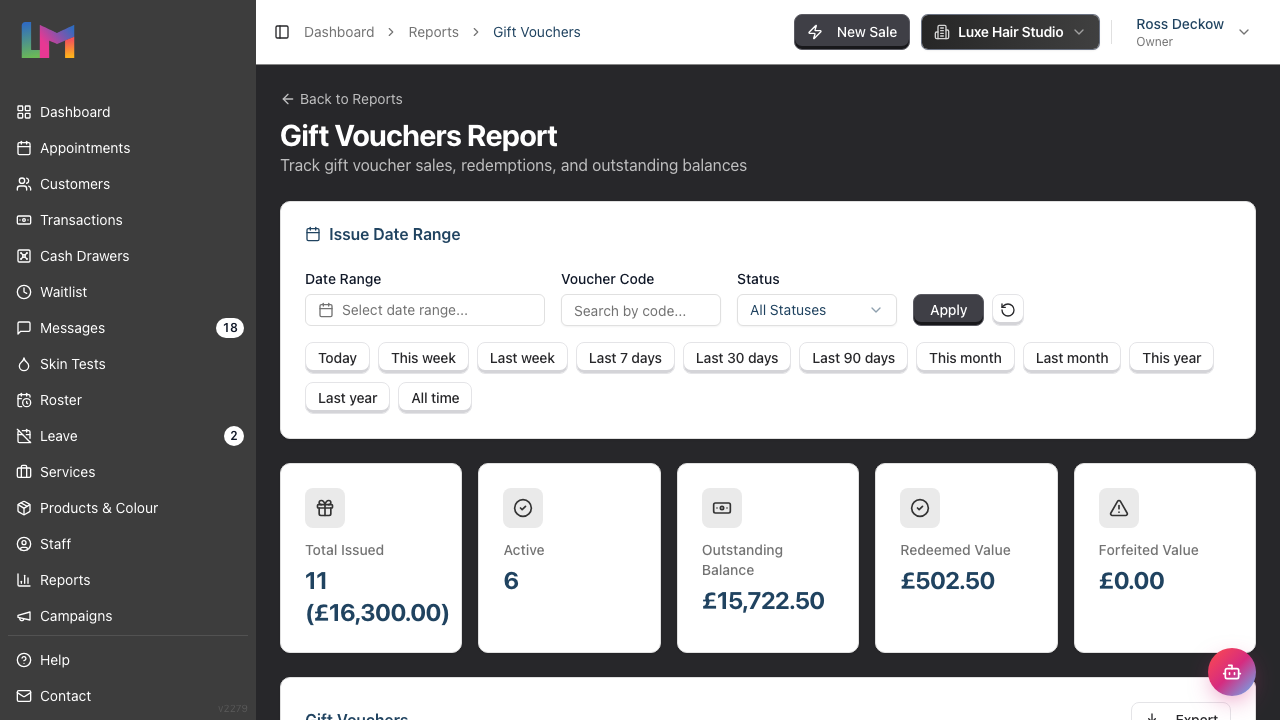
Summary Cards: The report shows five summary cards at the top:
- Total Issued — number of vouchers and their combined value
- Active — number of currently active vouchers
- Outstanding Balance — total remaining balance across active vouchers only. This is your real liability: what customers can still come in and spend. Balances left on expired or voided vouchers are not counted, because they can no longer be redeemed
- Redeemed Value — total amount customers actually spent from their vouchers
- Forfeited Value — total amount lost to the no-change-given rule, where partial redemption is switched off
Reading these together: Redeemed Value and Forfeited Value each count their money once, so they never overlap. If a £100 voucher is used against a £60 sale with partial redemption disabled, £60 is Redeemed and £40 is Forfeited. Add Outstanding Balance and you account for every penny of Total Issued — except the balance on any expired or voided voucher, which Outstanding Balance leaves out on purpose.
Filters sit in the Issue Date Range card:
- Date Range — filter by issue date. No range is applied until you pick one, so the report opens showing every voucher. Preset buttons run from Today to All time
- Code, card or holder — search by generated code, card barcode, stored recipient or linked customer name
- Status — filter by All Statuses, Active, Redeemed, Expired, or Voided
Table columns: Code, Status, Customer, Card, Holder, Recipient, Initial Value, Balance, Forfeited, Issued date, Expires date, and a View action link to the voucher detail page. Reports and exports show only the last four characters of a card. Most columns are sortable. Each code has a Copy code button next to it, so you can read a code back to a customer or paste it into a message.
Export: Click Export and choose Export as CSV or Export as PDF to download the filtered report data.
Step 11: Voucher Payment Flow Summary
Selling a voucher:
Quick Sale → Vouchers tab → Select amount
    → Enter recipient details → Add to Cart
    → Process payment → Voucher code generated
    → Post-purchase dialog shows codes with Copy buttons
Redeeming a voucher:
Quick Sale → Add items → Click Voucher payment
    → Scan the card → Balance appears
    → Confirm amount → Payment applied
Common Pitfalls
"Voucher code not working"
Check:
- Code entered correctly (check for similar characters like 0/O, 1/I)
- Voucher status (may be expired, voided, or fully redeemed)
- Remove any spaces from the code
"Customer used wrong email for recipient"
Nothing is sent to the address, so a wrong one costs the customer nothing. It only affects your own records. Ask an Admin or Owner to correct it.
"Voucher shows zero balance"
The voucher has been fully redeemed on previous purchases. Check the redemption history on the voucher detail page.
"Customer wants to buy voucher but doesn't know recipient email"
Recipient details are typically optional (unless your salon requires them):
- Leave email blank
- Voucher code printed on receipt and shown in the post-purchase dialog
- Customer can share code manually
"Remaining balance too small to use"
Small balances can be combined with another payment method. Add the voucher for the remaining balance, then pay the rest by card or cash.
"Preset amount buttons are missing"
Preset amounts only appear if they fall within your salon's configured minimum and maximum voucher values. Check your gift voucher settings if expected amounts are not shown.
"A gift voucher cannot be added to a discounted sale"
Luminate blocks this on purpose. A voucher hands out its full face value, so a discount would give the customer more value than the money you take. Remove the discount, or sell the voucher on its own sale.
Tips and Best Practices
Promote vouchers during holidays — Gift voucher sales peak around Christmas, Valentine's Day, and Mother's Day.
Display voucher options — "Gift Vouchers Available" signage increases sales.
Collect recipient details when possible — They create a record you can search, and help you find the voucher when someone loses the code. Luminate does not send anything to the address, so tell the buyer to pass the code on.
Validate code before processing — Always check the balance first to avoid surprises.
Explain remaining balance — Tell customers how much is left on their voucher after use.
Use vouchers for complaint resolution — "Here's a £20 voucher for your next visit" maintains relationships.
Review your settings — Periodically check your gift voucher settings to ensure the min/max values, expiry period, and partial redemption policy suit your salon.
Related Tutorials
- Tutorial 8.1: Understanding Transactions and Payment Status
- Tutorial 8.2: Handling Refunds and Cancellations
- Tutorial 13.1: Salon Profile and Business Information (includes gift voucher settings)
Frequently Asked Questions
Can vouchers be used for products and services?
Yes. Vouchers are treated as a payment method — they can pay for any transaction.
What if transaction total is less than voucher balance?
The voucher is partially redeemed. Remaining balance stays on the voucher for future use (unless partial redemption is disabled in settings, in which case the remaining balance is forfeited).
Can customers combine multiple vouchers?
Yes. Add multiple voucher payments to a single transaction. Each is validated separately.
Can vouchers be refunded?
Yes, and Luminate does the voucher side for you. Refund or cancel the sale that created the voucher, and the voucher is voided automatically so it can no longer be spent. Refunds need Owner, Admin, Manager or Receptionist access — see Tutorial 8.2.
A customer paid with a voucher and now wants a refund. Do they get cash back?
No. The voucher-paid part of the bill goes back onto the voucher, not into the customer's hand, and the refund dialog says so before you confirm. The voucher becomes spendable again for that amount.
How do I check all active vouchers?
Open the Gift Vouchers report from the Reports section. It shows all vouchers by default (no date range required) and can be filtered by status or voucher code.
Can a customer transfer a voucher to someone else?
Vouchers are bearer instruments — whoever has the code can use it. If a customer wants to gift their voucher, they share the code.
What about VAT/tax on voucher sales?
Voucher sales are not taxed at point of sale. Tax is applied when the voucher is redeemed (on the services/products purchased).
Where can I configure voucher settings?
Navigate to Salon Settings → Services → Gift Vouchers. See Step 2 of this tutorial for details.
Who can open the Gift Vouchers report?
Owners, Admins, Managers and Receptionists. Service providers can still sell and redeem vouchers at the till, but the report is not available to them.
Last Updated: August 2026