
Understanding Transactions and Payment Status
Introduction
Every time money changes hands in your salon - whether for a haircut, product sale, or gift voucher - Luminate creates a transaction. Understanding how transactions work, their lifecycle, and payment statuses is fundamental to managing your salon's finances accurately. This tutorial explains transaction anatomy, status transitions, payment tracking, and how appointments link to billing.
Who this is for: All salon staff, especially those processing payments and managing finances.
What you'll learn:
- What a transaction is and what it contains
- Transaction statuses (draft, pending, completed, refunded, cancelled)
- Payment statuses (unpaid, partial, paid, overpaid)
- How transactions link to appointments
- Reading transaction details and history
- Transaction numbering and tracking
Time to complete: 15 minutes
Prerequisites
Before you begin:
- You should understand basic appointment and customer concepts
- You should have processed at least one transaction to see examples
Step-by-Step Instructions
Step 1: What Is a Transaction?
A transaction is a financial record of goods or services sold to a customer. Every transaction in Luminate contains:
| Component | Description | Example |
|---|---|---|
| Transaction Number | Unique identifier | TXN-20241210-0001 |
| Customer | Who purchased (or Walk-in) | Sarah Johnson |
| Date & Time | When it occurred | 10 Dec 2024, 14:30 |
| Items | Services/Products sold | Women's Cut, Styling Product |
| Amounts | Financial breakdown | Subtotal, Tax, Discounts, Tip, Total |
| Payments | How customer paid | £50 Card, £10 Cash |
| Staff | Who served (per item) | Jane (service), Tom (product) |
| Status | Transaction state | Completed |
| Payment Status | Payment state | Paid |
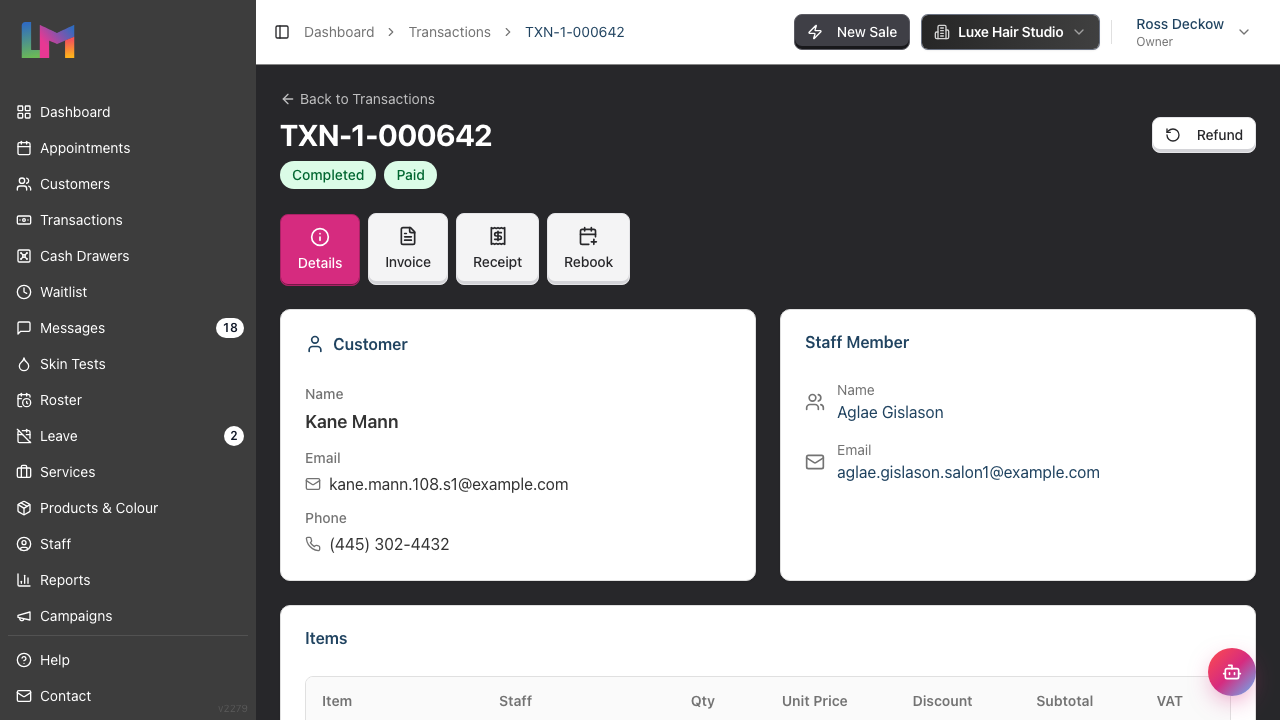
Transactions vs Appointments:
- An appointment is a booking for future service
- A transaction is the financial record when payment happens
- One appointment can generate one transaction (most common)
- Multiple appointments can be billed on one transaction
- Transactions can exist without appointments (walk-in product sales)
Step 2: Understanding Transaction Statuses
Transactions move through a lifecycle with five possible statuses:
Draft
What it means: Transaction started in Quick POS but not finalised yet.
Characteristics:
- Auto-saved while you work in Quick POS
- Can be edited or abandoned
- Not included in reports or transaction list
- Linked to an appointment until finalised
What you can do:
- Continue editing items and payments
- Abandon (delete) the draft
- Finalise to create a completed transaction
Pending
What it means: Transaction created but not yet completed.
Characteristics:
- Visible in the transaction list
- Can be edited or cancelled
- Items can be added or removed
- Hasn't affected revenue reports yet
- May or may not have payments recorded
What you can do:
- Take payment (edit transaction)
- Apply discounts
- Complete the transaction
- Cancel entirely
Completed
What it means: Transaction finalised and recorded in the system.
Characteristics:
- Counted in revenue reports
- Linked appointments marked as "Billed"
- Stock decremented for products
What you can do:
- View transaction details
- Download or print invoice/receipt
- Correct a transaction completed earlier the same business day (see note below)
- Process refunds (Owner, Admin, Manager, or Receptionist)
- View in reports
Note — same-day corrections: A transaction completed earlier on the salon's current business day can still be corrected — Luminate reverses the original side effects (stock movements, deposit credits, cash movements), applies your changes, and re-applies them. Once the salon's business day rolls over, the transaction locks permanently to preserve the audit trail. To correct a locked transaction from a previous day, process a refund and create a new transaction with the correct details.
How to make one: open the transaction and click Edit. The button appears only while the sale is still correctable, and only for Owners, Admins, Managers and Receptionists — the same people who can process a refund, because a correction can move money. The edit screen is the till, pre-filled with the sale, so you change lines and payments exactly as you would when taking a sale, then save.
Fixing the payment method: if the wrong tender was recorded — the customer paid cash but Card was pressed — remove the wrong payment with the X beside it, then press the correct button (Cash, Card, Voucher, Credit or Other) and save. Luminate rewrites the till record to match, so your cash drawer expects the right amount at close.
Two corrections must go through a refund instead of an edit:
- Payments taken online through Stripe. A card payment collected online (a booking deposit, for example) cannot be changed on the sale — that money really did leave the customer's card, and only a refund returns it. Luminate locks that payment row and blocks the save. Refund the sale, then take the correct payment.
- Combined checkouts. When one person paid for several customers, the sales share a single payment. Luminate does not offer Edit on those, because changing one person's share would leave the group out of step with the money taken. Refund and re-take instead.
Same-day corrections also keep the rest of your records in step:
- Appointments stay in sync. Adding a service line linked to an appointment marks that appointment billed (and completed); removing an appointment's last line un-bills it, so it reappears in your unbilled lists — unless another transaction still bills it.
- Deposit credits are re-checked. If you remove the service line a deposit credit was applied against, the credit is removed too, and the outstanding balance updates accordingly.
- Commission is not re-priced. Lines you didn't change keep the commission rate that was in force when the sale was made, even if staff or service commission settings have changed since. Only genuinely new lines use the current rates.
- Service lines always need a staff member. As at the till, you can't save an edit that leaves a service line without an assigned staff member — commission and tip attribution depend on it.
- Finalised payroll is protected. If a correction (or a late completion or refund) changes money inside a payroll period that has already been finalised, Luminate records a warning so the totals can be reconciled manually.
Refunded
What it means: Transaction reversed - money returned to customer.
Characteristics:
- Original transaction preserved for records
- Revenue subtracted from reports
- Product stock restored (if applicable)
- Cannot be un-refunded
What you can do:
- View refund details
- See who processed the refund
- Download or print refund receipt
See Tutorial 8.2 for refund process details.
Cancelled
What it means: Transaction voided before completion.
Characteristics:
- Never counted in revenue
- No financial impact
- Cannot be uncancelled
What you can do:
- View cancellation details
- Transaction retained for audit trail
Step 3: Understanding Payment Statuses
Payment status is separate from transaction status and tracks how much has been paid:
Unpaid
What it means: No payments recorded yet.
- Outstanding balance equals total amount
- Common for pending transactions
Transaction total: £100.00 Payments received: £0.00 Outstanding balance: £100.00
Partial
What it means: Some payment received but not full amount.
- Outstanding balance remains
- Shows in accounts receivable reports
Transaction total: £100.00 Payments received: £30.00 Outstanding balance: £70.00
Paid
What it means: Full payment received.
- Outstanding balance is £0.00
- May have been paid in one or multiple payments
Transaction total: £100.00 Payments received: £100.00 Outstanding balance: £0.00
Overpaid
What it means: Payment received exceeds the total amount.
- Outstanding balance is £0.00
- Indicates extra payment was recorded (e.g., rounding or split payments)
Transaction total: £100.00 Payments received: £105.00 Outstanding balance: £0.00
Note: A transaction can be completed and still be unpaid or partial - completion refers to finalising the sale, payment status refers to money received.
Step 4: How Transactions Link to Appointments
Standard flow:
- Customer books appointment
- Appointment takes place
- Create the transaction from the appointment (via Quick POS)
- Services pre-load from the appointment
- Payment processed
- Transaction completed
- The appointment is marked billed, and completed if it wasn't already
You don't have to mark the appointment Completed first. Billing it does that for you, as long as it is still Scheduled, Confirmed or Arrived. Billing never re-opens an appointment you already cancelled or marked a no-show.
Billing status on appointments:
| Billing Status | What It Means |
|---|---|
| Unbilled | No service line on a completed transaction yet |
| Billed | A service from this appointment has been billed |
Only service lines bill an appointment. A deposit line or a colour overage line never does — so an appointment with a paid deposit stays Unbilled until you take the full bill.
Billing status is not shown as a badge on the appointment. You see it at work in two places: an unbilled appointment appears in the till's Unbilled Appointments list when you select the customer, and a billed appointment drops out of that list.
Finding linked transactions:
- Open the appointment
- Open the Payments tab
- In Payments Received, click the transaction number to open the sale
Working the other way, a transaction's Details tab has a Related Appointments card. Each row links to the appointment, and each item that came from an appointment carries an Appt # link.
Step 5: Anatomy of Transaction Items
Each line item in a transaction records:
| Field | Description | Example |
|---|---|---|
| Item Type | Service, Product, Deposit, Gift Voucher, Colour Overage, or Account Credit | Service |
| Description | What was sold | Women's Cut & Blow Dry |
| Quantity | How many | 1 |
| Unit Price | Price per item | £45.00 |
| Staff | Who performed the service | Jane Smith |
| Commission Rate | Staff commission % recorded at the time of sale | 40% |
The Items table on the transaction shows Item, Staff, Qty, Unit Price, Discount, Subtotal and your tax column (VAT or GST). Commission rate is recorded on each line for payroll but is not shown here — see Tutorial 9.11 for commission reporting.
Item calculations:
Base Price:     £45.00
Quantity:       × 1
Subtotal:       £45.00
Special item types:
- Deposit — records a deposit payment against an appointment (Tutorial 8.4).
- Gift Voucher — records a gift voucher purchase (Tutorial 8.3).
- Colour Overage — records an automatic charge when a colour formula used more than the service's included grams (Full colour mode only). Colour overage lines are staged by the formula, not entered manually in POS; see Tutorials 12.5 and 20.8.
- Account Credit — records a top-up of the customer's account credit balance (Tutorial 3.8).
These four types are polymorphic — they don't point at a service or product, they point at the underlying deposit, voucher, formula, or credit record. Editing the source record updates the transaction line automatically while the transaction is still on a draft. Once the transaction leaves draft, the line is frozen for accounting integrity and the source (for example the formula) becomes read-only.
Luminate manages all four types for you. You can't add, re-price or delete them from the cart — the till rebuilds them from the source record on every save, on a draft and on a same-day edit alike. To change one, change the record behind it.
Step 6: Understanding Transaction Totals
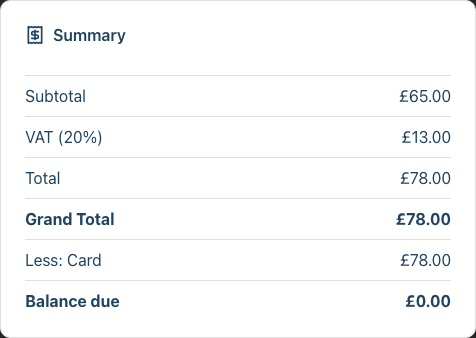
A transaction breaks down finances like this:
Items Subtotal:             £80.00
  - Item 1: Women's Cut     £45.00
  - Item 2: Styling Product £35.00

Discount (10%):             -£8.00

Subtotal after Discount:    £72.00

Tax (10%):                  +£7.20

Total:                      £79.20

Tip:                        +£5.00

GRAND TOTAL:                £84.20
Key amounts explained:
| Amount | Description |
|---|---|
| Subtotal | Sum of all items before discount, tax and tips |
| Discount | Total discounts applied (fixed or percentage) |
| Tax (VAT / GST) | Tax on taxable items, charged on the discounted amount |
| Total | Subtotal after discount, plus tax. Does not include the tip |
| Tip | Gratuity for staff |
| Grand Total | Total plus the tip. This is what the customer owes |
| Balance due | Grand Total less payments taken and any deposit credit |
Tax is charged on the discounted amount, not the pre-discount amount. A discount is applied to taxable items first, so adding a non-taxable item never increases the tax.
The Summary card on the transaction lists each payment as a Less: line (for example Less: Card) between Grand Total and Balance due, so you can see exactly what has been taken.
Step 7: Viewing Transaction Details
From the Transactions page:
Navigate to Transactions in the sidebar
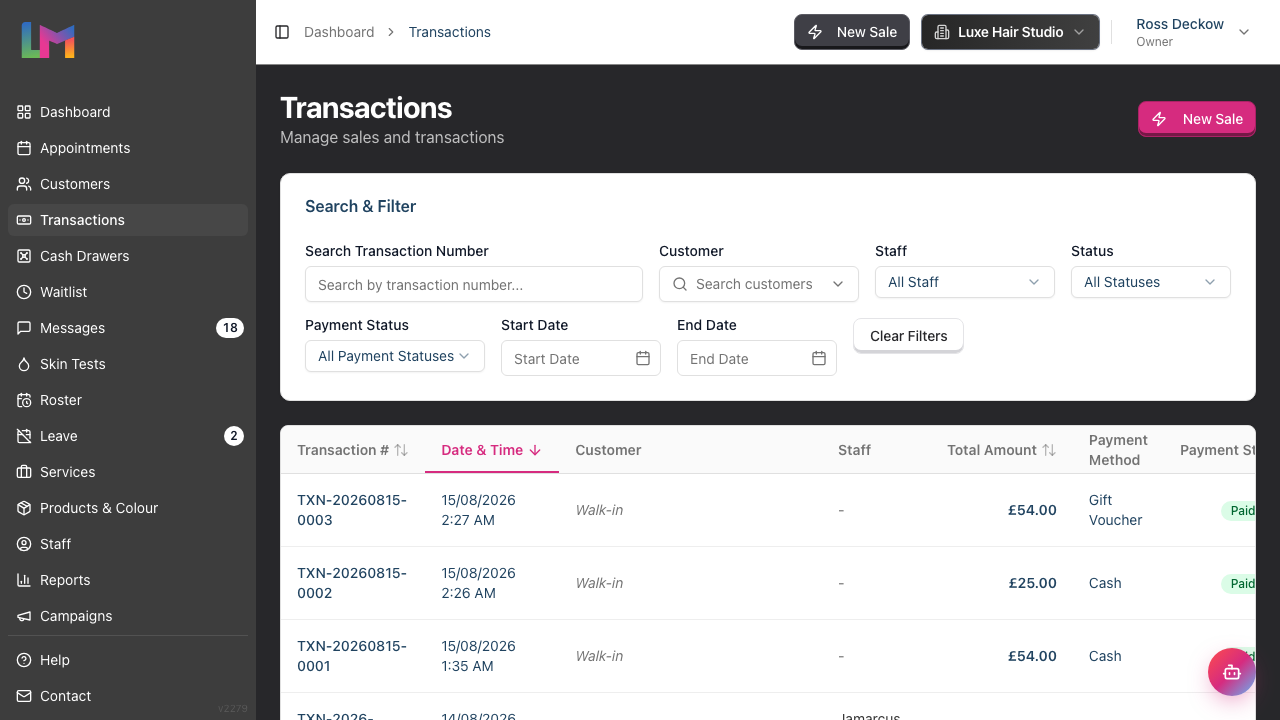
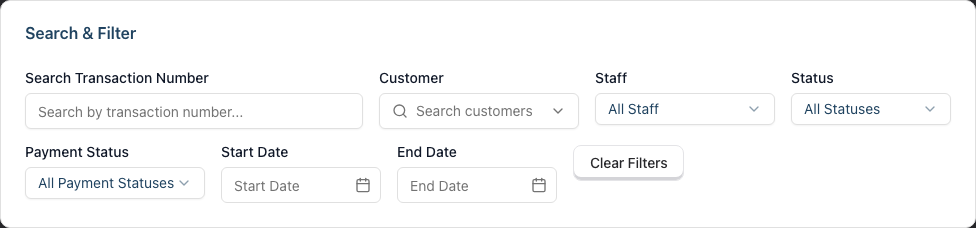
Find the transaction using the Search & Filter controls. Each one shows what it does in the box itself:
- Search by transaction number — matches any part of the number
- Search customers and All Staff — pick from the list
- All Statuses — Pending, Completed, Cancelled or Refunded
- All Payment Statuses — Outstanding (unpaid and partial together), Unpaid, Partial, Paid or Overpaid
- Start Date and End Date — the date the sale was created
Click on a transaction row to open its details
Transaction detail view tabs:
| Tab | Shows |
|---|---|
| Details | Customer info, items, payments, staff, timestamps, and linked appointments |
| Invoice | Professional invoice format for sending to customers |
| Receipt | Thermal receipt format suitable for printing |
| Rebook | Shown on a completed sale that has a customer — a quick way to book their next appointment. Walk-in sales don't get it |
Actions available (depending on status):
| Action | When Available | What It Does |
|---|---|---|
| Take Payment | Pending transactions | Opens the transaction for editing to record payments and finalise the sale |
| Edit | Completed earlier today, and not a combined checkout. Owners, Admins, Managers and Receptionists only | Reopens the sale on the till so you can correct lines and payments |
| Refund | Completed transactions. Owners, Admins, Managers and Receptionists only | Opens the refund dialog to reverse the transaction |
| Cancel | Pending transactions | Voids the transaction entirely |
| Download | Invoice or Receipt tab | Downloads the current view as a PDF |
| Invoice or Receipt tab | Prints the current view |
Step 8: Payment Methods
Luminate supports five payment methods:
| Method | Button at the till | When to Use |
|---|---|---|
| Cash | Cash | Physical cash payment |
| Card | Card | Debit or credit card |
| Gift Voucher | Voucher | Redeeming a gift voucher (Tutorial 8.3) |
| Account Credit | Credit | Spending the customer's stored credit balance (Tutorial 3.8) |
| Other | Other | Bank transfers, cheques, or any other method |
Credit needs a customer on the sale and an available balance, so it stays greyed out on a walk-in. It is also unavailable on a combined checkout, because credit belongs to one customer.
Split payments: Customers can pay using multiple methods. For example:
- £50 by Card
- £30 by Cash
- £20 by Gift Voucher
All payments are recorded separately and sum to total paid.
Step 9: Transaction Permissions by Role
| Action | Owner | Admin | Manager | Staff | Receptionist |
|---|---|---|---|---|---|
| View all transactions | ✓ | ✓ | ✓ | ✓ | ✓ |
| Create transactions | ✓ | ✓ | ✓ | ✓ | ✓ |
| Edit and complete a pending transaction | ✓ | ✓ | ✓ | ✓ | ✓ |
| Cancel a pending transaction | ✓ | ✓ | ✓ | ✓ | ✓ |
| Correct a completed transaction (same-day Edit) | ✓ | ✓ | ✓ | ✗ | ✓ |
| Process refunds | ✓ | ✓ | ✓ | ✗ | ✓ |
Same-day Edit sits behind the same permission as Refund, because correcting a completed sale can move money. Staff see neither button on a completed sale — they see only the Details, Invoice and Receipt tabs.
Common Pitfalls
"Transaction shows as completed but unpaid"
This is correct behaviour. Completed means the sale is finalised. Unpaid means no payment recorded yet. You can have a completed transaction with unpaid or partial payment status. Record payment when received.
"I can't edit a completed transaction"
A transaction completed earlier on the salon's current business day can still be corrected. Click Edit. The sale stays Completed while you work — Luminate reverses the original side effects (stock, deposits, cash movements), applies your changes and re-applies them. Once the business day rolls over, the transaction locks permanently to preserve an accurate audit trail. To correct a locked transaction from a previous day:
- Process a refund for the original transaction (Owner, Admin, Manager, or Receptionist)
- Create a new transaction with the correct details
Pending transactions, in contrast, can be edited at any time by clicking Take Payment on the transaction detail page.
"Payment status is still showing unpaid after I recorded payment"
Check:
- Did the transaction save/complete after adding payment?
- Is the payment amount greater than zero?
- Payment status updates automatically when payments are added
"Can't find a transaction I know exists"
Check:
- Date range filter (may be too narrow)
- Correct customer selected
- Transaction status filter (might be hiding cancelled/refunded)
- Try searching by transaction number
If the sale was never finalised, it is still a draft. Drafts never appear in the Transactions list. Reopen the appointment in Quick POS to pick the draft back up.
Tips and Best Practices
Complete transactions promptly - Don't leave transactions in pending status unnecessarily. This affects reporting accuracy.
Record payments immediately - When customer pays, record it straight away.
Use transaction notes - Add notes for unusual circumstances ("Customer paid next day", "Manager approved discount").
Check payment status before closing - Before saying goodbye to customer, verify payment status shows "Paid".
Link to appointments when possible - Transactions linked to appointments provide better data for service reports.
Understand the difference - Transaction status (draft/pending/completed/refunded/cancelled) is about the sale lifecycle. Payment status (unpaid/partial/paid/overpaid) is about money received. They're independent.
Related Tutorials
- Tutorial 8.2: Handling Refunds and Cancellations - Reversing transactions
- Tutorial 8.3: Gift Vouchers - Selling and Redeeming
- Tutorial 8.4: Deposits and Pre-Payments
- Tutorial 8.5: Managing Outstanding Balances - Tracking unpaid transactions
- Tutorial 3.8: Client Account Credit - The Credit item type and payment method
- Tutorial 9.11: Staff Commission Report - Where each line's commission rate is used
- Tutorial 12.5: Colour Formulas - How colour overage lines are staged
- Tutorial 20.8: Overage Billing Explained - The full colour overage lifecycle across draft → completed
Frequently Asked Questions
Can a transaction have multiple payments?
Yes. Customers can pay with multiple methods (e.g., £50 cash + £30 card). All payments are recorded separately and sum to total paid.
What's the difference between refunded and cancelled?
Refunded: Transaction was completed and counted in revenue, then money was returned. Cancelled: Transaction was voided before completion, never counted in revenue.
Do I need to complete a transaction before recording payment?
No. You can record payments on pending transactions. However, transaction must be completed to appear in revenue reports.
How long are transaction records kept?
Transaction records are kept indefinitely for financial and legal compliance. They cannot be deleted, only refunded or cancelled.
Do pending transactions appear in revenue reports?
No. Only completed transactions count in revenue reports. Pending transactions are work-in-progress.
What happens to a colour overage line when a transaction is completed?
Colour overage lines are rebuilt automatically from the linked colour formula while the transaction is on a draft — if you adjust the formula (for example change products or weights), the overage amount updates on the draft. As soon as the transaction leaves draft, both the overage line and the source formula freeze (the formula's projection status becomes committed). To change a frozen overage, see the next question. See Tutorial 20.8 for the full overage lifecycle.
What happens to a colour overage line when I modify a completed transaction?
The overage line does not change. A same-day Edit is an in-place correction, not a return to draft — the sale stays Completed throughout, so the formula's projection status stays committed and the formula stays read-only.
Luminate protects the overage line during an edit. It preserves the line exactly as it was committed, and re-links it to the formula when it saves. Changing the line's price or deleting it on the edit screen will not stick.
You can still correct everything else on the sale: services, products, quantities, the discount, the tip and the payments.
To change what was charged for the overage itself, refund the sale and re-bill it:
- Refund the transaction (Tutorial 8.2). The formula stays committed against the refunded sale, so the audit record survives.
- Create a new sale for the customer at the correct amount.
- If the formula itself was wrong, create a fresh draft for the appointment, then revert and re-finalise the formula. The corrected charge stages onto the new draft.
See Tutorial 20.8 for the full overage lifecycle across draft to completed.
Last Updated: August 2026