
Using the Cash Drawer
Introduction
The cash drawer system tracks physical cash in your salon. This tutorial covers opening and closing cash drawer sessions, recording cash movements, and reconciling balances at the end of the day.
Who this is for: Owner, Admin, Manager, Staff, Receptionist What you'll learn:
- Create and manage cash drawers
- Open a cash drawer session with an opening float
- Record top-ups, payouts, and safe drops
- View session history
- Close the drawer and reconcile variances
Time to complete: 10 minutes
Prerequisites
- A cash drawer configured in the system
- Permission to process transactions — everyone who takes payments (Owner, Admin, Manager, Staff and Receptionist) can open a drawer, record movements and close it
A few actions are held back to senior roles:
| Action | Who can do it |
|---|---|
| Open, close, top up, pay out, safe drop, view history | Owner, Admin, Manager, Staff, Receptionist |
| Add a drawer | Owner, Admin |
| Rename, deactivate, reactivate or delete a drawer | Owner, Admin |
| Reopen & correct a closed session | Owner, Admin, Manager |
| Record an over/short Adjustment | Owner, Admin, Manager |
Understanding the Cash Drawer System
| Term | Definition |
|---|---|
| Cash Drawer | A named till location in your salon |
| Session | The period when a drawer is open for business |
| Opening Float | The starting cash amount |
| Top Up | Adding cash to the drawer |
| Payout | Removing cash for expenses |
| Safe Drop | Removing excess cash to a safe |
| Expected Closing | Calculated balance based on activity |
| Variance | Difference between counted cash and expected |
Step-by-Step Instructions
Step 1: Access the Cash Drawer
- Click Cash Drawers in the sidebar
- The Cash Drawers page displays all configured drawers
- Each drawer shows its name and current status
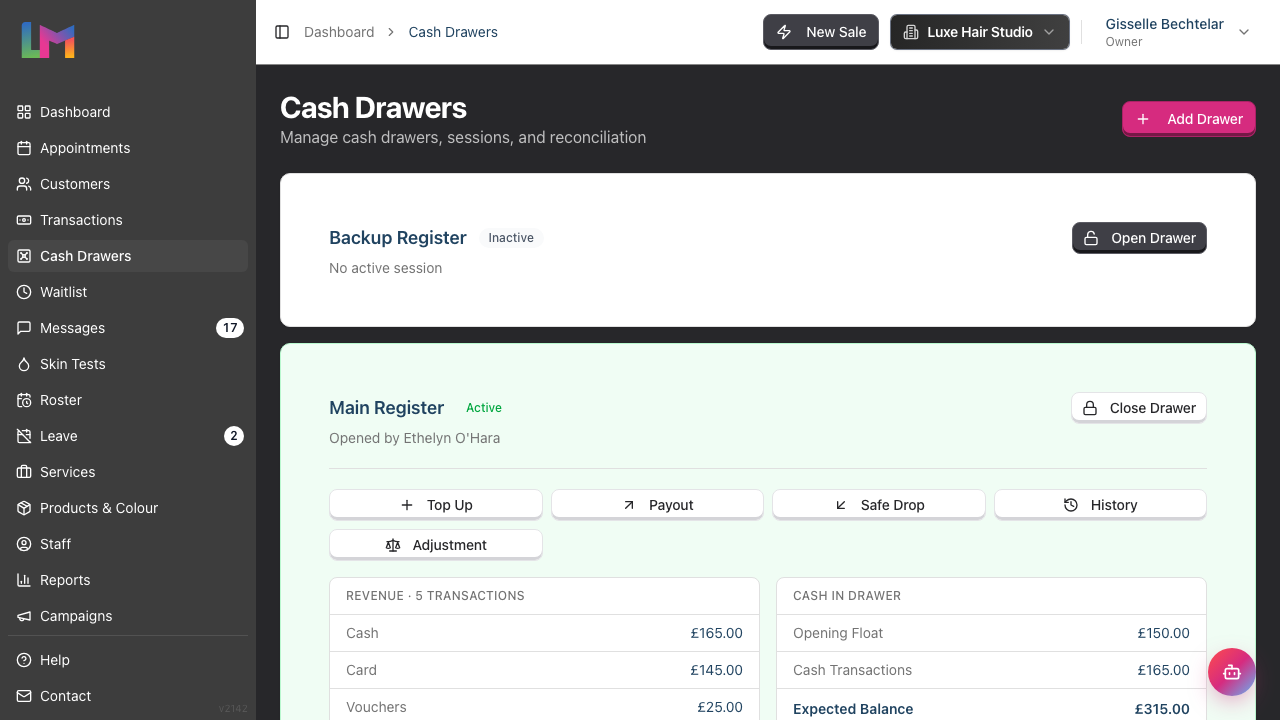
Drawer Status:
- Active badge (green), next to the drawer name - the drawer has an open session
- Inactive badge, next to the drawer name - no session is currently open. The card shows No active session and an Open Drawer button
- Inactive badge in place of the Open Drawer button - the drawer has been deactivated and cannot take a session
Step 2: Create a Cash Drawer (First Time Setup)
Adding a drawer is an Owner or Admin job — the Add Drawer button only appears if you hold salon settings permissions. Managers, Receptionists and Staff can use the drawers that already exist but cannot add one.
If no drawers exist:
- Click Add Drawer in the top-right corner
- In the Create Cash Drawer dialog, enter a Drawer Name (e.g., "Main Register", "Front Desk")
- Click Create Drawer to save
- Repeat for additional drawers if needed
Managing an Existing Drawer
Owners and Admins can change a drawer after it is created. Each drawer card carries a three-dot menu on the right. The menu does not appear for Managers, Receptionists or Staff.
Rename a drawer
- Click the three-dot menu on the drawer card
- Click Rename drawer
- Enter the new name
- Click Rename Drawer
The rename does not affect the drawer's sessions or its cash history.
Deactivate a drawer
Deactivate a till that is out of use. Use this instead of deleting it.
- Click the three-dot menu on the drawer card
- Click Deactivate drawer
- Read the confirmation, then click Deactivate Drawer
A deactivated drawer shows an Inactive badge in place of the Open Drawer button. Staff cannot open a new session on it, and the midnight rollover skips it. All of its past sessions and movements stay on record.
Reactivate a drawer
- Click the three-dot menu on the deactivated drawer card
- Click Reactivate drawer
- Click Reactivate Drawer to confirm
The drawer accepts new sessions again immediately.
Delete a drawer
Delete is only for a drawer created by mistake. The Delete drawer option is greyed out as soon as the drawer has been opened even once, because removing it would destroy the cash history behind it. Deactivate that drawer instead.
- Click the three-dot menu on the drawer card
- Click Delete drawer
- Click Delete Drawer to confirm
Step 3: Open a Cash Drawer Session
At the start of each business day:
- Find the drawer you want to open
- Click Open Drawer
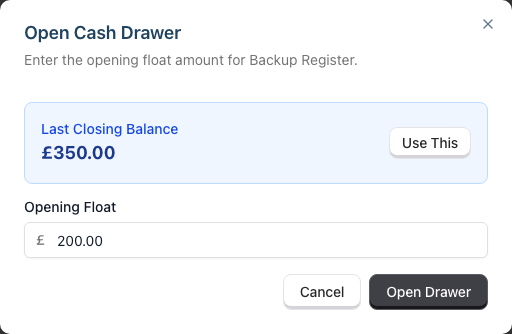
- The Open Cash Drawer dialog appears asking for the Opening Float. This is the cash you're starting with — your float for making change. The field is pre-filled with 200.00, so overwrite it with your actual float
- If the drawer has been used before, the dialog also shows the Last Closing Balance (e.g., "£350.00") with a Use This button that copies it into the Opening Float field
- Click Open Drawer to confirm
- The drawer status changes to Active
Step 4: View Open Session Details
When a drawer is open, the card displays:
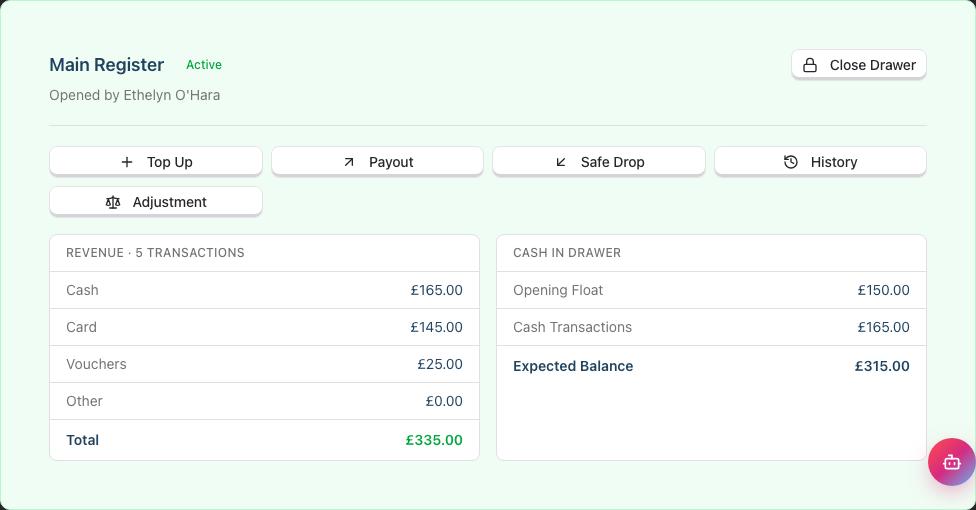
Session Information:
- Who opened the session
- Current session statistics
Revenue Breakdown: The first section shows revenue by payment method with a transaction count header (e.g., "Revenue - 6 transactions"):
| Row | Description |
|---|---|
| Cash | Total cash received from transactions |
| Card | Total card payments taken |
| Vouchers | Total gift voucher redemptions |
| Other | Total other payment method amounts |
| Total | Combined revenue across all methods |
Cash in Drawer: The second section tracks the physical cash position:
| Row | Description |
|---|---|
| Opening Float | The starting cash amount |
| Cash Transactions | Cash received from sales (net of movements) |
| Expected Balance | Calculated current cash in the drawer |
Available Actions:
- Top Up - Add cash to the drawer
- Payout - Remove cash for expenses
- Safe Drop - Remove excess cash to a safe
- History - View all session activity
- Adjustment - Record an over/short correction (Owners, Admins and Managers only — see Correcting a Closed Session)
- Close Drawer - End the session (in the drawer card header)
Step 5: Record a Top Up
When adding cash to the drawer (e.g., more change from the bank):
- Click Top Up on the open drawer
- Enter the Amount being added
- Enter a Reason (optional) explaining why (e.g., "Change from safe")
- Click Record Top Up to confirm
- The Expected balance increases
Step 6: Record a Payout
When removing cash for expenses (e.g., petty cash for supplies):
- Click Payout on the open drawer
- Enter the Amount being removed
- Enter a Reason explaining why (e.g., "Coffee for staff")
- Click Record Payout to confirm
- The Expected balance decreases
Automatic payouts from card sales
When a card sale records cash change, the drawer records a Change given payout. A tip marked as paid out in cash records a Tip paid out payout. Both reduce the expected balance, so do not enter a second manual payout for the same money.
For example, taking £50 by card for a £45 bill and recording £5 cash change leaves the sale paid and reduces the drawer's expected balance by £5. A later refund returns £45 because the customer already received the change.
If no till is open, the sale still records the change and the refund is still right, but there is no drawer payout, because no drawer was counting. The till warns you before you complete the sale.
Step 7: Record a Safe Drop
When removing excess cash to a safe or for banking:
- Click Safe Drop on the open drawer
- Enter the Amount being removed
- Enter a Reason (optional) (e.g., "Mid-day safe drop")
- Click Record Drop to confirm
- The Expected balance decreases
Step 8: View Movement History
To review all activity for the current session:
- Click History on the open drawer
- The Session Activity dialog appears showing all transactions and movements for the drawer
- The table displays:
- Type - The entry type badge (e.g., Cash Sale, Card, Gift Voucher, Payout, Safe Drop)
- Amount - The cash amount (green for incoming, red for outgoing)
- Details - The reason for cash movements, or the payment reference/transaction number for non-cash payments
- Date - When the entry occurred
Step 9: Close the Cash Drawer Session
At the end of the day:
- Count all cash in the drawer carefully
- Click Close Drawer on the active session
- The Close Cash Drawer dialog appears with a reconciliation table
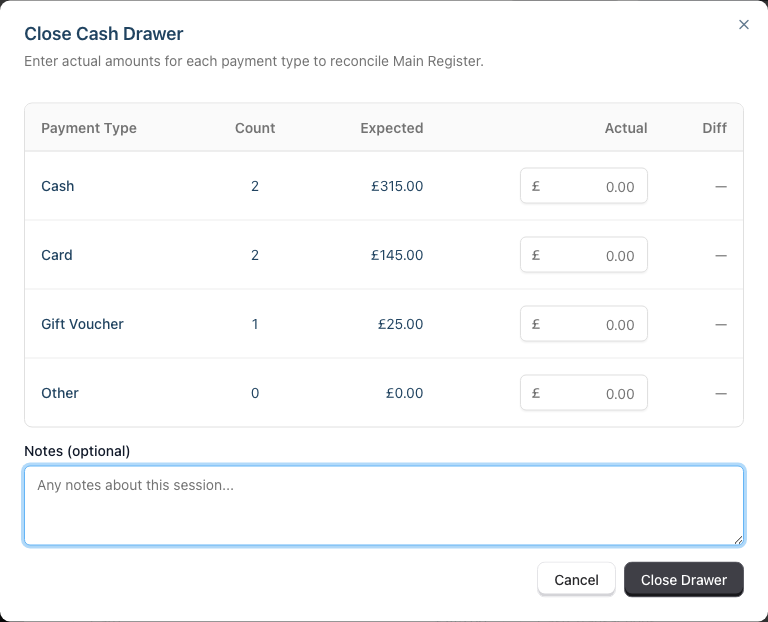
Reconciliation Table: The table shows expected vs actual amounts broken down by payment method:
| Column | Description |
|---|---|
| Payment Type | The method — Cash, Card, Gift Voucher, or Other |
| Count | Number of transactions for that method during the session |
| Expected | System-calculated amount based on transaction payments linked to the session |
| Actual | Your counted/verified amount (enter this) |
| Diff | Variance between actual and expected for that method |
The Cash expected amount accounts for the opening float plus cash sales, minus payouts and safe drops.
- Enter the actual amount for each payment method. The Cash count is required; leave a non-cash row blank and it's treated as matching the expected figure
- Review the per-method Diff column and the Overall variance indicator below the table:
Variance Indicators:
- Green "Balanced" - Actual matches expected (shows +£0.00)
- Blue "Over" - More than expected (e.g., +£5.00)
- Red "Short" - Less than expected (e.g., -£5.00)
- Optionally add notes in the Notes (optional) field
- Click Close Drawer
- A confirmation step appears summarising the Overall variance and reminding you that closing finalises the session. An Owner, Admin or Manager can still reopen today's session to correct the counts (see below); once a new session has started, a close can no longer be reopened. Check the figures, then:
- Click Close & reconcile to finalise, or
- Click Cancel to return to the reconciliation table with your entered amounts intact
- The session is closed and recorded
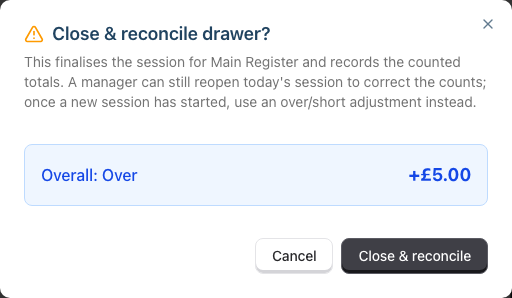
Tip: Pressing Enter while typing an amount no longer closes the drawer — it is ignored, so you won't accidentally finalise a half-counted session. Closing only happens when you click Close & reconcile on the confirmation step. Always double-check your counted totals before confirming — and if you spot a mistake straight after, an Owner, Admin or Manager can reopen the session to fix it.
Correcting a Closed Session
Mistakes at cash-up happen — a miscount, or an accidental close. How you fix it depends on whether the till has moved on.
Reopen & correct (same day, latest session)
If the session you just closed is still the drawer's most recent session and it was opened today (in your salon's local time), an Owner, Admin or Manager can reopen it. A session that started yesterday evening and ran past midnight can't be reopened, even if you closed it this morning.
- On the closed drawer's card, click Reopen & correct (visible to Owners, Admins and Managers only).
- Enter a short Reason — required, and kept on the record for the audit trail — then confirm.
- The reconciliation dialog reopens, pre-filled with the totals you counted before. Adjust the figures that were wrong.
- Click Close & reconcile again. The variance is recalculated and the session re-closed.
The original cash-up is preserved behind the scenes, and the session is tagged Corrected so it's clear it was reopened.
Reopen is deliberately limited to the latest session on the current business day. Once the nightly rollover has started a new session — or you've opened the next one yourself — that close is locked. This keeps each day's opening float and takings honest.
Record an over/short adjustment (older session, or trading has resumed)
If the mistaken close is not the latest session (a newer session has started, or it was a previous day), you can't reopen it. Instead, correct it forward in the current open session:
- On the open drawer's card, click Adjustment (Managers, Admins and Owners only).
- In the Record Cash Adjustment dialog, choose a Direction — Over (too much cash) or Short (too little) — then enter the Amount and a Reason. The reason is required.
- Click Record Adjustment.
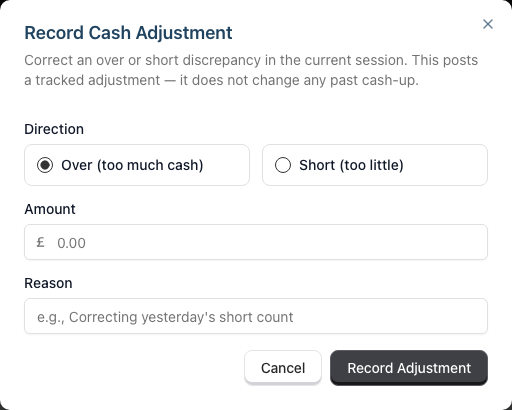
This posts a tracked adjustment into today's session so the expected cash reflects reality, while every past cash-up stays exactly as it was recorded.
Handling Variances
Perfect Balance (Variance = £0.00)
The drawer balances exactly. Close the session - great job!
Small Variance (Under £5)
- Recount the amounts for the affected payment method (check the Diff column to see which method is off)
- If still showing variance, it may be:
- Change given incorrectly (cash)
- Rounding from multiple transactions
- Record the variance and close
- Note the discrepancy
Large Variance (Over £5)
- Recount the affected payment method carefully (the Diff column highlights which methods have variances)
- Review the day's transactions
- Check movement records
- Document findings in the notes
- Report to management
- Close session with variance recorded
Investigating per-method variances:
- Cash variance — Check for miscounted change, unrecorded payouts or drops
- Card variance — Check for missed or double card taps, failed transactions not voided
- Gift voucher variance — Check for unredeemed or incorrectly entered voucher codes
- Other variance — Check for unrecorded alternative payments
Common Causes:
| Issue | Effect | Prevention |
|---|---|---|
| Change miscounted | Cash short | Count change back to customer |
| Movement not recorded | Either | Record all movements immediately |
| Transaction error | Either | Verify totals before completing |
| Missed card tap | Card short | Confirm card terminal shows approved |
Multi-Drawer Setup
If your salon has multiple till stations:
Managing Multiple Drawers
- Each drawer operates independently
- Open/close sessions separately
- Cash payments are assigned to the selected till
- Reconcile each drawer individually
Till Selection
When processing transactions with multiple open drawers:
- Quick POS opens with a Which till are you using? prompt listing every open drawer
- Your selection is remembered for future transactions
- You can switch tills if needed
Closing a drawer clears it as your selected till, so you'll be asked again at the next sale.
Automatic Midnight Rollover
Every till closes itself and reopens with a fresh session at your salon's local midnight. This keeps each business day's cash, card, voucher, and "other" tallies in their own session — without it, sales rung after midnight would land on yesterday's session and skew your reports.
What you'll see in the morning
- In the normal case, the till is shown as open with an Auto badge and the subtitle "Auto-opened at midnight".
- If the till is currently closed and its most recent close was the midnight rollover (for example, you closed the auto-opened session yourself to recount the float), the closed-state subtitle reads "Last session auto-closed at midnight" with an Auto badge.
How it works
- If you forgot to close the till — the system closes it for you with the actual amounts set to match the expected amounts (variance £0). The closing reflects what the system expected to be in the drawer; it can't physically count cash. If you find a real discrepancy when you arrive, correct the new session before you start trading: record a Top Up or Payout to bring the drawer to the amount you actually counted, or close the auto-opened session straight away and reopen it with the correct opening float.
- If you closed the till before midnight — the system simply opens a fresh session for the new day at midnight, ready for your first transaction.
- If a drawer has been deactivated — the rollover skips it entirely. It is never auto-closed and never gets a new session, so a till that's out of use won't quietly start collecting empty sessions. (If a deactivated drawer still shows an Auto badge on its last session, that's the record of a midnight close from back when it was in use — deactivating it didn't cause the close.) A brand-new drawer that has never been opened is left alone too.
Opening float
The auto-opened session carries forward the previous session's closing balance — whatever the till finished the day with becomes the next morning's opening float. The cash physically in the drawer at close stays in the drawer overnight, so the system tracks it consistently.
If you bank the day's takings overnight (or move cash to the safe), record that as a Safe Drop on the closing session before midnight. If you find the morning balance doesn't match what's actually in the drawer (e.g. you banked after the auto-close), close the auto-opened session and reopen it with the correct float. This keeps your variance honest and your tallies clean.
What if the system was offline at midnight?
The rollover catches up if it runs within the first hour after midnight. If your server was down longer than that, the till will stay on yesterday's session until staff manually close it — this is intentional, so a delayed rollover doesn't retroactively change the previous day's tallies.
Common Pitfalls
"I forgot to open a session before taking cash"
Open the session now with the current cash amount. Cash payments made before opening won't be tracked in the session.
"Cash variance keeps appearing"
Small variances are normal. For consistent issues, review cash handling procedures with staff.
"Someone took cash without recording"
Enforce that all cash movements must be recorded immediately. Consider limiting drawer access.
"I closed with the wrong amount"
If it's still today's latest session, a Manager or Owner can Reopen & correct it from the drawer card. If a newer session has already started, record an over/short Adjustment in the current session instead. See Correcting a Closed Session.
"The drawer shows as inactive but I need it open"
Click Open Drawer to start a new session with your opening float. If the card shows an Inactive badge where Open Drawer should be, the drawer has been deactivated. An Owner or Admin can reactivate it from the three-dot menu on the card. See Managing an Existing Drawer.
"I typed the drawer name wrong"
An Owner or Admin can rename it from the three-dot menu on the drawer card. See Managing an Existing Drawer.
Tips and Best Practices
- Use consistent float amounts - Same opening balance each day makes verification easy
- Record movements immediately - Don't wait until end of day
- Count carefully at close - Take your time to avoid errors
- Use the last balance feature - When cash stays overnight, use the "Use This" button
- Add clear notes - Document reasons for all movements
- Bank excess cash regularly - Don't keep large amounts in the drawer
- Review history if unsure - Check movements if the balance seems wrong
Related Tutorials
- Tutorial 2.4: Processing Transactions - Cash payments flow to the drawer
- Tutorial 2.6: Combined Checkout — One Person Pays for Several Customers - A single payment across several bills still posts to the open till session
- Tutorial 2.2: Booking and Managing Appointments - Appointments link to transactions
Frequently Asked Questions
Can multiple people use the same drawer?
Yes, but accountability is harder. Consider closing and reopening at shift changes, or using separate drawers per station.
What if we don't accept cash?
If your salon is card-only, you don't need to use the cash drawer feature.
How do I handle petty cash?
Record a Payout from the drawer when taking petty cash. Keep a separate log for what the money was spent on.
What counts as an acceptable variance?
| Range | Guidance |
|---|---|
| Under £1 | Normal operational variance |
| £1-£5 | Acceptable but document it |
| Over £5 | Investigate and report |
Can I have multiple drawers open at once?
Yes, each drawer can have its own open session. Useful for salons with multiple reception points.
Why use Safe Drop vs Payout?
- Safe Drop - Removing excess cash for security (moving to safe)
- Payout - Removing cash for expenses (petty cash, supplies)
Both reduce the expected balance, but the distinction helps with reporting.
Last Updated: August 2026