
Customer Self-Service - Viewing, Rescheduling, and Cancelling
Introduction
When self-service options are enabled (see Tutorial 18.2), customers can manage their own bookings without calling or emailing your salon. After completing a booking, customers receive a unique link that lets them view their appointment details, reschedule to a different time, or cancel if needed.
This tutorial explains how the customer self-service portal works, what customers can do, and how these actions appear in your salon's system.
Who this is for: Salon owners, administrators, and staff who want to understand how customers manage their own bookings.
What you'll learn:
- How customers access their booking management page
- The process for viewing booking details
- How customers reschedule appointments
- How customers cancel appointments
- What you see when customers make changes
Time to complete: 10 minutes to read through
Prerequisites
Before this feature is available to customers:
- Online booking must be enabled (Tutorial 18.1)
- Self-service options must be configured in your settings (Tutorial 18.2):
- Allow Rescheduling - Enable if you want customers to reschedule online
- Allow Cancellation - Enable if you want customers to cancel online
How Customers Access Their Booking
Customers can access their booking management page in several ways:
From the Booking Confirmation Page
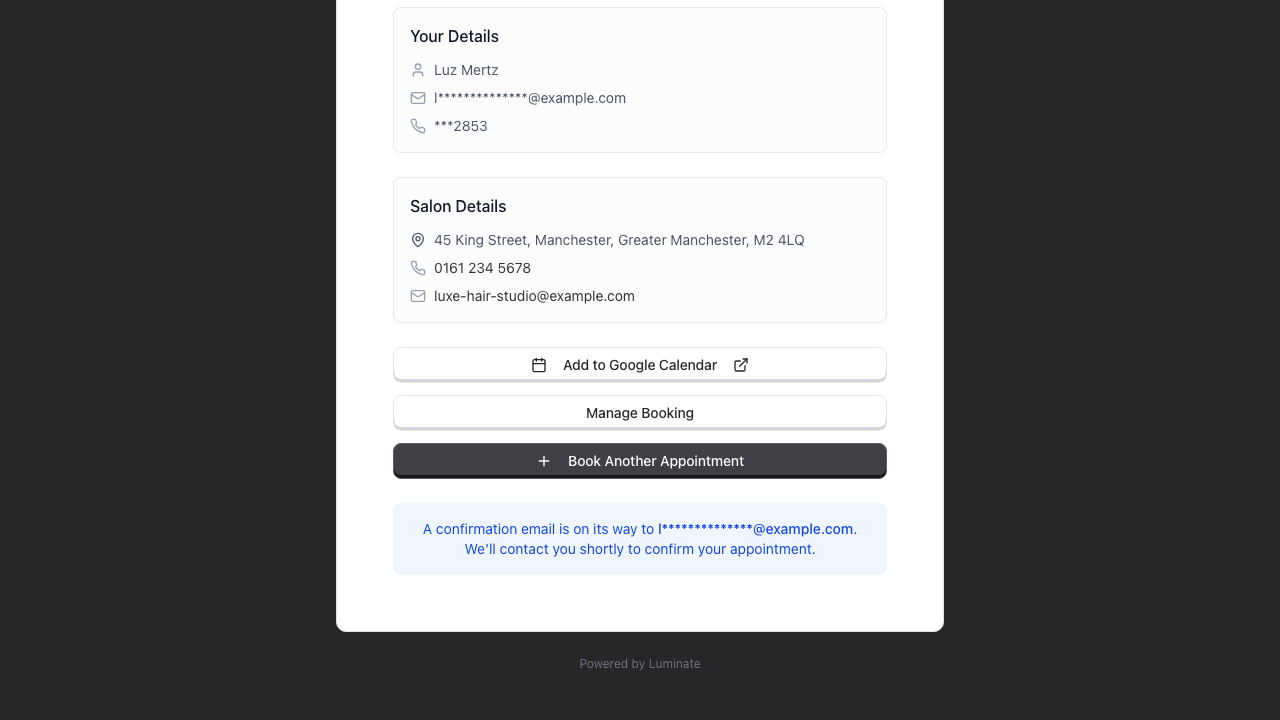
Immediately after completing a booking, customers see a Manage Booking button on the confirmation page. The button appears when you allow rescheduling, cancellation, or both. Clicking it opens their booking management page.
From Confirmation Emails
Both emails Luminate sends in the online booking flow include the customer's booking reference and a View or Manage Booking button:
- Booking Scheduled - sent as soon as the customer completes the booking.
- Booking Confirmed - sent when a staff member confirms the appointment, changing its status from scheduled to confirmed. The matching SMS, if enabled, carries the reference and the management link too.
The link is unique to each booking and doesn't require a login.
From the Reschedule Confirmation
When a customer reschedules, the Booking Rescheduled email and SMS carry the booking reference and a fresh View or Manage Booking link. Rescheduling replaces the previous link, so the newest message always holds the working one.
Appointment reminders don't carry the link. The default reminder asks the customer to contact you if they need to reschedule or cancel.
Security Note: The management link contains a unique token that identifies the booking. Only someone with this link can view or modify the booking. This approach balances security with convenience - customers don't need to remember passwords.
Viewing Booking Details
When customers open their booking management page, they see comprehensive appointment details:
Booking Information
- Booking Reference - The unique identifier (e.g., "LH-3KKEDW"), shown in a monospaced font
- Date & Time - The full date (e.g., "Wednesday, 15 January 2026") with the start and end time
- Stylist - The assigned staff member's name
- Service - Each service booked, with its individual price
- Duration - Total appointment length
- Total - Total price for all services
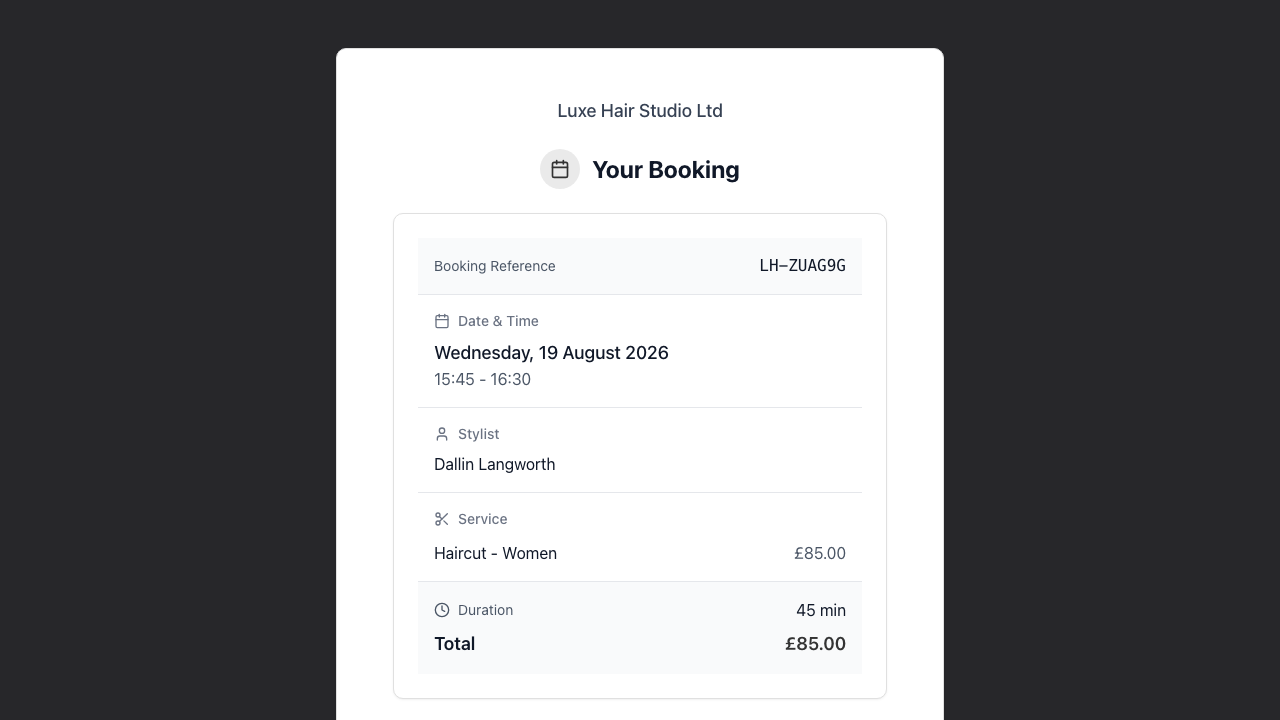
Note: The booking management page shows no deposit status. If a deposit was required, the customer sees the amount on their original confirmation page and email (see Tutorial 18.5), or they can ask you.
Salon Details
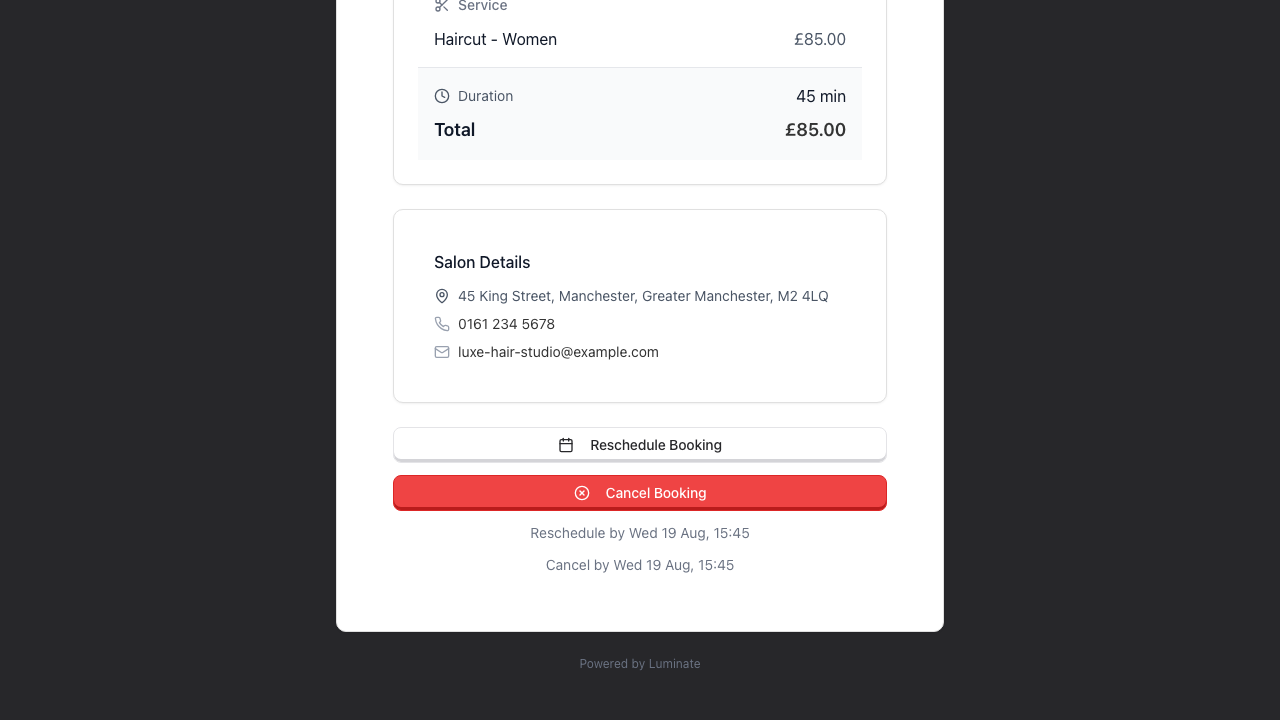
Your salon name and logo sit at the top of the page. The Salon Details card below the booking holds:
- Address - Where to find you
- Phone - Tap to call
- Email - Tap to send a message
Rescheduling a Booking
If you've enabled rescheduling in your settings, customers can move their appointment to a different date or time.
When Rescheduling is Available
The Reschedule Booking button appears when:
- You've enabled Allow Rescheduling in settings
- The current time is before the reschedule cutoff (e.g., more than 24 hours before the appointment)
- The booking is with a single stylist
Past the cutoff, the button and the Reschedule by line both disappear. The customer still has the booking details and your Salon Details card, so they can call or email you instead.
A booking spread across two or more stylists can't be rescheduled online. Moving it means rebuilding the running order by hand, so the button never appears. Online bookings always go to one stylist, so this only affects bookings your team made and then sent a management link for.
The Rescheduling Process
Step 1: Click Reschedule Booking The customer clicks the reschedule button on their booking management page.
Step 2: View Current Booking The Current Booking card at the top shows the appointment they are moving: date, time, and stylist. A Back to Booking button returns them to the details page without changing anything.
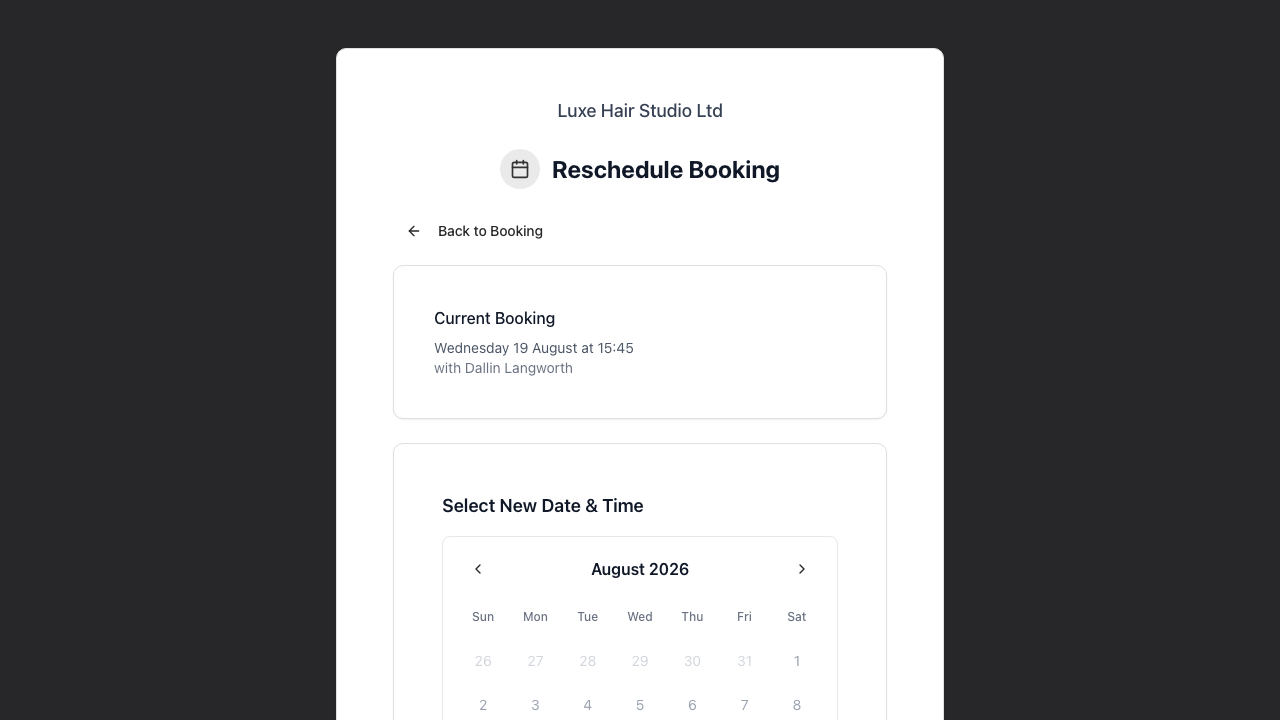
Step 3: Select New Date Under the Select New Date & Time heading, a calendar appears showing available dates:
- Available dates have a green background with a small dot indicator
- Unavailable dates are greyed out and cannot be selected
- A legend shows "Available" and "Selected" indicators
- They can navigate between months using arrow buttons
Step 4: Select New Time After choosing a date, available time slots appear:
- Slots are shown as clickable buttons (e.g., "16:15", "16:30")
- Only slots that can accommodate their services are shown
- If the day has filled up, the page says "No available times for this date. Please select another day."
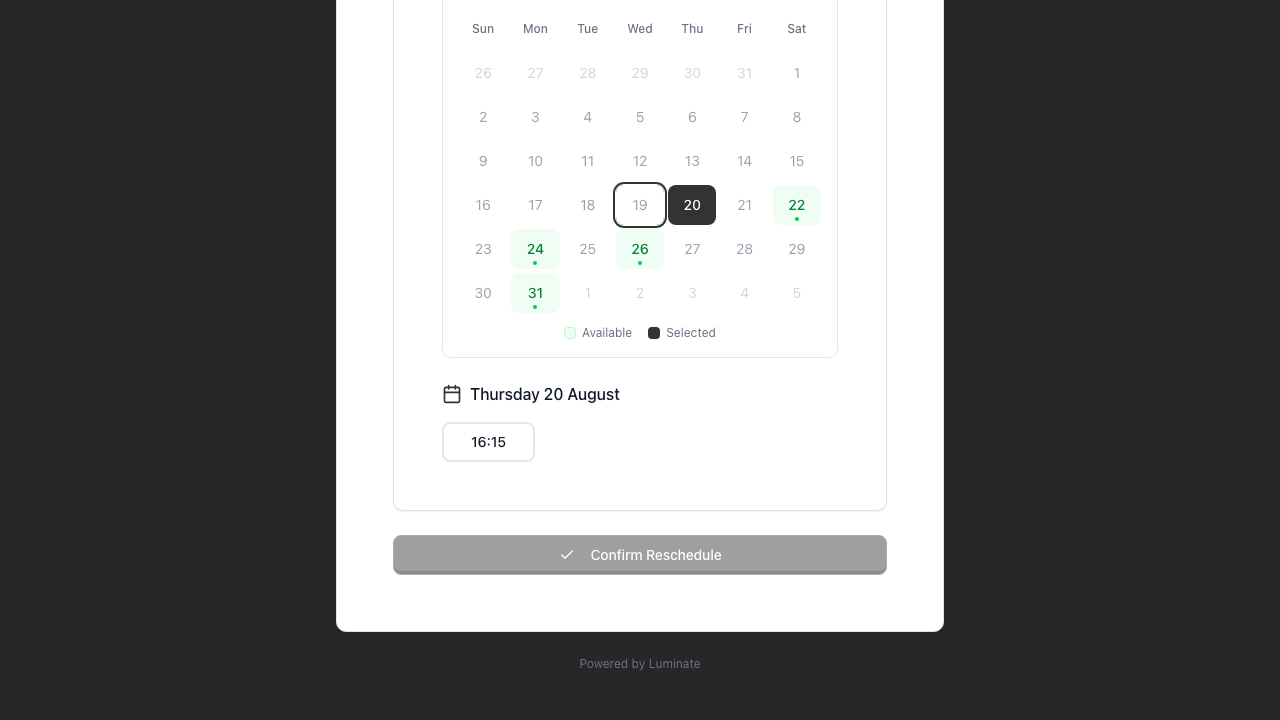
Step 5: Confirm Reschedule The customer clicks Confirm Reschedule to complete the change. If someone books that slot first, the page tells them the time is no longer available and they choose again.
After Rescheduling
- The page returns to the booking details view, now showing the new date and time
- The customer's record in your system is updated automatically
- The appointment moves to the new slot on your calendar
- For security, the management link is refreshed. The customer goes straight to the updated link, and the Booking Rescheduled email and SMS carry it too
What You See in Luminate
When a customer reschedules:
- The appointment moves to the new date/time
- Its status is reset to Scheduled (unconfirmed) so you can review and re-confirm the new slot
- You can see the change in your appointments list and calendar
- The salon team (owner, managers, and the assigned stylist) and the customer receive reschedule notifications by email (and SMS if enabled)
Cancelling a Booking
If you've enabled cancellation in your settings, customers can cancel their appointment online.
When Cancellation is Available
The Cancel Booking button appears when:
- You've enabled Allow Cancellation in settings
- The current time is before the cancellation cutoff (e.g., more than 24 hours before the appointment)
Past the cutoff, the button and the Cancel by line both disappear. The customer keeps the booking details and your Salon Details card, so a late cancellation comes to you by phone or email.
The Cancellation Process
Step 1: Click Cancel Booking The customer clicks the cancel button on their booking management page.
Step 2: Review Booking Details A confirmation dialog appears showing:
- The appointment date and time
- The services booked
- A warning that cancellation cannot be undone
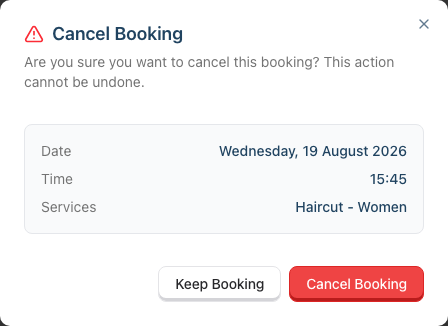
Step 3: Confirm Cancellation The customer clicks Cancel Booking to confirm, or Keep Booking to cancel the action.
What your team sees: the stylist gets the usual cancellation email. If waitlist clients could take the freed slot, the email lists up to three of them with a Fill this slot button that opens the calendar with the suggestions. Nobody on the waitlist is contacted until your team gets in touch. See Tutorial 2.3.
Deposits and Cancellation
If a customer cancels a booking for which they've already paid an online deposit:
- The deposit is not automatically refunded when a customer cancels through self-service
- The customer should contact the salon directly to discuss a refund
- The salon can then process a refund through the deposit transaction (see Tutorial 8.2)
- The salon's terms and conditions should clearly state the deposit refund policy
After Cancellation
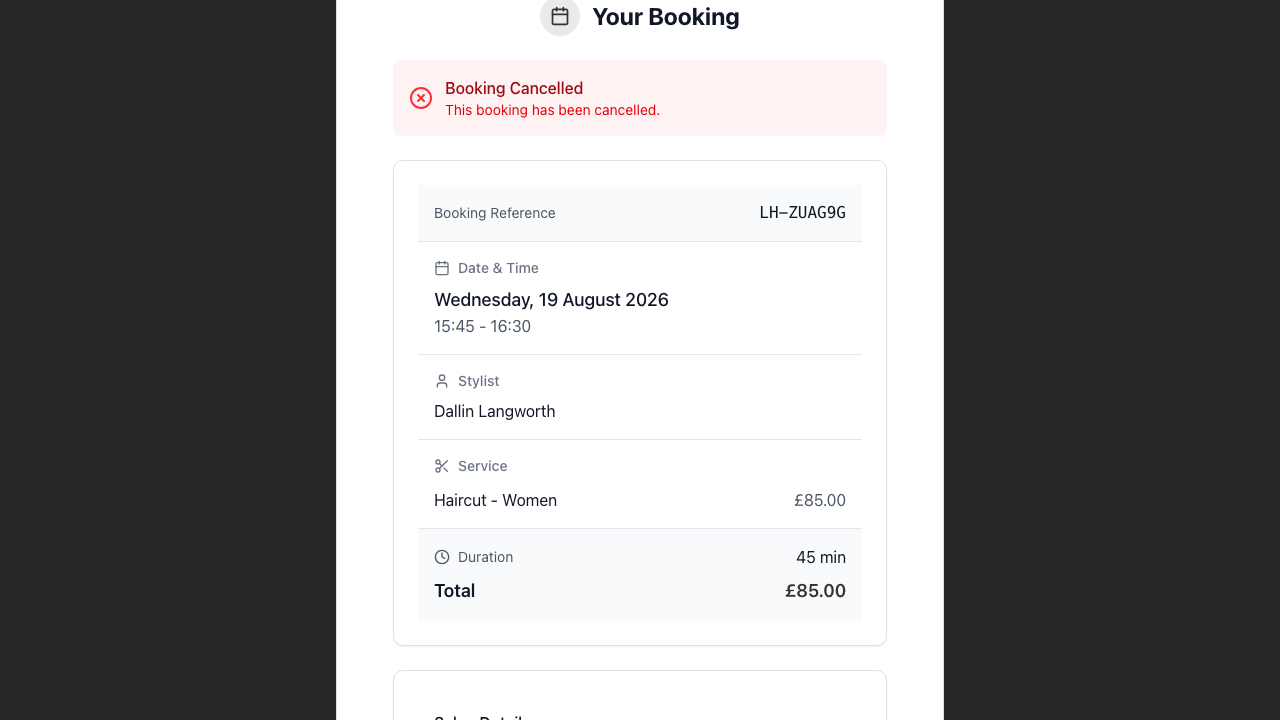
- The customer moves to your salon's Booking Cancelled page. It says the booking has been cancelled and gives your phone number. When online booking is on, it also shows a Make another booking button (see The Booking Was Cancelled below)
- The appointment status changes to Cancelled
- The time slot becomes available for other bookings
- The customer no longer has access to reschedule options
- The cancellation email carries a View your cancellation button. Cancelling replaces the customer's link, so this button is how they get back to the page later
What You See in Luminate
When a customer cancels:
- The appointment shows as Cancelled in your system
- The slot is freed up for other bookings
- The salon team (owner, managers, and the assigned stylist) and the customer receive cancellation notifications by email (and SMS if enabled)
- Open the appointment and expand Booking Details to see the Cancelled time and the Cancellation Reason. A customer's own cancellation reads "Cancelled online by customer", so you can tell it apart from one your team made
- To review them together, switch the Appointments page to List view and set the status filter to Cancelled
Deadline Notifications
While rescheduling or cancellation is still open, the booking management page shows the deadline under the buttons:
- "Reschedule by Sat 22 Aug, 13:45" - Shows the deadline date and time while rescheduling is still available
- "Cancel by Sat 22 Aug, 13:45" - Shows the deadline date and time while cancellation is still available
After the deadline passes:
- The relevant button disappears, and so does its deadline line
- If they need to make changes, they'll need to contact your salon directly
- A customer who opens an old reschedule link gets a page from your salon. It says the deadline has passed and gives your phone number
Common Scenarios
Customer Wants to Change Services
Customers cannot add or remove services through self-service. They can only:
- Reschedule (same services, different time)
- Cancel (and book a new appointment with different services)
If a customer wants to change their services, they should contact your salon or cancel and rebook.
Customer Reschedules Multiple Times
Customers can reschedule as many times as they like, as long as they're within the cutoff window each time.
Customer Reschedules a Colour Appointment
A colour service that needs a patch test only moves to a date the customer has a valid test for. If the test on file would be out of date by the new appointment, or there isn't one, the reschedule stops with: "This booking includes a colour service that requires a valid patch test on file. Please contact the salon to arrange this before rescheduling." Book the patch test with them, record the result, and the customer can then move the appointment themselves. Tutorial 11.1 covers patch tests in full.
Customer Tries to Cancel After the Cutoff
The cancel button won't appear, and neither will the Cancel by line. The customer still sees their booking and your contact details, so a late cancellation reaches you by phone or email — which is usually what you want that close to the appointment.
Customer Cancels After Paying a Deposit
If a customer cancels a booking with a paid online deposit, the deposit is not automatically refunded. The salon should:
- Review their deposit refund policy
- If a refund is warranted, process it through the deposit transaction in Luminate (see Tutorial 8.2)
- If the refund is for a card deposit, Luminate handles the Stripe refund automatically
Customer Lost Their Management Link
Options include:
- Check their email for the Booking Scheduled or Booking Confirmed message, or the Booking Rescheduled one if they've already moved the appointment
- Contact your salon, who can give them the appointment details
- Book a new appointment and cancel the old one (if within cutoff)
The Booking Was Cancelled (by You or the Customer)
If a booking is cancelled — whether the customer cancelled it themselves or your team cancelled it in Luminate — the customer's management link keeps working but now shows a simple "This booking has been cancelled" page instead of the appointment details. There's nothing to view, reschedule, or cancel, and they're pointed back to your salon if they'd like to book again.
When your salon has online booking switched on, the page also shows a Make another booking button that drops the customer straight into your booking portal. Because they came from their own booking link, they're carried through already recognised — they don't have to verify their identity again.
If the customer paid an online deposit after the booking had already been cancelled (for example, they finished paying just after the booking's deposit deadline lapsed and it was auto-cancelled), that money can't be kept against a booking that no longer exists, so Luminate refunds it automatically. The cancelled page then shows a green note: "You took too long to pay the deposit and so this booking was cancelled. Your payment is being refunded to your card…" This reassures them their money is on its way back rather than leaving them wondering.
This note is specific to deposits paid after cancellation. It does not appear when you cancel a booking and choose to retain a deposit that was already paid — a retained deposit is kept by the salon, so no refund message is shown.
The Customer Rescheduled to a Date Far in the Future
The management link stays valid right up to the new appointment date. When a customer reschedules, the link's expiry moves with the booking, so a booking pushed several weeks or months out can still be self-managed from the reschedule confirmation email.
You Turned Online Booking Off
Turning off online booking (the master switch in your settings) stops new customers from booking online. It does not disable the management links for bookings customers already have — they can still view, reschedule, cancel, and pay a deposit, subject to your Allow Rescheduling / Allow Cancellation settings. If you want to stop customers self-managing existing bookings too, turn those two options off as well.
Common Pitfalls
"Customer says they can't reschedule but I enabled it"
Check your reschedule hours setting. If set to 24 hours, customers can't reschedule within 24 hours of their appointment. Either reduce this setting or accept that late changes require salon intervention.
"Customers keep cancelling at the last minute"
Consider increasing your cancel hours setting. Moving from 24 to 48 hours gives you more notice. Alternatively, disable self-service cancellation entirely.
"We didn't know the customer rescheduled"
Staff notifications are sent when customers reschedule or cancel, but these may be missed. Consider:
- Checking your email regularly for booking notifications
- Reviewing upcoming appointments at the start of each day
- Checking your appointments list for recent changes
"A cancelled slot wasn't filled"
Self-service cancellation frees the slot immediately, but doesn't notify other customers. Consider:
- Posting last-minute availability on social media
- Contacting waitlist customers manually
- Using reminder messages to fill gaps
Tips for Managing Self-Service
Set appropriate cutoffs - Balance customer convenience with your operational needs. 24 hours is a common starting point.
Include your phone number - For customers who miss the cutoff, make it easy for them to call you.
Monitor changes regularly - Check your appointments for recent changes, especially before busy periods.
Communicate policies clearly - Include reschedule/cancel policies in your booking terms so customers know the rules upfront.
Use the waitlist - When a customer cancels, check your waitlist for potential fill-ins.
Related Tutorials
- Tutorial 18.1: Setting Up Online Booking for Your Salon - Initial setup
- Tutorial 18.2: Managing Your Online Booking Settings - Configure self-service options
- Tutorial 18.3: The Customer Booking Experience - The booking process
- Tutorial 18.5: Collecting Online Booking Deposits with Stripe - How deposits are collected
- Tutorial 2.3: Working with the Waitlist - Fill cancelled slots
- Tutorial 11.1: Colour Test Management - Patch tests that gate colour bookings
Frequently Asked Questions
Can customers reschedule to any date?
Customers can reschedule to any available slot within your booking constraints (maximum advance days, minimum lead time, and staff availability).
Does rescheduling send a new confirmation?
Yes. When a booking is rescheduled, the customer is sent a reschedule notification by email (and SMS if enabled) confirming the new details, and the booking page updates immediately to show the new date and time.
Can I disable self-service for specific bookings?
No, self-service settings apply to all online bookings. If you need more control over specific appointments, book them manually instead of through online booking.
What happens to the management link after cancellation?
The link is refreshed for security when a booking is cancelled, just as it is when one is rescheduled. The customer sees the cancellation confirmed on screen straight away, and the link then shows the Booking Cancelled page rather than the appointment. To make a new appointment they book again through your online booking page.
Can customers partially cancel (remove one service)?
No, cancellation is all-or-nothing. To change services, customers must cancel and rebook, or contact your salon.
Is there a limit to how many times customers can reschedule?
No limit, as long as they're within the reschedule cutoff window each time they want to make a change.
How do I know if a booking was rescheduled vs originally booked at that time?
The appointment shows its current date and time, and the Booking Details section records when it was last updated — but there's no separate reschedule history. Cancellations record more: both Cancelled and Cancellation Reason are kept, and a customer's own cancellation reads "Cancelled online by customer".
Can staff use the same management link?
Staff can access any booking through the Luminate dashboard. The public management links are intended for customers.
What happens to my deposit if I cancel?
Online deposits are not automatically refunded when you cancel through the self-service portal. Contact the salon directly to discuss a refund based on their deposit policy.
Last Updated: August 2026