
Collecting Online Booking Deposits with Stripe
Introduction
If you require deposits for certain services, Luminate can automatically collect them when customers book online. This uses Stripe Connect to securely process card payments during the booking flow. Customers are redirected to a Stripe-hosted checkout page after confirming their booking, and the deposit lands directly in your connected Stripe account.
This tutorial covers everything you need to set up, manage, and understand online deposit collection for your salon.
Who this is for: Salon owners, who connect the Stripe account, and administrators, who set the deposit amount on each service.
What you'll learn:
- How online deposit collection works
- Connecting your Stripe account
- Ensuring services have deposit requirements configured
- Testing the deposit flow
- Understanding the customer payment experience
- How deposits reach your account
- Viewing your Stripe Express dashboard
- Refunding an online deposit
- Disconnecting Stripe Connect
Time to complete: 20-30 minutes
Prerequisites
Before you begin:
- Owner access to your salon. Only the owner can connect, view, or disconnect the Stripe account. An Admin can see whether an account is connected, and can set deposit amounts on services (Step 3)
- Online booking enabled (Tutorial 18.1)
- At least one service configured with a deposit requirement (Tutorial 7.1, Step 7)
- A bank account you can connect to Stripe
Step-by-Step Instructions
Step 1: Understanding How Online Deposit Collection Works
Online deposit collection requires two things to be in place:
- Stripe Connect connected - Your salon must have a connected Stripe Express account
- Service deposit settings configured - At least one bookable service must require a deposit
When both conditions are met, customers who book a service requiring a deposit are redirected to a Stripe Checkout page after confirming their booking. They have 30 minutes to complete payment. If payment is not completed within that window, the booking is automatically cancelled.
Key details:
- A platform fee of 1% + 5p (5c for EUR/USD) is deducted from each deposit payment. Stripe's own card processing fee is also deducted.
- Deposits are collected per service - if a customer books multiple services with deposits, the total is combined into a single checkout
- The booking is created before payment - customers receive a confirmation immediately, and the deposit status updates once payment completes
- Stripe handles all card processing securely; Luminate never sees or stores card details
Step 2: Connect Your Stripe Account
- Click your salon name in the header bar
- Select Salon Settings from the dropdown menu
- Click the Online Booking tab
- Scroll down to the Deposit Payments section
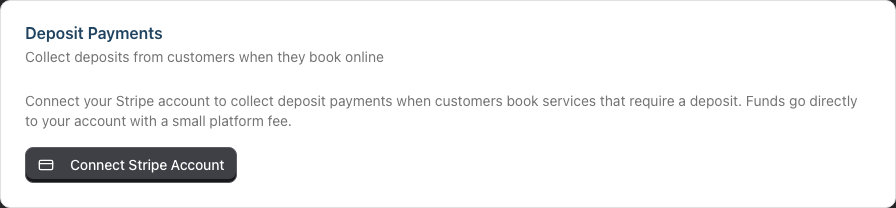
- Click Connect Stripe Account
- If you previously started but didn't finish, you'll see Continue Setup instead
 6. You'll be redirected to Stripe's onboarding page
7. Follow Stripe's steps to:
6. You'll be redirected to Stripe's onboarding page
7. Follow Stripe's steps to:
- Verify your identity
- Provide your business details
- Connect your bank account
- Once complete, Stripe redirects you back to Luminate
- The Deposit Payments section now shows your connection status
What you'll see after connecting:
- A Connected badge next to Stripe Account, with the date you connected
- A Stripe Dashboard button to access your Stripe Express dashboard
- A Disconnect option
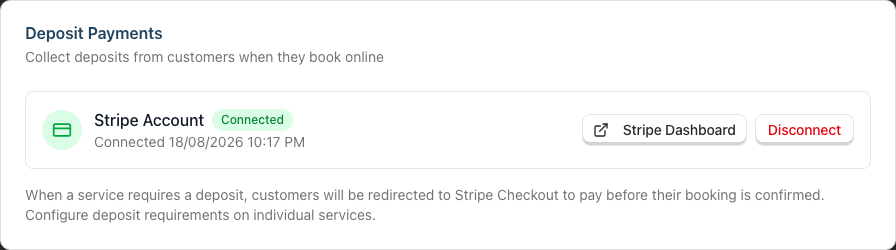
If you're an Admin rather than the owner: the Deposit Payments section still appears, so you can see whether deposits are set up. In place of the buttons you'll see a short notice — The salon owner sets this up before an account is connected, or The salon owner manages this account afterwards.
Note: Stripe may take a moment to verify your details. If you see a "pending" state after returning, wait a few minutes and refresh the page. The account.updated webhook from Stripe will mark your onboarding as complete once verification finishes.
Step 3: Ensure Services Have Deposit Requirements Configured
Online deposits are driven by individual service settings. If a service doesn't require a deposit, no payment is collected for that service during online booking.
To configure deposits on a service:
- Navigate to Services in the sidebar
- Edit the service you want to require a deposit for
- In the deposit section, enable Requires deposit
- Choose a Deposit Type:
- Fixed amount - A specific amount (e.g., 20.00)
- Percentage of price - A percentage of the service price (e.g., 50%)
- Enter the Deposit Amount (for fixed) or Deposit Percentage (for percentage)
- Save the service
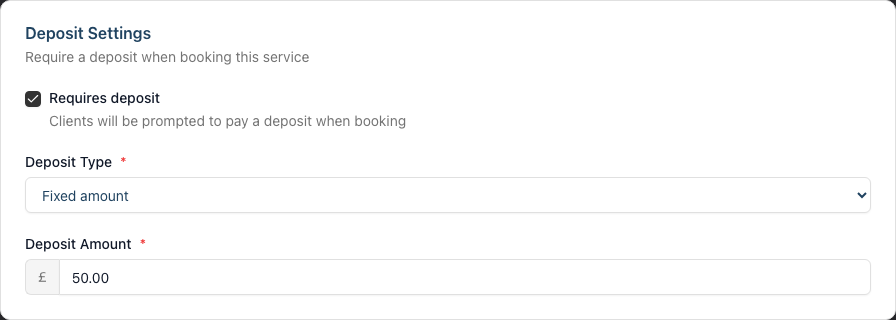
For full details on configuring service deposits, see Tutorial 7.1, Step 7.
How percentage deposits work with staff level pricing: If your salon uses staff levels (e.g., Junior, Senior, Director) with different prices for the same service, a percentage deposit is calculated based on the price for the specific staff member the customer selects. For example, a 50% deposit on a service priced at 60.00 for a Senior stylist would be 30.00, while the same service priced at 80.00 for a Director would require a 40.00 deposit.
Step 4: Test the Flow Before Going Live
Before promoting deposit collection to customers:
- Ensure at least one service has a deposit requirement configured
- Verify your Stripe account is connected (check the Deposit Payments section in settings)
- Open your booking page in a private/incognito browser window
- Complete a test booking for a service that requires a deposit
- On the Stripe Checkout page, use Stripe's test card number if you're in test mode
- Verify the booking appears in your appointments with the correct deposit status
- Check your Stripe Express dashboard (see Step 7) to confirm the payment arrived
Step 5: Understanding the Customer Payment Experience
Here's what customers see when they book a service requiring a deposit:
- Booking flow (Steps 1-5) - The customer selects services, chooses a stylist, verifies their identity, picks a date and time, and reviews their booking as normal (see Tutorial 18.3)
- Redirect to Stripe Checkout - After clicking Confirm & Pay Deposit, the customer is redirected to a Stripe-hosted payment page
- Stripe Checkout page shows:
- Your salon's name
- Line items for each service requiring a deposit, with the deposit amount
- The total deposit amount
- A secure card entry form
- On successful payment - The customer is returned to the booking confirmation page showing a Deposit Paid status with the amount confirmed. If Stripe's confirmation is still settling at the moment they return, they briefly see a Deposit Processing status instead, which updates to Deposit Paid within moments.
- On abandonment - If the customer backs out of the Stripe page, they return to the confirmation page with a Deposit Pending notice: their booking is confirmed, the deposit is not paid, and the page tells them the salon may contact them to arrange payment
- If the deposit is never paid - The booking is automatically cancelled 30 minutes after checkout started. Both the customer and your team receive the usual cancellation notifications, so nobody is left holding a "confirmed" booking that no longer exists
Important: The booking is created before the customer pays. This means:
- The customer receives a booking confirmation immediately
- The deposit status updates separately once payment completes
- If payment never completes, the automatic cleanup cancels the booking and sends cancellation notifications
- If a payment lands after the booking was auto-cancelled (e.g. a very slow card verification), it is automatically refunded in full
Step 6: How Deposits Reach Your Account
When a customer pays a deposit:
- The payment is processed through your connected Stripe account
- Two fees are deducted automatically:
- Stripe's card processing fee. For a standard UK card this is 1.5% + 20p. Stripe charges more for premium and non-UK cards.
- The Luminate platform fee of 1% + 5p (5c for EUR/USD)
- The net amount settles to your bank account according to your Stripe payout schedule (typically 2-7 business days, depending on your country and Stripe settings)
Example:
- Customer pays a 50.00 deposit on a standard UK card
- Stripe processing fee: 0.95 (1.5% + 20p)
- Platform fee: 0.55 (1% + 5p)
- You receive: 48.50
On a standard UK card, the two fees together come to 2.5% + 25p. The customer pays only the deposit. No fee is added at checkout.
A completed deposit transaction is also recorded in Luminate, providing a full audit trail alongside your Stripe records.
Step 7: Viewing Your Stripe Express Dashboard
Your Stripe Express dashboard lets you view payouts, transaction history, and manage your connected account settings.
- Go to Salon Settings > Online Booking tab
- In the Deposit Payments section, click Stripe Dashboard
- You'll be redirected to your Stripe Express dashboard in a new tab
From the dashboard you can:
- View individual payments and payouts
- Check your payout schedule
- Update your bank account details
- Review your account status
Step 8: Refunding an Online Deposit
If you need to refund a deposit collected through Stripe:
Card refund (back to customer's card):
- Navigate to the deposit transaction in Luminate
- Process the refund as a card refund (see Tutorial 8.2)
- Luminate calls the Stripe API to process the refund on your connected account
- The refund appears on the customer's card statement (typically within 5-10 business days)
- The appointment's deposit status is reset to unpaid
Cash or manual refund:
- If you refund by cash or another method, process the refund as a cash refund in Luminate
- No Stripe API call is made - you handle the refund manually
- The transaction is marked as refunded in Luminate
Note: If a full refund is processed directly through the Stripe dashboard (outside Luminate), the system will detect it via webhook and mark the deposit as unpaid on the relevant appointments. Partial refunds made through the Stripe dashboard are not automatically reflected in Luminate.
Refund a deposit straight from the appointment: When an appointment still has a paid deposit, a Refund Deposit button appears wherever you manage the booking — on the appointment page, in the calendar sidebar's green "Deposit Paid" alert, and (on touch devices) in the action sheet that opens when you tap the appointment card. It opens a short confirmation showing the amount and the refund method — Stripe (card) for deposits paid online, or Till / manual for deposits taken at the till — then refunds without cancelling the booking. Online deposits are refunded to the customer's card automatically. For a till deposit, the dialog asks How is the money being handed back? and you choose Cash from the till or Card (terminal refund) — Luminate makes no card call either way, it just records which method you used. If the refund can't be actioned from there — you don't have refund permission, the deposit was one payment covering a linked group, or it has already been used as credit on a bill — the dialog explains why instead of offering the refund.
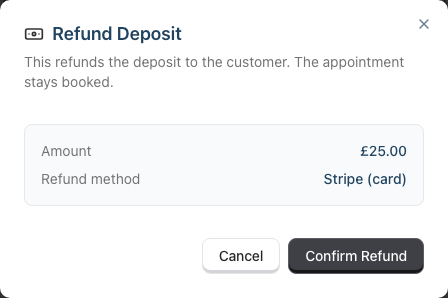
Cancelling an appointment that has a paid deposit: When you cancel such an appointment, Luminate asks what to do with the money before it goes ahead. You choose either Refund it to the customer or Retain it (no refund), and the dialog shows which refund method will be used. There is no silent retention — the deposit is only kept if you explicitly choose to keep it. (If you don't have permission to issue refunds, the deposit is retained and the dialog says so.)
Group deposits refund as a whole. When a customer pays the deposits for a linked (multi-service) booking in one online payment, that payment covers every appointment in the group and can only be refunded in full. Cancelling just one of the linked appointments therefore can't refund its share — the dialog explains this and retains the deposit. To hand the money back, cancel all linked appointments together and choose Refund, which returns the whole payment in one go. (Refunding the deposit transaction itself from the transactions screen does the same — it always refunds every deposit it covers.)
Step 9: Disconnecting Stripe Connect
If you no longer want to collect online deposits:
- Go to Salon Settings > Online Booking tab
- In the Deposit Payments section, click Disconnect
- Confirm the disconnection
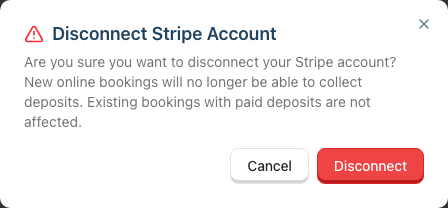
What happens when you disconnect:
- New online bookings will no longer collect deposits (customers can still book, just without a payment step)
- Money already taken is unaffected - those payments have already settled to your Stripe account
- You can no longer refund those deposits through Luminate. A card refund needs the connected account to send the money back. Luminate stops the refund and tells you the account is disconnected. Refund any outstanding online deposits before you disconnect, or issue them from your Stripe dashboard afterwards
- Your service deposit settings remain unchanged (they're still used for manual POS deposits)
- Connecting again later starts a new Stripe Express account. You go through Stripe's onboarding from the beginning, including your bank details. It does not reconnect your previous account
Common Pitfalls
"My deposits aren't being collected on online bookings"
Check both prerequisites:
- Is your Stripe account connected? Go to Salon Settings > Online Booking and check the Deposit Payments section shows Connected
- Do your services require deposits? Edit the service and verify Requires deposit is enabled with a deposit amount set
Both must be true for deposits to be collected during online booking.
"The customer says they paid but the deposit shows as unpaid"
There can be a short delay between payment and the deposit status updating in Luminate. Payment is confirmed both when the customer returns from Stripe and via a backup webhook from Stripe, so it usually completes within seconds — but it can occasionally take a few minutes. Refresh the appointment page to check for updates.
"A booking was cancelled even though the customer intended to pay"
Bookings with unpaid deposits are automatically cancelled 30 minutes after the customer started checkout at the time of booking. A payment link your team sends later, for a booking that is already in the diary, does not start that clock — the customer can take as long as they need, and the booking is never cancelled for it. Luminate runs this check periodically rather than on a timer per booking, so a cancellation can land a few minutes after the 30-minute mark. If the customer was delayed (slow internet, card issues, distraction), the booking may have been cancelled before they completed payment — both they and your team receive a cancellation notification when this happens. If their payment went through after the cancellation, it is refunded automatically. The customer would need to book again.
"Stripe says my onboarding is incomplete"
If you see Continue Setup instead of Connected, you may not have completed all of Stripe's verification steps. Click Continue Setup to return to Stripe and finish providing the required information.
"The deposit amount looks wrong for a percentage deposit"
Percentage deposits are calculated based on the service price for the selected staff member's level. If the customer chose a higher-level stylist, the deposit will be higher than expected for a lower-level stylist. This is correct behaviour.
"I refunded a deposit but the customer hasn't received it"
Card refunds typically take 5-10 business days to appear on the customer's statement, depending on their bank. Check the Stripe Express dashboard to confirm the refund was processed.
Tips and Best Practices
Start with your highest-value services - Enable deposits for bridal, colour corrections, and other high-value services first, then expand to others based on your experience.
Set clear terms - Update your booking terms and conditions to mention your deposit policy (see Tutorial 18.2, Step 7). Customers should know what to expect before they book.
Test regularly - After changing service prices or deposit settings, do a test booking to verify the correct deposit amount appears at checkout.
Monitor your Stripe dashboard - Check your Stripe Express dashboard periodically to ensure payouts are arriving as expected.
Communicate with customers - If a customer contacts you about a deposit, you can look up the transaction in both Luminate and your Stripe dashboard for a complete picture.
Keep deposit amounts reasonable - Very high deposits may discourage online bookings. Consider 20-50% for most services, with higher amounts only for premium or specialist services.
Related Tutorials
- Tutorial 18.1: Setting Up Online Booking for Your Salon - Enable online booking
- Tutorial 18.2: Managing Your Online Booking Settings - Add deposit policy to terms
- Tutorial 18.3: The Customer Booking Experience - What customers see including the deposit step
- Tutorial 7.1: Creating and Managing Your Service Menu - Configure deposit requirements on services
- Tutorial 8.2: Handling Refunds and Cancellations - Processing deposit refunds
- Tutorial 8.4: Deposits and Pre-Payments - Manual POS deposit collection
Frequently Asked Questions
Who in my salon can connect or disconnect Stripe?
Only the salon's owner. Admins can open Salon Settings and see the Deposit Payments section, so they can tell whether deposits are set up, but the Connect Stripe Account, Stripe Dashboard, and Disconnect buttons are shown to the owner alone. Admins can still set deposit amounts on individual services (Step 3). Managers, receptionists, and service providers cannot open Salon Settings at all.
Do all my services need to require deposits?
No. Only services with Requires deposit enabled will trigger deposit collection during online booking. Services without a deposit requirement can still be booked online - customers simply won't be asked to pay anything upfront.
What happens if a customer books multiple services and only some require deposits?
The Stripe Checkout page shows line items only for the services that require deposits. The customer pays the combined deposit total for those services. Services without deposit requirements are included in the booking but not in the payment.
Can I set different deposit amounts for different customers?
No. Deposit amounts are configured per service (and adjusted by staff level pricing if using percentage deposits). All customers booking the same service with the same stylist pay the same deposit.
What happens if I disconnect Stripe while customers have upcoming bookings with paid deposits?
Existing paid deposits are not affected by disconnecting. The payments have already been processed through Stripe. Only new bookings will stop collecting deposits.
Does this affect how I take deposits at the point of sale?
No. Online Stripe deposits and POS deposits are separate flows. You can continue taking manual deposits through Quick POS as described in Tutorial 8.4, regardless of your Stripe Connect status. Both types of deposits appear in the appointment's deposit tracking.
Is there a minimum deposit amount?
There is no minimum deposit amount enforced by Luminate. However, Stripe has its own minimum charge amounts (typically 0.30 in your currency). Very small deposits may not be practical due to payment processing fees.
When is the platform fee charged?
The platform fee of 1% + 5p is deducted automatically from each deposit payment at the time of the transaction, along with Stripe's processing fee. You receive the net amount in your Stripe payouts. There is no separate invoice for platform fees.
What if the deposit is more than the final bill?
The deposit covers the bill in full, and the difference goes onto the customer's account credit for them to spend next time. A 50 deposit against a 30 bill settles the bill and leaves 30 minus 30, so 20, on their account. You will see it on the customer's record as Unused deposit. A tip is not covered by the deposit — that is still taken as money at the till.
How can I tell if a deposit was collected via Stripe or manually at the POS?
Deposit transactions created from Stripe payments include a card payment reference starting with pi_ (Stripe's payment intent ID). Manual POS deposits show the payment method used at the till (cash, card via terminal, etc.). Both types are visible on the appointment's payment history.
Last Updated: August 2026