
Leave Reports and Year-End Management
Introduction
The Leave Report provides a team-wide view of leave allowances and usage. This tutorial covers accessing leave reports, understanding the summary data, and how year-end carryover is handled automatically based on your salon's settings.
Who this is for: Owner, Admin What you'll learn:
- Access and interpret the Leave Report
- View team-wide allowance summaries
- Export leave data for payroll or records
- Understand how year-end carryover works automatically
Time to complete: 8 minutes
Prerequisites
- Logged in as Owner or Admin (the Leave Report requires the view leave report permission, which Managers and other staff roles do not have)
- Staff members with leave data to report on
- Complete Tutorial 6.1 (Understanding Staff Leave Allowances)
Step-by-Step Instructions
Step 1: Access the Leave Report
- Click Reports in the sidebar
- Under Staff Reports, click Leave Report
- The Leave Report page opens
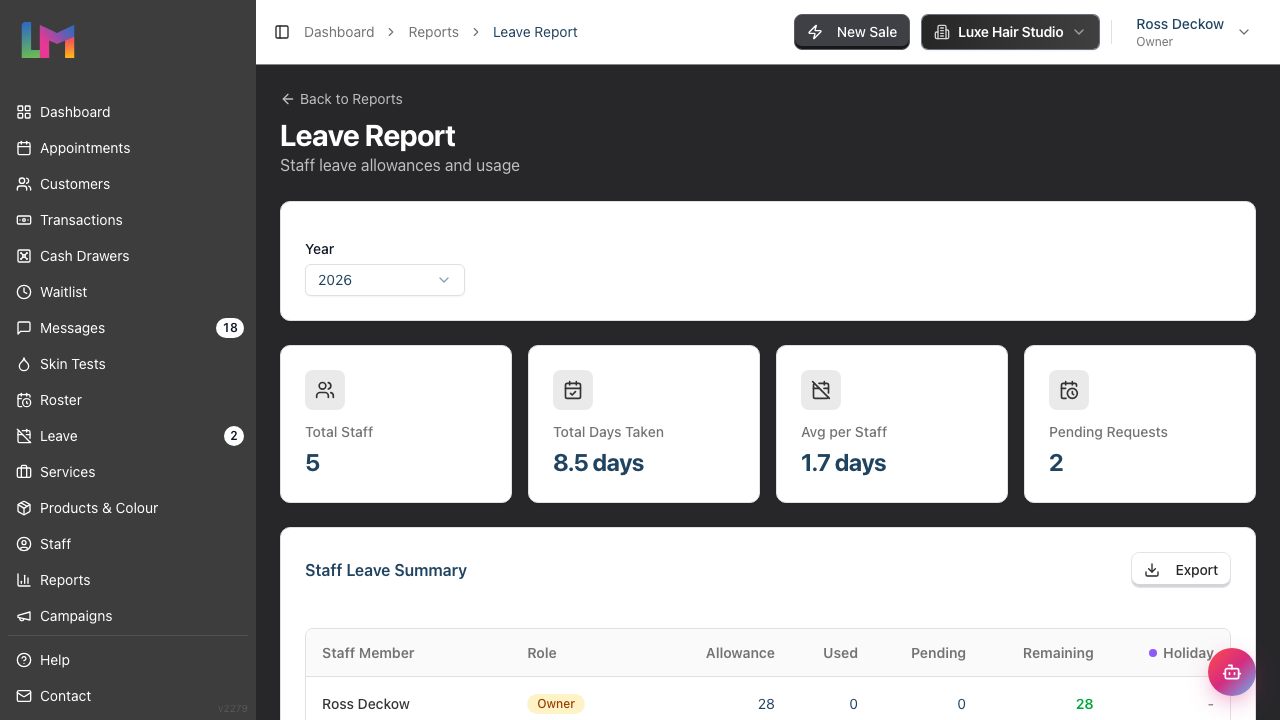
The report covers your active staff. Staff who haven't yet had a leave allowance created for the selected year still appear in the table, but with dashes in their figures.
Step 2: Filter by Year
The report defaults to the current year. To view a different year:
- Use the Year dropdown at the top
- Select the desired year — the dropdown offers next year, the current year, and the two previous years
- The report updates to show data for that year
Step 3: Review Summary Cards
At the top of the report, four summary cards display:
| Card | Description |
|---|---|
| Total Staff | Number of staff with a leave allowance record for the selected year |
| Total Days Taken | The sum of the Used column — approved leave that has already finished, for types that deduct from allowance |
| Avg per Staff | Average days taken per staff member (Total Days Taken ÷ Total Staff) |
| Pending Requests | Number of leave requests still awaiting a manager's decision |
Note: If Pending Requests shows a number greater than 0, there are requests waiting for manager review. Open Leave in the sidebar to deal with them (see Tutorial 6.3).
Total Staff counts allowance records, not table rows. A staff member with no allowance record for the selected year still gets a row in the table below, but isn't counted here. So the table can show more people than this card does.
This card counts requests awaiting a decision. The Booked column in the table below counts days of approved leave still to be taken. The two numbers answer different questions, so expect them to differ.
Step 4: Review the Staff Leave Table
The main table shows leave data for each staff member:
| Column | Description |
|---|---|
| Staff Member | Name (links to staff profile) |
| Role | Staff role badge |
| Allowance | Total allowance for the year (Base + Carried Over + Adjustments) |
| Used | Days taken from approved leave requests |
| Booked | Approved leave that hasn't finished yet |
| Remaining | Allowance - Used - Booked |
The table also includes a column for each leave type that deducts from allowance (typically just Holiday). That column counts all approved days of that type in the leave year, whether they've been taken yet or not — so it can be higher than the Used figure next to it.
Two meanings of "pending" on this page. The Pending column and the Pending Requests card are not the same number:
- Pending in the table means approved leave that hasn't finished yet
- Pending Requests in the summary card means requests still waiting for a decision
A request that hasn't been approved doesn't appear in Used or Pending, and doesn't reduce Remaining. Days come off the balance only once a manager approves the request.
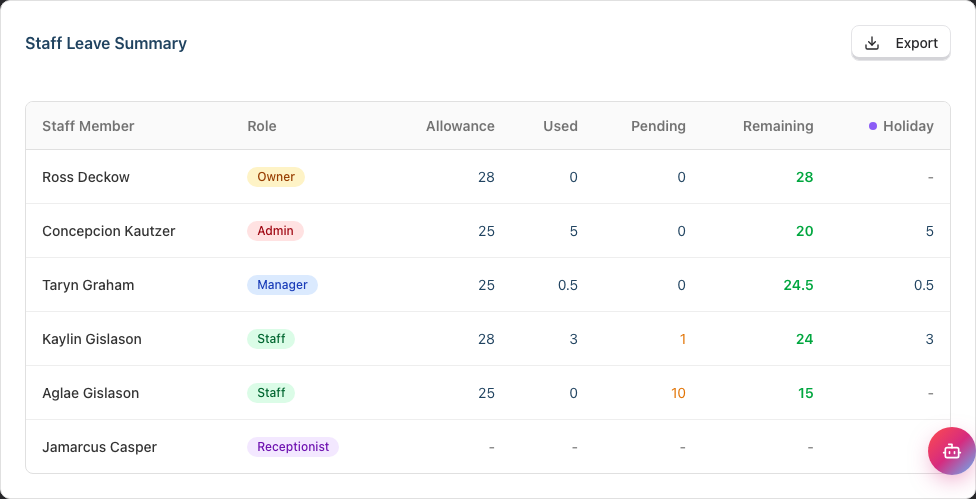
Colour coding for Remaining (based on the percentage of the allowance still remaining):
- Green: Healthy balance (more than 25% remaining)
- Amber: Low balance (more than 10% and up to 25% remaining)
- Red: Very low balance (10% or less remaining)
Step 5: Review Leave Types Legend
At the bottom of the page, a Leave Types legend shows all leave types with their colours and whether they deduct from allowance:

- Leave types marked "(deducts)" reduce the staff member's allowance when approved
- Leave types without this marker are tracked separately (e.g., Sick, Unpaid)
Step 6: Export Leave Data
To export the report data:
- Click Export at the top of the Staff Leave Summary table
- Choose Export as CSV or Export as PDF from the dropdown menu
- The download starts automatically (the file is named
leave-report-<year>.csvorleave-report-<year>.pdf) - Open the file in your spreadsheet application or PDF reader
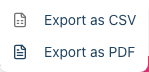
Both formats carry the same columns. Choose CSV to analyse the figures in a spreadsheet. Choose PDF to circulate or file a fixed copy — the PDF prints landscape and shows the leave year's date range under the title.
The Export button appears only if you can export reports. Owners and Admins can; other roles can't (see Tutorial 1.3).
The export includes:
- Staff Member and Role
- Allowance, Used, Pending and Remaining columns
- A column per leave type that deducts from allowance, holding that type's approved days
Staff with no allowance record for the year export as dashes, exactly as they appear on screen.
Use cases for export:
- Payroll processing (verify leave balances)
- HR records (archive annual data)
- Management reporting (share with owners)
Understanding Year-End Carryover
How Carryover Works
Carryover is handled automatically based on your salon's leave settings (configured in Edit Salon → Staff → Leave tab):
Carryover Policy options:
| Policy | Behaviour |
|---|---|
| No carryover | Unused days are lost at year end |
| Full carryover | All unused days roll over to the next year |
| Capped carryover | Up to a maximum number of days roll over |
A nightly background job runs at your salon's leave-year start date and creates the new year's allowance records for every active staff member. The same calculation also runs on demand the first time a staff member views their leave page for the new year, so a record is never missing when someone needs it. Either way, the system:
- Checks the previous year's remaining balance
- Applies the carryover policy to calculate carried days
- Creates a new allowance record for the year with the carried amount
Carryover is worked out once, when that year's record is created. It isn't recalculated afterwards.
Checking Carryover
The Leave Report's Allowance column shows the total only. To see how that total splits into base days, carried days and any manual adjustment:
- Click the staff member's name in the Staff Member column
- Their profile opens on a Leave (year) card
- Read the Made up of row — Base, Carried and Adjustments add up to the Allowance figure in the report
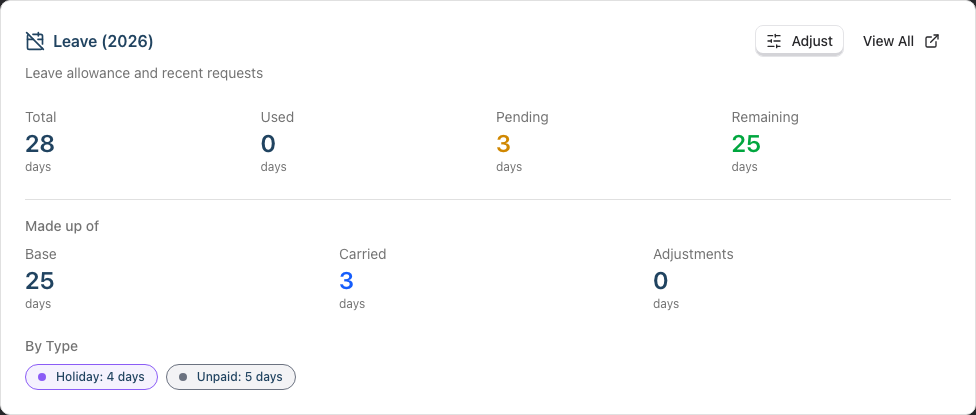
For your own balance, open Leave in the sidebar instead and read the Carried Over field on the Your Leave Allowance card.
The profile card always shows the current year. It ignores the report's Year filter, so if you're looking at a past year in the report, the breakdown you click through to won't match it.
Preparing for Year End
Before the leave year ends:
- Run the Leave Report for the current year
- Export the data for your records
- Review pending requests and approve or reject them
- Communicate carryover rules to staff so they know what to expect
Example communication: "Our leave year ends on 31 December. Unused holiday allowance is subject to our carryover policy (maximum 5 days). Please use your remaining days or they may be forfeited."
Change the date to match your salon's Leave Year Start setting — it doesn't have to be January (see Tutorial 6.1).
Common Pitfalls
"A staff member's row is all dashes"
That staff member has no allowance record for the selected year yet. The nightly job creates records at the leave-year start, and viewing the leave page creates one on the spot — so dashes usually mean a new starter added mid-year, or a year the salon hasn't reached. Ask them to open their Leave page once and the row fills in.
"Carryover didn't apply correctly"
Carryover is calculated once, when the new year's allowance record is created, from the previous year's Remaining figure. If that balance was wrong at the time, the carried amount is wrong too. Use the Year filter to check the previous year's data, and remember that only approved leave ever reduced Remaining.
"The report doesn't show all leave types"
The table columns only show leave types that deduct from allowance (typically Holiday). Other types (Sick, Unpaid, etc.) are tracked in leave requests but don't appear as separate columns in the summary table.
"Total Days Taken seems too low"
Three things are excluded: leave that's approved but hasn't finished yet (that sits in Pending), requests still awaiting a decision, and leave types that don't deduct from allowance. Add the Used and Pending columns together for the full picture of committed leave.
"A Manager can't find the Leave Report"
The Leave Report is restricted to Owner and Admin roles. Managers don't see the Leave Report tile on the Reports page at all, and opening the address directly returns an Access denied page. Managers can still approve leave and see each request — they just can't see the team-wide report. To give someone access to leave reporting, assign them the Admin role.
Tips and Best Practices
- Review monthly - Run the Leave Report at the start of each month to monitor team usage patterns
- Export before year end - Archive the year's leave data before the new year starts
- Identify high balances early - Staff with high remaining balances in October/November should be encouraged to book leave
- Check pending requests - If the summary shows pending requests, review and process them promptly
- Use for annual reviews - The Leave Report provides useful context for staff performance discussions
Related Tutorials
- Tutorial 6.1: Understanding Staff Leave Allowances - Configuring leave settings, the leave year and carryover policy
- Tutorial 6.2: Requesting and Managing Leave - Staff perspective
- Tutorial 6.3: Approving and Rejecting Leave Requests - Manager workflow
- Tutorial 1.3: Understanding Roles and Permissions - Who can open and export reports
Frequently Asked Questions
Can I see historical leave data?
Yes, within range. The Year filter covers next year, the current year, and the two previous years. Historical leave requests are preserved even after year-end, but the report only reaches back two years.
Is there a manual year-end rollover button?
No, and you don't need one. A nightly background job creates the new year's allowance records with carryover at your salon's leave-year start date, and the same calculation runs on demand if a staff member opens their leave page first.
Can I change carryover amounts after they're calculated?
The Carried figure itself is fixed when that year's allowance record is created, and neither a new allowance override nor a change to the salon default rewrites a year already under way — they apply to years whose record doesn't exist yet (see Tutorial 6.1). Set overrides ahead of the new leave year so they land cleanly.
You can still change the total for a year in progress. Open the staff member's profile, find the Leave card and click Adjust to add or remove days with a reason. That is the right tool when someone should keep leave they could not take, such as through long-term sickness or maternity. It is Owner and Admin only. See Tutorial 6.1.
What happens to pending requests at year end?
Pending requests remain pending. They count against the year they fall in based on the leave dates, not when they were submitted.
Can I generate reports for a date range rather than a full year?
No. The Leave Report works a leave year at a time, using your salon's Leave Year Start date rather than 1 January. For a narrower view, export the data and filter it in your spreadsheet.
Do all leave types appear in the report?
Only leave types that deduct from allowance get their own column, in the table and in the export. Every active type is listed in the Leave Types legend at the bottom of the page.
How often is the report data updated?
The report reads live data every time you open it. Approving or rejecting a request updates that staff member's figures straight away.
Why doesn't a pending request reduce someone's Remaining balance?
By design. Days come off the balance only when a manager approves the request, so a request awaiting a decision doesn't reserve anything. Watch the Pending Requests card for the ones still to be dealt with.
Last Updated: August 2026