
Requesting and Managing Leave
Introduction
Staff can submit leave requests through Luminate for manager approval. This tutorial covers how to create leave requests, check your allowance balance, and manage pending requests. Managers can also request leave on behalf of staff members.
Who this is for: Owner, Admin, Manager, Staff, Receptionist What you'll learn:
- Submit a new leave request
- Choose the correct leave type
- Book half days by trimming either end of the leave to midday
- View your allowance and remaining balance
- Edit or cancel pending requests
Time to complete: 10 minutes
Prerequisites
- Logged in to Luminate
- Staff profile exists in the system
- Complete Tutorial 6.1 (Understanding Staff Leave Allowances)
Step-by-Step Instructions
Step 1: Access Leave Management
- Click Leave in the sidebar
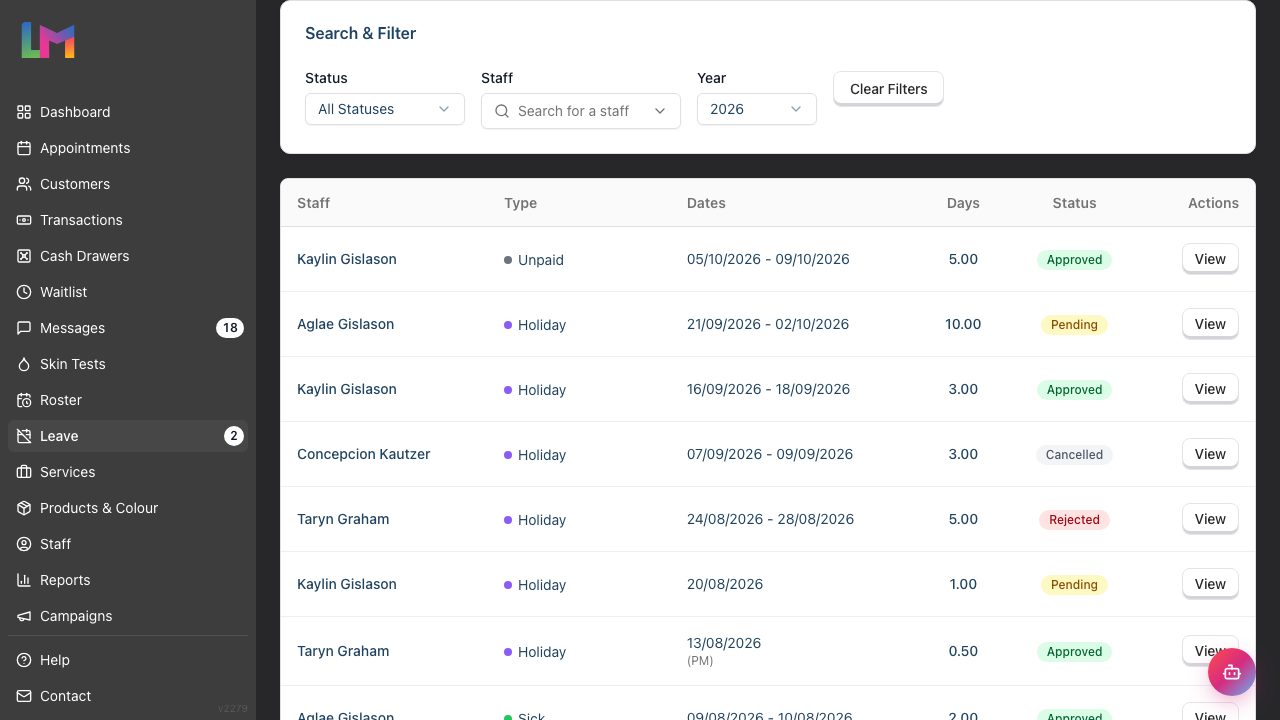
- The Leave page displays:
- Your leave allowance summary card (if you're staff), showing Base, Carried Over, Total, Used, Booked, and Remaining days
- Filters for Status, Staff, and Year
- A table of leave requests
- Click Request Leave in the top-right corner
Step 2: Select Staff Member (Managers Only)
If you have permission to manage leave for other staff:
- The Staff Member section appears at the top of the form
- Search for and select the staff member
- The rest of the form now applies to that person — the working days total uses their configured working days, and the allowance summary switches to their balance, not yours. Check it reads their figures before you submit
The section always appears if you can manage leave, even when you request for yourself. Your own name is selected by default.
If you're a staff member without the manage leave permission, this section doesn't appear at all. You can only request leave for yourself.
Step 3: Choose Leave Type
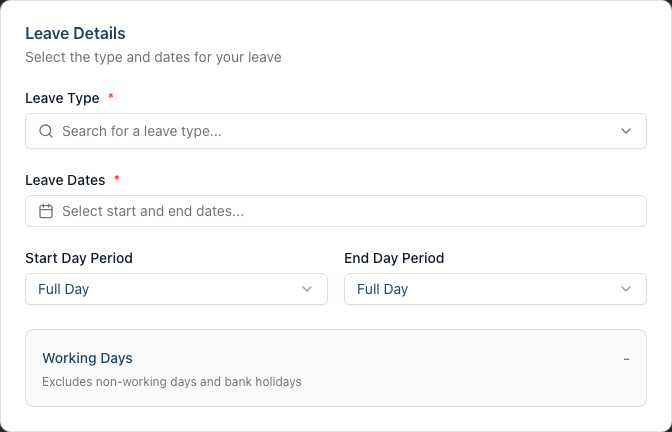
- Click the Leave Type dropdown
- Search for or select the appropriate type:
| Leave Type | Use For | Deducts from Allowance? |
|---|---|---|
| Holiday | Annual leave, holidays, time off | Yes |
| Sick | Illness, medical appointments | No |
| Unpaid | Extended time off without pay | No |
| Compassionate | Bereavement, family emergencies | No |
| Maternity | Maternity leave | No |
| Paternity | Paternity leave | No |
| Other | Any other absence type | No |
Holiday shows Deducts from allowance beneath the type name. The other types show nothing, because they don't reduce your balance.
The Leave Details card brings together the leave type, dates, when the leave begins and ends, and the live working-days total:
Step 4: Select Leave Dates
- Click the Leave Dates field
- Select your start date from the calendar
- Select your end date
- The calendar closes and the field shows your date range
For single-day leave: Click the same date twice. The start and end dates are then the same.
For multi-day leave: Select the first and last days of your absence.
Step 5: Set When the Leave Begins and Ends (Optional)
Leave is booked as one continuous block. You can trim either end of it to midday, which is how you book a half day.
Leave begins:
- All day (default) - the first day is taken in full
- From midday - the staff member works the morning of the first day, then leaves
Leave ends:
- All day (default) - the last day is taken in full
- Until midday - the staff member returns after lunch on the last day
Examples:
- A morning off: set both dates to the same day, Leave begins = All day, Leave ends = Until midday. That books 0.5 days.
- An afternoon off: same day again, Leave begins = From midday, Leave ends = All day. Also 0.5 days.
- A week off starting after lunch on Monday: Leave begins = From midday, Leave ends = All day.
- Two days finishing at lunch: Leave begins = All day, Leave ends = Until midday.
Step 6: Review Working Days Calculation
The form automatically calculates Working Days:
- Excludes non-working days based on the staff member's configured working days (or salon defaults if not set for the staff member)
- Excludes bank holidays configured for your salon
- Counts 0.5 for a day trimmed at midday
The calculation updates automatically as you change dates or periods.
Note: Working days are determined by the staff member's schedule, not by a fixed Monday to Friday week. If a staff member works Tuesday to Saturday, Sunday and Monday are excluded from the calculation. If no specific working days are set for the staff member, the salon's default working days are used - Monday to Saturday unless your salon has changed it. On that default, a Saturday counts as a working day and a Sunday doesn't.
Step 7: Check Allowance Impact
If you select a leave type that deducts from allowance (Holiday), the Leave Allowance Summary card shows:
| Field | Description |
|---|---|
| Current Remaining | Days available before this request |
| This Request | Working days being requested |
| After Approval | Remaining balance if approved |
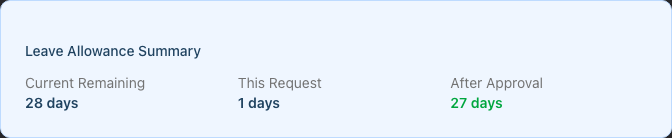
If "After Approval" shows a negative number (displayed in red), the request is for more than the staff member's remaining allowance. You can still submit, but the request may be rejected.
Note: This summary only appears for leave types that deduct from allowance (Holiday).
Note: The figures are for the leave year the request falls in. If you book leave dated next year, the card shows next year's allowance, not this year's.
Step 8: Add Reason (Optional)
- Enter details in the Reason (optional) field
- This helps managers understand the context
Examples:
- "Family holiday to Spain"
- "Doctor's appointment - can provide sick note if needed"
- "Attending wedding"
Step 9: Submit the Request
- Review all details
- Click Submit Request
- You're taken to the new request's own detail page, headed Leave Request # and its number
- Your request shows with Pending status
To get back to the full list, click Back to Leave Requests.
Managing Your Leave Requests
View Your Requests
- Navigate to Leave in the sidebar
- Use the three Search & Filter boxes to narrow results:
- Status: All Statuses, Pending, Approved, Rejected, Cancelled
- Staff: search for a staff member (managers only)
- Year: current year or next year
- Click any row or View to see request details
The detail page shows the full request (staff member, leave type, dates, working days and reason) alongside a status timeline. If any appointments are already booked during the requested dates, an amber Conflicting Appointments card lists them (date and time, service and customer) so they can be rescheduled before the leave begins.
Edit a Pending Request
You can only edit requests that are still Pending:
- Click on the request to view details
- Click Edit in the top-right corner
- Modify dates, periods, leave type, or reason
- Click Save Changes
The Staff Member is fixed on the edit form. To move leave to a different person, cancel the request and create a new one for them.
Note: Once a request is approved, rejected, or cancelled, it cannot be edited.
Cancel a Request
You can cancel a request that is still Pending or one that has already been Approved — handy if your plans change after approval:
- Click on the request to view details
- Click Cancel Request
- In the Cancel Leave Request dialog, choose Cancel Request to confirm (or Keep Request to back out)
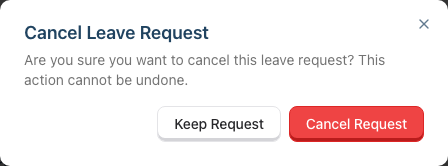
Cancelling is final and cannot be undone, but you can always submit a fresh request afterwards. Cancelled requests remain visible in your history and don't count against your allowance — if you cancel an approved holiday, those days are returned to your remaining balance.
Understanding Request Status
| Status | Meaning | What You Can Do |
|---|---|---|
| Pending | Awaiting manager review | Edit or Cancel |
| Approved | Leave confirmed | View or Cancel |
| Rejected | Request denied | View rejection reason |
| Cancelled | Withdrawn by requester | View only |
Common Pitfalls
"Working days shows 0 but I selected dates"
The selected dates might all be non-working days or bank holidays for that staff member. Check the staff member's configured working days and the salon's bank holiday settings.
"I can't see the Staff Member dropdown"
You can only request leave for others if you're an Owner, Admin or Manager. Staff and Receptionists can request only for themselves, so the section doesn't appear for them at all.
"The allowance warning says I'm exceeding my balance"
You're requesting more holiday than you have remaining. Options:
- Reduce the number of days requested
- Submit anyway (manager may still approve)
- Use a different leave type (Unpaid doesn't deduct from allowance)
"I selected Holiday but it's not deducting from my allowance"
Deduction only happens when the request is approved. A request awaiting approval doesn't appear in Booked and doesn't reduce Remaining. Once a manager approves it, it moves into Booked and the balance drops.
"It says I already have a leave request during this period"
Luminate allows only one live leave request per staff member for any given date. If a pending or approved request already covers part of your dates, submission fails with This staff member already has a leave request during this period. Open the existing request and edit or cancel it, then submit again. Rejected and cancelled requests don't block a new one.
"I can't edit my approved leave"
Approved requests can't be edited directly. Instead, open the request and click Cancel Request, then submit a new request with the correct details. You don't need to involve your manager to do this.
Tips and Best Practices
- Request early - Submit leave requests as soon as you know your dates, especially for popular holiday periods
- Check your balance first - Review your allowance summary before requesting to avoid exceeding limits
- Use the correct type - Sick leave shouldn't be used for holidays; it affects reporting accuracy
- Add context - A brief reason helps managers approve faster
- Check for conflicts - Consider team schedules when requesting peak holiday dates
- Plan half-days carefully - Use AM/PM periods for medical appointments or early starts
Related Tutorials
- Tutorial 6.1: Understanding Staff Leave Allowances - How allowances work
- Tutorial 6.3: Approving and Rejecting Leave Requests - Manager workflow
- Tutorial 6.4: Leave Reports and Year-End Management - Every staff member's balance in one table
- Tutorial 5.1: Setting Up Your Weekly Roster - Understanding scheduling
- Tutorial 5.2: Managing Public Holidays and Bank Holidays - Which dates the calculation skips
Frequently Asked Questions
Can I request leave for dates in the past?
No. Leave requests must start from today or later. If you need to record historical leave (such as unexpected sick leave), ask your manager to record it through other means.
How far in advance can I request leave?
There's no system limit. You can request leave for next year using the year filter. However, your salon may have policies about advance notice.
What if I need to change approved leave?
Open the approved request and click Cancel Request, then submit a new request with the correct dates. Cancelling an approved holiday returns those days to your remaining balance. Approved requests can't be edited in place, so cancel-and-resubmit is the way to change them.
Can I see when other staff are off?
Not directly from the Leave page. Check the Roster page to see who's scheduled and when shifts are blocked. Managers can see all staff requests on the Leave page.
Will my manager be notified when I submit a request?
Not by email. Your request appears immediately in the Leave list, and the Leave item in the manager's sidebar shows a count badge for requests awaiting their decision. It's still good practice to tell your manager directly.
You do get notified about the outcome: when a manager approves or rejects your request, Luminate sends you an email and an in-app notification.
What counts as a working day?
Working days are determined by the staff member's configured working days, or the salon's default working days if the staff member has no specific settings. Bank holidays configured for your salon are also excluded from the calculation.
Can I take half days?
Yes. For a morning off, set both dates to the same day with Leave ends = Until midday. For an afternoon off, set Leave begins = From midday. Either books 0.5 days.
Last Updated: August 2026