
Understanding Staff Leave Allowances
Introduction
Leave allowances define how many days of annual leave each staff member can take per year. Luminate tracks leave allowances automatically, calculating remaining balances as leave requests are approved. This tutorial explains how leave allowances work, how to configure salon-wide settings, and how to view staff balances.
Who this is for: Owner, Admin What you'll learn:
- Understand how leave allowances work
- Configure salon leave settings (default allowance, year start, carryover)
- Understand leave types and which deduct from allowance
- Understand how working days affect leave calculations
- View leave allowance summaries
- Set individual staff allowance overrides
Time to complete: 10 minutes
Prerequisites
- Logged in as Owner or Admin
- Have staff members created (see Tutorial 4.1)
Step-by-Step Instructions
Step 1: Understand Leave Allowance Structure
Each staff member has a yearly leave allowance that tracks:
| Field | Description |
|---|---|
| Base Allowance | Annual leave days allocated (from salon default or staff override) |
| Carried Over | Days carried forward from the previous year (if carryover enabled) |
| Adjustments | Days added or removed by hand during the year, using Adjust on the Leave card. Owner and Admin only |
| Total Allowance | Base + Carried Over + Adjustments = total available days |
| Used | Approved leave (for deducting types) that has already finished — its end date is in the past |
| Booked | Approved leave (for deducting types) that hasn't finished yet — upcoming or currently in progress |
| Remaining | Total - Used - Booked = days still available |
Important — only approved leave affects the balance. Both Used and Booked count only leave that has been approved. A request that is still awaiting approval does not reduce the remaining balance until a manager approves it. The split between the two figures is purely about timing: once booked leave finishes, it moves from Booked to Used.
Step 2: Configure Salon Leave Settings
Configure default leave settings for all staff:
- Click your salon name in the header and select Salon Settings from the dropdown
- Click the Staff tab
- Click the Leave sub-tab
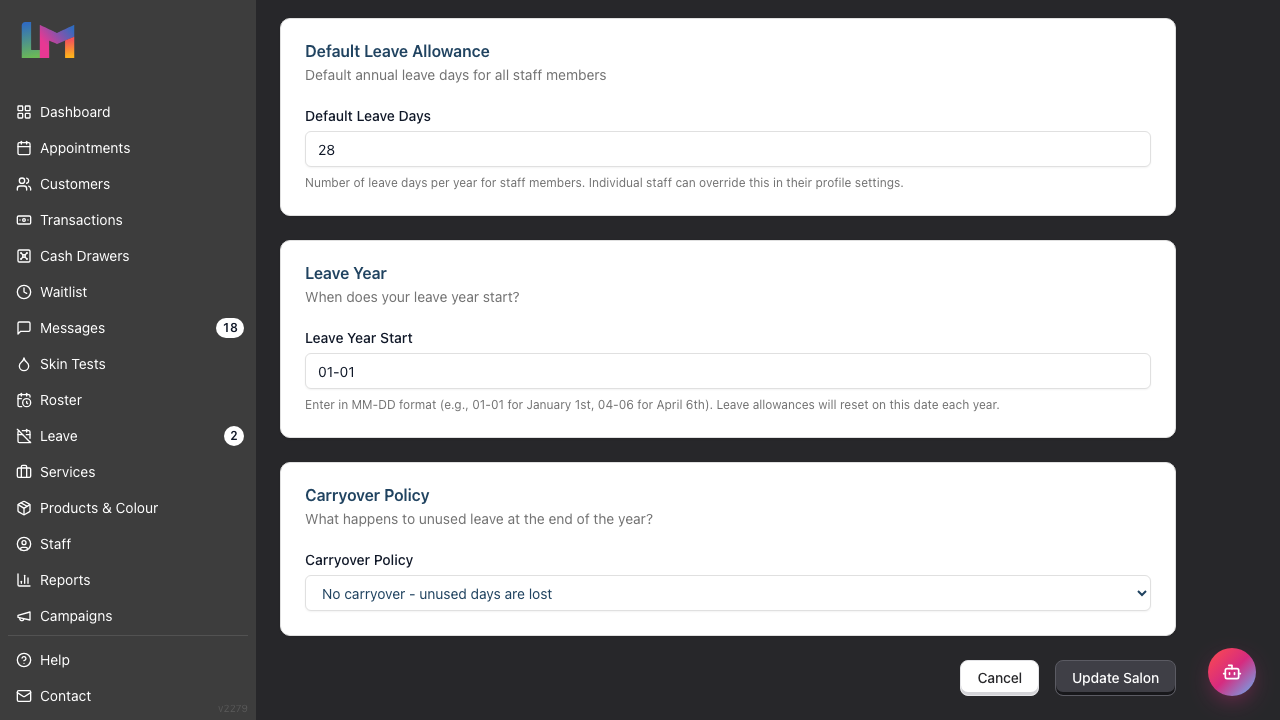
Default Leave Days: Enter the number of annual leave days for staff. The default is 28 days (UK statutory minimum including bank holidays).
Leave Year Start: Enter when your leave year begins in MM-DD format:
01-01= January 1st (calendar year, default)04-06= April 6th (UK tax year)07-01= July 1st (financial year)
Allowances reset on this date each year.
A leave year is named after the year it starts in. For a salon on 04-06, leave year 2026 runs from 6 April 2026 to 5 April 2027, so leave taken in February 2027 belongs to leave year 2026. The Year filter on the Leave page and the allowance cards all use leave years, not calendar years.
Carryover Policy: Choose what happens to unused leave at year end:
| Option | What it does |
|---|---|
| No carryover - unused days are lost | Nothing rolls over (use it or lose it) |
| Full carryover - all unused days roll over | Every unused day rolls over to next year |
| Capped carryover - limited number of days roll over | Days roll over up to a maximum you set |
If you select the capped option, a Maximum Carryover Days field appears below the dropdown. Enter the cap there (e.g., 5 days).
- Click Update Salon
Step 3: Understand Leave Types
Luminate includes these system leave types:
| Leave Type | Colour | Deducts from Allowance? |
|---|---|---|
| Holiday | Purple | Yes |
| Sick | Green | No |
| Unpaid | Grey | No |
| Compassionate | Rose | No |
| Maternity | Pink | No |
| Paternity | Blue | No |
| Other | Amber | No |
Key concept: Only Holiday leave deducts from the annual allowance. Other leave types are tracked separately and don't reduce the staff member's holiday balance.
Step 4: Understand Working Days
Luminate calculates leave based on each staff member's working days, not just weekdays. This ensures accurate deductions for staff with non-standard schedules.
How working days work:
- Each staff member has working days configured in their profile (see Step 5)
- When leave is requested, only working days within the date range are counted
- Non-working days and public holidays are automatically excluded from the calculation
Example: If a staff member works Monday to Friday and requests leave from Monday to Sunday, only 5 working days are deducted (not 7).
Step 5: Set Individual Staff Allowance Override and Working Days
To give a staff member a different allowance than the salon default or configure their working days:
- Navigate to Staff in the sidebar
- Click on the staff member's name
- Click Edit to open their profile
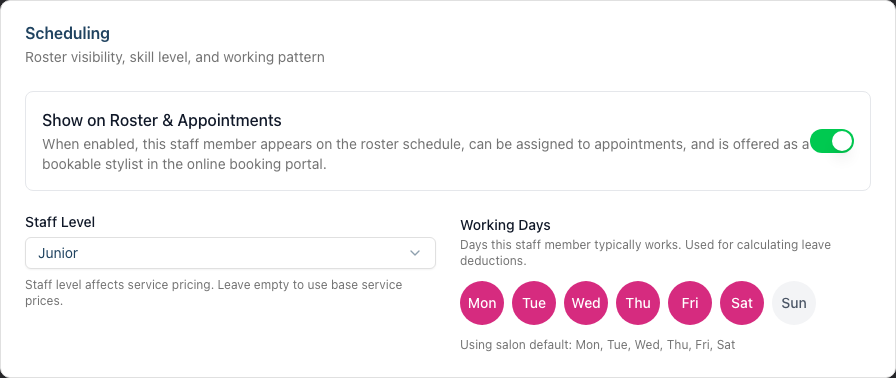
Working Days (in the Scheduling section):
- Click the day buttons — Mon to Sun — to select the days this staff member typically works
- Until you change anything, the helper text below reads Using salon default: Mon, Tue, Wed, Thu, Fri, Sat. The salon default is Monday to Saturday
- Once you select your own pattern, the helper text changes to Custom: followed by the days, with a Reset to salon default link next to it. Click that link to hand the staff member back to the salon default
- This affects how leave days are calculated for this staff member
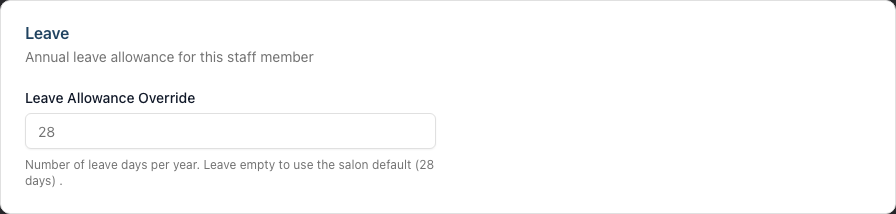
Leave Allowance Override (in the Leave section):
- Enter the number of days (leave blank to use salon default)
- This sets a custom annual leave allowance for this staff member
- The maximum is 255 days
- Click Update Staff Member
When the override takes effect: the base allowance for a leave year is fixed when that year's allowance record is first created (the first time the staff member's leave is viewed, or a request is made, for that year). A new override — like a change to the salon default — is picked up by leave years whose record hasn't been created yet. It does not retro-actively change a year that's already under way. Set overrides for new starters or ahead of a new leave year for them to apply cleanly.
Example: Your senior stylists might receive 32 days instead of the standard 28. Set their override to 32.
Step 6: View Leave Allowance Summary
To see a staff member's current leave balance:
- Navigate to Leave in the sidebar
- The top of the page shows Your Leave Allowance for the current year
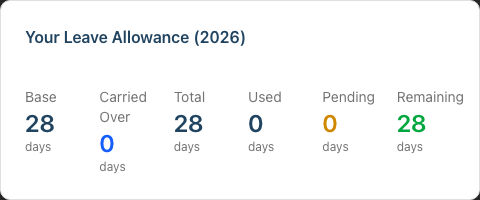
The summary displays:
- Base: Starting allowance (from salon default or staff override)
- Carried Over: Days from previous year
- Total: Combined allowance available
- Used: Approved leave that has already finished (end date in the past)
- Booked: Approved leave that's upcoming or in progress (not yet finished)
- Remaining: Days still available
Remember that only approved leave shows in Used and Booked — a request still awaiting approval doesn't reduce Remaining until it's approved.
Managers viewing team leave: If you can manage leave for others, set the Staff filter to a team member. The card above the list switches to that person's balance and its heading names them, so the card and the list below it always describe the same person. Clear the filter to return to your own allowance. For everyone's figures side by side, use the Leave Report (Tutorial 6.4).
Step 7: View Next Year Preview
When viewing the current year's allowance, you'll also see a Next Year Preview card, marked Estimated based on current remaining balance, showing:
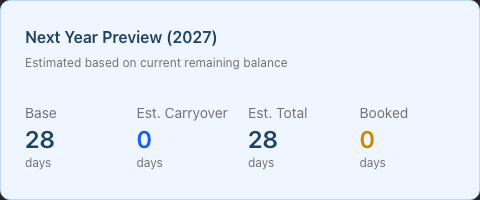
- Base: Next year's starting allowance
- Est. Carryover: Estimated days that will carry over (based on current remaining balance and carryover policy)
- Est. Total: Projected total allowance
- Booked: Approved leave already booked for next year (mirrors the current year's Booked figure)
This helps staff plan ahead, knowing how much leave they'll have.
How Carryover Is Calculated
Carryover happens automatically when a new leave year starts:
No Carryover Policy: Previous year's remaining days = 0 carried over
Full Carryover Policy: Previous year's remaining days = all carried over
Capped Carryover Policy: Previous year's remaining days → carried over up to the maximum
- Example: 8 days remaining, 5-day cap = 5 days carried over
The system calculates carryover automatically when viewing or creating allowance records for the new year. A nightly background job also runs at the salon's leave-year start date to create the new year's allowance records (with carryover) for active staff, so the figures are usually ready without anyone needing to open the Leave page first.
Common Pitfalls
"Staff member shows 0 days remaining but hasn't taken any leave"
Check if an allowance record exists for the current year. If no leave has been requested, the allowance is created when the staff member first views the Leave page or requests leave.
"Carryover isn't showing for the new year"
Carryover is calculated when the new year's allowance record is first accessed. Ask the staff member to view their Leave page to trigger the calculation.
"I changed the salon default but existing staff aren't updated"
Changing the salon default only affects leave years whose allowance record hasn't been created yet (new staff, or future years). Allowance records that already exist keep their original base allowance. Setting an individual override behaves the same way — it applies to the next year's record rather than re-writing a year already in progress. Plan default and override changes to land before a staff member's new leave year begins.
"A booked request isn't reducing the balance"
Only approved leave reduces the remaining balance. If a request is still awaiting approval (its status is Pending in the requests list), it won't show in the Used or Booked allowance figures until a manager approves it.
"Sick leave is reducing the holiday balance"
Sick leave should NOT deduct from allowance. Check that the leave type selected is "Sick" (green) and not "Holiday" (purple).
"Leave days don't match what I expected"
Check the staff member's working days in their profile. Leave calculations exclude non-working days. If a staff member only works Monday to Thursday, a week's leave is 4 days, not 5.
Tips and Best Practices
- Set carryover limits - Full carryover can accumulate large balances; capped carryover (5 days) balances flexibility with encouraging leave use
- Use the correct leave type - Ensure staff select the appropriate type so tracking is accurate
- Review before year end - In November, remind staff of remaining balances and carryover limits
- Document override reasons - When giving extra days, add a note to the staff profile explaining why
- Match your financial year - Set leave year start to match your business year for easier payroll alignment
- Configure working days - Ensure each staff member's working pattern is set correctly for accurate leave calculations
Related Tutorials
- Tutorial 4.1: Adding New Staff Members - Creating staff profiles
- Tutorial 6.2: Requesting and Managing Leave - How to submit leave requests
- Tutorial 6.4: Leave Reports and Year-End Management - Viewing team-wide leave data
Frequently Asked Questions
Can I change the salon default after staff have leave records?
Yes. The new default applies to future calculations and new staff. Existing staff allowance records keep their original base allowance unless you set an individual override.
What happens to pending requests when the year ends?
Pending requests remain pending and are counted against the year they fall in. A request for January next year counts against next year's allowance.
Can staff see other staff members' leave allowances?
No. Staff can only see their own allowance. Owners and Admins can view team-wide data in the Leave Report. Managers can approve and manage leave, but the Leave Report itself is Owner and Admin only.
Does part-time status affect leave allowance?
Luminate doesn't automatically pro-rate based on hours. Set an individual override for part-time staff (e.g., 14 days for someone working 50% hours).
Can I give extra days mid-year?
Yes. Open the staff member's profile, find the Leave card and click Adjust. Choose Add days or Remove days, enter the number of days and give a reason. The days go straight onto the leave year in progress, and the reason is kept with your name and the date so you can see later why the year was changed.
Use this for a one-off change to the year already running. Leave Allowance Override is the different tool: it changes the base allowance applied when the next year's record is created, so it's for a permanent change going forward.
Adjust is Owner and Admin only. A Manager who can approve leave cannot change what someone is entitled to.
What if someone starts mid-year?
Their first-year allowance should be pro-rated manually. Set an individual override reflecting the portion of the year they'll work.
How do working days affect leave calculations?
Leave is calculated based on the staff member's configured working days. If they work Monday to Friday and take a week off (Mon-Sun), only 5 days are deducted. Public holidays on working days are also excluded from the calculation.
Can I set different working days for different staff?
Yes. Each staff member can have their own working days configured in the Scheduling section of their profile. If not set, the salon default (Monday to Saturday) is used.
Last Updated: August 2026