
Setting Staff Display Order
Introduction
Luminate lists your staff in a running order you control. Open Salon Settings → Staff → Display Order to see the order you have now, then nudge staff up and down with the arrow buttons to change it — front-of-house staff first, say, or your most-booked stylists at the top. The new order applies in the appointments calendar, the roster grid, transactions, the Leave report, and the public booking portal.
Every new staff member joins the list at the bottom, so you only need to revisit this tab after you hire.
You can also hand the ordering over to your staff levels. The Reset to seniority order button rebuilds the list from each staff member's level — Director, then Senior, then Junior.
Who this is for: Owner, Admin What you'll learn:
- Set a custom display order for your staff
- Understand where the order applies
- Add new staff and have them fall in at the bottom
- Reset the order so your staff levels drive it instead
Time to complete: 3 minutes
Prerequisites
- Logged in as Owner or Admin
- At least two staff members in your salon
Step-by-Step Instructions
Step 1: Open the Display Order tab
- Click the salon name in the header to open the salon dropdown
- Click Salon Settings
- Click the Staff tab
- Click the Display Order sub-tab
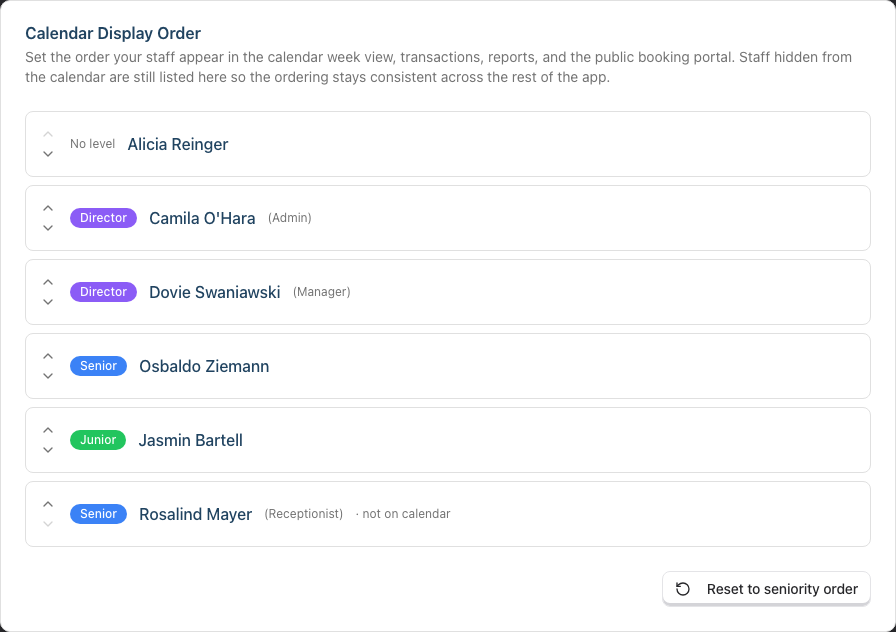
The Calendar Display Order card lists every active staff member as a row, with up and down arrows on the left and the staff member's level beside their name. Staff who don't appear on the calendar (for example a receptionist) are still shown here, with a small "not on calendar" label — keeping them in the list means the order stays consistent in places like the transactions screen.
Step 2: Move staff up and down
Click the up arrow to move a staff member up one position, or the down arrow to move them down. The top row's up arrow and the bottom row's down arrow are greyed out, because there is nowhere further to go.
Each click is saved immediately — there's no separate "save" button. You can refresh the page and the order will stick.
Step 3: Confirm the new order on the calendar
- Open Appointments from the sidebar — the staff columns now appear in the order you set in Step 2
- Open Roster — the staff rows follow the same order
The same order is used in the public booking portal staff picker and the transactions staff dropdown. See Where the order applies below for the full list.
Step 4: When you add a new staff member
When you add a new staff member from the Staff screen, they're placed at the bottom of your custom order automatically. Go back to the Display Order tab and use the arrows to move them up if you want them higher.
Step 5: Resetting to seniority order
If you want to start over:
- Click Reset to seniority order at the bottom of the Display Order tab
- In the dialog that appears, click Reset order to confirm (or Cancel to keep your manual order)
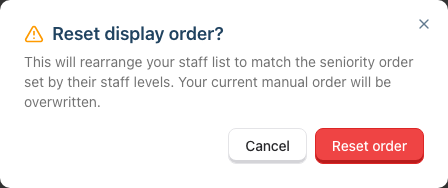
Luminate rebuilds the order from each staff member's level — Director first, then Senior, then Junior, with names sorted alphabetically inside each level. Anyone without a staff level goes to the bottom, so check where your owner record lands if you haven't given it a level.
The reset overwrites your manual order and can't be undone, but nothing is lost for good — you can always build the order back up with the arrows.
Where the order applies
| Where | Affected? |
|---|---|
| Appointments calendar (staff columns) | Yes |
| Roster grid (staff rows) | Yes |
| Transactions staff dropdown | Yes |
| Leave report staff list | Yes |
| Staff filters on the payroll and commission reports | Yes |
| Waitlist Preferred Staff picker | Yes |
| Skin test Hairdresser picker | Yes |
| Public booking portal staff picker | Yes |
| Staff Performance and Hours Worked reports | No — these tables sort by revenue and by name, and have their own sort controls |
| Staff admin list (Staff screen) | No — that screen has its own sort controls |
Common Pitfalls
"I can't find the Display Order tab"
The tab lives inside Salon Settings, which only Owners and Admins can open. Managers, Receptionists and Staff see no Salon Settings entry in the salon dropdown, and get an "Access denied" page if they reach the address directly. Ask an Owner or Admin to set the order for you.
"I moved someone, but the calendar hasn't changed"
Check whether that staff member is set to show on the calendar at all. Anyone with Show on Roster & Appointments switched off carries a "not on calendar" label on the Display Order tab, and no position will put them on the calendar grid. See Tutorial 4.1 for that setting.
"I reset the order and my owner record dropped to the bottom"
The reset sorts by staff level, and anyone without a level sorts last. Give the record a staff level, or move it back up with the arrows.
"The Staff screen still lists everyone in a different order"
That's expected. The Staff admin list has its own sort controls and ignores the display order. So do the Staff Performance and Hours Worked reports.
Tips and Best Practices
- Set the order once your team is settled - Every new hire lands at the bottom, so it's less work to hire first and tidy the order afterwards than to reorder after each arrival.
- Match the calendar to your floor - Ordering staff the way they sit in the salon makes the calendar much faster to read at the front desk.
- Put your busiest stylists first - The public booking portal shows staff in this order, so the first name in the list is the one most customers pick.
- Let staff levels do the work - If your levels already reflect seniority, use Reset to seniority order instead of clicking through the arrows.
- Order each salon separately - The order is per salon, so set it once for each location rather than expecting one to follow the other.
Related Tutorials
- Tutorial 4.1: Adding New Staff Members - New staff land at the bottom of your order, and this is where Show on Roster & Appointments is set
- Tutorial 4.3: Staff Levels and Experience Tiers - The staff levels that drive Reset to seniority order
Frequently Asked Questions
Will my customers see this order?
Yes — the public booking portal's staff picker uses it.
What if I have two salons?
Each salon has its own independent display order. Switching salons in the header shows a different Display Order tab with that salon's staff.
What about receptionists or non-rosterable staff?
They show up on the Display Order tab (labelled "not on calendar") so the ordering stays consistent across the whole app, but they don't appear on the calendar grid itself.
Can I drag with the mouse?
No. The rows can't be dragged — use the up and down arrow buttons.
Does the order affect who gets booked?
No. It only changes the order staff are listed in. Availability, pricing and assignment rules are unaffected.
Can I undo a reset?
Not with one click. Reorder with the arrows to build your preferred order back up.
Do inactive staff appear on the tab?
No. The Display Order tab lists active staff only. Deactivating someone doesn't discard their position, so they reappear in the list when you reactivate them — though they may have slipped down if you reordered the rest of the team meanwhile. Move them with the arrows if they land somewhere you don't expect.
Last Updated: August 2026