
Viewing Staff Hours Worked
Introduction
Tracking staff working hours is essential for payroll processing, pension reports, and understanding workforce utilisation. The Hours Worked report shows rostered hours for each staff member, broken down by scheduled time and actual working time (excluding breaks). This tutorial shows you how to use this report effectively.
Who this is for: Owner, Admin, Manager (Managers can view but not export — see Step 7)
What you'll learn:
- Access the Hours Worked report
- Understand scheduled vs working hours
- Filter by date range
- Export data for payroll and pension reporting
- Identify staff hour patterns
Time to complete: 10 minutes
Prerequisites
- Logged in as Owner, Admin, or Manager
- Staff members with rostered shifts in the system (see Tutorial 5.1)
- Roster configured for your salon
Step-by-Step Instructions
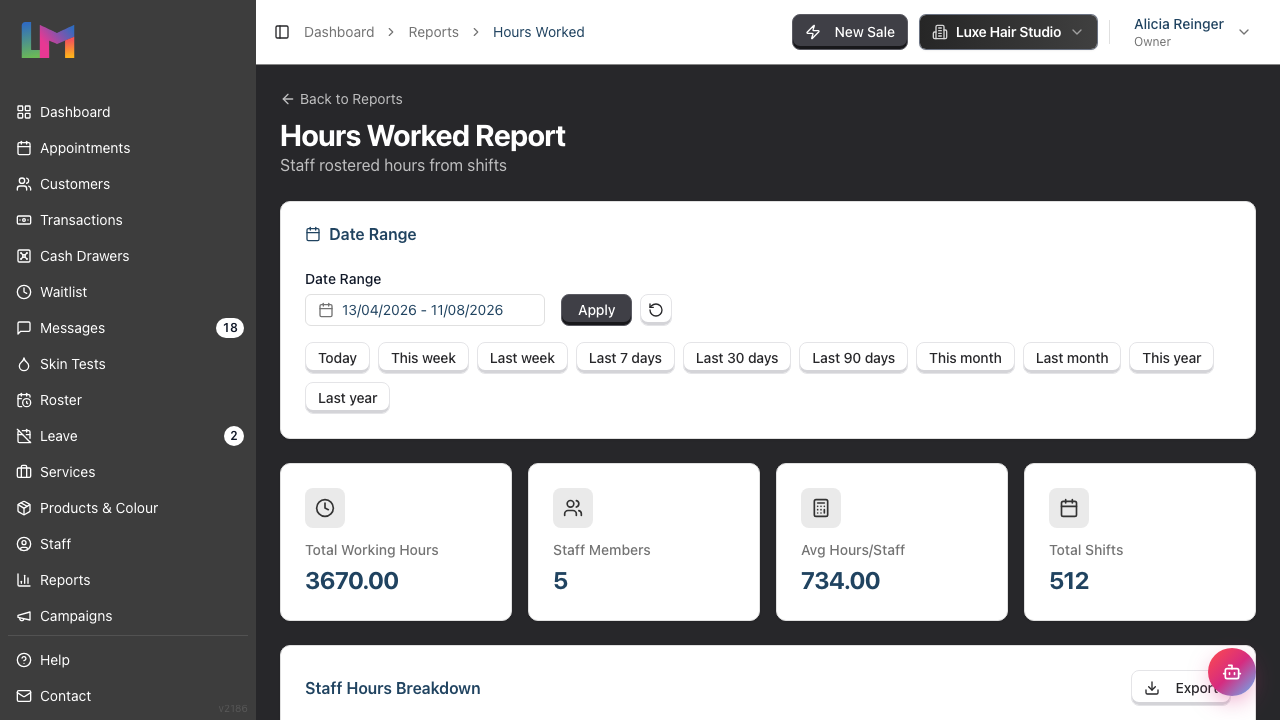
Step 1: Access the Hours Worked Report
- Click Reports in the sidebar
- Find Staff Reports section
- Click Hours Worked
The report opens showing rostered hours for your team.
Step 2: Understand the Date Range Filter
The report defaults to the last 30 days. To adjust:
- Click the Date Range picker to open the calendar
- Select your start and end dates
- Click Apply to update the report
- Click the reset button (circular arrow icon) to return to the default date range. The reset also clears any column sort you applied.
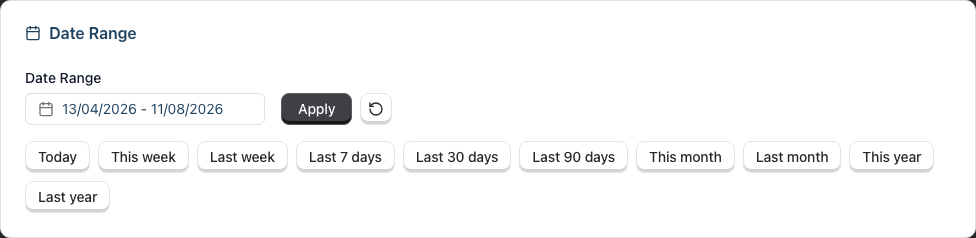
Quick date presets: Below the date range, you'll find preset buttons for common periods:
- Today, This week, Last week, Last 7 days
- Last 30 days, Last 90 days
- This month, Last month, This year, Last year
Common date ranges:
- Last 30 days for ongoing tracking
- Last month for payroll calculations
- Custom quarters for pension reporting
Step 3: Read the Summary Cards
At the top of the report, four summary cards display:
| Card | What It Shows |
|---|---|
| Total Working Hours | Combined working hours for all staff (excludes breaks) |
| Staff Members | Number of staff with shifts in the period |
| Avg Hours/Staff | Average working hours per staff member |
| Total Shifts | Combined number of shifts across all staff |
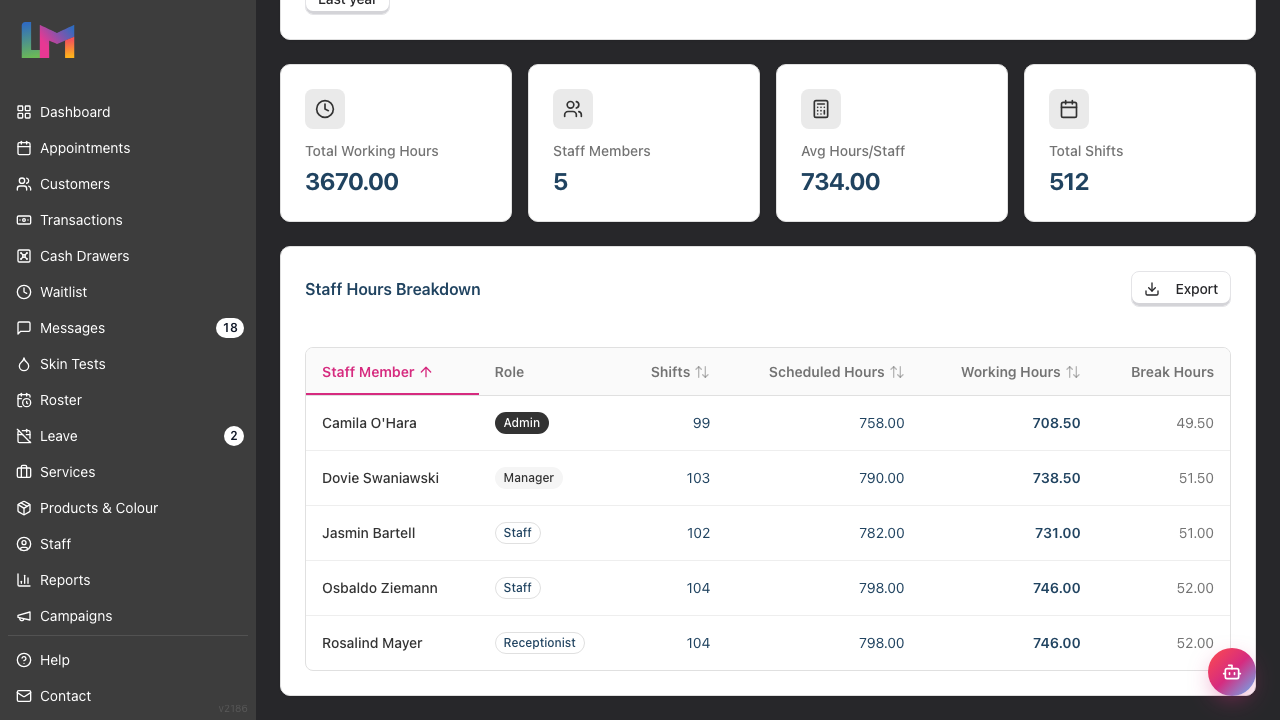
These give you a quick snapshot of workforce hours.
Step 4: Read the Data Table
The detailed table, titled Staff Hours Breakdown, shows:
| Column | Description |
|---|---|
| Staff Member | Name (clickable link to profile) |
| Role | Staff member's role (Owner, Admin, Manager, Staff, Receptionist) |
| Shifts | Number of shifts worked in the period |
| Scheduled Hours | Total rostered time including breaks |
| Working Hours | Actual working time (scheduled minus breaks) |
| Break Hours | Total break time taken |
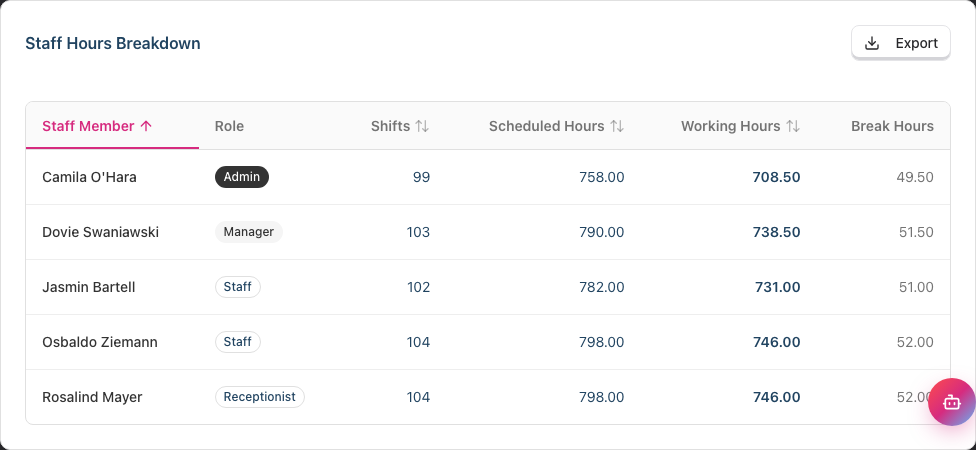
Key distinction:
- Scheduled Hours = Total time from shift start to shift end
- Working Hours = Scheduled Hours minus Break Hours
- Use Working Hours for payroll calculations
Only staff with at least one shift in the date range appear. The table lists 15 staff members per page. If your salon has more, page controls appear below the table.
If nobody has shifts in the range, the card shows No data available for the selected date range and the Export button is hidden.
Step 5: Sort the Report
Click any sortable column header to sort the data. Sortable columns are: Staff Member, Shifts, Scheduled Hours, and Working Hours.
- Click a column once to sort descending (Z-A, high to low)
- Click the same column again to switch to ascending (A-Z, low to high)
- An arrow shows the current sort direction. An up arrow means ascending, a down arrow means descending. Columns you have not sorted show a faint double arrow.
The report opens sorted by Staff Member, A-Z.
Useful sorts:
- Working Hours descending - See who worked most
- Shifts descending - See who worked most shifts
- Staff Member ascending - Alphabetical for payroll processing
Note: The Role and Break Hours columns are not sortable.
Step 6: Understanding Leave Impact
The Hours Worked report removes approved leave from the totals automatically:
- A full day of approved leave removes that day's shift completely
- A half day removes only the hours the leave covers. The rest of the shift still counts, and the day still counts as one shift because the staff member did attend
- Half days split at midday. AM leave covers the morning, PM leave covers the afternoon
- Every leave type counts, whether it is annual leave, sick leave or unpaid leave
- Pending leave requests do not change the totals until they are approved
Example — full day:
- Sarah is rostered Monday to Friday, 8 hours each day
- She has approved annual leave on Wednesday
- The report shows 4 shifts and 32 working hours, not 5 and 40
Example — half day:
- Dovie is rostered 9:00am to 5:00pm with a 30 minute break, so 7.5 working hours
- She takes a PM half day, which covers 12:00pm to 5:00pm
- The morning she worked is 3 of the 8 hours in the shift, so the report keeps 3 scheduled hours and 2.81 working hours for that day, and still counts it as a shift
The report deducts the hours the leave actually covers, not half the shift. A shift is rarely two equal halves once the break is taken out, and these figures feed payroll.
Step 7: Export the Report
To export for payroll or pension reporting:
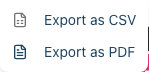
- Click the Export button in the table header
- Choose format:
- Export as CSV - For spreadsheet software (Excel, Google Sheets)
- Export as PDF - For printing or archiving
- The file downloads automatically
Exporting needs the export permission. Only Owners and Admins can export reports. A Manager can open and read the report, but the Export button does not appear for them. Ask an Owner or Admin to run the export, or have them grant the export permission.
CSV export includes: Staff Name, Role, Shifts, Scheduled Hours, Working Hours, Break Hours
PDF export includes:
- Salon name and date range
- Summary statistics
- Full staff hours breakdown
- Generation timestamp
When to export:
- End of pay period for payroll
- Quarterly for pension submissions
- Monthly for records
Step 8: View Individual Staff Details
To see more detail for a specific staff member:
- Click the staff member's name in the table
- Their profile opens, showing Employment Details, Scheduling (staff level and working days), Compensation and their Leave allowance for the year
- Click Back to Hours Worked at the top of the profile to return to the report
To see the individual shifts behind the totals, open the roster instead (see Tutorial 5.1).
Step 9: Receptionist Hours
Receptionists are included in the Hours Worked report:
- Receptionists can be rostered on/off like any other staff
- Their hours appear in this report
- They cannot receive appointments but can work shifts
This allows you to track all staff working hours regardless of role.
Common Pitfalls
"A staff member shows zero hours"
Check:
- Do they have rostered shifts in the selected date range?
- Is the date range correct?
- Have their shifts been created in the roster?
"Hours seem lower than expected"
Check:
- Does the staff member have approved leave during this period?
- Are break hours being counted? (Breaks reduce working hours)
- Are all their shifts included in the roster?
"I can't see the report"
Only Owners, Admins, and Managers can access staff reports. Staff and Receptionists cannot view hours worked reports.
"Exported hours don't match what I see"
The export uses the date range and sort order showing on screen, but it includes every staff member in the range, not just the page you are viewing. Verify your date range before exporting.
"I can't see the Export button"
Exporting requires the export-reports permission, which only Owners and Admins have. If you're a Manager, you can read the report but the Export button is hidden — ask an Owner or Admin to export, or to grant you the permission. The button is also hidden when the date range returns no data.
"New receptionist doesn't appear"
The report lists anyone with a shift in the selected date range, so check that the receptionist has shifts rostered for those dates. Deactivating a staff member does not remove their past hours from the report.
Tips and Best Practices
- Run reports consistently - Use the same pay period dates each time
- Export before payroll - Download CSV for your accounting system
- Use Working Hours for pay - This excludes breaks
- Check leave overlaps - Verify approved leave has reduced the right days
- Keep records - Export and store monthly reports for compliance
- Compare periods - Track month-over-month trends in staffing
- Plan staffing - Use hour patterns to inform roster planning
Related Tutorials
- Tutorial 4.4: Tracking Staff Performance and Commission - Revenue-based reporting
- Tutorial 4.7: Configuring Your Payroll Period - Set the pay period these hours feed
- Tutorial 5.1: Setting Up Your Weekly Roster - Setting up shifts
- Tutorial 6.2: Requesting and Managing Leave - Leave that affects hours
Frequently Asked Questions
How is "Working Hours" different from "Scheduled Hours"?
Scheduled Hours is the total time from shift start to shift end. Working Hours subtracts break time, giving you the actual paid/worked time.
Are approved leave days automatically excluded?
Yes. A full day of approved leave removes that day's shift from the totals. A half day removes only the hours it covers, so the part of the shift that was worked still counts.
Can I see historical hours data?
Yes. Use the date range filter to view any past period. All roster data is retained.
Why don't receptionists appear in other reports?
Receptionists can be rostered (Hours Worked report) but cannot receive appointments (not in calendar or appointment forms). This is by design.
How do I export for pension reporting?
Export the report as CSV, then use the Working Hours column for your pension calculations. Most pension systems accept CSV imports.
What if a staff member works at multiple salons?
Each salon has its own Hours Worked report. You'll need to export from each salon and combine the data manually.
Does this include overtime?
The report shows rostered hours only. Overtime tracking would require comparing to contracted hours, which you can do in your exported spreadsheet.
Are cancelled shifts included?
No. Only shifts that exist in the roster are included. If a shift was deleted, it won't appear in the report.
Last Updated: August 2026