
Duplicating and Managing Roster Patterns
Introduction
Creating the same roster week after week is time-consuming. The duplication feature lets you copy one week's shifts — or a rotating pattern of up to 8 consecutive weeks — into a range of future weeks. This tutorial shows you how to use roster duplication efficiently and avoid common pitfalls.
Duplication is a three-step wizard: Staff → Dates → Review. Nothing is written until you reach the Review step, read the summary of exactly what will change, and click Duplicate roster.
Who this is for: Owner, Admin, Manager, Receptionist What you'll learn:
- Access the roster duplication wizard
- Select the staff to include
- Choose the week — or multi-week pattern — you are copying, the repeat interval, and the exact range of weeks to write into
- Read the summary and choose what happens to shifts that already exist
- Keep shifts off bank holidays
Time to complete: 10 minutes
Prerequisites
- Logged in as Owner, Admin, Manager or Receptionist — these roles all hold the
manage-rosterpermission, which the Duplicate button requires - At least one week's roster already created (see Tutorial 5.1)
- Review Tutorial 5.2 if your salon observes public holidays
Step-by-Step Instructions
Step 1: Open the Duplication Wizard
- Navigate to Roster in the sidebar
- Click Duplicate in the week navigation bar at the top of the page, alongside Previous Week, Next Week, Select and This Week
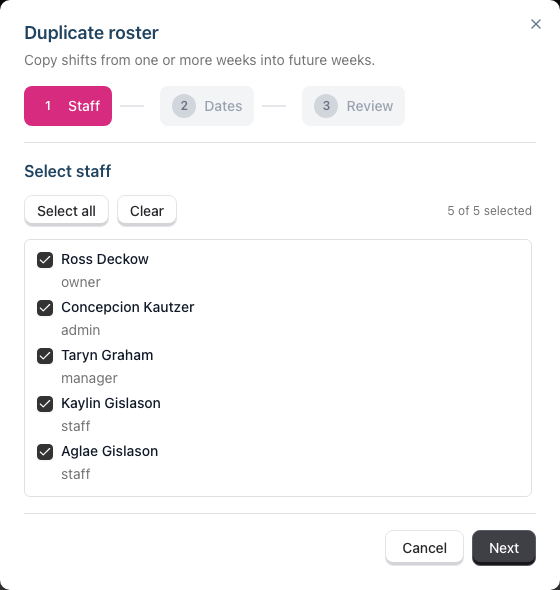
- The wizard opens on step 1, Select staff
The wizard always opens with the same safe defaults, whatever you chose last time: the week you are currently viewing as the source, one week to copy, every staff member selected, "Every week", existing shifts kept, and a target range of the four weeks immediately after the source week.
The Staff / Dates / Review bar across the top shows where you are. Once you have moved past a step you can click it in the bar to go straight back to it; steps you haven't reached yet stay locked until you get there with Next.
Step 2: Select Staff to Include
The list shows every active, rosterable staff member with a checkbox:
- Tick individual staff members to include them
- Untick staff members to exclude them
- Click Select all to include everyone
- Click Clear to deselect all staff
The counter to the right of Select all and Clear reads "4 of 6 selected", and Next stays disabled until at least one person is selected — with none ticked the step says so: "Select at least one staff member to continue."
When to exclude staff:
- Staff member is leaving soon
- Staff member has different hours in the target weeks
- New staff not yet rostered
- Staff on extended leave
Step 3: Choose the Weeks
Step 2, Choose weeks, reads as one sentence: copy these weeks, repeating, from this week to this week.
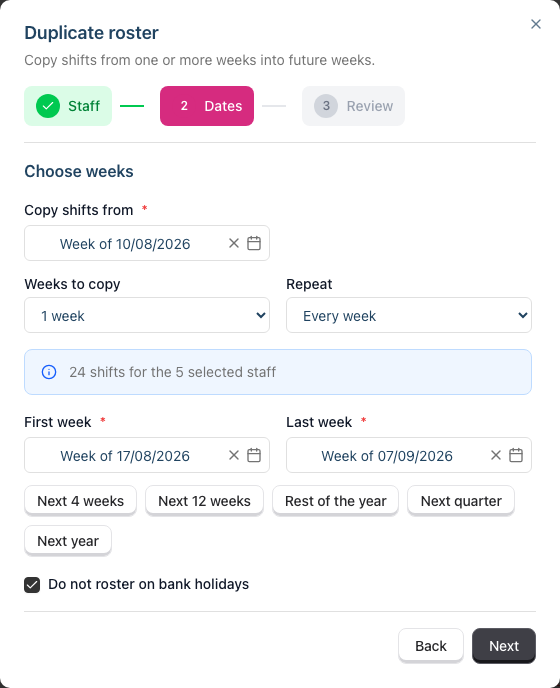
Copy shifts from — the source week (or the first week of your pattern). Every date field here is a week picker: it reads "Week of 12/10/2026", and clicking any day in the calendar selects that day's whole week. Underneath, a line tells you how much you are copying ("14 shifts for the 6 selected staff", with the full date span in front of it once you are copying a multi-week pattern), so you can see at a glance whether you have picked the right week. If the week you picked holds nothing for the staff you selected, that line says so instead — "This week has no shifts for the selected staff, so there is nothing to copy."
This is the field that matters most. The source week is stated on screen with its dates, so you can copy January's pattern into the autumn without navigating there first.
Weeks to copy — how many consecutive weeks form the pattern, from 1 (the default — just the picked week) up to 8. Choose 4 and the picked week plus the next three become a 4-week rota that repeats back-to-back through the target range: the first target week gets pattern week 1, the second week 2, and so on, starting over after week 4. The helper line spells out the full span ("Copying 02/03/2026 to 29/03/2026 - 51 shifts for the 6 selected staff"), and if the range doesn't divide evenly the pattern simply stops part-way through its final repeat — the status banner tells you exactly where.
Repeat — how often the source week is copied. This dropdown only appears when Weeks to copy is 1; a multi-week pattern always repeats back-to-back, and the field's place is taken by a note saying so.
| Interval | Description | Use case |
|---|---|---|
| Every week | Consecutive weeks | Standard weekly scheduling |
| Every 2 weeks | Alternate weeks | Fortnightly patterns with empty weeks between |
| Every 3 weeks | Every third week | Three-week gaps |
| Every 4 weeks | Monthly pattern | Four-week gaps |
Weeks the interval steps over are left completely untouched — nothing is written to them and nothing is deleted from them.
Interval or pattern? "Every 2 weeks" copies one week and leaves the weeks between empty. A 2-week pattern under Weeks to copy fills every week, alternating between the two source weeks. For a rotating rota where staff work different shifts on alternating weeks, use Weeks to copy.
First week and Last week — the range that gets written to. The last week is inclusive. The first week can never be inside the source weeks or earlier: duplication only ever goes forwards, so it cannot overwrite roster history already used for payroll. If you lengthen the pattern so that it would swallow your chosen first week, the wizard moves the first week forward automatically.
Range shortcuts sit below the two pickers. Every shortcut sets both weeks, so a label always means the same thing whatever the fields held before:
| Shortcut | What it does |
|---|---|
| Next 4 weeks / Next 12 weeks | The 4 (or 12) weeks immediately after the weeks you are copying |
| Rest of the year | From the first week after the copied weeks through the final week of that year |
| Next quarter | The first full week of next quarter through to its last |
| Next year | The first full week of next year through to its last |
A shortcut that would produce a backwards range for the week you are copying isn't offered at all — copy from a week in late December and Rest of the year simply isn't on the row.
At the bottom of the step, a green banner confirms the arithmetic: "13 weeks will be written to." That count is the number of weeks that actually get copies, so "every 4 weeks" across a year reads 13, not 52. With a multi-week pattern the banner also states the shape — "38 weeks will be written to — your 4-week pattern repeats 10 times; the last repeat covers 2 of its 4 weeks."

If something is wrong, the banner goes and Next stays disabled. A range that produces no weeks at all is reported in the banner's place ("This range produces no target weeks — nothing would be copied"), while a problem belonging to a particular field is reported under that field instead. A range longer than your salon's maximum lands under Last week: "The duplication range exceeds the maximum of 52 weeks."
Do not roster on bank holidays — ticked by default. Any copy that would land on a public holiday is simply left out; the rest of the week copies as normal. Untick it if your salon trades on bank holidays.
Step 4: Review Exactly What Will Change
Step 3, Review changes, is a dry run performed by the server using the same code that does the writing — so the numbers you approve here are the numbers you get.
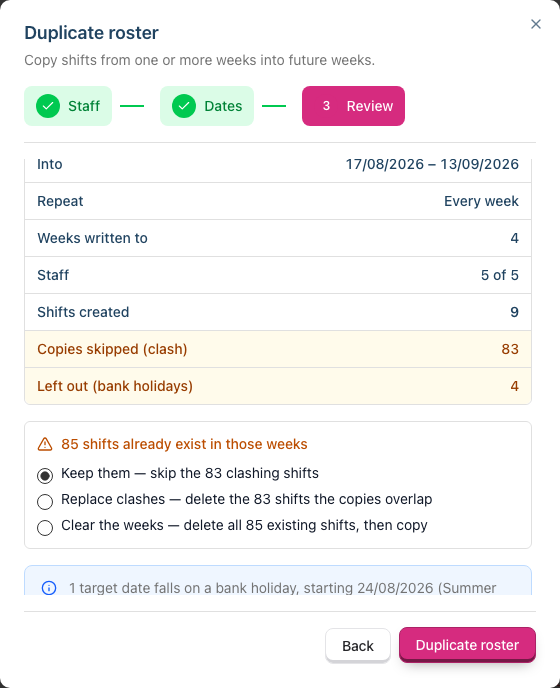
The summary lists:
| Row | Meaning |
|---|---|
| Copying | The source week — or the whole pattern — as a date span |
| Into | The first and last dates of the affected range |
| Repeat | The interval, or "4-week pattern, back-to-back" |
| Weeks written to | How many weeks actually receive copies |
| Staff | How many of your staff are included |
| Shifts created | How many new shifts will be written |
| Existing shifts deleted | Shown only when the option you chose deletes something |
| Copies skipped (clash) | Copies dropped because they overlapped an existing shift. Shown only when there are some |
| Left out (bank holidays) | Copies dropped because they fell on a public holiday. Shown only when there are some |
If the dry run works out that nothing would be written, it says so under the summary — "Nothing would be created — the source week has no shifts for the selected staff" — and Duplicate roster stays disabled.
Step 5: Decide What Happens to Existing Shifts
This section of the Review step appears only when the target weeks already hold shifts for the selected staff. When they do, it says so — "70 shifts already exist in those weeks" — and offers the choices below. The safe one is always the one already selected.
| Option | What it does |
|---|---|
| Keep them (default) | Copies that clash with an existing shift are skipped. Nothing is deleted. Copies that don't clash are still added — so a morning shift can be copied onto a day that currently only has an afternoon shift. |
| Replace clashes | Deletes only the existing shifts that a copy overlaps, then writes the copy. Anything the source week doesn't touch survives — a Saturday shift that only exists in the target week stays. |
| Clear the weeks | Deletes every existing shift for the selected staff in the target weeks, clashing or not, then copies. Each target week becomes an exact mirror of the source week. |
Each option carries its own count on screen, so you are choosing against real numbers rather than labels:
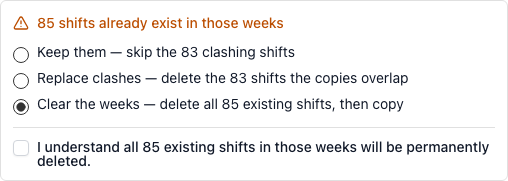
Replace clashes only appears when something actually clashes. If the existing shifts sit on days your copies don't touch, there is nothing to replace — your choice is between keeping them and clearing the weeks, and Keep them reads "nothing clashes, the copies are added alongside".
Whichever deleting option you pick, an acknowledgement quoting that option's own number appears, and Duplicate roster stays disabled until you tick it:
☑ I understand all 70 existing shifts in those weeks will be permanently deleted.   (Clear the weeks)
☑ I understand 12 existing shifts will be permanently deleted.                      (Replace clashes)
The acknowledgement clears itself if you switch options, or if anything you change afterwards alters how many shifts would be deleted — you can never approve one number and submit a bigger one.
When to use Replace clashes:
- Replacing a draft roster with a finalised version
- Correcting the same mistake across several weeks
When to use Clear the weeks:
- The target weeks are a mess and you want them reset to the standard pattern exactly
When to keep the default:
- The target weeks have manual adjustments you want to keep
- Staff have already seen and planned around the roster
Step 6: Bank Holidays
With Do not roster on bank holidays ticked, the Review step tells you which dates were affected and confirms nothing will be written onto them:
3 target dates fall on a bank holiday, starting 25/12/2026 (Christmas Day)
— no shifts will be copied onto them.
If you unticked it, the same line warns that shifts will be rostered on those days, and clicking Duplicate roster raises the confirmation dialog before anything is written:
Bank Holiday Warning

You are attempting to duplicate shifts on a bank holiday.

┌─────────────────────────────────────────────┐
│ Christmas Day (25/12/2026)                  │
└─────────────────────────────────────────────┘

6 shifts will be copied onto 3 bank holidays in the weeks
you are copying into.

Bank holidays are typically non-working days.
Are you sure you want to proceed?

[Cancel] [Proceed Anyway]
The count is the number of shifts that will land on a bank holiday, which is usually more than the number of holidays — one Christmas Day catches everyone who is rostered that day. When only one bank holiday falls in the range, the line names it as the one in the card above: "4 shifts will be copied onto this bank holiday." A single shift reads in the singular too: "1 shift will be copied onto this bank holiday."
The dialog names the first affected holiday rather than listing them all — the Review step is where you see the full picture before you get here. If a bank holiday falls in your target weeks but nobody is rostered on it, nothing is being written onto a holiday, so the dialog does not appear at all.
Cancel puts you straight back on the Review step with everything you chose still in place — the staff, the weeks, the range, the conflict option. Backing out of the warning means "let me look again", not "start over". If you had picked one of the deleting options, its acknowledgement is unticked again, so you confirm the deletion once more before Duplicate roster re-enables. Proceed Anyway continues straight to the write.
Step 7: Duplicate
Click Duplicate roster. The button only exists on the Review step, and it stays disabled while the dry run is still calculating, if the dry run failed, if there is nothing to create, or if a deletion is unacknowledged — so you can never fire it blind.
Step 8: Review the Result
A success toast reports what happened:
Success
Roster duplicated: 266 shifts created.
Everything you asked for goes in that one line. If you chose one of the deleting options, the deleted count is included; if copies were left off bank holidays because you asked for that, so is theirs:
Success
Roster duplicated: 207 shifts created, 70 existing shifts deleted,
3 shifts left off bank holidays as requested.
Only one thing gets a separate warning toast — copies dropped because they clashed with a shift that was already there, since nobody asked for those to be dropped:
Warning
12 shifts skipped because they conflicted with existing shifts.
Bank holiday exclusions are deliberately not warnings: leaving those days clear is exactly what the ticked checkbox asked for, so it belongs in the success line explaining why the created figure is what it is.
These figures should match the Review step exactly. If they don't, something changed in the roster between previewing and submitting.
Step 9: Verify the Duplicated Roster
The roster stays on the week you copied from after duplicating, so you always need to navigate to see the result.
- Use the Next Week button — or Select to jump straight to a date — to reach the first target week
- Check that shifts appear correctly for the selected staff
- Verify times and break durations match the source week
- Check the weekly hours totals in the rightmost column
- Navigate through subsequent weeks to verify consistency
Common Pitfalls
"It copied the wrong week"
The source week is now stated on the Dates step, both in the Copy shifts from field and as a shift count underneath it, and again on the Review step under Copying. Read those two lines before you submit — the wizard defaults to the week the grid is showing, which is not always the week you mean.
"It wrote far more weeks than I expected"
The green banner on the Dates step states the exact number of weeks that will be written to, and the Review step repeats it under Into with the first and last dates. A range plus an interval can only ever produce weeks inside that range.
"Some shifts weren't created"
If a target week already held shifts overlapping the ones being copied, those clashing copies were skipped — this is the Keep them default, and duplication never creates overlapping shifts. Re-run with Replace clashes to swap them out instead.
"Duplication created shifts on public holidays"
Only if Do not roster on bank holidays was unticked. Tick it and re-run for future weeks; for weeks already written, delete the holiday shifts manually.
"Clearing the weeks deleted shifts I wanted to keep"
Clear the weeks deletes everything rostered for the selected staff in the target weeks, not just the clashes. It cannot be undone — use Replace clashes when you only want the overlapping shifts swapped.
"The wrong staff were included"
Check the count on step 1 ("4 of 6 selected") and again on the Review step under Staff. For weeks already duplicated, delete the unwanted shifts manually.
Tips and Best Practices
- Create a template week — perfect one week's roster, then always copy from it
- Read the Review step — every number on it is what will actually happen
- Check holidays first — review public holidays in target weeks before duplicating (see Tutorial 5.2)
- Duplicate a quarter at a time — the Next quarter shortcut sets a sensible range in one click
- Verify after duplication — navigate to at least the first duplicated week to confirm
- Duplicate once, deliberately — staff are emailed about duplicated shifts, so repeatedly redoing a range means repeated summaries
- Use Weeks to copy for rotations — a 2-week pattern alternates two different weeks with no gaps; an interval ("Every 2 weeks") copies one week and leaves the weeks between empty
Related Tutorials
- Tutorial 5.1: Setting Up Your Weekly Roster - Create the source week to duplicate from
- Tutorial 5.2: Managing Public Holidays and Bank Holidays - Configure the holidays duplication leaves out
- Tutorial 5.4: Time Blocks and Availability Management - Note: time blocks are NOT duplicated with shifts
- Section 6: Leave Management - Check staff leave before duplicating to avoid scheduling conflicts
Frequently Asked Questions
How many weeks can I duplicate at once?
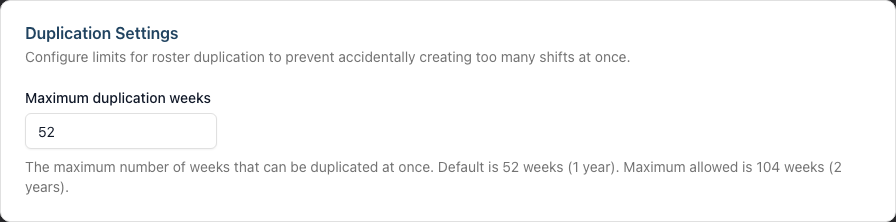
By default, 52 weeks. The limit applies to the number of weeks actually written to, not the length of the range — an 80-week range at "every 4 weeks" is 20 weeks and is allowed. Change the limit in Edit Salon → Staff tab → Roster sub-tab, on the Duplication Settings card, under "Maximum duplication weeks". It can be set between 1 and 104 weeks (2 years).
Can I copy a week from the past, or from a long way ahead?
Yes. Pick any week in Copy shifts from. The target range must start after the source weeks, but the source itself can be anywhere.
Can I copy a rotating multi-week rota?
Yes — set Weeks to copy to the length of your rotation (up to 8 weeks). The pattern repeats back-to-back through the target range, always starting from its first week, and stops wherever the range ends — mid-pattern if necessary. An empty week inside the pattern is copied as an empty week, so "three weeks on, one week off" round-trips exactly.
Are time blocks duplicated?
No. Roster duplication copies shifts only. Time blocks must be created separately for each week. See Tutorial 5.4.
Can I duplicate across years?
Yes. Ranges spanning a year boundary work correctly, and bank holidays are resolved for both years.
Can I undo a duplication?
No. There is no single-click undo — which is why the Review step states the exact counts, and why deleting options require an acknowledgement. Delete shifts manually from unwanted weeks, or re-duplicate with Clear the weeks to reset them.
What happens to shifts in the weeks my interval skips?
Nothing. Only the weeks that receive copies are touched — even Clear the weeks leaves the skipped weeks exactly as they are.
Are staff emailed about shifts I duplicate?
Yes. Duplicated shifts feed the same "Your roster has changed" summary email as shifts you add, edit or delete by hand on the grid (see Tutorial 5.1) — each affected staff member gets one summary rather than a message per shift. Only staff with a login account receive it. If you duplicate in Replace clashes or Clear the weeks mode, the shifts you removed appear on the summary too, alongside the copies that replaced them.
What happens to existing appointments?
Duplication doesn't affect appointments. Appointments are separate from shifts. If shifts are deleted, appointments may show warnings about staff being unavailable.
Does duplication copy shift notes?
Yes. Shift notes and break durations are copied. Edit them in target weeks if they contain date-specific information.
Can I duplicate just certain days?
No. Duplication copies all shifts for the selected staff from the entire source week (minus any bank holidays you excluded). To exclude certain days, delete those shifts from the target weeks afterwards.
Can multiple people duplicate at the same time?
Yes. Each target week is written inside a locked transaction, so two people duplicating into the same weeks cannot create overlapping duplicate shifts. It's still worth coordinating so you don't make conflicting roster changes.
Why is the Duplicate roster button disabled?
Because one of these is true:
- The dry run is still calculating, or it failed
- The range produces no weeks
- Nothing would be created (for example the source week is empty for the selected staff)
- You chose a deleting option and haven't ticked the acknowledgement
Next on the earlier steps is disabled if no staff are selected, if a date is missing or invalid, or if the range exceeds your salon's maximum.
Last Updated: August 2026