
Weekly Management Tasks
Introduction
While daily routines keep your salon running smoothly, weekly reviews ensure you stay on top of staffing, performance, and forward planning. This guide covers the essential weekly management tasks that help you maintain control of your salon operations.
Setting aside dedicated time each week for these tasks prevents problems from accumulating and gives you the visibility needed to make informed decisions about your business.
Who this is for: Owners, Admins, and Managers responsible for salon operations.
What you'll learn:
- Reviewing and planning next week's roster
- Processing pending leave requests
- Analysing staff performance
- Following up on outstanding balances
- Reviewing gift voucher activity
- Managing the waitlist
- Checking upcoming appointments for issues
- Planning for the week ahead
Time to complete: 30-45 minutes (recommended: schedule this weekly)
Prerequisites
Before you begin, make sure you have:
- Access to Luminate with Manager, Admin, or Owner permissions
- Dedicated uninterrupted time (ideally at the end of the week or start of the new week)
- Previous week's notes or issues to follow up on
Step-by-Step Instructions
Step 1: Review and Plan Next Week's Roster
Ensuring adequate staffing is one of the most important weekly tasks.
- Click Roster in the sidebar menu
- Move to next week using the Next Week button (use Previous Week to go back, Select to pick any week from a calendar, or This Week to jump straight to the current week). The date range for the week you're viewing sits alongside the navigation buttons.
- Review the current state of next week's roster. The grid shows a row per staff member and a column per day, with each cell listing that person's shifts and a Total Hours column on the right:
- Are all expected staff members rostered?
- Do shift times align with anticipated appointment demand?
- Are there any gaps that need filling?
Duplicating from the current week:
If your roster follows a consistent pattern:
- Click Duplicate in the week navigation bar at the top of the Roster page — you no longer need to navigate to the source week first, because the wizard asks you which week to copy
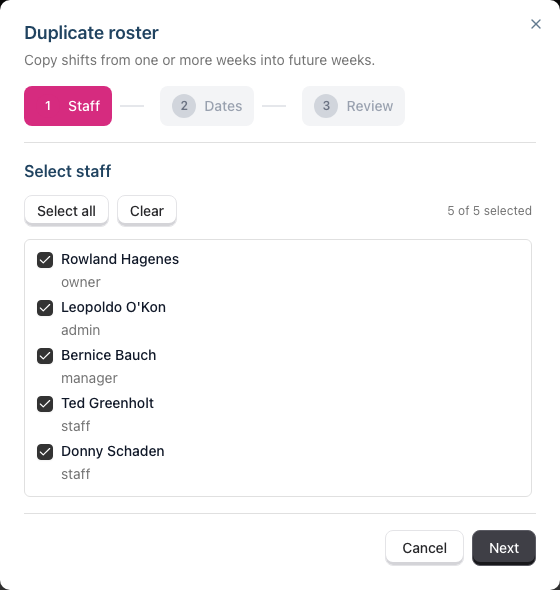
- Duplication is a three-step wizard — Staff → Dates → Review — and nothing is written until you finish it
- On Select staff, tick the staff members to include, or use Select all (use Clear to start again), then click Next
- On Choose weeks:
- Copy shifts from — the week holding the pattern you want. It reads "Week of 12/10/2026", and a line underneath tells you how much you are copying ("14 shifts for the 6 selected staff")
- Weeks to copy — leave at 1 for a single week, or set up to 8 to copy a rotating multi-week pattern
- Repeat — how often the source week is copied (Every week through Every 4 weeks). This only appears when Weeks to copy is 1; a multi-week pattern always repeats back-to-back
- First week and Last week — the range that gets written to, with the last week included. Range shortcuts below the pickers (Next 4 weeks, Next 12 weeks, Rest of the year, Next quarter, Next year) set both at once
- Do not roster on bank holidays — ticked by default
- A green banner confirms the arithmetic ("13 weeks will be written to") before you continue
- On Review changes, read the summary — it's a dry run performed by the server, so the numbers you approve are the numbers you get. Decide what happens to any shifts that already exist (see below), then click Duplicate roster
Bank holiday considerations:
- Bank holidays are shown in the grid with a striped background on the relevant day
- Adding a shift manually onto one raises a Bank Holiday Warning where you can Cancel or Proceed Anyway
- Duplication handles them with the Do not roster on bank holidays checkbox instead. Left ticked (the default), any copy landing on a public holiday is simply left out and the Review step tells you which dates were affected. Untick it and the same confirmation dialog appears before anything is written
- Consider whether your salon is open on these days. See Tutorial 5.2 for managing which dates count as public holidays
Handling roster conflicts:
If the target weeks already hold shifts for the selected staff, the Review step says so — "12 shifts already exist in those weeks" — and asks what to do with them:
- Keep them (the default) — clashing copies are skipped and nothing is deleted. Copies that don't clash are still added
- Replace clashes — deletes only the existing shifts a copy overlaps, then writes the copy. Anything the source week doesn't touch survives
- Clear the weeks — deletes every existing shift for the selected staff in those weeks, then copies
Replace clashes only appears when something actually clashes. If the existing shifts sit on days your copies don't touch, there's nothing to replace — your choice is between keeping them and clearing the weeks, and Keep them reads "nothing clashes, the copies are added alongside".
Both deleting options quote their own number and require you to tick an acknowledgement before Duplicate roster enables. The acknowledgement clears itself if you switch options or if the number of deletions changes, so you can never approve one figure and submit a bigger one.
Duplicated shifts trigger the same roster change summary email as editing the grid by hand, so the team finds out without you telling them separately. Still verify the roster afterwards — the email reports what was written, not whether it was what you meant.
Step 2: Process Pending Leave Requests
Review and action all pending leave requests to give staff certainty.
- Click Leave in the sidebar menu
- Use the Status filter (options: All Statuses, Pending, Approved, Rejected, Cancelled) and select Pending
- Review each pending request. The list shows Staff, Type, Dates, Days, and a Status badge, with a View button to open the full request:
For each request, consider:
- Does the requested date clash with other approved leave?
- Will the salon have adequate cover on those dates?
- Is this a peak period (school holidays, Christmas)?
- How much notice has the staff member given?
- What's their remaining leave allowance?
To approve a request:
- Click View on the leave request to open its details
- Review the dates, type, and any notes from the staff member. A Conflicting Appointments card near the bottom lists any appointments booked during the leave period, with their Date & Time, Service, and Customer
- Click Approve
- Confirm the approval in the Approve Leave Request dialog that appears. It restates the leave type, dates, and working days, and repeats the warning if appointments will need rescheduling
To reject a request:
- Click View on the leave request to open its details
- Click Reject
- Enter a Rejection Reason explaining why (required — at least 10 characters). The staff member is notified of the reason
- Consider suggesting alternative dates if possible
Check leave allowances:
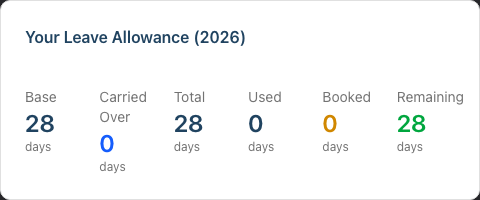
- The Leave page shows a Your Leave Allowance summary at the top — headed with the year you're viewing, e.g. Your Leave Allowance (2026) — with Base, Carried Over, Total, Used, Pending, and Remaining days. This reflects your own allowance — it does not change when you filter the list to another staff member
- Alongside it, a Next Year Preview card estimates next year's position from your current remaining balance: Base, Est. Carryover, Est. Total, and Booked. It only appears while you're viewing the current year
- For an overview of every staff member's balance, use the leave reports (see Tutorial 6.4)
- Be aware of staff approaching year-end with unused leave, and plan for carryover implications if your policy allows it
Step 3: Review Staff Performance
Weekly performance checks help you identify top performers and those who may need support.
- Click Reports in the sidebar menu
- Under Staff Reports, select Staff Performance
- Use the date range filter at the top to set the period to the past week (or month for broader trends), then click Apply
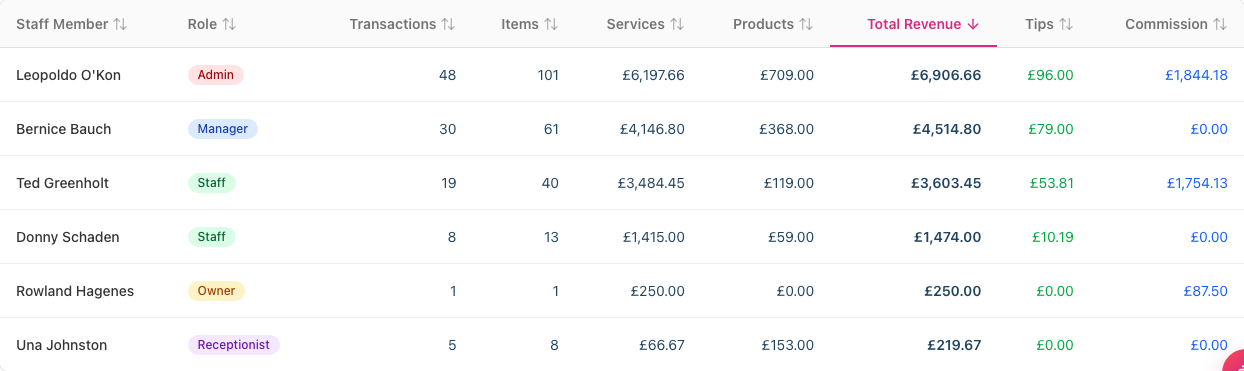
- Review the key columns in the Staff Breakdown table:
| Column | What to Look For |
|---|---|
| Total Revenue | Which staff generated the most? Are targets being met? (Split into Services and Products) |
| Transactions | How many clients did each staff member see? |
| Items | How many lines did they sell across those transactions? |
| Tips | Are some staff consistently receiving more tips? |
| Commission | Is commission being calculated correctly? |
Every column heading is sortable, so you can rank by revenue, tips, or commission with a click. A Role column sits next to each name, and the staff name itself links through to that person's record.
Summary cards above the table show Total Revenue, Avg per Staff, Total Tips, and Total Commission for the whole period, and a Revenue by Staff bar chart between them gives you the ranking at a glance.
To keep a copy, click Export and choose Export as CSV or Export as PDF. Exporting needs Owner or Admin permissions, so the Export button only appears if you hold them — Managers can read every report but won't see a download option.
Questions to consider:
- Is performance consistent with expectations and hours worked?
- Are there unexplained drops in performance?
- Do any staff members need additional training or support?
- Should you recognise or reward top performers?
Tip: Look at trends over multiple weeks rather than reacting to a single week's data. Everyone has good and bad weeks.
Step 4: Follow Up on Outstanding Balances
Customers with unpaid balances represent lost revenue. Weekly review keeps this under control.
- Click Reports in the sidebar menu
- Under Financial Reports, select Accounts Receivable
- Review the list of customers with outstanding amounts. The table shows Customer, Email, Phone, Unpaid (number of unpaid transactions), Outstanding (balance owed), Oldest Invoice, and Days Overdue. Use the Filters card to narrow it by Min Balance, Days Overdue, and Unpaid Invoices, then click Apply
Summary cards above the table give you the shape of the problem before you start working through it: Total Outstanding, Customers with Balance, Average Balance, and Oldest Overdue.
Prioritise follow-up based on:
- Amount owed - Larger amounts warrant more attention
- Age of debt - Older debts are harder to collect
- Customer value - Regular customers may deserve more flexibility
- Upcoming appointments - You can collect when they next visit
Taking action: For customers with upcoming appointments:
- Make a note to collect the balance at their visit
- Consider requiring deposits for future bookings
For customers without upcoming appointments:
- Send a polite reminder message via the Messages feature
- Note any payment arrangements agreed
For very old or unlikely debts:
- Discuss write-off options with your owner/accountant
- Document the decision and reason
Running export for accounting: The Accounts Receivable report can be exported for your accountant or financial records. Click Export and choose Export as CSV or Export as PDF. As with every report, the Export button is only shown to Owners and Admins.
Step 5: Review Gift Voucher Activity
Gift vouchers represent both liability and opportunity. Weekly monitoring is important.
- Click Reports in the sidebar menu
- Under Financial Reports, select Gift Vouchers
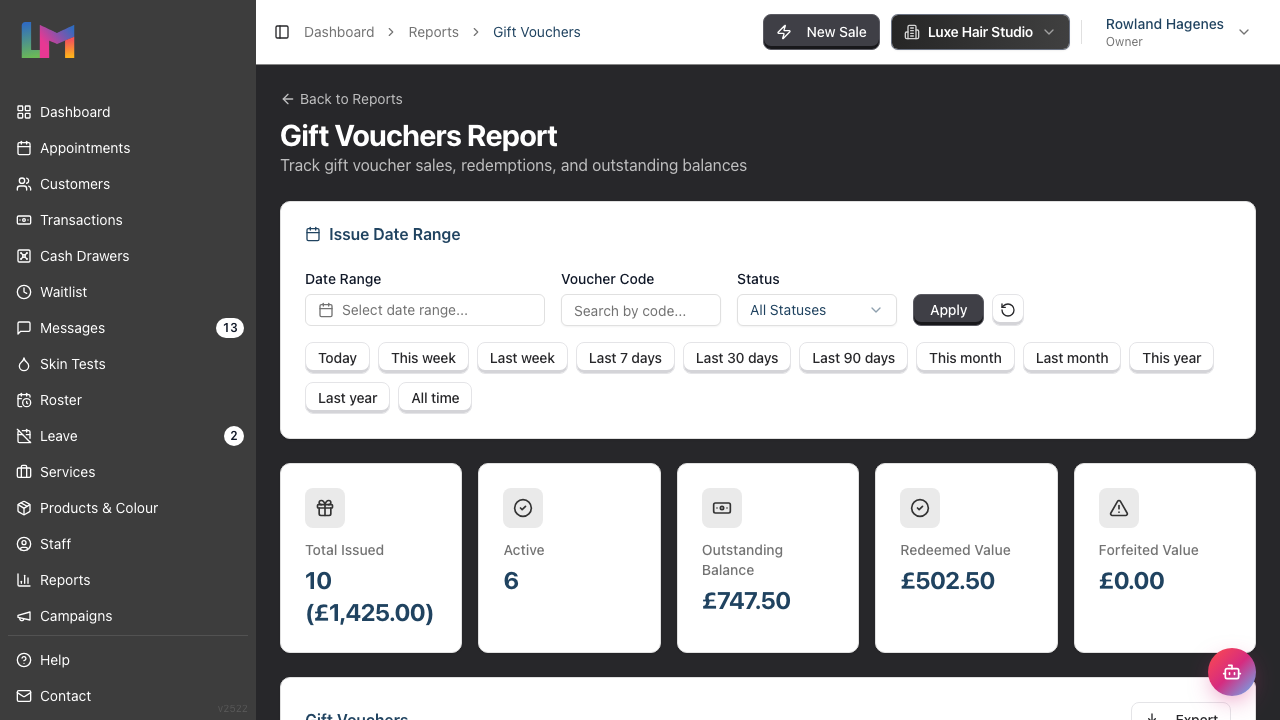
- The Issue Date Range card at the top filters by when vouchers were issued — set Date Range by hand or use a shortcut such as Last 30 days or This year, and narrow further with Voucher Code or Status. Click Apply
- Review the summary metrics:
- Total Issued - Count and total value of all vouchers issued
- Active - Number of vouchers currently valid and unredeemed
- Outstanding Balance - Total unredeemed voucher value (your liability)
- Redeemed Value - Total value that has been used
- Forfeited Value - Value from expired or cancelled vouchers
The table below lists each voucher with its Code, Status, Customer, Recipient, Initial Value, Balance, Forfeited amount, Issued date, and Expires date.
Things to watch for:
- Large outstanding balances (potential liability)
- Vouchers approaching expiry (opportunity to contact customers)
- Patterns in sales (popular as gifts at certain times)
For vouchers approaching expiry: There isn't a dedicated "expiring soon" figure, but you can sort or scan the Expires column to spot vouchers nearing their expiry date. Consider contacting customers with vouchers expiring in the next 30 days — a friendly reminder can drive bookings and ensure customers don't lose their value. Use the Status filter (Active, Redeemed, Expired, Voided) to focus on those still in play.
Step 6: Review the Waitlist
Your waitlist represents potential revenue. Weekly review ensures no opportunities are missed.
- Click Waitlist in the sidebar menu
- Review all active entries. Each row shows Customer, Service, Preferred Staff, Preferred Date, Time, Priority, and Status. The status filter opens on All except cancelled, so cancelled entries stay out of your way — switch it to Active to see only those still waiting. You can also search by customer name and filter by priority or service:
- Have any opportunities been missed?
- Are any entries stale, or past their preferred date?
- Are high-priority entries being actioned? (The dashboard also surfaces high-priority entries with how many days they've been waiting)
For entries that have been waiting a while:
- Consider proactively contacting them
- Review if their preferred staff/service/time is available
- Update or remove entries that are no longer relevant
Click a row to open the entry. Use Message [first name] to open the customer's messages. The label is View Messages if the first name is missing. For an active entry with a service, Find a Slot opens the calendar with that entry selected. Click a slot to book it.
Status management:
- Active - Still waiting for an appointment
- Converted - Successfully booked (set automatically when you create an appointment from the entry)
- Cancelled - Customer no longer wants the appointment
- Expired - Entry timed out
Step 7: Check Upcoming Appointments for Issues
Look ahead to identify and resolve potential problems.
- Click Appointments in the sidebar menu
- Switch between Day, Week, and List views and look through the upcoming week
- Look for:
- Colour services - Do they have valid skin tests?
- New customers - A First Visit badge can be added to appointments to flag first-time clients
- Complex bookings - Linked appointments show a small link icon indicating they're part of a group
- VIP customers - Any special requirements?
Skin test alerts: The dashboard's Skin Tests Due alert is the quickest way to spot customers needing a patch test. When you open or convert a colour appointment that requires a skin test, Luminate validates the customer's most recent test and warns you if it's missing, expired, expiring soon, too recent to have been read, still awaiting the customer's signature, or recorded with a positive result. For those customers you may need to:
- Contact them to arrange a patch test
- Reschedule the appointment if there's not enough time
Step 8: Plan and Prepare for the Week Ahead
Finally, look at what's coming and prepare accordingly.
Questions to ask yourself:
- Is the roster adequate for the appointment volume?
- Are there any special events or promotions this week?
- Do we have adequate stock of products?
- Are there any birthdays to acknowledge?
- Have all pending leave requests been actioned?
Dashboard quick check: Return to the dashboard and review the quick-stats row — Today's Appts, Low Stock, Birthdays (customers with birthdays in the next 7 days), Waitlist (entries still Active), and SMS Credits — along with the alerts panel, which highlights Skin Tests Due, Low Stock, High Priority Waitlist (with how long each has been waiting), and Pending Deposits.
Each tile is a shortcut: clicking Low Stock opens your products filtered to what needs reordering, and Birthdays opens the customers due one. SMS Credits opens your SMS settings to top up if you are an owner or admin; for managers and other roles the balance is shown but isn't a link, since topping up is an owner or admin job. The tiles change colour when they need you — SMS Credits turns red below 50 credits, which is your cue to buy more before reminders start failing.
Weekly Management Checklist
Use this checklist every week (recommended: Friday afternoon or Monday morning):
| Task | Location | Time |
|---|---|---|
| Review and plan next week's roster | Roster | 10 min |
| Process pending leave requests | Leave | 5 min |
| Review staff performance report | Reports > Staff Performance | 5 min |
| Follow up on outstanding balances | Reports > Accounts Receivable | 5 min |
| Review gift voucher activity | Reports > Gift Vouchers | 5 min |
| Review and clean up waitlist | Waitlist | 5 min |
| Check upcoming appointments for issues | Appointments | 5 min |
| Plan for the week ahead | Dashboard | 5 min |
Total time: approximately 45 minutes
Common Pitfalls
"I keep forgetting to do the weekly review"
Schedule a recurring calendar appointment for yourself. Many managers find Friday afternoon works well - you can address issues before the weekend, and the roster is prepared for the following week.
"Leave requests pile up and staff get frustrated"
Set an expectation with staff about response times (e.g., requests answered within 48 hours). The weekly review catches anything missed, but try to action requests as they come in.
"I don't know which outstanding balances to prioritise"
Focus on recent debts first - they're more likely to be paid. Also prioritise customers with upcoming appointments, as you can collect in person. Very old debts (90+ days) may be better written off.
"The roster duplication creates conflicts with existing shifts"
The Review step of the wizard tells you before anything is written — it counts the shifts that already exist in the target weeks and asks what to do with them. Choose Keep them to skip clashing copies, Replace clashes to swap only the overlapping shifts, or Clear the weeks to reset the target weeks entirely. Read the counts on that step rather than duplicating and checking afterwards; there is no undo.
Tips and Best Practices
Block dedicated time - Don't try to squeeze weekly tasks between appointments. Schedule protected time for management activities.
Create a routine - Doing these tasks at the same time each week builds habits and ensures nothing is missed.
Document decisions - When you approve leave, address variances, or make roster changes, add notes. Future-you will appreciate the context.
Share insights with your team - If performance data shows opportunities or concerns, discuss them with staff. Celebrate successes and address issues constructively.
Track patterns, not just numbers - A single week of low performance might mean nothing. Three weeks of declining numbers is a pattern worth investigating.
Prepare for the following week's review - Keep notes during the week about issues that arise. This makes your weekly review more productive.
Related Tutorials
- Tutorial 2.3: Working with the Waitlist - Contact, convert, and clean up entries
- Tutorial 5.1: Setting Up Your Weekly Roster - Master roster management
- Tutorial 5.2: Managing Public Holidays and Bank Holidays - Control which dates trigger warnings
- Tutorial 5.3: Duplicating and Managing Roster Patterns - Efficient roster planning
- Tutorial 6.3: Approving and Rejecting Leave Requests - Handle leave properly
- Tutorial 6.4: Leave Reports and Year-End Management - See every staff member's balance
- Tutorial 8.3: Gift Vouchers: Selling and Redeeming - How vouchers are issued and used
- Tutorial 9.3: Staff Performance and Commission Reports - Analyse staff metrics
- Tutorial 9.5: Accounts Receivable and Outstanding Balance Reports - Manage debts
Frequently Asked Questions
When is the best time to do weekly management tasks?
Most managers find Friday afternoon or Monday morning works best. Friday lets you prepare for the following week. Monday lets you review the previous week with fresh eyes. Choose what works for your schedule.
What if I'm too busy to complete all the tasks every week?
Prioritise roster planning and leave requests - these affect staff directly and can't wait. The other tasks can be done less frequently if needed, but try not to skip them for more than two weeks.
Should I share performance data with staff?
This depends on your management style and culture. Some salons share rankings openly to encourage competition. Others prefer private conversations. Consider what motivates your team.
How do I handle a consistently underperforming staff member?
Weekly reports help you identify patterns, but addressing underperformance requires a separate conversation. Use the data to have a constructive discussion about what might be causing the issue and how to improve.
What happens if I reject a leave request and the staff member is upset?
Explain your reasoning clearly and sympathetically. If the rejection is due to business needs, suggest alternative dates. Document the reason so there's a clear record of the decision-making process.
Can I export these reports?
Only if you're an Owner or an Admin. Managers can open and read every report in this guide, but the Export button isn't shown to them. If your accountant needs the file, ask an Owner or Admin to run the export — for the weekly review itself, reading the figures on screen is enough.
Will my staff be emailed every time I change a shift?
No. Roster changes are collected while you work, and each affected staff member receives one summary email covering everything that changed for them — sent once you've stopped editing for about 30 minutes, or every 4 hours if you're editing on and off. This means you can plan a whole week in one sitting without flooding anyone. Changes to shifts starting within the next 24 hours are sent almost immediately, since those are the ones staff need to know about straight away.
Last Updated: August 2026