
Understanding Error Messages
Introduction
When something goes wrong in Luminate, the system displays error messages to help you understand the problem. Learning to read these messages makes troubleshooting faster and often lets you fix issues without needing to contact support.
This guide explains the different types of error message you'll encounter, what they mean, and how to resolve the most common ones. We'll cover validation errors, permission errors, conflict errors, status errors and the full-page error screens.
Every message quoted in this guide is the exact wording Luminate shows. If you see something worded differently, it's worth telling support — it usually means a screen has changed.
Who this is for: All Luminate users who want to understand and resolve error messages independently.
What you'll learn:
- The different types of error message in Luminate
- How to read and interpret validation errors
- What permission and conflict errors mean
- How to resolve common error scenarios
- When to contact support for help
Time to complete: 10-15 minutes
Prerequisites
Before you begin, make sure you have:
- Basic familiarity with Luminate navigation
- Access to your Luminate account
Step-by-Step Instructions
Understanding How Errors Appear
Luminate shows problems in four different places. Which one you get tells you a lot about what went wrong.
1. Toast Notifications (Bottom-Right Corner)
Toasts slide in at the bottom-right of the screen. Each one has a coloured icon, a short bold title, the message underneath, and an ✕ button to dismiss it early.
| Title | Colour | Type | Meaning | How long it stays |
|---|---|---|---|---|
| Success | Green | Success | Action completed | 5 seconds |
| Warning | Amber | Warning | Action completed, but with a caveat you should read | 8 seconds |
| Error | Red | Error | The action failed | Stays until you dismiss it |
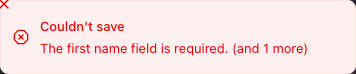
| Couldn't save | Red | Validation | The form you submitted was rejected | 8 seconds |
Two of those deserve a closer look:
- "Error" toasts never disappear on their own. They sit there until you click the ✕. That's deliberate — these carry the messages you can't afford to miss (a refund that didn't go through, a drawer that wouldn't close).
- "Couldn't save" toasts appear when a form fails validation. The toast shows only the first problem, and counts the rest — for example "The first name field is required. (and 1 more)". It's a prompt to look at the form, not the full list. Scroll the form to find every red field.
Note: in the Colour Bar (the tablet screens), toasts stay for 8 seconds rather than 5, since you're often across the room when one appears.
2. Inline Field Errors
When a form is rejected, the problem is marked on the field itself. Three things change at once:
- The field label turns red
- The input box gets a red border
- The message appears in red text directly below the box
First Name *
[_______________]
The first name field is required.
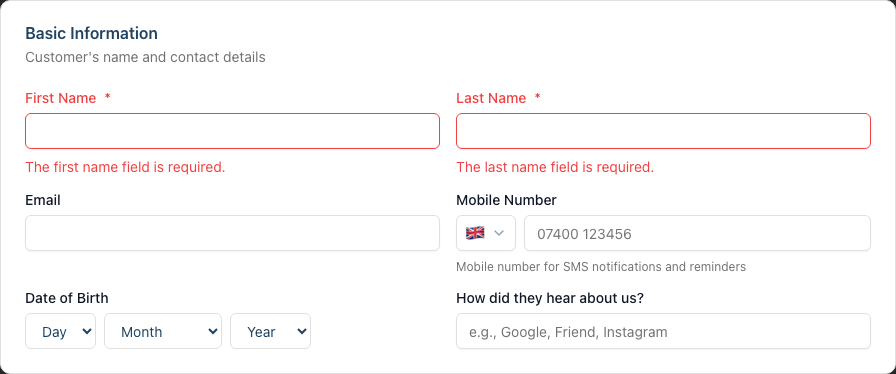
At the same time, a red "Couldn't save" toast appears in the corner so you notice the failure even if the offending field has scrolled out of view.
3. Alert Banners
Some errors aren't tied to a single field, so they appear as a coloured banner inside the page or card — a red banner for a failure, an amber one for a warning you can proceed past.
The most common amber banner is the duplicate-customer check on the New Customer form:
┌──────────────────────────────────────────────────────────┐
│ ⚠ Potential Duplicate                                    │
│ 1 customer with same email. You can still save this      │
│ customer.                                                │
│                                                          │
│ Same email:                                              │
│ • Sarah Jones — sarah@example.com                        │
└──────────────────────────────────────────────────────────┘
Note the last sentence: "You can still save this customer." This is a heads-up, not a block.
A red banner listing several problems as bullet points under the heading "Something went wrong." appears in a few specific places — most often during two-factor authentication setup. Ordinary forms mark their errors on the fields instead.
4. Full-Page Error Screens
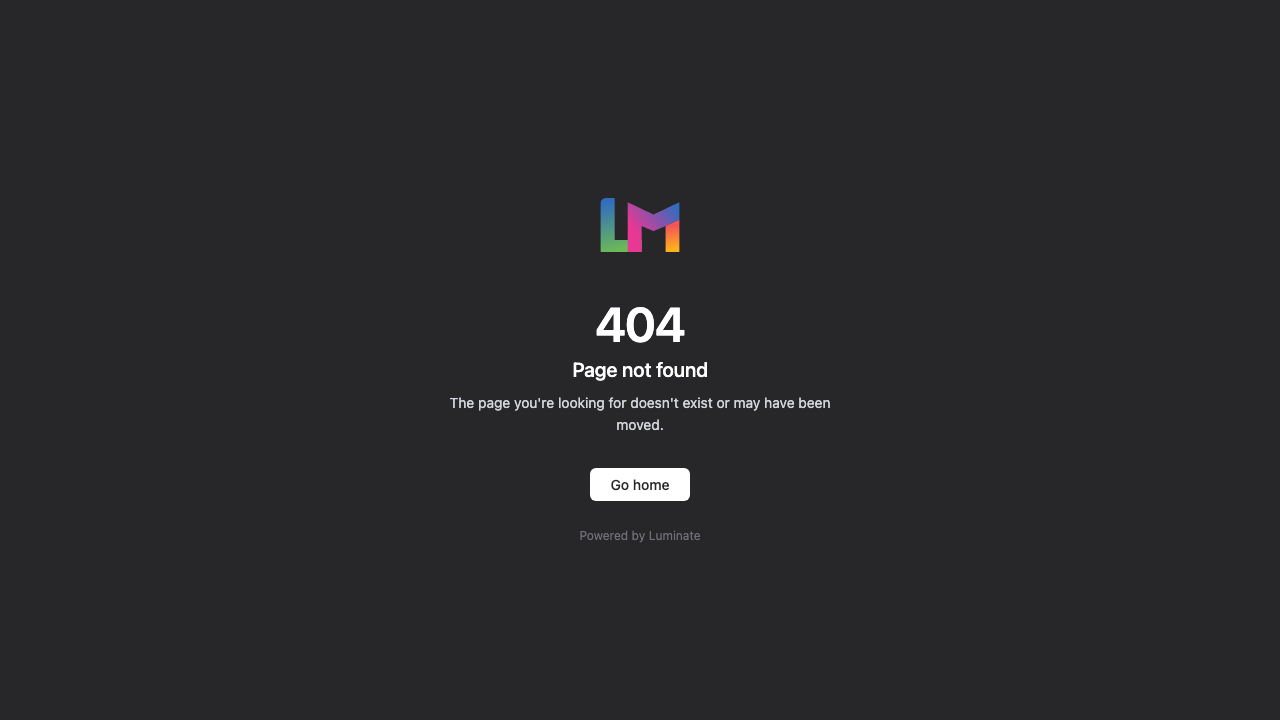
If the problem stops the page loading at all, Luminate replaces it with a dark full-page screen showing the Luminate logo, a large number, a heading and one line of explanation. These are covered in System and Access Errors below.
Validation Errors
Validation errors occur when the information you've entered doesn't meet the system's requirements. These are the most common errors you'll encounter.
Required Field Errors
Message: "The [field name] field is required."
Meaning: You must fill in this field before submitting.
How to fix: Look for fields marked with an asterisk (*) and make sure they contain data.
Common examples:
- "The first name field is required."
- "The last name field is required."
Some fields have friendlier wording written specially for them. On the appointment form the required-field messages are:
- "Please select a customer."
- "Please select a service."
Format Errors
Message: "The [field name] field must be a valid [format]."
Meaning: The data you entered is in the wrong shape.
How to fix: Check the expected format and correct your entry.
Common examples:
- "The email field must be a valid email address." — check for typos (missing @ symbol, wrong domain)
- "The date of birth field must be a date before or equal to 2026-08-09." — you cannot record a date of birth in the future. The date quoted is today's date in your salon's timezone, so it changes daily.
Length Errors
Message: "The [field name] field must not be greater than [X] characters."
Meaning: Your text is too long for this field.
How to fix: Shorten your text or abbreviate where appropriate.
Common examples:
- "The first name field must not be greater than 100 characters."
- "The notes field must not be greater than 1000 characters." (waitlist and leave notes)
Uniqueness Errors
Message: "The [field name] has already been taken."
Meaning: This value already exists in your salon and must be unique.
How to fix: Use a different value, or find and update the existing record.
Where this applies:
| Message | What it means |
|---|---|
| "The name has already been taken." | Another service in this salon already uses this name |
| "The sku has already been taken." | Another product in this salon already uses this SKU |
| "The barcode has already been taken." | Another product in this salon already uses this barcode |
| "A category with this name already exists." | A product/service category (tag) with this name already exists |
Customer email addresses are not unique. You can save two customers with the same email or phone number — families sharing an address do this all the time. Instead of blocking you, Luminate shows the amber "Potential Duplicate" banner described above and lets you decide. If duplicates do build up, clean them up from Customers → Duplicates rather than expecting the form to prevent them.
Permission Errors
Permission errors occur when you try to perform an action your role doesn't allow. Most of these replace the page with the dark 403 / Access denied screen.
| Message | Meaning |
|---|---|
| "You do not have permission to perform this action" | Your role doesn't include the permission this page or button needs |
| "This action is unauthorized." | The specific record you tried to act on is closed to your role |
| "You don't have permission to access this page." | The general fallback when no more specific reason is given |
| "You do not have access to this salon" | You're not a member of the salon in the address bar |
| "Your staff account is not active" | Your staff record has been deactivated |
| "Only owners can access this area" | Owner-only area — billing and multi-salon management |
How to fix: Ask an Owner or Admin to perform the action, or ask them to change your role if you need regular access. See Tutorial 1.3 for the full breakdown of what each role can do.
Common scenarios:
- Staff members trying to process a refund — every role except Staff can refund
- Managers trying to export report data — exporting is Owner and Admin only
- Staff or Receptionists trying to open salon settings — Owner, Admin and Manager only
- Admins trying to reopen a closed cash drawer session — deliberately Owner and Manager only
Resource Not Found
Screen: 404 — "Page not found"
Message: "The page you're looking for doesn't exist or may have been moved."
Meaning: Either the page genuinely doesn't exist, the record was deleted, or it belongs to a different salon than the one you're in.
How to fix:
- Check the URL for typos
- Check the salon name in the top bar — you may be in the wrong salon
- Ask someone with access to confirm the record still exists
Conflict Errors
Conflict errors occur when your action would create an inconsistent or impossible situation.
Appointment Conflicts
Message: "This staff member has a conflicting appointment at this time."
Meaning: The selected staff member already has an appointment that overlaps your requested time.
How to fix:
- Choose a different time slot
- Select a different staff member
- Check the calendar to see the existing appointment
Staff Availability Conflicts
Message: "The selected staff member is not active."
Meaning: The staff member has been deactivated and cannot be assigned to appointments.
How to fix:
- Select an active staff member
- If the staff member should be active, go to Staff and reactivate them
Service Availability Conflicts
Message: "The selected service is not active."
Meaning: The service has been deactivated and cannot be booked.
How to fix:
- Select an active service
- If the service should be active, go to Services and reactivate it
Linked Booking Conflicts
Message: "Cannot change the customer on linked appointments. All appointments in this booking must have the same customer."
Meaning: This appointment is part of a multi-service booking, and every appointment in that booking belongs to one customer.
How to fix: Cancel and rebook if the booking really belongs to someone else.
Status-Based Errors
These errors occur when you try to perform an action that isn't valid for the current status of an item.
Appointment Status Errors
| Error Message | Meaning | Solution |
|---|---|---|
| "Cannot cancel a completed appointment." | The appointment has already been marked complete | Refund the transaction at the till instead |
| "Appointment is already cancelled." | This appointment was previously cancelled | No action needed — it's already cancelled |
| "This appointment has already been billed. Remove it from the transaction before changing its status." | The appointment is attached to a till transaction, so its status is locked | Open the transaction and remove or refund the appointment first |
| "This booking can no longer be changed online." | A customer tried to change a completed, cancelled or no-show booking from their booking link | Make the change from the calendar instead |
| "This booking can no longer be rescheduled online." | The customer's self-service reschedule window has closed | Reschedule it from the calendar for them |
| "This booking is with more than one stylist and can no longer be rescheduled online." | Multi-stylist bookings can't be moved from the customer link | Reschedule it from the calendar for them |
Note: Luminate deliberately lets you create appointments in the past (for example, to record a walk-in you forgot to log). You won't be blocked from booking a past date or time.
Transaction Status Errors
| Error Message | Meaning | Solution |
|---|---|---|
| "Cannot complete transaction: current state is '[state]', expected 'pending'" | The transaction is not in pending status | Check the transaction status first |
| "Cannot refund transaction: current state is '[state]', expected 'completed'" | You're trying to refund a pending or cancelled transaction | Complete the transaction first, or cancel it instead |
| "Cannot cancel transaction: current state is '[state]', must be 'draft' or 'pending'" | The transaction is completed or refunded | Completed transactions must be refunded instead |
| "Cannot update cancelled or refunded transactions." | These transactions are locked | Create a new transaction if needed |
| "Only transactions from today can be edited. Please contact support for older transaction corrections." | You're editing an older transaction | Contact support for historical corrections |
| "Transaction must have at least one item before completion." | No services or products added | Add at least one item before completing |
| "Each customer in a combined checkout needs at least one item or gift voucher." | Someone on a combined bill has nothing assigned to them | Give them an item, or take them off the bill |
Waitlist Status Errors
| Error Message | Meaning | Solution |
|---|---|---|
| "Cannot cancel a waitlist entry that has already been converted to an appointment." | The entry was already converted | The customer has an appointment now — cancel that instead |
| "Cannot update a waitlist entry that has already been converted to an appointment." | The entry is now read-only | Edit the appointment it became |
| "This waitlist entry has already been converted to an appointment." | Someone converted this entry while you had the page open | Refresh the waitlist |
| "This waitlist entry is already cancelled." | Already cancelled | No action needed |
| "This staff member already has an appointment during the selected time." | Conflict when converting a waitlist entry | Choose a different time slot or staff member |
| "No service specified for this waitlist entry." | The waitlist entry has no service selected | Edit the waitlist entry to add a service before converting |
| "Preferred date cannot be in the past." | The preferred date you entered has already passed | Choose today or a future date |
Cash Drawer Errors
| Error Message | Meaning | Solution |
|---|---|---|
| "This drawer already has an open session." | Only one session can be open per drawer at a time | Close the existing session first |
| "Cannot record movements on a closed session." | The session has ended | Open a new session to record movements |
| "This session is already closed." | Session is already closed | No action needed |
| "This session is already open." | You tried to reopen a session that never closed | No action needed |
| "Cannot delete a drawer with an open session." | The drawer has an active session | Close the session before deleting the drawer |
| "You must be a staff member to open the drawer." | Your login isn't linked to a staff record | Ask an Owner or Admin to link your account to a staff record |
| "You must be a staff member to close the drawer." | As above | As above |
| "You must be a staff member to record movements." | As above | As above |
Reopening a Closed Session
Reopening a closed session is restricted to Owners and Managers, and it's deliberately hard to do once the day has moved on.
| Error Message | Meaning | Solution |
|---|---|---|
| "A reason is required to reopen a closed session." | The reopen dialog needs a written reason for the audit trail | Type why you're reopening it |
| "A newer session exists for this drawer. Record an over/short adjustment in the current session instead." | Someone has already opened the drawer again since | Correct the figures in the current session |
| "This session has closed for the day and can no longer be reopened. Record an adjustment in the current session instead." | The reopen window has passed | Correct the figures in the current session |
Account and Invitation Errors
| Error Message | Meaning | Solution |
|---|---|---|
| "This staff member already has a login account." | You can't create a second account for the same staff record | Use the existing account, or resend the invitation |
| "A login account could not be created for this email address. Ask the staff member to confirm the address, or use a different one." | The address was refused for a new login account. Luminate gives the same message whatever the underlying reason, so the message can't be used to work out who does or doesn't hold an account | Check the address is spelled correctly and try again. If it's still refused, ask the staff member for a different address to use here |
| "This staff member does not have a login account." | You're trying to remove or reset access for someone who has none | No action needed — they don't have login access |
System and Access Errors
These take over the whole page. Each shows the Luminate logo, the number, a heading, an explanation and a button.
| Code | Heading | Message | What to do |
|---|---|---|---|
| 401 | Unauthorized | "You need to log in to access this page." | Click Log in |
| 402 | Subscription required | "Your account needs an active subscription to access this feature." | Ask the salon Owner to check billing |
| 403 | Access denied | "You don't have permission to access this page." (or the specific reason) | See Permission Errors |
| 404 | Page not found | "The page you're looking for doesn't exist or may have been moved." | Check the URL and the salon you're in |
| 419 | Session expired | "Your session has expired. Go back to the previous page and try again." | Click Go back, then resubmit. If it keeps happening, log out and back in |
| 429 | Too many requests | "You're doing that too fast. Please wait a moment and try again." | Wait a minute before retrying |
| 500 | Something went wrong | "Something went wrong on our end. We've been notified and are looking into it." | Refresh and retry. Contact support if it persists |
| 503 | Down for maintenance | "We're making some improvements and will be back shortly. Sorry for the inconvenience." | Wait — Luminate is being updated |
419 Session expired is the one people hit most. It usually means the page was left open for a long time before you submitted it. Your work in the form isn't sent, so copy anything long out before you click Go back.
Connection Errors
Symptom: The page won't load at all, or a save spins and never finishes.
Meaning: Your internet connection was interrupted, or Luminate's servers are temporarily unreachable.
How to fix:
- Check your internet connection
- Refresh the page
- Wait a few minutes and try again
- Check whether other websites work — if they don't, it's your connection
Common Pitfalls
"I keep getting the same error after fixing the field"
Make sure to:
- Actually change the value (not just click in and out of the field)
- Click Save or Submit again after making corrections
- Check whether there are multiple errors — the "Couldn't save" toast tells you how many others there are ("... and 2 more")
"The toast said one thing but the form shows something else"
That's expected. The toast only ever quotes the first problem; the form marks all of them. Trust the red fields on the form.
"The error message doesn't make sense"
Sometimes error messages are technical. Common translations:
- "Unique constraint" = "Already exists"
- "Foreign key" = "Referenced item doesn't exist or was deleted"
- "Validation failed" = "Check required fields and formats"
"I fixed the error but now there's a different one"
Forms validate multiple things. Fix each error as it appears — you may need several passes.
"I saved a customer who was already in the system"
The duplicate banner is a warning, not a block, so it's easy to click past. Clean up from Customers → Duplicates, which can merge the records for you.
Tips and Best Practices
- Read the full error message — the details often explain exactly what's wrong
- Check all highlighted fields — when several fields have errors, address them all before resubmitting
- Scroll to see all errors — the toast only shows the first one
- Don't rush past red toasts — they stay on screen for a reason; read before dismissing
- Take note of error messages — if you need to contact support, the exact wording helps enormously
- Try refreshing first — some errors resolve after a page refresh
- Check your role — permission errors usually mean you need someone with higher access
Related Tutorials
- Tutorial 15.1: Common Issues and Quick Fixes - Practical solutions for frequent problems
- Tutorial 15.3: Getting Help and Contacting Support - When and how to get additional help
- Tutorial 1.3: Understanding Roles and Permissions - Learn what each role can do
Frequently Asked Questions
Why do some errors disappear before I can read them?
Success toasts clear after 5 seconds and warning toasts after 8. Red "Error" toasts never auto-dismiss — they wait for you to click the ✕. The one red toast that does time out is "Couldn't save" (8 seconds), but the errors it summarises stay marked on the form, so nothing is lost.
Can I see a history of errors?
Luminate doesn't keep a user-visible error log. If you're hitting the same problem repeatedly, note the exact message and contact support.
What does "validation failed" mean?
It means the data you submitted didn't pass the system's checks. Look for the red fields on the form to see what needs correcting.
Why can I save two customers with the same email address?
Because that's often correct — couples and families frequently share one address. Luminate warns you with the amber "Potential Duplicate" banner and leaves the decision to you. Use Customers → Duplicates to merge any that were genuinely a mistake.
Why won't Luminate tell me why an email address was rejected when creating a login?
Deliberately. A message that confirmed "that address already has an account" would let anyone use the form to check whether a particular person holds a Luminate account. The same wording is shown whatever the reason.
Why am I seeing errors in a language I don't understand?
Luminate displays messages in English. If you see errors in a different language, they're coming from your browser. Try switching your browser language to English.
What if I see an error code or technical message?
The full-page codes are listed in System and Access Errors above. If you see something not on that list, refresh the page; if it persists, contact support with the code and what you were doing at the time. You can also check the browser console (F12 → Console tab) for extra detail to pass on.
Last Updated: August 2026 Documentation verified against application version as of August 2026