
Common Issues and Quick Fixes
Introduction
Running into problems? Don't worry - most issues in Luminate have simple solutions. This guide covers the most common problems users encounter and shows you how to resolve them quickly, so you can get back to running your salon.
Whether you're having trouble with invitation emails, appointments that won't save, payment processing, or calendar display issues, you'll find practical solutions here. We've organised these by the area of the system where you might encounter them.
Who this is for: All Luminate users - salon owners, managers, and staff members who need to quickly resolve common issues.
What you'll learn:
- How to fix invitation and login problems
- Solutions for appointment booking issues
- Resolving transaction, payment and cash drawer errors
- Calendar and display troubleshooting
- Quick fixes for roster and staff issues
- Why notifications go quiet, and how to bring them back
Time to complete: 5-10 minutes (reference guide)
Prerequisites
Before troubleshooting, make sure you have:
- A modern web browser (Chrome, Firefox, Safari, or Edge)
- A stable internet connection
- Your Luminate login credentials
Step-by-Step Instructions
Invitation and Login Issues
Problem: "I sent a staff invitation but they never received it"
Quick fixes:
- Check the spam/junk folder - Ask the staff member to check their spam folder, as invitation emails sometimes get filtered
- Verify the email address - Go to Staff → find the staff member → click Edit and confirm the email address is correct (no typos)
- Resend the invitation - On the staff member's profile, find the Login Account card and click Resend Invitation. The confirmation message names the address the new invitation went to, so you can check it against the one you expected
- Check if invitation expired - Invitation links expire after 60 minutes for security. If expired, simply click Resend Invitation on the staff member's profile to send a new link
- Try a different email - If the email consistently fails, try using a different email address (e.g., personal email instead of work)
Problem: "I forgot my password"
Quick fix:
- Go to the Luminate login page
- Click Forgot password? below the login form
- Enter your email address
- Click Email password reset link
- Check your email (including spam folder) for the reset link
- Click the link and create a new password
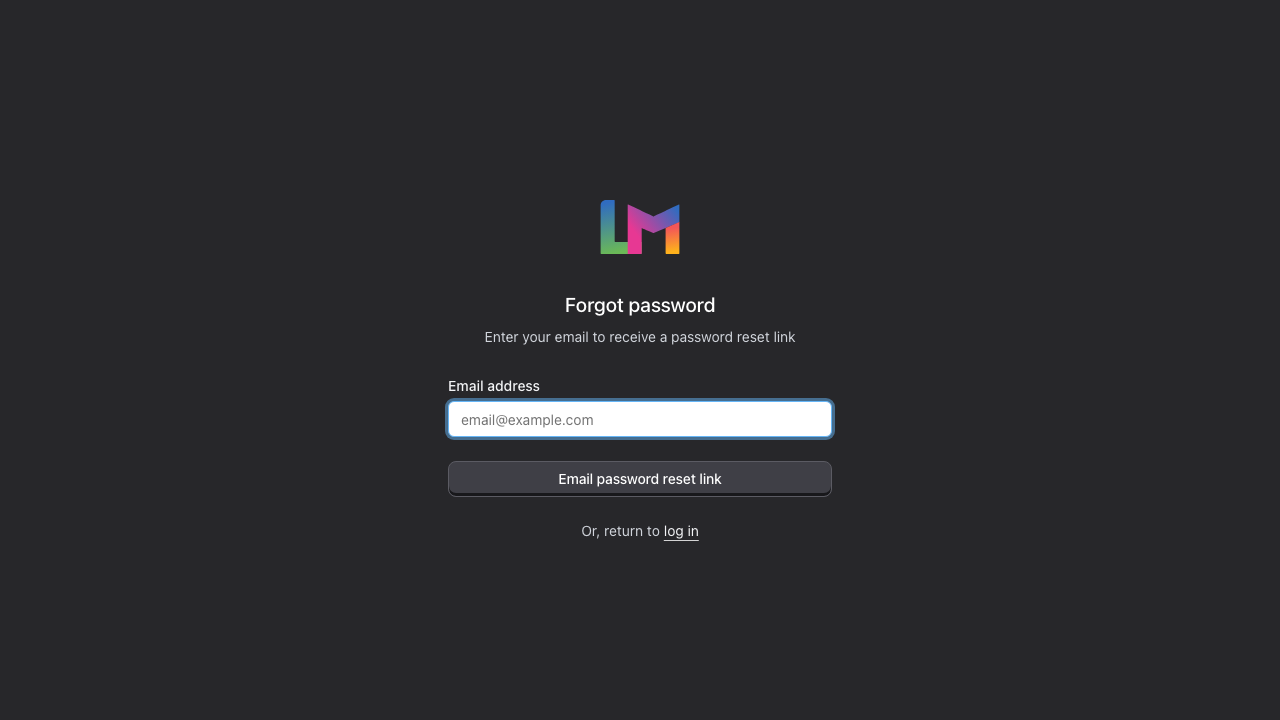
Note: Password reset links expire after 60 minutes. If yours has expired, request a new one.
Problem: "Two-factor authentication isn't working"
Quick fixes:
- Check your phone's time - Authenticator apps rely on accurate time. Make sure your phone's time is set to automatic
- Try the code quickly - Codes expire every 30 seconds, so enter them promptly
- Use a recovery code - If you saved your recovery codes during setup, click login using a recovery code below the code boxes, then enter one of them. Each code works once. Once you're in, go to Settings → Two-Factor Auth to set 2FA up again
- Contact support - If you've lost access to your authenticator and recovery codes, email hello@luminate.salon for account recovery
Appointment Issues
Problem: "I can't save a new appointment"
Quick fixes:
Check required fields - Ensure you've selected:
- A customer (required)
- A staff member (required)
- A service (required)
- A date and time (required)
Check for conflicts - The staff member may already have an appointment at that time. Try:
- Selecting a different time slot
- Choosing a different staff member
- Checking the calendar view to see their availability
Check if staff is rostered - Staff who aren't rostered for a time show "(Not rostered)" next to their name in the dropdown, and the form warns "No staff are rostered for this time. You can still assign the appointment." Booking outside a shift opens an Outside scheduled roster dialog. Click Book anyway to go ahead, or Cancel and pick a time the staff member is working
Verify the service is active - Inactive services can't be booked. Go to Services and ensure the service is set to Active
Problem: "Appointments aren't showing on the calendar"
Quick fixes:
- Check the date - Make sure you're viewing the correct date using the date navigation controls. Click Today to jump back to today
- Check the view - Switch between the Day, Week, and List views at the top right. Day shows every staff member for one date, Week shows one staff member across the week, and List shows everything with filters
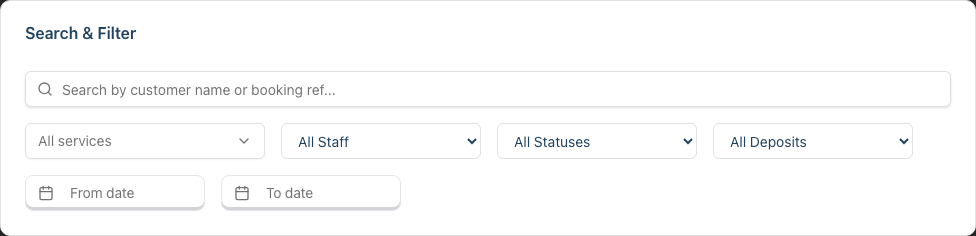
- Check the filters - In List view, the Search & Filter card can hide the appointment you're after. Set the staff dropdown to All Staff, set the status dropdown to All Statuses, or click Clear Filters to reset them all
- Check if it was cancelled - Cancelled appointments don't appear in Day or Week view. Switch to List view and set the status filter to Cancelled to find them
- Refresh the page - Press F5 or click your browser's refresh button
Problem: "I can't cancel an appointment"
Quick fixes:
- Check appointment status - Completed appointments cannot be cancelled. Luminate says "Cannot cancel a completed appointment." Refund the transaction at the till instead if payment was taken
- Check if already cancelled - The appointment may already be cancelled. Luminate says "Appointment is already cancelled."
- Check if it has been billed - If the appointment is already on a transaction, Luminate says "This appointment has already been billed. Remove it from the transaction before changing its status." Take it off the bill first, then cancel it
Problem: "Drag and drop isn't working on the calendar"
Quick fixes:
- Use a desktop browser - Drag and drop works best on desktop devices
- Check appointment status - Completed or cancelled appointments cannot be moved
- Try the edit button - Click the appointment and use the Edit button to change the time instead
Transaction and Payment Issues
Problem: "I can't complete a transaction"
Quick fixes:
- Add items first - A sale needs at least one item (a service, a product, or a gift voucher) before you can take payment. The payment buttons stay greyed out until you add one
- Check payment total - If you're splitting across payment methods, the till shows "Add payment for remaining" with the amount still due. Keep adding payments until that line clears
- Verify payment method - Make sure you've selected a valid payment method
Problem: "The payment amount doesn't match"
Quick fix:
- Check that all items are correctly added with the right quantities and prices
- Verify any discounts applied are correct
- Check if tips have been added and recorded properly
- Review the breakdown showing services, products, tips, and tax
Problem: "I can't process a refund"
Quick fixes:
- Check permissions - Only Owners, Admins, Managers, and Receptionists can process refunds. Staff members do not have this permission
- Check transaction status - Only completed transactions can be refunded. Pending transactions should be cancelled instead
- Check if already refunded - A transaction can only be refunded once
Problem: "I can't edit a transaction"
Quick fixes:
- Check the date - A completed transaction can only be edited on the day it was completed. After that it's locked. Unfinished sales (drafts and unpaid bills) stay editable whatever day they were started
- Check status - Cancelled or refunded transactions cannot be edited
- Contact support - For corrections to older transactions, email hello@luminate.salon
Cash Drawer Issues
Problem: "I can't open the cash drawer"
Quick fixes:
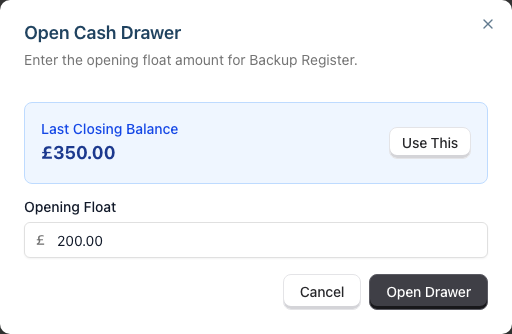
- Check if already open - Only one session can be open at a time per drawer. A drawer with a session running shows Active and a Close Drawer button instead of Open Drawer. Close that session first, or use a different drawer
- Enter the opening float - The Open Cash Drawer dialog needs an Opening Float before it will let you start. Click Use This to copy the last closing balance, or type the amount you counted
- Check permissions - Verify you have permission to manage cash drawers
Problem: "Cash drawer shows a variance"
Quick fix:
This usually means the physical cash doesn't match the expected amount. Common causes:
- Cash payments recorded incorrectly
- Change given incorrectly
- Missing cash movements (top-ups or withdrawals not recorded)
Review the day's cash movements and transaction history to identify discrepancies.
Roster and Staff Issues
Problem: "Staff member doesn't appear in appointment booking"
Quick fixes:
- Check if active - Go to Staff and ensure the staff member's status is Active
- Check if rosterable - Some staff (like receptionists) are not available for appointment booking as they don't provide services
- Check if rostered - Staff without shifts for the selected time will show "(Not rostered)" in the dropdown. They'll still appear, but you may want to add a roster shift for them
Problem: "I can't create a shift on a certain date"
Quick fixes:
- Check for bank holidays - Luminate shows a Bank Holiday Warning dialog when you add a shift on a bank holiday. Click Cancel to stop, or confirm to create the shift anyway
- Check for leave - If the staff member has leave booked that day, a Staff on Leave dialog names the leave type and date. Confirm it if you still want the shift, or approve the roster around their leave instead
- Check you meant to add a second shift - A day can hold more than one shift for the same person, so clicking the cell always adds another. To change a shift that's already there, use its Edit shift button rather than clicking the empty space around it
Problem: "Staff can't see their schedule"
Quick fixes:
- Check login account - The staff member needs a login account to access Luminate. Go to their profile. If the Login Account card shows No Login Account, click Create Login Account
- Check invitation status - If invited, they must accept the invitation and set their password. The card shows Login Enabled once the account exists, but that doesn't tell you whether they've set a password yet. If in doubt, click Resend Invitation
- Check nobody removed their access - Remove Access on the same card unlinks the login and signs them out everywhere. If that happened, click Create Login Account to invite them again
Customer Issues
Problem: "I can't find a customer"
Quick fixes:
- Check spelling - Try searching with just part of the name. A few letters is enough, and it matches first name, last name, or both together
- Search by phone or email - The search works across name, email, and phone. Punctuation in phone numbers is ignored, so
07700 123456and07700123456both find the same person - Check the status filter - If set to Active Only, inactive customers won't appear. Set it to All Customers
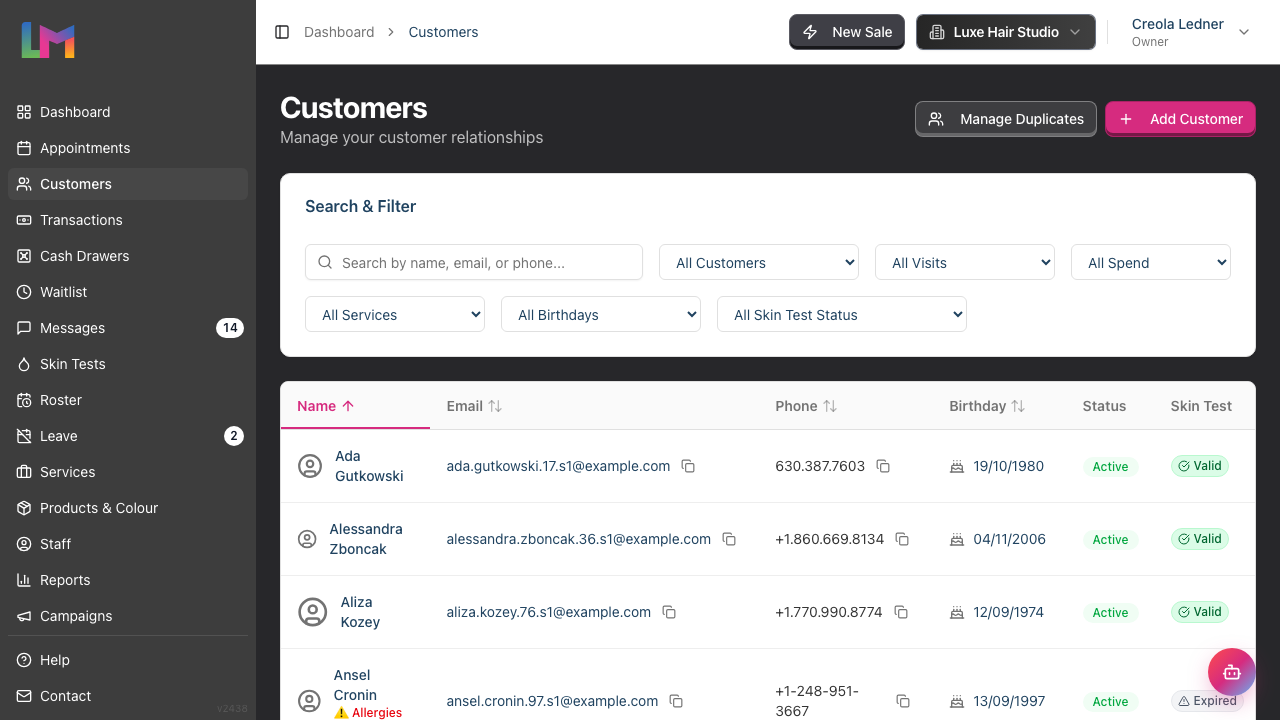
- Check the other filters - All Visits, All Spend, All Services, All Birthdays and All Skin Test Status each narrow the list too. Click Clear Filters to reset every one of them at once
- Check for duplicates - The customer may exist under a slightly different name
Problem: "Luminate is warning me about a possible duplicate customer"
Quick fix:
Luminate doesn't stop you from saving two customers with the same email address or phone number, but it does flag them. When you enter contact details that match an existing customer, a duplicate warning appears so you can avoid creating a second record by mistake.
If you think duplicates have already crept in:
- Go to Customers and click Manage Duplicates at the top of the page to open the Potential Duplicates screen (the button appears if you have permission to merge customers)
- Review the grouped records - Luminate groups customers that share an email address, phone number, or similar name
- Merge the records you confirm are the same person, so all their appointments, transactions, and notes are kept together under one customer
To avoid duplicates in the first place, search for an existing customer (by name, email, or phone) before creating a new one.
Display and Browser Issues
Problem: "The page looks broken or buttons aren't working"
Quick fixes:
- Refresh the page - Press F5 or Ctrl+R (Cmd+R on Mac)
- Clear browser cache - Press Ctrl+Shift+Delete and clear cached files
- Try a different browser - Chrome is recommended for best compatibility
- Check internet connection - Slow connections can cause partial page loads
- Disable browser extensions - Some ad blockers or extensions can interfere with Luminate
Problem: "Data isn't updating in real-time"
Quick fix:
- Refresh the page to see the latest data
- Check your internet connection
- If multiple people are working simultaneously, refresh more frequently to see each other's changes
Notification Issues
Problem: "I'm not getting notifications on my phone"
Work through these in order. Each one is a separate reason it can go quiet.
- Are you in the app? Push notifications only work in the Luminate app. A web browser cannot receive them.
- Did you turn the device on? Go to Settings > Notifications. Your phone should be listed under Your devices. If it is not, tap Turn on notifications for this device.
- Did you allow it when your phone asked? If you tapped "Don't Allow" on an iPhone, the question is never asked again. Go to Settings > Notifications in Luminate and tap Open device settings, then turn notifications on there.
- Did you switch anything on? Registering a device does not, on its own, notify you about anything. Look at the Push to my devices card and switch on what you want. Tap Save.
- Did you sign out on that device? Signing out stops notifications to it. Sign back in and they resume.
- Did someone else sign in on that iPad? A shared device follows whoever is signed in now.
If all six are correct and it is still quiet, the app may not be able to reach the notification service. Contact support and say which device and which notification you expected.
Problem: "I got a notification about a customer who left ages ago"
Report this. A notification should only appear when a customer genuinely arrives. Note the time and the customer, and contact support.
Problem: "My colleague gets notifications and I don't"
These settings are per person. Your colleague turning theirs on does nothing for you. Go to Settings > Notifications and set up your own.
See 10.7 Push Notifications on Your Phone for the full walkthrough.
Common Pitfalls
"I made changes but they weren't saved"
Always look for a Save or Update button and click it before navigating away. If you close a form without saving, changes are lost. Most forms show a confirmation message when changes are saved successfully.
"I accidentally deleted something"
Some actions cannot be undone. For critical deletions (like removing a customer), Luminate asks for confirmation. If you've deleted something by mistake, contact support at hello@luminate.salon - we may be able to help recover data depending on the situation.
"Everything was working yesterday but not today"
Try these steps in order:
- Refresh the page
- Log out and log back in
- Clear your browser cache
- Try a different browser
- Check if Luminate is experiencing any service issues
Tips and Best Practices
- Bookmark the login page - Avoid typing the URL incorrectly by saving it to your favourites
- Keep your browser updated - Old browser versions can cause compatibility issues
- Save frequently - Click Save after making changes rather than making multiple changes at once
- Use Chrome - While other browsers work, Chrome provides the best experience
- Check the notification area - Success and error messages appear in the bottom-right corner and clear themselves after a few seconds. Each one has a close button if you want it gone sooner
- Look for red text - Validation errors appear in red below the field that needs attention
Related Tutorials
- Tutorial 15.2: Understanding Error Messages - Learn what different error messages mean
- Tutorial 15.3: Getting Help and Contacting Support - How to get additional help
- Tutorial 15.4: Using Lumen — Your In-App AI Assistant - Ask Lumen for quick answers without leaving the page
- Tutorial 1.1: Welcome to Luminate - Review the basics if you're new
- Tutorial 4.2: Managing Staff Login Accounts - Detailed guide on staff invitations and login access
Frequently Asked Questions
Why do some buttons seem disabled?
Buttons may be disabled because:
- You don't have permission for that action
- The action isn't available in the current state (e.g., can't refund a pending transaction)
- Required fields haven't been completed
Can I undo an action?
Most actions cannot be undone automatically. For critical actions like deletions, Luminate asks for confirmation first. If you need to reverse something, you'll typically need to manually create a new record or contact support.
Why is my session timing out?
For security, Luminate logs you out after two hours of inactivity. Simply log back in to continue. If this happens sooner than that, check that your browser accepts cookies from Luminate.
What should I do if nothing in this guide helps?
Contact support at hello@luminate.salon with:
- A description of the problem
- What you were trying to do
- Any error messages you saw
- Your salon name
Last Updated: August 2026