
Transactional Campaigns
Introduction
Marketing campaigns reach customers who have opted in to promotions. But sometimes you need to tell all affected customers about a service change — a bank-holiday closure, a stylist off sick, a sudden change to your opening hours — and you can't wait for customers to opt in to marketing first.
These messages aren't marketing. Under UK GDPR / PECR they're service communications about an existing customer relationship, sent under legitimate interest. Luminate calls them transactional campaigns to keep them clearly separate from promotions.
Because the rules are strict — the wording must really be operational, with no promotional content — Lumen, Luminate's AI assistant, reviews every transactional campaign before it sends. If your wording reads as marketing, the send is blocked until you either revise the content or switch the campaign to Marketing.
This tutorial walks through creating a transactional campaign, what the AI gate checks, and how to handle a blocked verdict.
Who this is for: Salon owners and admins who need to send operational notices to customers.
What you'll learn:
- When to use a transactional campaign vs a marketing campaign
- How the audience is determined and how to narrow it with the same filter builder marketing campaigns use
- How the AI gate works and what it looks for
- What to do when a verdict is blocked
- Which customers receive the message under the legitimate-interest rules
Time to complete: 5–10 minutes
Prerequisites
Before you begin, make sure you have:
- Owner or Admin role access (the Manage Notifications permission — see Tutorial 16.1 for role details)
- A customer base with appointments in the last 12 months or upcoming bookings (otherwise the audience will be empty)
When to Use Which Type
| Situation | Campaign type |
|---|---|
| Salon is closed on a bank holiday or for refurbishment | Transactional |
| Stylist off sick — affected customers need to know | Transactional |
| Address change, opening hours change, system outage | Transactional |
| Recall of a product you've used on customers, allergy notice | Transactional |
| Promotion, discount, "book now" offer, birthday greeting | Marketing |
| Announcing a new stylist starting (with a call to book) | Marketing |
| Anything with a discount code, percentage off, or "limited time" framing | Marketing |
The boundary is whether the message tries to drive an additional purchase. If yes, it's marketing — even if it sounds like a "service update". The AI will catch the difference.
Step-by-Step Instructions
Step 1: Start a New Campaign
Open the Campaigns area from the sidebar and click New Campaign. The campaign builder opens at Step 1 (Details).
Step 2: Choose Transactional in Step 1
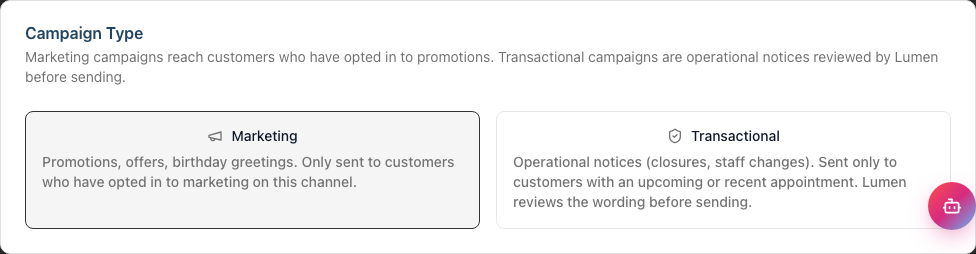
After filling in the campaign name and selecting the channel (Email or SMS), you'll see the Campaign Type card with two options:
- Marketing — the existing behaviour: filters, segments, marketing-consent recipients only.
- Transactional — operational notice; sent only to customers with an upcoming or recent appointment; reviewed by Lumen before sending.
Pick Transactional.
Step 3: Choose the Audience
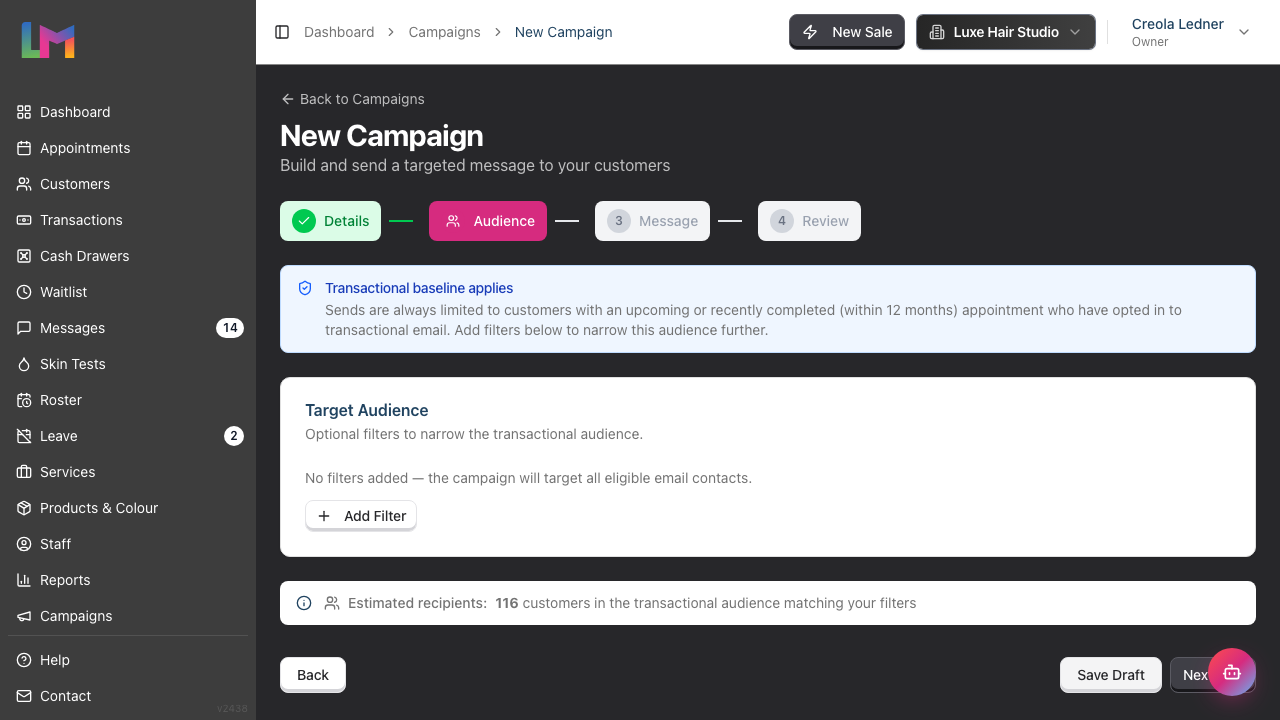
Step 2 (Audience) shows the same filter builder you'd see on a marketing campaign, with one difference: an info banner reminds you that the transactional baseline always applies — sends are limited to customers who have opted in to transactional messages on the chosen channel and either have an upcoming appointment or completed one in the last 12 months. That floor is non-removable; the filters you add narrow further within it but never widen it.
For most operational notices you can skip the filters entirely — the baseline is the audience you want. Add filters when you genuinely need to target a subset (e.g. only customers booked in for a specific stylist, or only those with a future appointment in a particular branch).
The estimated recipient count below updates as you change filters.
Step 4: Write the Message
At Step 3 (Message), write the body the same way you would for any campaign. Keep the wording purely operational — explain what's changing and why, but don't add promotional content.
Examples that work:
"Heads up — we're closed Bank Holiday Monday. Your appointment with Sarah at 10am has been moved to Tuesday at the same time."
"We've had to close early today due to a power cut. Your 4pm appointment will be rescheduled — we'll be in touch tomorrow morning."
Examples that will be blocked:
"Heads up — we're closed Monday, but Tuesday is 20% off colour!" (discount = marketing)
"Sarah's back from her holiday — book your spot now while she still has space!" (call-to-book = marketing)
"Our new colourist starts next week — pop in for a consultation!" (promotional = marketing)
Step 5: Save and Wait for the Verdict
When you save the campaign, Lumen starts reviewing the wording in the background. A Reviewing your campaign card appears at the top of the editor and updates within a few seconds:
- Approved as transactional — the wording reads as a service notice. You can send.
- Reads as marketing — cannot send — the AI judged the content as marketing. The card shows the reasoning, the flagged phrases, the confidence behind the call, and a Reviewed by Lumen line with the time of the check. Two action buttons appear:
- Edit content — opens the message editor so you can revise the wording. Saving the change re-runs Lumen.
- Switch to marketing campaign — converts the campaign to a marketing send in one click from the Show or Send page. Pressing the button flips the category server-side, clears the existing verdict, keeps any audience filters you'd already added, and drops you back into the editor with a confirmation toast. If you click it while you're already inside the message editor, it does the same thing locally so you don't lose unsaved edits — the change is confirmed the next time you save the draft. Either way, the consent baseline changes — from now on only customers who have opted in to marketing on this channel will receive it.
Step 6: Send (or Schedule) the Campaign
Once the verdict is Approved as transactional, open the Send page from the campaign. Pick one of the two delivery cards:
- Send Now — deliver immediately to all recipients.
- Schedule — pick a date and time and Luminate will queue the campaign to go out then.
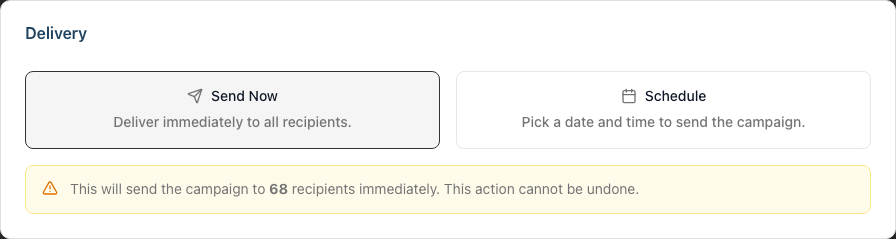
The verdict card stays visible on the Send page so you can confirm the green light before pressing the button. If you choose Send Now, a warning shows the recipient count and reminds you the action cannot be undone.
If you edit the wording after approval, the verdict becomes stale. Saving in the editor automatically re-runs Lumen. If you press Send Now or Schedule with stale wording, Luminate runs the check one more time before delivery — the send only goes through if the new wording also passes.
Who Actually Receives a Transactional Campaign?
A transactional campaign is sent to customers who:
- Have an upcoming scheduled or confirmed appointment, OR
- Have a completed appointment in the last 12 months,
AND
- Have not switched off transactional messages for the channel you're using — the Email or SMS option under Appointment Messages on their communication preferences.
Customers who haven't been to the salon in over a year — and have no future booking — won't receive a transactional message even if they're in your contact list. The legitimate-interest argument is strongest for active customers.
What Lumen Checks
Lumen reads the subject and body together and decides whether the message is purely operational or contains any promotional content. The boundary it enforces:
- Promotional offers — discounts, percentage off, BOGO, "save X%" — always block.
- Calls to book — "book now", "limited time", "while spaces last", "save your spot" — always block.
- Announcements — new services, new staff, seasonal launches — block, because the framing is promotional.
- Birthday greetings, loyalty rewards, re-engagement — always block.
- Mixed content — if any line of the message is promotional, the whole thing blocks. You can't tuck a discount on the end of a closure notice.
When in doubt, Lumen blocks. Better to revise the wording than to risk sending direct marketing to customers who haven't consented.
Why This Is GDPR-Safe
Service communications about an existing customer relationship are processed under Article 6(1)(f) (legitimate interest) of UK GDPR, and for customers with an active future booking also under Article 6(1)(b) (performance of contract). PECR's marketing-consent rules (Reg 22) apply only to direct marketing — service messages are out of scope.
The AI gate is the safety mechanism that keeps the transactional pathway honest: it stops the channel being abused as a backdoor for marketing to non-consenting customers. Every classification is logged for audit, with the reasoning and any flagged phrases.
For more on consent rules and Luminate's lawful-basis posture, see Tutorial 11.2: GDPR Compliance.
Common Pitfalls
"The verdict is stuck on 'Reviewing your campaign'"
Lumen runs in the background and the editor polls every couple of seconds for the result. If it stays stuck for more than 30 seconds, refresh the page. If you press Send Now or Schedule while the verdict is still pending, Luminate will run the check synchronously before deciding whether to send — so a stuck-pending campaign cannot leak through accidentally.
"A clearly-operational message keeps getting flagged as marketing"
Re-read it carefully for words like "book", "spaces", "now", "treat yourself", percentages, money values. Lumen is conservative on the boundary by design. If you really think the verdict is wrong, your only option is to revise the wording — there is no manual override.
"The recipient count is zero"
Your customer base has no upcoming appointments and no completed appointments in the last 12 months. Transactional campaigns aren't suitable for fully dormant customer lists. Use a marketing campaign with explicit consent instead.
"I can't find Campaigns in the sidebar"
Transactional and marketing campaigns both require the Manage Notifications permission, which Owners and Admins have by default. Managers, Receptionists and Staff don't see the Campaigns area — ask an Owner or Admin to send the notice, or to review roles in Tutorial 16.1.
Tips and Best Practices
Read "When to Use Which Type" before you start writing — deciding up front saves you rewriting a message that was always going to be marketing.
Keep the wording purely operational — one promotional line blocks the entire message, even if the rest is a genuine closure notice.
Use the flagged phrases as your edit checklist — when a verdict is blocked, Lumen tells you exactly which words tripped the gate. Fix those first.
Prefer "Switch to marketing campaign" over manually changing the category — it's one click, and it keeps the audience filters you've already set up.
Save a draft early to see the verdict before you commit to wording — you don't have to wait until the Send page to find out whether your message will be blocked.
Don't rely on a transactional campaign for dormant customers — the legitimate-interest audience only includes customers with a recent or upcoming appointment. For anyone else, you need marketing consent.
Related Tutorials
- Tutorial 3.3: Customer Preferences and Communication Consent - See how customers opt in and out of transactional and marketing messages
- Tutorial 10.2: Birthday Notifications and Customer Engagement - Another notification type gated by marketing consent
- Tutorial 11.2: GDPR Compliance - Data Protection and Privacy - The full lawful-basis rules behind this feature
- Tutorial 19.1: Introduction to Marketing Campaigns - The marketing side of the same campaign builder
Frequently Asked Questions
Can I override a blocked verdict manually?
No. There's no manual override or appeal process. If Lumen blocks your wording, you can either revise it and save again (which re-runs the check), or switch the campaign to marketing.
Does switching to marketing keep my audience filters?
Yes. Any filters you'd already added on the transactional path (e.g. a stylist or branch filter) are kept when you switch — only the consent baseline and the AI verdict change.
Who can create and send transactional campaigns?
Owners and Admins — the same Manage Notifications permission that gates marketing campaigns. See Tutorial 16.1 for the full role matrix.
Will a transactional campaign reach a customer who has opted out of transactional messages?
No. The transactional baseline requires the customer's Email or SMS transactional preference (under Appointment Messages) to be switched on, regardless of any other filters you add.
Is Lumen's reasoning visible to customers?
No. The verdict, reasoning, confidence, and flagged phrases are only visible to staff on the campaign's Show and Send pages. Customers just receive the message, if it's approved.
What happens to a campaign I schedule for later?
Once scheduled, the campaign can no longer be edited, so the wording that was approved is the wording that sends. Luminate re-checks the AI gate one more time at the scheduled moment as a safety net before dispatch.
Last Updated: August 2026