
Managing the Messaging Inbox
Introduction
The unified messaging inbox brings all your customer conversations into one place. Whether a customer replies to an SMS reminder, responds to an email, or sends a WhatsApp message, you can view and respond to all messages from a single interface.
Two-way communication helps you provide better customer service, answer questions quickly, handle rebooking requests, and maintain relationships with your clientele. The split-pane design lets you browse conversations on one side while reading and replying on the other, making it easy to manage high volumes of messages efficiently.
This tutorial covers how to use the messaging inbox for everyday customer communication.
Who this is for: Salon owners, administrators, managers, receptionists, and staff who communicate with customers.
What you'll learn:
- Navigating the messaging inbox interface
- Viewing and filtering conversations
- Reading and replying to messages
- Composing new messages to customers
- Closing, reopening, and archiving conversations
- Viewing customer-specific message history
Time to complete: 15-20 minutes
Prerequisites
Before you begin, make sure you have:
- Staff role or higher — every role can read the inbox and reply. Closing, reopening and archiving conversations additionally needs the Owner, Admin, Manager or Receptionist role; Staff won't see those buttons
- At least one customer with an email address or phone number
- For sending SMS: sufficient SMS credits in your account
Step-by-Step Instructions
Step 1: Access the Messaging Inbox
- From any page in Luminate, click Messages in the main sidebar menu
- You'll arrive at the unified inbox showing all customer conversations
Unread message badge: The Messages menu item in the sidebar displays a badge showing the total number of unread messages waiting in open conversations. This badge refreshes automatically every few seconds, helping you spot new messages at a glance without navigating away from your current page. While the badge is showing, clicking Messages opens the inbox with the Unread filter already applied, so you land straight on what needs a reply instead of the full conversation list. With no unread messages, the same menu item opens the full inbox.
The inbox page header repeats the count alongside the title — for example "14 unread - View and manage customer conversations".
You are told when a customer replies. You do not have to watch the badge. When a customer answers — by email, text or WhatsApp — Luminate notifies whoever last messaged that customer by hand, plus everyone who manages the inbox. It emails you by default, and it can push to your phone once you turn that on. Several replies in the same conversation are grouped, so a customer sending four texts in a row is one notification, not four. Choose what reaches you in Settings > Notifications — see 10.7 Push Notifications on Your Phone.
Step 2: Understand the Inbox Layout
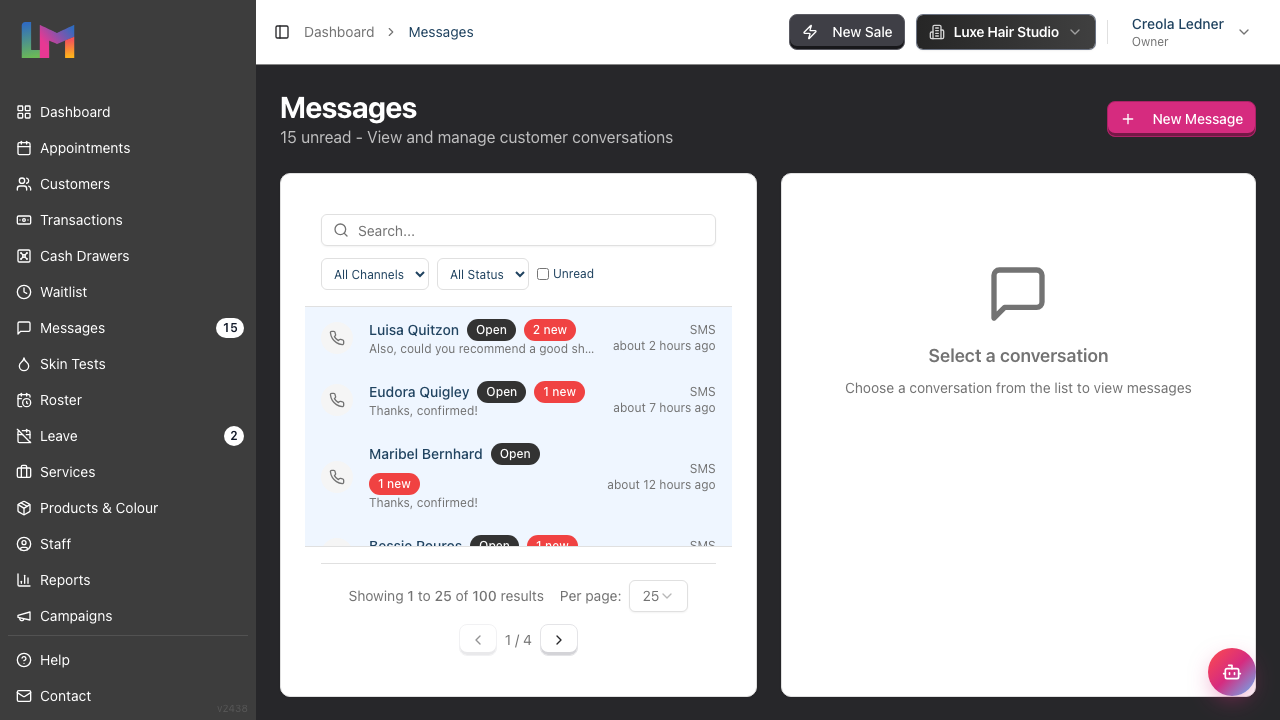
The messaging inbox uses a split-pane design on desktop:
Left Panel - Conversation List
- Shows all conversations across all channels
- Each row displays a channel icon, the customer name, a status badge, the last message preview, the channel name and a relative timestamp
- Conversations with unread messages are highlighted and carry a red count badge (for example 1 new)
- Includes the search and filter row along the top, and a pager along the bottom showing, for example, "Showing 1 to 25 of 100 results" with a Per page selector
Right Panel - Selected Conversation
- Shows the full message thread when you select a conversation
- Displays the conversation header with customer info and actions
- Contains the message composer for replies
Until you pick a conversation, the right panel shows a Select a conversation prompt.
On mobile devices, you'll see the conversation list only; tapping a conversation opens it on its own page with a Back to Messages link.
Step 3: Browse and Filter Conversations
Conversations with unread inbound messages always sit at the top of the list, regardless of which one had the most recent activity. This stops a customer reply getting buried beneath later automated reminders to other customers — unread replies stay on page 1 until you read them. Within the unread group, conversations are ordered most-recent-first; the same applies to the already-read group below.
The filter row sits directly above the list — a search box with the channel dropdown, status dropdown and unread checkbox beneath it. It offers several ways to find what you need:
Filter by Channel:
- Use the channel dropdown to show only Email, SMS, WhatsApp, or All Channels
- Helpful when focusing on one communication type
Filter by Status:
- All Status - Show all conversations regardless of status
- Open - Active conversations awaiting attention
- Closed - Resolved conversations (can be reopened)
- Archived - Conversations put away out of the inbox (can be reopened)
Archived conversations are hidden until you filter for them.
Unread:
- Tick the Unread checkbox to display only conversations with unread messages
- Great for prioritising responses — this is the view the sidebar badge takes you to
Search:
- Type in the search field to find conversations
- Searches by customer name, email address, or phone number — not by the words inside messages
Once any filter is set, a Clear button appears at the end of the row to reset them all.
Step 4: Select and Read a Conversation
- Click on any conversation in the left panel
- The right panel displays the full message thread
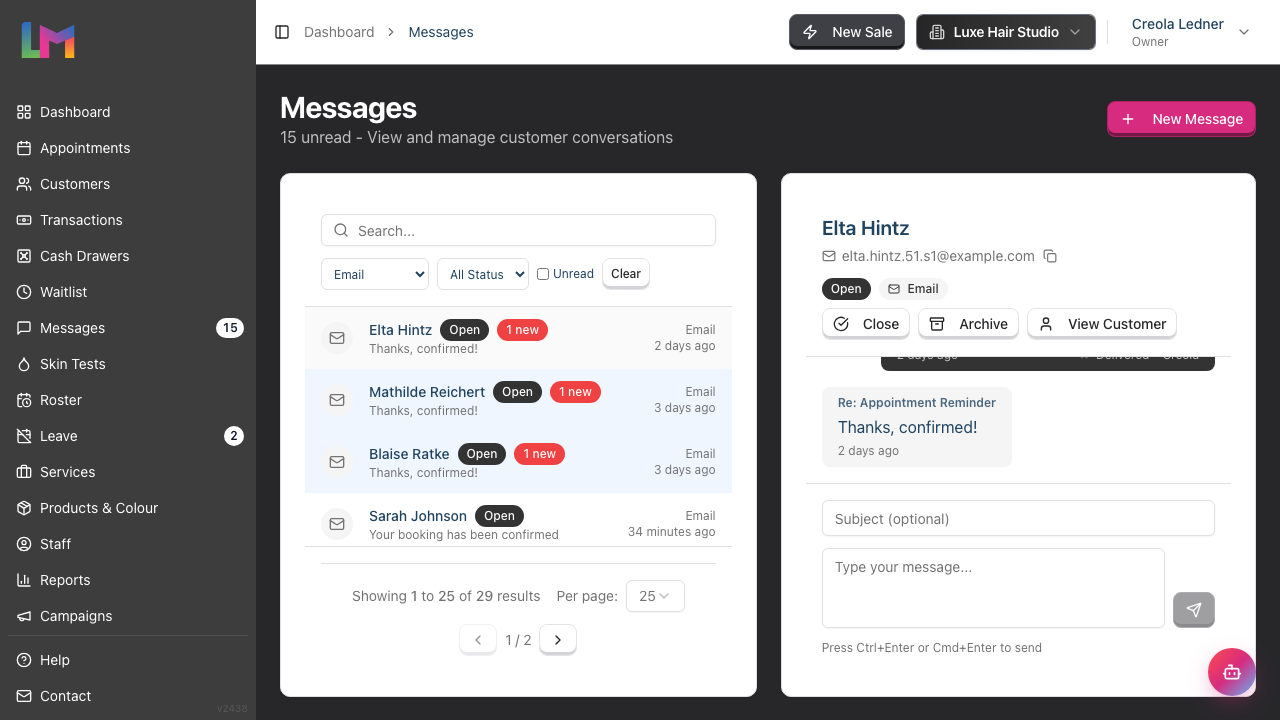
The conversation header shows:
- Customer name and contact information (phone or email depending on channel), with a copy button to put the address on your clipboard
- Channel badge (Email, SMS, or WhatsApp)
- Status badge (Open, Closed, or Archived)
- Subject badge on email conversations that have a thread subject
- Action buttons (Close, Reopen, Archive, View Customer)
The View Customer button takes you directly to the customer's profile page. The Close, Reopen and Archive buttons only appear for roles that can manage conversations — Owner, Admin, Manager and Receptionist.
The message thread displays:
- All messages in chronological order
- Inbound messages (from the customer) appear on the left
- Outbound messages (from your salon) appear on the right, with automated messages tinted amber so you can tell a reminder from a staff reply at a glance
- Relative timestamps (e.g., "2 hours ago") with full date/time on hover
- Delivery status indicators for outbound messages, followed by who sent it — the staff member's first name, or "Automated" for system messages
Step 5: Reply to a Message
To respond to a customer:
- Select the conversation from the list
- Scroll down to the message composer at the bottom of the thread
- On email conversations, check the Subject field — it is pre-filled with "Re:" and the thread subject, and you can edit it
- Type your response in the text area
- Send the message:
- On SMS conversations, click Send SMS (the editor shows a live character count and how many SMS segments the message will use)
- On email and WhatsApp conversations, click the send arrow button beside the text area
- On any channel, press Ctrl+Enter (or Cmd+Enter on a Mac) to send without reaching for the mouse
The message will be sent via the same channel as the conversation (Email replies go to email, SMS replies go to SMS).
What the customer sees on an email reply
You only type the message. Luminate adds the salon branding around it, the same as on an appointment reminder:
- Your logo at the top, or the salon name if you have not uploaded one
- Below your message: the salon name, postal address, and phone number and email address — whatever is filled in on the General tab of Salon Settings
- A "Manage your communication preferences" link, so the customer can opt out
- A small "Sent with Luminate" line
If a detail is missing from the footer, add it in the salon settings — the email picks it up on the next send. Blank fields are left out rather than shown empty.
Reply tips:
- Keep SMS replies brief (under 160 characters when possible)
- Email replies can include more detail
- Be professional but friendly
- Answer the customer's question directly
Step 6: Compose a New Message
To start a conversation with a customer:
Click the New Message button in the top-right of the inbox
A compose dialog appears with fields for:
Customer - Search and select a customer from your database
- Start typing their name to search
- Select from the matching results
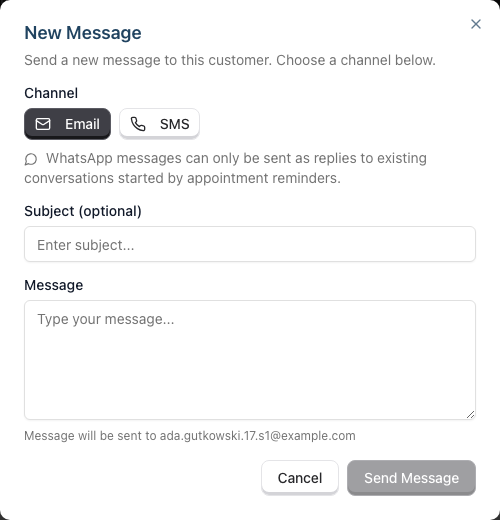
Channel - Choose how to send the message. The picker shows pill-style buttons for each available channel:
- Email - Available if the customer has an email address on file
- SMS - Available if the customer has a phone number on file (uses SMS credits)
Only channels where the customer has valid contact information appear as buttons. Channels the customer has opted out of are not shown as buttons — instead, a one-line notice appears beneath the picker reading "Customer has opted out of Email" or "Customer has opted out of SMS", with the channel icon next to the message. There is no "send anyway" override. Opt-outs are honoured at the source — you cannot pick a blocked channel and rely on the system to suppress it later. To restore a channel, ask the customer to opt back in via the email footer link, the SMS opt-in keyword, or update the Communication Preferences section on their profile with consent on record (see "How opt-outs are enforced when staff send messages" in Tutorial 3.3).
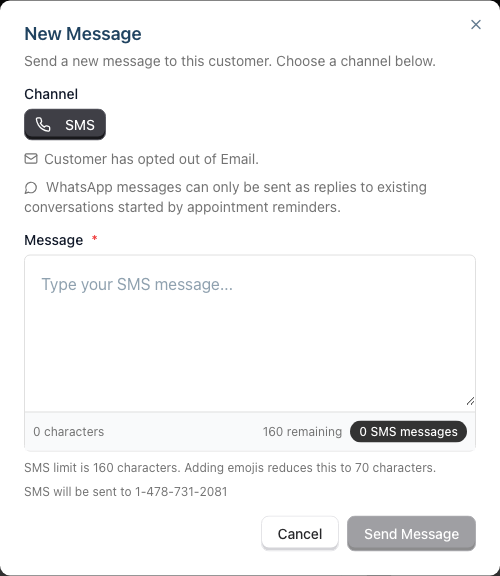
If WhatsApp is enabled for your salon and the customer has a phone number, you'll also see a small notice underneath the picker explaining that WhatsApp messages can only be sent as replies to existing conversations started by appointment reminders. WhatsApp is intentionally not selectable from this dialog (see the note further down).
Subject (optional) (Email only) - Enter an email subject line
Message - Type your message content
- For SMS, you'll see a character counter to help keep messages concise
- Beneath the box, a line confirms exactly where the message is going, e.g. "SMS will be sent to (916) 864-1696"
Click Send Message to deliver it
If the customer has opted out of every channel available here, the dialog says so instead of showing the picker: "This customer has opted out of all available messaging channels. Update their preferences to send them a message." If they simply have no email address or phone number on file, it says that instead.
A new conversation is created and appears in your inbox.
Note: WhatsApp conversations can be received and replied to, but new conversations cannot be initiated via WhatsApp from the compose dialog. WhatsApp messages must be started by the customer first.
WhatsApp Reply Window
WhatsApp conversations have a 24-hour reply window (known as the Customer Service Window). This window opens when a customer sends you a WhatsApp message and lasts for 24 hours from their most recent inbound message.
While the window is open:
- You can reply freely to the conversation
- A countdown timer appears above the message composer showing the remaining time (e.g., "Reply window closes in 3h 42m")
- The timer updates automatically
When the window expires:
- The reply form is replaced with a notice: "The 24-hour reply window has expired. The customer must send a new message to reopen the window."
- You cannot send further messages until the customer messages you again
- Automated notifications (such as appointment reminders) can still be sent via WhatsApp outside this window
This is a requirement of the WhatsApp Business API and applies to all WhatsApp conversations.
Step 7: Close a Conversation
When a conversation is resolved:
- Select the conversation
- Click the Close button in the conversation header
- The status changes to "Closed"
Closed conversations:
- Move out of the Open filter view
- Can still receive new customer messages within 24 hours of closing (which reopens them automatically)
- After 24 hours, closed conversations no longer auto-reopen from new inbound messages
- Can be manually reopened if needed
- Still show the reply composer — sending a reply reopens the conversation
- Are still searchable and accessible
Automatic closing: Luminate closes any open conversation that has had no activity for seven days, so a stale queue tidies itself up overnight. WhatsApp conversations are also closed automatically once their 24-hour reply window expires (see "WhatsApp Reply Window" above). Either can be reopened if the customer messages again.
Step 8: Reopen a Conversation
To continue a closed or archived conversation:
- Filter to show "Closed" or "Archived" conversations
- Select the conversation
- Click the Reopen button in the header
- The status returns to "Open"
You can now continue the conversation as normal.
Step 9: Archive a Conversation
Archiving closes a conversation and removes it from regular view:
- Select the conversation
- Click the Archive button in the header
- A confirmation dialog appears: "Are you sure you want to archive this conversation? Archived conversations leave the inbox and cannot receive new messages. You can reopen it later to bring it back."
- Click Archive to confirm
Important: Archived conversations:
- Cannot receive new messages — the composer is replaced with "This conversation is archived and cannot receive new messages."
- Do not reopen on their own when the customer replies, unlike a closed conversation
- Are still visible when filtering by "Archived" status
- Can be reopened by hand — the Reopen button stays in the header
Use archiving for:
- Spam or irrelevant messages
- Completed long-term conversations
- Cleaning up old resolved issues
Step 10: View a Customer's Message History
You can view all conversations with a specific customer in two ways:
From the customer profile:
- Navigate to the customer's profile (Customers > select customer)
- Click the Messages tab
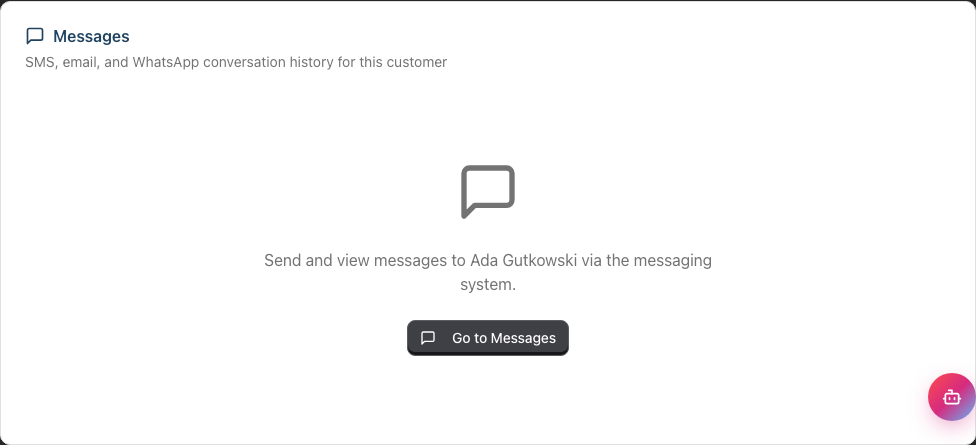
- You'll see a card titled Messages, described as "SMS, email, and WhatsApp conversation history for this customer", with a Go to Messages button. The tab itself doesn't list the conversations
- Click the button to open the inbox filtered to show only that customer's conversations
From the inbox with filter:
- When you access messages via a customer profile, the inbox is automatically filtered to show only that customer's conversations
- The page header shows the customer's name, confirming whose messages you're viewing
- A Back to Customer link appears above the header
- Click Show All Messages to clear the filter and see all conversations
Trial Period Messaging Restrictions
If your account is on a trial period, there are some messaging limitations to be aware of:
SMS and WhatsApp Messaging
- SMS and WhatsApp messaging are not available during the trial period
- This applies to both composing new messages and replying to existing conversations
- When on trial, an amber warning banner appears at the top of the inbox with the title "SMS Messaging Unavailable" explaining that SMS messaging is not available during the trial period
- Beta testers are exempt: their inbox shows no banner and the SMS channel stays available throughout the trial
- The SMS channel button is greyed out in the compose dialog, with the note "SMS is not available during trial. Upgrade to send SMS messages."
- On an SMS or WhatsApp conversation, the reply composer is replaced by the same upgrade notice
Email Messaging
- Email messaging works normally during the trial period
- You can compose and send emails to customers without restriction
Daily Message Limits
- Trial accounts have a daily limit of 10 outbound messages across all channels
- Once you reach it, sending fails with "Trial accounts are limited to 10 messages per day. Upgrade your plan to send more."
- The day resets at midnight in your salon's timezone
Upgrading
- To unlock full SMS and WhatsApp messaging, upgrade your plan via the Billing page
- The warning banner includes a direct link to upgrade
- Beta testers are exempt from these restrictions
Common Pitfalls
"I can't send an SMS - there's no SMS option"
Check that:
- The customer hasn't opted out of SMS — if they have, the button is replaced by a "Customer has opted out of SMS" notice and only they can undo it
- You are not on a trial account (SMS and WhatsApp are disabled during trial)
- The customer has a phone number in their profile
- Your salon has sufficient SMS credits
- You have permission to send messages
"The customer isn't receiving my replies"
Verify:
- The customer's contact information is correct
- For email, check if messages are going to spam
- For SMS, ensure the phone number is a mobile (not landline)
- Check the message status indicator for delivery confirmation
- Open the customer's profile and look for an SMS failed, SMS turned off, WhatsApp failed or WhatsApp turned off pill. See Tutorial 3.3, Step 7
"Conversations keep reopening after I close them"
When a customer sends a new message to a closed conversation within 24 hours of closing, it automatically reopens. This is by design - you don't want to miss new queries. After 24 hours, closed conversations no longer auto-reopen. Consider archiving instead of closing if you don't want to see the conversation again.
"I accidentally archived an important conversation"
Filter by Archived status to find it, then reopen it to return it to your inbox. The conversation and its full message history stay intact.
Tips and Best Practices
Check messages regularly - Customers expect quick responses, especially to SMS. Set a routine to check the inbox several times a day.
Use the unread filter - Start each check by filtering to unread messages to ensure nothing is missed.
Close resolved conversations - Keep your Open queue manageable by closing conversations when they're complete.
Match the customer's channel - If they sent an SMS, reply via SMS. If they emailed, reply by email. This meets customers where they are.
Be concise but complete - Answer the full question in your first reply to avoid back-and-forth.
Personalise your responses - Use the customer's name and reference their specific situation.
Set expectations - If you need time to check something, let the customer know you'll get back to them.
Use templates for common queries - If you find yourself typing the same responses repeatedly, consider creating standard replies you can adapt.
Escalate when needed - If a conversation requires owner attention (complaints, refunds, etc.), make sure the right person sees it.
Don't ignore difficult messages - Unhappy customers who are acknowledged and helped often become your most loyal advocates.
Related Tutorials
- Tutorial 3.1: Adding and Managing Customer Profiles - View customer contact details
- Tutorial 3.3: Customer Preferences and Communication Consent - Understand messaging consent, and see "How opt-outs are enforced when staff send messages"
- Tutorial 10.3: Creating Custom Notification Templates - Create message templates
- Tutorial 10.5: SMS Balance and Usage Tracking - Monitor SMS credit usage
Frequently Asked Questions
Can customers reply to automated notifications?
Yes, if they reply to an SMS or email notification, their message appears in your inbox as a new conversation (or added to an existing one).
How do I know if a message was delivered?
Each outbound message shows a status indicator beneath it:
- Sending... - Message is queued and on its way to the provider
- Sent - Message has been sent to the provider
- Delivered - Message reached the recipient's device
- Read - Recipient has read the message (where supported)
- Failed to send - Delivery failed; a short reason appears with it, such as "Insufficient SMS credits" or "Message delivery failed"
- Not sent - The message was blocked before it left Luminate because the customer has opted out of that channel; the reason appears beneath it
When an SMS or WhatsApp message fails because the number cannot be reached (for example, the number is not in service or is not on WhatsApp), Luminate also marks the customer. One failure adds an amber SMS failed or WhatsApp failed pill to their profile. Three failures in 30 days turn that channel off, and Luminate unticks it in their communication preferences. A failure with another cause, such as a busy network, does not count. See Tutorial 3.3, Step 7.
Can multiple staff members see the same inbox?
Yes, all staff with access can see the shared inbox. There's no assignment system - anyone can respond to any conversation.
Is there a mobile app for messaging?
The inbox works on mobile web browsers. When on mobile, tap a conversation to open it on its own page, then use the Back to Messages link at the top to return to the list.
What's the difference between Close and Archive?
Close marks a conversation as resolved but keeps it accessible. Within 24 hours of closing, new customer messages will automatically reopen the conversation. Closed conversations can also be manually reopened at any time. Archive puts the conversation away. Archived conversations leave the inbox and cannot receive new messages, and a customer reply does not bring one back. Filter by Archived and click Reopen to return it to the inbox.
How far back does message history go?
Message history is retained indefinitely. You can scroll back through the entire conversation thread.
Can I delete individual messages?
No, individual messages cannot be deleted. This maintains an accurate record of all customer communications.
Do messages work outside business hours?
Yes, customers can send messages at any time. You'll see them the next time you check the inbox. Automated notifications also send outside business hours based on their configured timing.
Can I send messages to multiple customers at once?
The messaging inbox is for one-to-one conversations. For bulk communications, consider creating a notification campaign or using an external email marketing tool.
Can I start a WhatsApp conversation with a customer?
No, you cannot initiate WhatsApp conversations from Luminate. WhatsApp Business API requires the customer to message you first. Once a customer sends a WhatsApp message, it appears in your inbox and you can reply to continue the conversation.
Why can't I reply to a WhatsApp conversation?
WhatsApp has a 24-hour reply window. You can only send replies within 24 hours of the customer's most recent message. If the window has expired, the customer needs to send you a new message before you can respond. A countdown timer above the message composer shows you how much time remains.
Why can't I send SMS or WhatsApp messages during my trial?
SMS and WhatsApp messaging are disabled during the trial period to prevent misuse. Email messaging works normally during trial. To unlock SMS and WhatsApp, upgrade your plan from the Billing page. Beta testers are exempt from this restriction.
Last Updated: August 2026