
SMS Campaigns and Credit Management
Introduction
SMS campaigns are a powerful way to reach customers directly on their phones — text messages have far higher open rates than email. However, SMS campaigns use your salon's SMS credit balance and work differently from email in several important ways. Before sending your first SMS campaign, you need to understand message segments, character limits, cost estimation, and the automatic opt-out footer.
This tutorial covers everything specific to SMS campaigns so you can send with confidence and avoid unexpected costs.
Who this is for: Salon owners, admins, and managers planning to send SMS marketing campaigns.
What you'll learn:
- How SMS credits work with campaigns
- What message segments are and how longer messages use more credits
- How the automatic "Send STOP to opt out" footer works
- How to estimate campaign costs before sending
- What happens if your credit balance is insufficient
- Key differences between email and SMS campaigns
Time to complete: 10-15 minutes
Prerequisites
Before you begin, make sure you have:
- Familiarity with creating campaigns (see Tutorial 19.1)
- An SMS credit balance on your account (see Tutorial 10.5 for purchasing and managing SMS credits)
- At least one customer with a phone number and SMS marketing consent
Step-by-Step Instructions
Step 1: Understand How SMS Credits Work with Campaigns
Every SMS message your salon sends uses credits from your SMS balance — whether it's an appointment reminder or a marketing campaign. Each message segment costs one credit. A short message (up to 160 characters) uses one segment (one credit). Longer messages are split into multiple segments, each costing one credit.
For campaigns, the total cost depends on two things:
- How many recipients you're sending to
- How many segments each message requires
For example, a 1-segment message sent to 50 customers costs 50 credits. A 2-segment message sent to 50 customers costs 100 credits.
Test sends use credits too. Every Send Test message goes out through the same SMS route as a real campaign, so it costs the same as one recipient's message. Budget for the odd test credit when you plan a send.
See Tutorial 10.5 for full details on purchasing credits and setting up auto-top-up.
Step 2: Understand Message Segments and Character Limits
SMS messages have strict character limits. When a message exceeds the single-message limit, it's split into multiple segments:
| Message Type | Single Message Limit | Per Segment (Multi-Segment) |
|---|---|---|
| Standard text (letters, numbers, basic punctuation) | 160 characters | 153 characters per segment |
| Unicode text (emojis, special characters) | 70 characters | 67 characters per segment |
Important: One special character switches the whole message to unicode encoding, which cuts the character limit from 160 to 70. Emojis do it, and so does any curly apostrophe, curly quote, en dash, ellipsis or non-breaking space. Word, Google Docs, macOS and iOS all insert those silently, so paste with care.
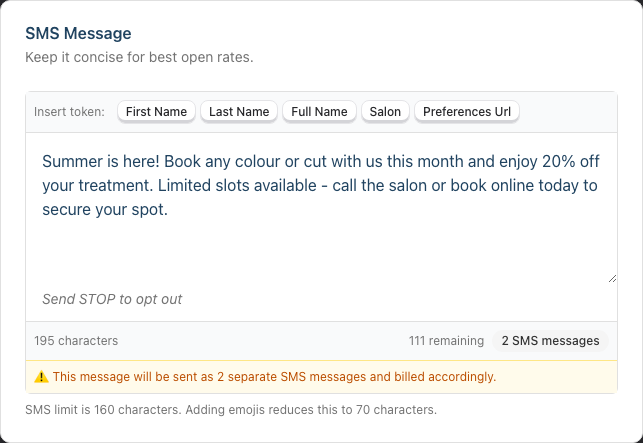
When composing an SMS campaign, the editor shows:
- Character count — how many characters the message uses, including the opt-out footer. An empty message already reads 21 characters, because the footer is always added
- Characters remaining — how many more characters you can add before the message needs another segment
- Segment count — a badge reading 1 SMS or, for longer messages, 2 SMS messages, 3 SMS messages and so on. The badge escalates as the count climbs: dark at one segment, grey at two, amber at three, red at four or more
- Character-set warning — Special characters cut the limit to 70:, followed by the characters that did it, such as curly apostrophe (’). It names up to three, then counts the rest
- Multi-segment warning — an amber bar reading This message will be sent as X separate SMS messages and billed accordingly
- Guidance line — One SMS holds 160 characters. Emojis, curly quotes and other special characters cut the limit to 70 characters., below the editor
Step 3: Understand the Opt-Out Footer
Every SMS campaign message automatically has "Send STOP to opt out" appended to the end. This is shown as a preview below the text area when composing your message.
This footer:
- Is added automatically — you don't need to type it yourself
- Counts towards your character limit — the footer text and the line break before it use 21 characters, and they are included in the segment calculation
- Cannot be removed — it's a requirement for marketing SMS messages to give recipients a way to unsubscribe
- Is visible in the SMS editor preview, in italics below the text area, so you can see exactly how your final message will look
- Goes out on test sends as well, so a test shows you the finished message
When composing your message, keep the footer in mind. If your message is close to the segment boundary, the footer may push it into an additional segment.
Step 4: Check the Cost Estimate Before Sending
When you navigate to the Send Campaign page for an SMS campaign, you'll see additional information in the Campaign Summary card:
- SMS balance — your current credit balance (e.g., "250 credits")
- Segments per message — how many segments each message will use, with a "(long message)" note if more than 1
- Estimated cost — the total credits needed, shown in bold (calculated as segments per message × number of recipients)
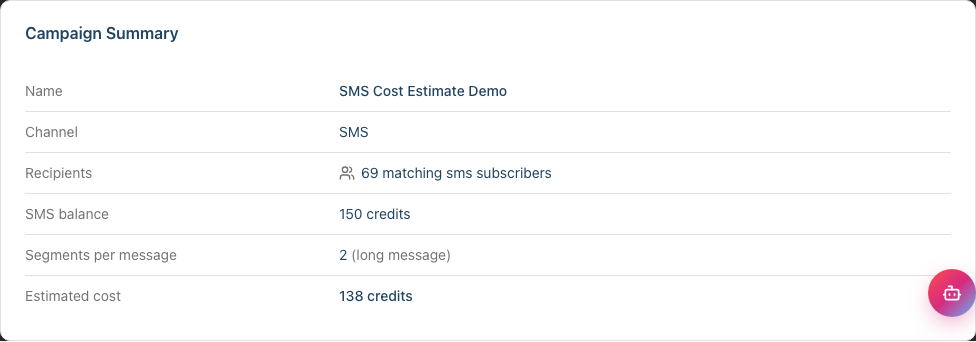
Luminate works these figures out each time you open the page, from the current message body and the current audience. Edit the message and the segment count and cost update the next time you open the Send page.
Review these numbers carefully before pressing Send.
Step 5: Handle Insufficient Credits
If your SMS credit balance is lower than the estimated campaign cost, you'll see a red alert at the top of the Send page:
Insufficient SMS Credits You need approximately X SMS credits for this campaign but only have X.

The alert includes a "Top up SMS Credits" link that takes you directly to your salon's SMS credits settings page where you can purchase more.
The Send Now button is disabled until you have sufficient credits.
If you have enough credits but less than 20% to spare above the estimated cost, you'll see an amber warning instead:
Low SMS Credits Your SMS balance (X credits) is close to the estimated cost (X credits). Some messages may fail if recipients require multi-segment messages.
This alert carries the same Top up SMS Credits link. You can still send, but top up first if you want to be sure every message goes out.
Step 6: Understand the Differences Between Email and SMS Campaigns
| Feature | Email Campaign | SMS Campaign |
|---|---|---|
| Format | Rich HTML with salon branding | Plain text only |
| Subject line | Yes — shown in inbox | No |
| Message length | Virtually unlimited | Limited by segments (160/70 chars each) |
| Cost | Included in your plan | Uses SMS credits (1 credit per segment) |
| Opt-out | Managed via email preferences | "Send STOP to opt out" footer auto-appended |
| Personalisation tokens | Available | Available |
| Message editor | Visual email builder | Plain text area with character counter |
| Consent | Email marketing consent, applied automatically | SMS marketing consent, applied automatically |
| Contact requirement | Customer must have an email address | Customer must have a phone number |
Common Pitfalls
"My campaign cost more credits than the estimate showed"
The estimate is calculated based on the message body at the time of sending. If some customers' personalisation tokens (like {full_name}) are longer than the sample data, the actual per-message character count may vary slightly. Keep a small buffer of credits when sending large campaigns.
"My message suddenly uses 3 segments and I see no emoji"
One character outside the standard SMS set switches the whole message to unicode encoding, which cuts the limit from 160 to 70 per segment. The commonest culprit is the curly apostrophe ’, which Word, Google Docs, macOS and iOS type in place of '. The editor names what it found: Special characters cut the limit to 70: curly apostrophe (’). Retype the character as a plain one, or plan for the higher credit cost.
"The opt-out footer pushed my message into an extra segment"
The "Send STOP to opt out" footer (including its newline) is included in the character count. When writing your message, watch the segment counter in the editor — it accounts for the footer. Try shortening your message to fit within fewer segments.
"Some messages show as 'suppressed' even though customers have phone numbers"
Suppression can happen for several reasons: the customer may have opted out of SMS marketing, your salon may have SMS notifications paused, or you may be in demo mode. Check the delivery report (Tutorial 19.5) for the specific suppression reason.
Tips and Best Practices
- Keep SMS messages concise — aim for a single segment (under 160 characters including the opt-out footer) to minimise costs and improve readability. Short, punchy messages perform best
- Avoid emojis and smart punctuation in SMS campaigns — one emoji, curly apostrophe or en dash cuts your character limit from 160 to 70 and can triple your credit costs. Watch the editor's amber warning, which names the character it found
- Check your balance before sending — visit the Send page and review the cost estimate. If it's close, top up first to avoid partial delivery
- Set up auto-top-up — if you send SMS campaigns regularly, configure auto-top-up in your SMS credits settings to avoid running out mid-campaign (see Tutorial 10.5)
- Use personalisation tokens sparingly in SMS — tokens like
{first_name}are great, but{full_name}can vary significantly in length. Stick to shorter tokens to keep message length predictable - Test before sending — use Send Test to check how your SMS looks on a real phone, including the opt-out footer and any personalisation. The test arrives prefixed with
[TEST], uses a sample customer's details for the tokens, and costs credits like any other message
Related Tutorials
- Tutorial 19.1: Introduction to Marketing Campaigns — creating your first campaign
- Tutorial 19.2: Targeting the Right Customers with Segment Filters — building your SMS audience
- Tutorial 19.3: Sending, Scheduling, and Testing Campaigns — the full sending workflow
- Tutorial 19.5: Campaign Delivery Reports and Tracking — understanding delivery results
- Tutorial 10.5: SMS Balance and Usage Tracking — purchasing credits, checking balance, and configuring auto-top-up
- Tutorial 10.4: Managing the Messaging Inbox — reading replies customers send back to your SMS
Frequently Asked Questions
How many credits does an SMS campaign use?
The total cost is: segments per message × number of recipients. A standard text message under 160 characters (including the opt-out footer) uses 1 segment per recipient. Longer messages use more segments. The Send page shows the exact estimate before you send.
Can I send an SMS campaign with zero credits?
No. If your balance is below the estimated cost, the Send Now button is disabled and you'll see an "Insufficient SMS Credits" alert with a link to top up.
Does the opt-out footer count towards the character limit?
Yes. The text "Send STOP to opt out" (plus a newline character) is included in the total character count and segment calculation. The editor accounts for this in its counter.
Does a test send use credits?
Yes. A test SMS is sent through the same route as a campaign message and costs the same as one recipient — one credit per segment. The [TEST] prefix adds seven characters, so a message sitting just under a segment boundary can cost one more credit as a test than it will on the real send.
What happens when a customer replies STOP?
Luminate turns off all SMS for that customer — marketing and transactional. They drop out of future SMS campaigns, and they stop receiving SMS appointment reminders too. You can see the updated preferences on their customer profile.
STOP isn't the only word that works. UNSUBSCRIBE, QUIT, CANCEL, END, OPTOUT and OPT-OUT all opt the customer out, in any capitalisation. START, SUBSCRIBE, YES, OPTIN, OPT-IN and UNSTOP opt them back in. The word must be the whole message — a reply of "Please stop texting me" is treated as a normal message and lands in your inbox for a human to read (see Tutorial 10.4).
Can I send both an email and SMS campaign for the same promotion?
Yes — create two separate campaigns, one for each channel. You might target different customer segments (email for customers with email addresses, SMS for those with phone numbers) or send both to maximise reach. Just be mindful not to overwhelm customers who might receive both.
Are SMS campaigns available during the trial period?
SMS notifications may be limited during the trial period. If you see messages being suppressed with the reason "SMS notifications disabled during trial", contact support at hello@luminate.salon for assistance.
Last Updated: August 2026