
Managing Customer and Staff Data Retention
Introduction
When customers stop visiting or staff members leave your salon, you need to decide what to do with their data. Simply deleting everything isn't always possible - you may need records for tax purposes, legal disputes, or business analysis.
Luminate provides two approaches: deactivation (hiding records while preserving data) and anonymisation (removing contact details and personal content from live records while keeping required business records). This tutorial explains when to use each approach and walks you through the process.
Who this is for: Salon owners and administrators managing customer and staff records.
What you'll learn:
- The difference between deactivation and anonymisation
- When to deactivate vs anonymise customers
- When to deactivate vs anonymise staff members
- What data is preserved vs removed in each case
- Step-by-step instructions for both processes
- How to automate anonymisation of long-inactive customers (data retention)
Time to complete: 10-15 minutes
Prerequisites
Before you begin, make sure you have:
- Owner or Admin role (required for anonymisation, and for staff deactivation)
- Understanding of your legal data retention requirements
- Knowledge of any outstanding balances or ongoing matters
Deactivating a customer (not anonymising) is more widely available - anyone who can manage customers (Owner, Admin, Manager, Staff, or Receptionist) can do it, since it's reversible.
Understanding the Difference
Before managing any records, understand these two distinct approaches:
| Aspect | Deactivation | Anonymisation |
|---|---|---|
| Purpose | Stop new work for the record | Comply with data deletion requests |
| Reversible? | Yes | No - permanent |
| Personal data | Preserved | Removed/replaced |
| Visible in lists | Customers: yes, with an Inactive badge. Staff: no (the staff list defaults to active only) | No (appears as "Deleted Customer" or "Former Staff Member") |
| Transaction history | Fully intact | Preserved but de-identified |
| Can log in (staff) | No (login account is kept, but suspended) | No (login account is deleted) |
| Can be reactivated | Yes | No |
Use deactivation when:
- A customer hasn't visited in a while but might return
- A staff member is on extended leave
- You want to keep old records out of new bookings, sales, and campaigns
- You might need to restore access later
Use anonymisation when:
- A customer requests data deletion (GDPR right to be forgotten)
- A staff member has permanently left and requests data removal
- You're legally required to remove personal data
- Sufficient time has passed after their last transaction
Step-by-Step Instructions
Managing Customer Records
Deactivating a Customer
- Click Customers in the sidebar
- Search for and click on the customer's name
- Click the Details tab
- Scroll to the Customer Status card
- Toggle the Active switch to off
- The change saves automatically

What happens:
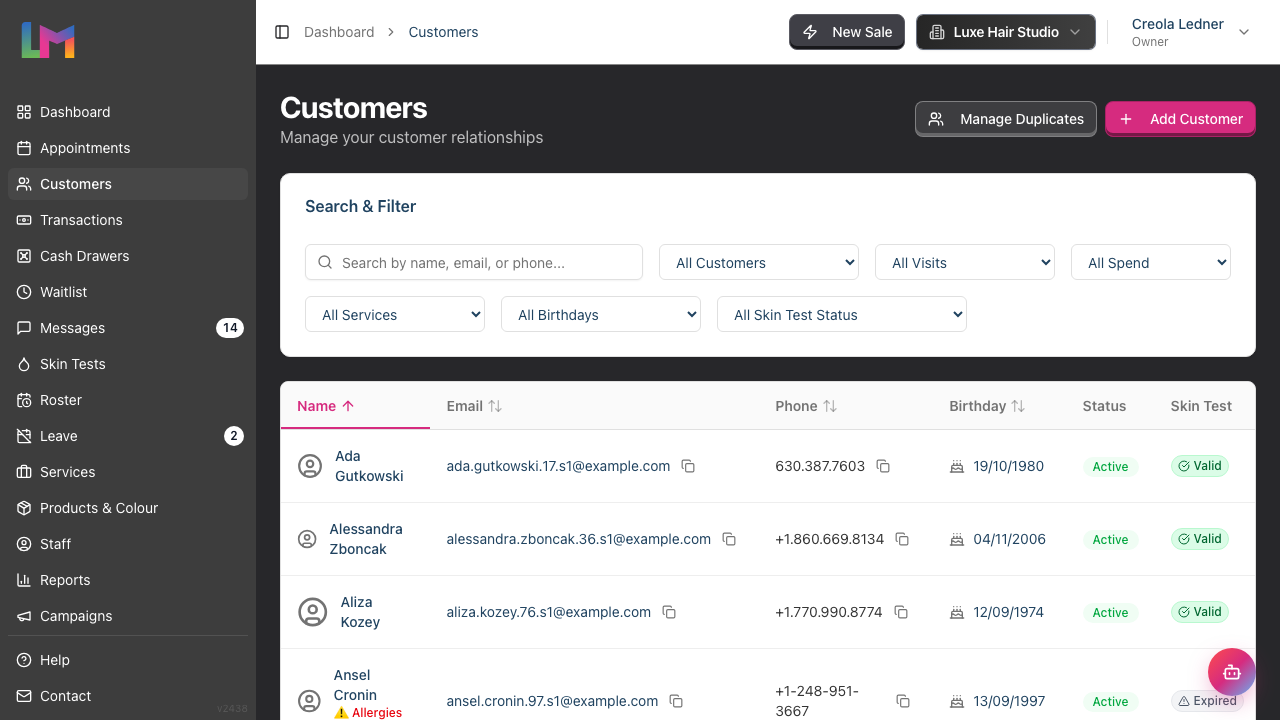
- The customer stays in the main customers list, and still matches a search. They carry an Inactive badge. Use the Active Only status filter to hide them
- The customer no longer appears in the customer picker for a new appointment, a new sale (Quick POS), or a new colour test
- Marketing campaigns skip the customer
- All appointment history is preserved
- All transaction history is preserved
- All skin tests are preserved
- The customer profile remains fully accessible
To list the deactivated customers on their own:
- Go to Customers
- Use the status filter dropdown next to the search box. It offers Active Only, All Customers, and Inactive Only - select "Inactive Only" to see only deactivated customers. The list defaults to "All Customers", so deactivated customers are already there
Reactivating a Customer
- Navigate to the deactivated customer's profile
- Click the Details tab
- Toggle the Active switch to on
- The customer appears in the customer pickers again
Anonymising a Customer (Permanent)
Warning: This action cannot be undone. Proceed only when certain.
- Click Customers in the sidebar
- Search for and click on the customer's name
- Click the Details tab
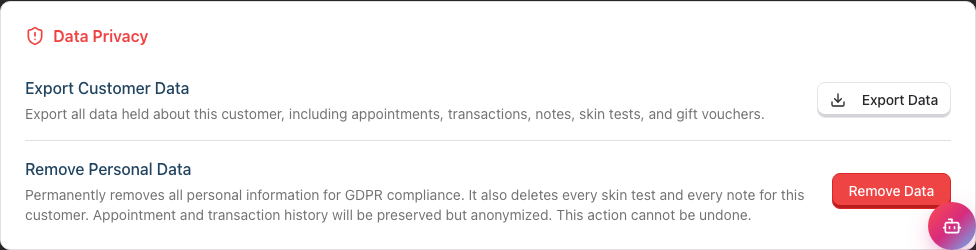
- Scroll to the Data Privacy card at the bottom of the tab
- Under Remove Personal Data, review the warning text:
"Contact details, notes, colour tests and message content are removed. De-identified financial and appointment history stays, so your reports and totals are unaffected. A gift voucher bought for someone else keeps that recipient's details while it can still be redeemed. This action cannot be undone."
- Click Remove Data
- In the confirmation dialog, review the lists of what will be removed and what will be preserved, then click Remove Personal Data to confirm
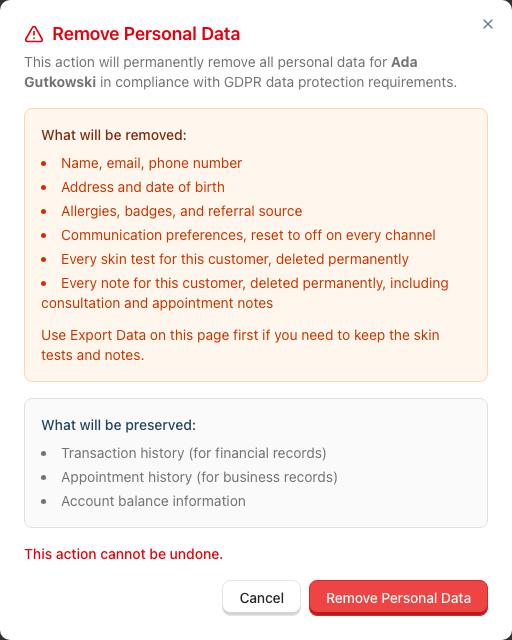
What happens:
| Data Field | Before | After |
|---|---|---|
| First Name | "Sarah" | "Deleted" |
| Last Name | "Johnson" | "Customer" |
| "sarah@email.com" | Removed | |
| Phone | "07700 123456" | Removed |
| Address | "123 High Street..." | Removed |
| Date of Birth | "15/03/1985" | Removed |
| Customer and consultation notes | "Regular client" | Deleted |
| Communication Consent | Various | All set to off |
| Appointments | 15 appointments, including cancellation and colour-test override text | 15 appointments linked to "Deleted Customer"; the personal free text is removed |
| Transactions | £2,450 total spend, with transaction notes | £2,450 total spend linked to "Deleted Customer"; financial fields stay and notes are removed |
| Account credit | Balance, ledger amounts and notes | Balance and ledger amounts stay so they reconcile; notes are removed |
| Colour formulas | Formula, names, bowl labels, notes and charge links | Formula and charge history stay; names, bowl labels and notes are removed |
| Messages | Conversation subjects, message bodies and metadata | Content is removed; the delivery and activity shell stays |
| Notification logs | Recipient, content, failure text, delivery state, cost and segments | Recipient and content are removed; delivery state, timestamps, cost and segments stay |
| Stored staff alerts | Booking, arrival, reply and repeating-appointment cancellation notices | Alerts linked to this customer are deleted |
| Campaign sends | Delivery result and provider failure text | Delivery result stays; provider failure text is removed |
| Customer time blocks | Times, title and notes | Times and roster history stay; title and notes are removed |
| Waitlist and temporary contact records | Waitlist entries, booking sessions, routing preferences and reply tokens | Deleted entirely |
| Remembered service prices | Personal price preferences | Deleted entirely |
| Colour Tests | 3 tests | Deleted entirely |
| Customer export stored by Luminate | Customer ZIP and export record | Deleted entirely after the database change succeeds |
| Gift voucher notes | Sale and void notes | Removed on every voucher bought by the customer |
| Gift voucher recipient | Customer, third party or no recipient | Removed if it matches the customer or the voucher is dead. A live voucher bought for someone else keeps that recipient's details and its transaction-line copy |
| Gift voucher value and code | Voucher code, balance and redemption history | Preserved so a bearer can redeem valid value and the salon can reconcile it |
| Full-salon export | A temporary whole-salon backup | Preserved until its normal expiry time |
| Anonymisation audit | Customer id, date, policy and treatment counts | Preserved without personal data as proof of what ran |
| Status | Active/Inactive | Anonymised |
Key points:
- Financial records remain for tax/accounting purposes
- Colour-test records are deleted because they contain medical data
- Contact details and personal content are removed from live customer-linked records
- A live third-party gift voucher recipient keeps their details while the voucher can be redeemed
- A full-salon export stays available until its normal expiry time
- The record shows as "Deleted Customer" in all historical data
- This cannot be reversed
Managing Staff Records
Deactivating a Staff Member
From the staff profile (recommended):
- Click Staff in the sidebar
- Click on the staff member's name to view their profile
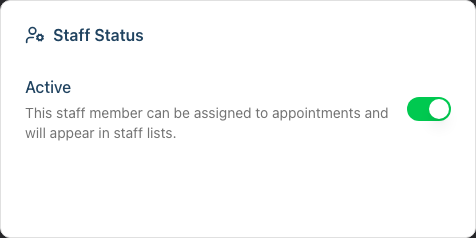
- Find the Staff Status card
- Toggle the Active switch to off
- The change saves automatically
From the staff edit form:
- Click Staff in the sidebar
- Click on the staff member's name
- Click Edit
- In the Status section, toggle the Active switch to off
- Click Update Staff Member
What happens:
- Staff member no longer appears in active staff lists or staff selectors
- Staff member cannot be assigned to new appointments
- If they had a login account, they're signed out of every device immediately and cannot sign back in until reactivated
- The login account itself is kept, not deleted - reactivating them restores access straight away
- All historical appointments still show their name
- All commission and payroll records are preserved
- All skin tests they administered are preserved
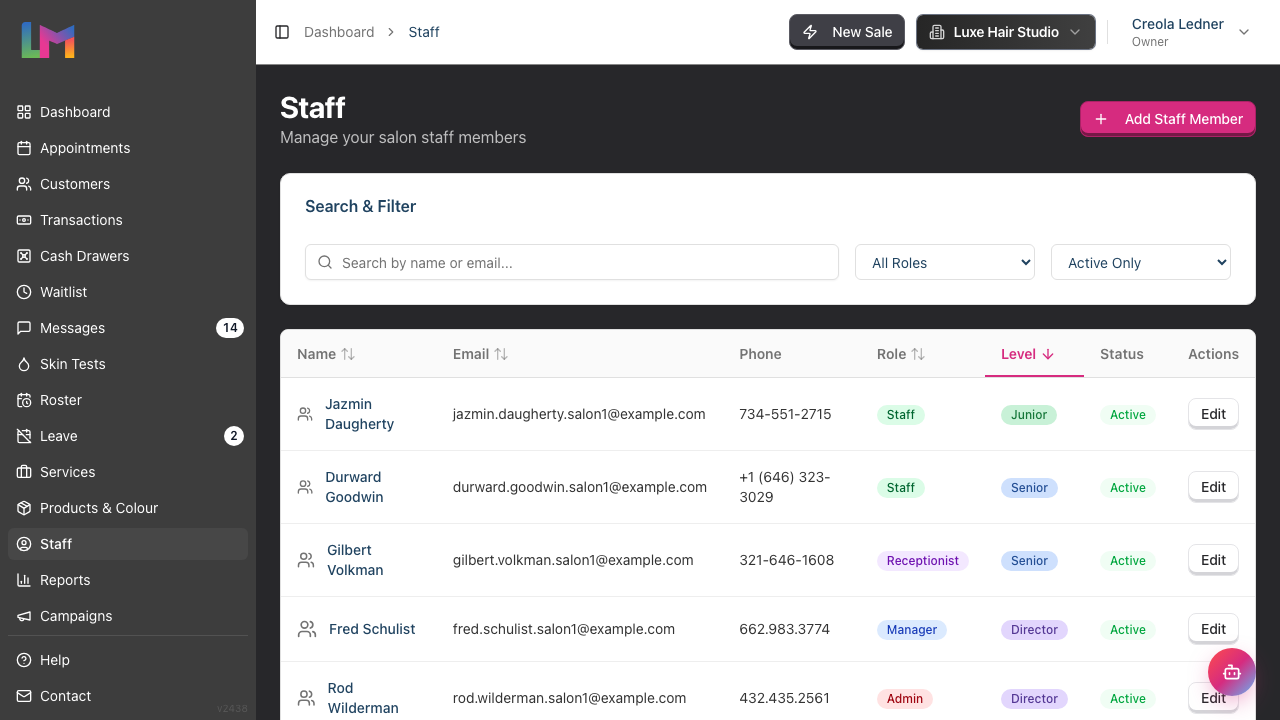
To view deactivated staff:
- Go to Staff
- Use the status filter dropdown next to the search box. It offers Active Only, All Staff, and Inactive Only - select "All Staff" to see everyone, or "Inactive Only" to see only deactivated staff members
Reactivating a Staff Member
From the staff profile (recommended):
- Navigate to the deactivated staff member's profile (via filter or direct link)
- Find the Staff Status card
- Toggle the Active switch to on
- The change saves automatically
From the staff edit form:
- Navigate to the deactivated staff member's profile
- Click Edit
- In the Status section, toggle the Active switch to on
- Click Update Staff Member
Reactivating restores the staff member to lists and lets them be assigned to appointments again. Their login account was never deleted - deactivation only suspended it - so reactivating restores their access immediately, with no need to send a fresh invitation. If you want to remove their login access entirely instead (for example, to reissue different credentials), use Remove Access on their profile's Login Account card (see Tutorial 4.2).
Anonymising a Staff Member (Permanent)
Warning: This action cannot be undone. Proceed only when certain.
- Click Staff in the sidebar
- Click on the staff member's name to view their profile
- Scroll to the bottom of the page to find the Danger Zone card
- Click Remove Data
- In the confirmation dialog, review the lists of what will be removed and what will be preserved
- Click Remove Personal Data to confirm

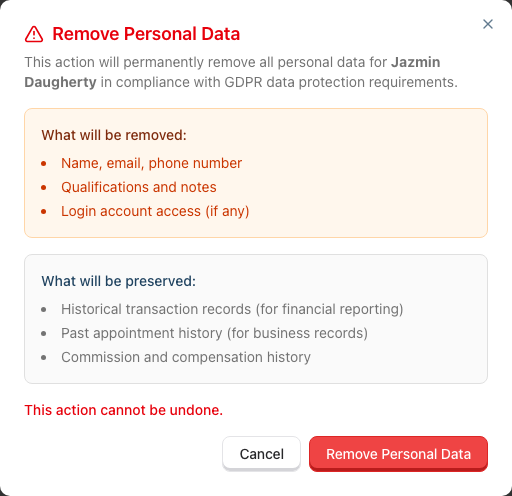
You do not need to deactivate a staff member before anonymising - the process deactivates them automatically as part of removing their data.
What happens:
| Data Field | Before | After |
|---|---|---|
| First Name | "Emma" | "Former" |
| Last Name | "Williams" | "Staff Member" |
| "emma@salon.com" | "anonymized.7@deleted.local" (the number is the internal record ID) | |
| Phone | "07700 987654" | Removed |
| Qualifications | "NVQ Level 3" | Removed |
| Notes | "Colour specialist" | Removed |
| Settings | Various | Removed |
| Login Account | Connected | Deleted (access permanently revoked) |
| Appointments | 523 completed | 523 completed (linked to "Former Staff Member") |
| Commission Records | £15,000 earned | £15,000 earned (linked to "Former Staff Member") |
| Skin Tests Administered | 45 tests | 45 tests (linked to "Former Staff Member") |
| Leave Records | 28 days taken | Preserved (linked to "Former Staff Member") |
| Status | Active/Inactive | Inactive (automatically deactivated) |
Key points:
- Employment and payroll records remain for legal/tax purposes
- The staff member cannot be identified from remaining records
- User account access is permanently revoked
- Their name appears as "Former Staff Member" in all historical data
- This cannot be reversed
Note: You cannot anonymise a staff record that represents the salon owner.
Deciding When to Act
Customer Retention Timeline
Consider this general approach (adjust based on your policies):
| Time Since Last Visit | Action |
|---|---|
| 0-12 months | Keep active |
| 12-24 months | Consider deactivating |
| 24-36 months | Deactivate if not done |
| 36+ months | Consider anonymising (if no legal holds) |
| Upon written request | Anonymise within one month (GDPR) |
Rather than review the 36+ month bucket by hand, you can automate it — see Automatic anonymisation below.
Staff Retention Timeline
| Situation | Action |
|---|---|
| On extended leave | Deactivate temporarily |
| Resigned/terminated | Deactivate immediately |
| 6 months after leaving | Keep deactivated (payroll records may be needed) |
| 2+ years after leaving | Consider anonymising (if no legal holds) |
| Upon written request | Anonymise within one month (GDPR) |
Important: Always consult with an accountant or legal advisor about your specific retention obligations before anonymising records.
Automatic anonymisation (data retention)
Reviewing old records by hand takes discipline. To meet GDPR's "storage limitation" principle without the manual effort, Luminate can anonymise inactive customers for you on a schedule. It is off by default — you choose whether to switch it on, and on what terms.
Who this is for: Owners and Admins. Settings are per salon, so each of your salons has its own retention policy.
How it decides who to anonymise
A customer is only eligible once they have had no activity at all for longer than your retention period. "Activity" means any of:
- an appointment (past or upcoming — a future booking always keeps them);
- a completed sale, a refund, or a payment they made on someone else's behalf;
- a reply from them (an inbound message);
- a skin/patch test;
- a place on a waitlist (an active entry always keeps them); or
- any movement on their account-credit balance.
Marketing messages you send out do not count as activity — otherwise a customer could never age out.
Certain customers are never anonymised automatically, however long they have been inactive:
- anyone with account credit on their balance;
- anyone with an unpaid or part-paid transaction;
- anyone who bought a gift voucher that is still active.
Deactivated customers are eligible — they are usually exactly who this is meant for.
Turning it on
- Go to Settings (edit your salon) → Data tab → Data Retention sub-tab.
- Read the amber note showing how many customers currently match your settings — this is how many would be anonymised.
- Switch Enable automatic anonymisation on. If customers already match, you'll be asked to confirm.
- Set your Retention period (months) — minimum 12. Customers inactive for longer than this are anonymised.
- Choose whether to email yourself a warning first (recommended, on by default) and set the warning lead time (days).
- Click Update Salon to save.
The advance-warning safety net
With warnings on, no one is anonymised out of the blue:
- Each night, Luminate emails you (the owner) a warning digest listing customers due to be anonymised soon, with their last activity date and due date. This is your chance to keep anyone who should stay — record some activity for them, or change your settings.
- A customer is never anonymised until the warning lead time has passed since they were first warned. So when you first switch the feature on, an existing backlog of old customers is warned first and only anonymised later — never scrubbed the same night.
- If a warned customer becomes active again, their warning is cleared automatically and the clock resets.
After a run that anonymises anyone, you also get a short completion email with a count only. It contains no customer names because the live records are now de-identified.
What gets removed
Automatic anonymisation uses the same cascade as the manual Remove Data action. It replaces the customer's name, removes contact details, address, date of birth, allergies, preferences and consent, and deletes colour tests and notes. It also removes personal content from appointments, colour formulas, conversations, messages, notifications, campaign sends, transactions, account-credit movements and time blocks.
Waitlist entries, remembered service prices, abandoned booking sessions, phone-routing preferences and email-reply tokens are deleted. Customer-specific export rows and ZIP files are deleted too. De-identified appointment, transaction, account-credit, stock-cost, delivery and roster history stays, so reports, totals and financial records still reconcile.
A live gift voucher bought for someone else keeps that recipient's details while it can still be redeemed. The manual action can encounter this exception. The automatic sweep does not anonymise a customer who holds an active purchased voucher. A full-salon export also stays until its normal expiry time because it is a temporary backup the owner created for the whole business. As with manual anonymisation, the action cannot be undone.
Every automatic anonymisation is recorded in an internal audit log (date, retention policy applied — never personal data), so you can demonstrate what was removed and when.
Common Pitfalls
"I deactivated a customer but they're still in the list and in reports"
This is expected. Deactivation stops new work for that customer - it does not hide the record. The customer stays in the customer list with an Inactive badge, and their historical data remains in all reports. Use the Active Only status filter to hide them from the list. To remove them from reports entirely, anonymise them instead (which removes personal data but keeps the transaction as "Deleted Customer").
"I can't find the Remove Data option for a staff member"
Scroll to the bottom of the staff profile page and look for the Danger Zone section. The "Remove Data" button is located there. Note that you cannot anonymise staff records linked to the salon owner.
"A former staff member wants their data deleted but I need payroll records"
Anonymisation preserves financial records while removing personal identifiers. The payroll records will show "Former Staff Member" instead of their name, which may be acceptable for your accounting needs. Consult with your accountant.
"I anonymised a customer but they came back"
Create a brand new customer profile. The previous history is gone (anonymised), so they start fresh. You cannot link new records to anonymised historical data.
Tips and Best Practices
Create a retention policy - Document how long you keep customer and staff data, and review it annually.
Review inactive records quarterly - Set a reminder to review deactivated customers and staff to determine if they should be anonymised.
Get requests in writing - When someone requests data deletion, ask for it in writing (email is fine) for your records.
Don't rush anonymisation - Once done, it cannot be undone. Make sure you no longer need the data.
Check for outstanding balances - Never anonymise a customer with unpaid invoices until resolved.
Consider legal holds - If there's any ongoing dispute or legal matter, do not anonymise records that might be needed as evidence.
Train your team - Ensure staff understand they cannot discuss or share data about deactivated or former customers/colleagues.
Related Tutorials
- Tutorial 11.2: GDPR Compliance - Data Protection and Privacy
- Tutorial 3.1: Adding and Managing Customer Profiles - Customer status options
- Tutorial 4.1: Adding New Staff Members - Complete Onboarding Guide
- Tutorial 4.2: Managing Staff Login Accounts and Invitations - Revoking access
Frequently Asked Questions
Can I export data before anonymising?
For customers, yes - click Export Data next to Remove Data on the same Data Privacy card to download a ZIP of everything held about them (see Tutorial 11.2 for details). For staff, there's no automated export - view their profile before anonymising and note down anything you need to retain externally.
What if I need to un-anonymise a record?
This is not possible. Anonymisation permanently removes contact details and personal content from live records, and deletes the temporary records listed above. If you think you might need that data, use deactivation instead.
Do deactivated customers/staff still count toward my subscription limits?
Typically, only active records count toward usage limits. Check your subscription terms or contact Luminate support.
How do I know if a record has been anonymised?
Anonymised records show "Deleted Customer" or "Former Staff Member" as the name, and the profile displays a banner explaining that the personal data has been removed for GDPR compliance while historical transaction and appointment data has been preserved.
Will anonymised records affect my reports?
The data remains in reports (for accurate financial records) but shows as "Deleted Customer" or "Former Staff Member" instead of the actual name. Revenue figures remain accurate.
Can I bulk-anonymise old records?
Manual anonymisation is done one record at a time, to prevent accidental mass deletion. If you want old, inactive customers cleared automatically, turn on automatic anonymisation under Settings → Data → Data Retention (see "Automatic anonymisation" above). It only ever removes customers who have been inactive beyond the retention period you set, and never touches anyone with account credit, an active voucher, an unpaid balance, or a future appointment.
Who can perform anonymisation?
Only Owners and Admins should perform anonymisation, for both customers and staff. Deactivation is different: for customers (but not staff) it's available more widely, to anyone who can manage customers.
What about backup data - is that anonymised too?
Luminate manages system backups. When you anonymise a record, future backups will reflect the anonymised state. Very old backups may still contain the original data temporarily, but these are cycled out over time.
Last Updated: August 2026