
Leave Settings - Allowances and Carryover Policies
Introduction
Managing staff leave is an important part of running a salon. Luminate's leave settings let you define how much annual leave your staff receive, when the leave year starts, and what happens to unused leave at the end of the year. These salon-wide defaults apply to all staff members, though individual staff can have custom allowances if needed.
This tutorial covers configuring your default leave allowance, setting up your leave year, and choosing the right carryover policy for your business. Getting these settings right ensures fair and consistent leave management across your team.
Who this is for: Salon owners and administrators managing staff leave policies.
What you'll learn:
- Setting the default annual leave allowance
- Configuring when your leave year starts
- Understanding carryover policies (none, full, or capped)
- How these settings affect staff leave calculations
Time to complete: 5-10 minutes
Prerequisites
Before you begin, make sure you have:
- Owner or Admin role in Luminate
- Understanding of your business's leave policy
- Knowledge of when your leave year typically runs (e.g., calendar year, tax year)
Step-by-Step Instructions
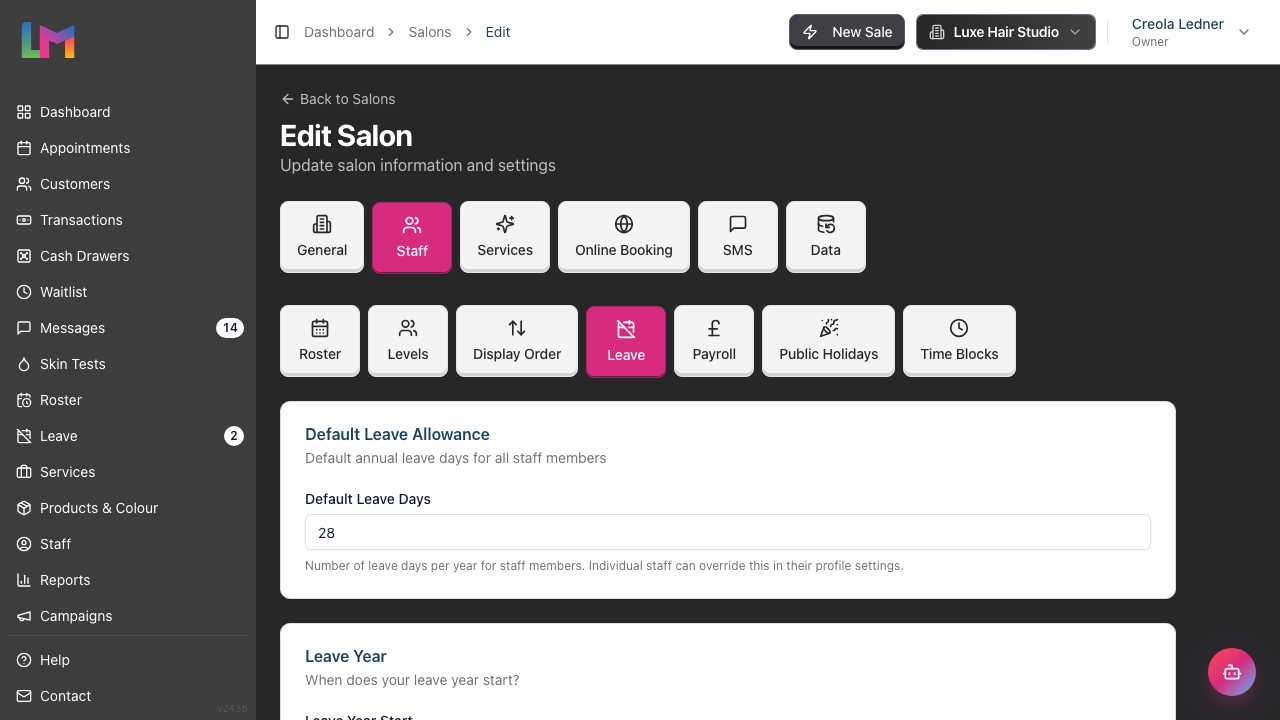
Step 1: Access Leave Settings
- Click your salon name in the header bar
- Select Salon Settings from the dropdown
- Click the Staff tab
- Click the Leave sub-tab
You'll see three configuration sections:
- Default Leave Allowance
- Leave Year
- Carryover Policy
Step 2: Set the Default Leave Allowance
The default leave allowance determines how many days of annual leave each staff member receives by default.
To configure:
- Find the Default Leave Allowance card
- Enter the number of days in the Default Leave Days field
- This number applies to every staff member who has no override of their own
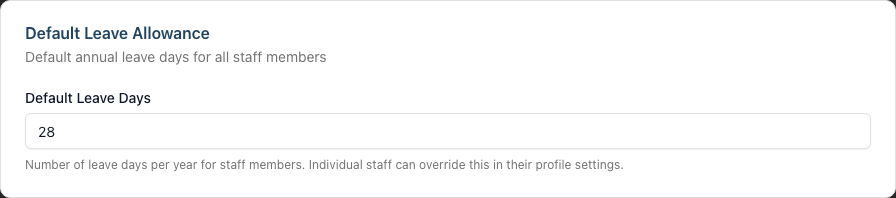
Default value: 28 days (standard UK statutory minimum for full-time employees)
Maximum: 255 days. A larger figure is refused with a message on the field.
How it works:
- This is the allowance for every staff member who has no custom setting
- Individual staff can override it with Leave Allowance Override in the Leave card on their staff profile. See Tutorial 6.1
- The figure is read when a staff member's allowance record for a leave year is first created. A leave year already under way keeps the figure it started with, so plan changes to land before a new leave year begins (see Step 5)
Bank holidays and non-working days: days you list in the Public Holidays sub-tab never come out of a staff member's allowance, and neither do the days they do not work. Set the allowance to exclude the public holidays you have configured, or you give that time twice. See Tutorial 5.2.
Example settings:
| Business Type | Typical Allowance |
|---|---|
| UK statutory minimum, public holidays configured in Luminate | 20 days plus the public holidays |
| UK statutory minimum, no public holidays configured | 28 days |
| Part-time | Pro-rata on hours worked, set as an override per person |
| US typical | 15-20 days |
| Australian standard | 20 days |
Step 3: Configure Your Leave Year Start
The leave year determines when leave allowances reset. All staff in your salon share the same leave year.
To configure:
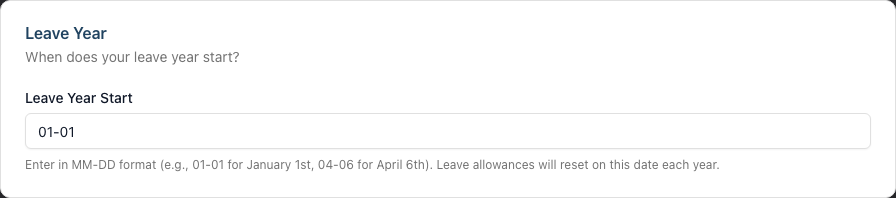
- Find the Leave Year card
- Enter the start date in MM-DD format (month-day)
- Use two digits for each part. Type 06-01, not 6-1
- Common examples:
- 01-01 for calendar year (January 1st)
- 04-06 for UK tax year (April 6th)
- 07-01 for financial year (July 1st)
How it works:
- On this date each year, leave allowances reset
- New allowances are calculated based on the default (or individual custom settings)
- Any carryover from the previous year is applied according to your carryover policy
Choosing a start date:
- Calendar year (01-01): Simple to understand, aligns with January-December
- Tax year (04-06 for UK): Aligns with payroll and tax calculations
- Anniversary-based: Some businesses use each employee's start date (not currently supported as a salon-wide setting)
Step 4: Choose Your Carryover Policy
The carryover policy determines what happens to unused leave at the end of the leave year.
To configure:
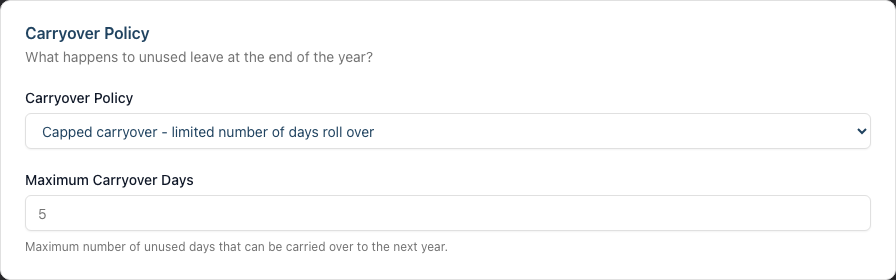
- Find the Carryover Policy card
- Select one of three options from the dropdown:

Option 1: No carryover - unused days are lost
- Any unused leave at year end is forfeited
- Staff must use all allowance within the leave year
- Encourages staff to take regular breaks
- Simpler to administer
Option 2: Full carryover - all unused days roll over
- All unused leave carries forward to the next year
- No limit on accumulated leave
- Good for flexible working arrangements
- May result in staff accumulating large balances
Option 3: Capped carryover - limited number of days roll over
- Unused leave carries forward up to a maximum
- Balance between flexibility and accumulation limits
- Most common policy for UK businesses
If you select capped carryover:
- An additional field appears: Maximum Carryover Days
- Enter the maximum number of days that can carry over
- Example: If set to 5, and a staff member has 8 unused days, only 5 carry forward
A capped policy needs a maximum of at least 1 day. If you leave the field empty, or set it to 0, the form shows an error and does not save. To stop carryover altogether, choose No carryover instead.
Example scenarios:
| Policy | Unused Days | Carried Over | Lost |
|---|---|---|---|
| No carryover | 5 | 0 | 5 |
| Full carryover | 5 | 5 | 0 |
| Capped (max 3) | 5 | 3 | 2 |
| Capped (max 3) | 2 | 2 | 0 |
Step 5: Save Your Changes
- Review all three settings
- Click Update Salon at the bottom of the page
- A success message confirms your changes
When changes take effect:
- The new figures are read the next time an allowance record is created: for a new staff member, or when a new leave year starts
- A leave year already under way keeps the base allowance it started with. A change to the default, or to a staff member's override, does not rewrite it
- Existing booked leave is not affected
- Carryover is worked out when the next leave year's record is created, using the policy set at that moment
Common Pitfalls
"Staff member has different allowance than expected"
Check Leave Allowance Override on the staff member's profile first, as it beats the salon default. If the override is empty and the figure still differs, the allowance record for that leave year was created before you changed the default. The record keeps the figure it started with.
"The leave year start date was rejected"
Both parts need two digits. Type 06-01, not 6-1. Luminate shows "The leave year start field format is invalid." under the field and saves nothing.
"Leave year reset didn't apply carryover correctly"
The policy is read when the new leave year's allowance record is created. If you changed the policy after that record existed, the carryover already worked out does not change.
"Part-time staff have the same allowance as full-time"
The default allowance doesn't automatically pro-rate for part-time staff. Set custom allowances in individual staff profiles for part-time workers.
"I need different leave years for different staff"
Currently, the leave year is salon-wide. All staff share the same reset date. For businesses requiring individual anniversary dates, track this separately or use custom allowances.
Tips and Best Practices
Set policy before staff start booking leave - Configure leave settings when setting up your salon, before staff begin requesting time off.
Communicate carryover policy clearly - Ensure staff understand what happens to unused leave, especially if using "no carryover" policy.
Consider legal requirements - In the UK, workers must be allowed to carry over statutory leave if they couldn't take it due to illness or maternity leave. Factor this into your policy.
Use capped carryover for balance - A cap (e.g., 5 days) encourages regular leave-taking while allowing some flexibility.
Review annually - Check if your leave policy still meets business needs and complies with any regulatory changes.
Document exceptions - If staff have special arrangements, record them in the notes on their profile and set their Leave Allowance Override accordingly.
Plan for year-end - Remind staff of their remaining balance before year-end, especially with "no carryover" or capped policies.
Related Tutorials
- Tutorial 4.1: Adding New Staff Members - Setting up new staff profiles
- Tutorial 5.1: Setting Up Your Weekly Roster - Planning around staff availability
- Tutorial 5.2: Managing Public Holidays and Bank Holidays - Days that never come out of the allowance
- Tutorial 6.1: Understanding Staff Leave Allowances - How leave allowances work
- Tutorial 6.2: Requesting and Managing Leave - Processing leave requests
- Tutorial 6.3: Approving and Rejecting Leave Requests - Manager approval workflows
- Tutorial 6.4: Leave Reports and Year-End Management - Viewing leave reports and carryover
Frequently Asked Questions
Can I have different allowances for different roles?
The salon-wide setting is a default. Individual staff members can have custom allowances set in their profile, allowing you to give managers more leave than junior staff, for example.
What happens if I change the allowance mid-year?
Nothing changes for the leave year already under way. Each staff member's allowance record keeps the base allowance it was created with, so the new figure is used for new staff members and for the next leave year. Make the change before a new leave year starts for it to apply cleanly. See Tutorial 6.1.
Does Luminate track bank holidays separately?
Yes. Days you set up in the Public Holidays sub-tab are skipped when Luminate counts the days in a leave request, so they never come out of the allowance. A staff member's non-working days are skipped the same way. Set the allowance to exclude the public holidays you have configured. See Tutorial 5.2.
Can staff carry over more than the cap if they were sick?
Yes, and you don't have to work around the cap to do it. Luminate applies the configured policy automatically when the new leave year's record is created. UK workers must be allowed to carry over statutory leave they could not take through illness or maternity, so where that applies, open the staff member's profile, find the Leave card and click Adjust. Add the days to the year in progress and give the reason. The reason is kept with your name and the date, which is the record of what you agreed. See Tutorial 6.1.
What's the difference between accrued leave and annual allowance?
The annual allowance is the total days available for the year. Accrued leave would be leave earned over time (e.g., monthly). Luminate currently uses a simple annual allowance model.
How do I handle part-time staff leave?
Calculate their pro-rata allowance based on working hours (e.g., 3 days/week = 60% of full-time allowance) and set this as their custom allowance in their staff profile.
Can I see how much carryover each staff member received?
Yes. Open the staff member's profile and look at the Leave card. The top row shows the state of the year - Total, Used, Pending and Remaining. Below it, Made up of shows what the total is built from: Base, Carried and Adjustments. Carried is the days that rolled over. Adjustments is any days added or removed by hand.
What if I have salons in different countries with different policies?
Each salon has independent leave settings. Configure each location according to local requirements and practices.
When does the leave year actually reset?
A nightly task runs shortly after midnight and picks up every salon whose local date matches its Leave Year Start. It creates the new leave year's allowance record for each active staff member and applies any carryover. Balances for the new year are available from that point.
Can I run a report on leave usage?
Yes. Staff leave reports are available in the Reports section. See Tutorial 6.4 for leave reports and year-end management, or Tutorial 9.3 for staff performance reports.
Last Updated: August 2026